
Black Lion Revolution Setup Guide
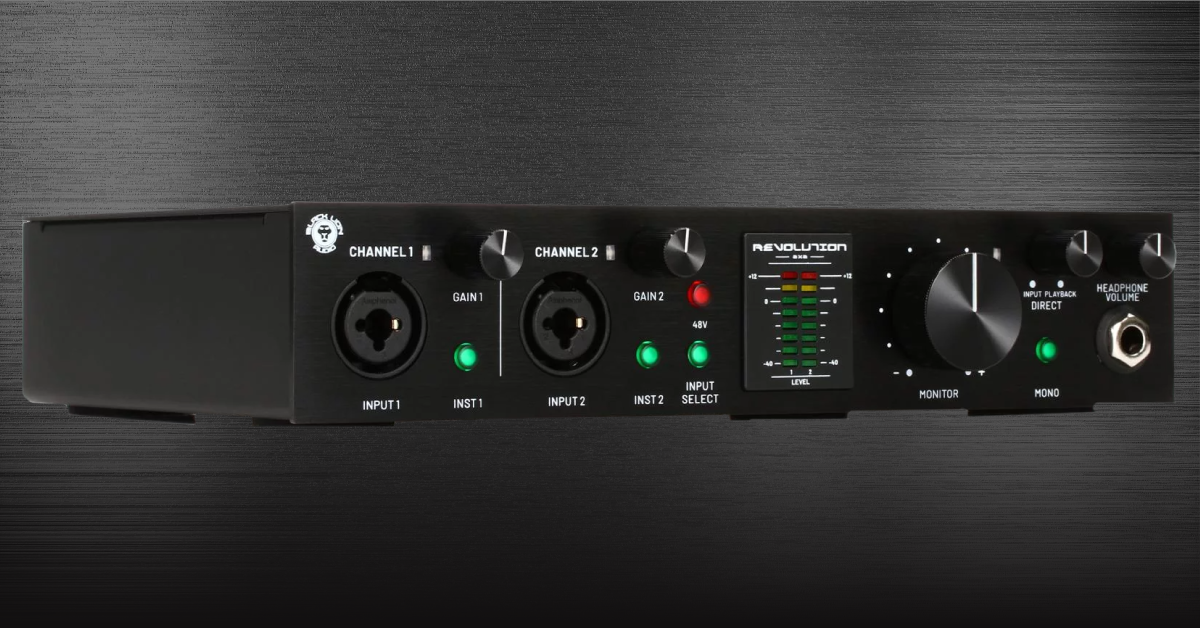
Getting started with the Black Lion Revolution
In this guide, we’ll show you how to register, set up, and connect the Black Lion Revolution interface for the first time. Follow the instructions below to get started.
- Register the Black Lion Revolution
- Download and install the drivers (Windows users only)
- Set up and connect your gear
Register the Black Lion Revolution
When you open the box, the first thing you’ll need to do is register the device with Black Lion. Once you register the interface, you’ll get exclusive content and product support from Black Lion Audio. Keep your Sweetwater invoice handy, as you’ll need that during the process.
- Go to the Black Lion Audio website, then click Register Product.
- Log into your Black Lion Audio account. If you don’t have an account yet, you can create one here.
- On your account home screen, then click Register a Product.
- Use the dropdown box to select the Revolution, enter both the Serial Number and the Software Number, then click Verify.
- After the interface and software have been registered to your account, Black Lion Audio will send you an email with serial numbers for your free software bundle.

Click the image to register your Black Lion Revolution
Register Studio One Artist and iZotope bundle
All Black Lion Revolution interfaces come with a free copy of Studio One Artist and a bundle of iZotope plugins to get you creating music in no time. You’ll need to create accounts with PreSonus and iZotope to gain access to the software downloads. Check out our activation instructions to learn more about registering, downloading, and installing Studio One Artist and iZotope for the first time.
Download and install the drivers (Windows users only)
IMPORTANT: Download and install the driver BEFORE plugging in your Black Lion Revolution.
The Revolution interface is class-compliant on Mac computers, which means no additional driver software is necessary. However, if you’re using a Windows PC, you’ll need to download its driver from the Black Lion website beforehand. Follow the instructions below to download the driver. If you’re a Mac user, skip this section and continue to Set up and connect your gear.
- Go to the Revolution product page on Black Lion’s website.
- Scroll down and click to expand Windows Drivers & Control Software.
- After the download is complete, navigate to your Downloads folder, launch the installer .exe file, and follow the on-screen instructions.
Set up and connect your gear
TIP: We highly recommend connecting your interface directly to your computer, preferably a USB 2.0 port. USB hubs may not provide enough power to your interface, resulting in connectivity issues, and connecting to a USB 3.0 port may result in connectivity issues.
The Black Lion Revolution is a powerful tool in the studio. The hardware setup is simple, which means you’ll be making music in no time!
- Turn the Volume knob all the way down, then connect your speakers.
- If you have headphones connected, turn its volume knob all the way down, as well.
- Connect the USB cable from the interface to your computer, then power it on. The USB LED on the interface will light up.
- Navigate to your OS sound settings and set it as the default input and output device.
- PC: Right-click the Speaker icon on the Windows taskbar, select Sounds, then click the Playback tab. Locate and select the interface, click Set Default, then click OK to close the menu. Do the same in the Recording tab.
- Mac: Click the Apple icon from the Menu Bar and select System Preferences. Click Sound, then select the Revolution under the Input and Output tabs.
- If applicable, connect your headphones to the jack on the front.
- Play some music or a video, and slowly turn the main Volume (and headphone) knob up until it’s at your desired listening level.
- Launch your DAW, select your Black Lion interface as the primary playback and recording device.
S/PDIF connections
One unique feature of the Black Lion Revolution is that it has S/PDIF connections, which isn’t seen on many two-channel interfaces. These S/PDIF connections allow you to increase your channel count by connecting the Revolution to another digital device via S/PDIF cables.
Connecting another device to your Revolution via S/PDIF is just a matter of connecting the cables, syncing both devices, and then setting up the routing within your DAW. As intimidating as it might sound, it’s a straightforward process.
S/PDIF In
- Using a S/PDIF cable, connect an external device’s S/PDIF output to your Revolution’s S/PDIF IN socket.
- Set all devices in your system to the same sample rate (44.1 kHz, 48 kHz, etc.).
- Set your clock settings so that all devices are receiving a clock signal from the Revolution.
- Route the signal in your DAW and assign your track’s input to S/PDIF.
S/PDIF Out
- Using a S/PDIF cable, connect your Revolution’s S/PDIF OUT socket to a device’s S/PDIF input.
- Set all devices in your system to the same sample rate (44.1 kHz, 48 kHz, etc.).
- Set your devices’ clock settings so that all devices are receiving clock signal from a single master device.
- Route the signal in your DAW and assign your track’s input to S/PDIF.
Is the Revolution not showing up?
If the Revolution isn’t showing up when connecting it to your computer, reconnect the interface by unplugging and plugging it back in. If you have not done so yet, try reconfiguring the USB connections so that the Black Lion interface is connected directly to your computer. If the problem persists, try a different USB port or cable. Visit our Windows and Mac guides for more tips on resolving audio device connectivity.
Related Articles
When you need help, Sweetwater has the answers!
Our knowledge base contains over 28,000 expertly written tech articles that will give you answers and help you get the most out of your gear. Our pro musicians and gear experts update content daily to keep you informed and on your way. Best of all, it’s totally FREE, and it’s just another reason that you get more at Sweetwater.com.

