
Behringer FLOW 8: Setup and Configuration
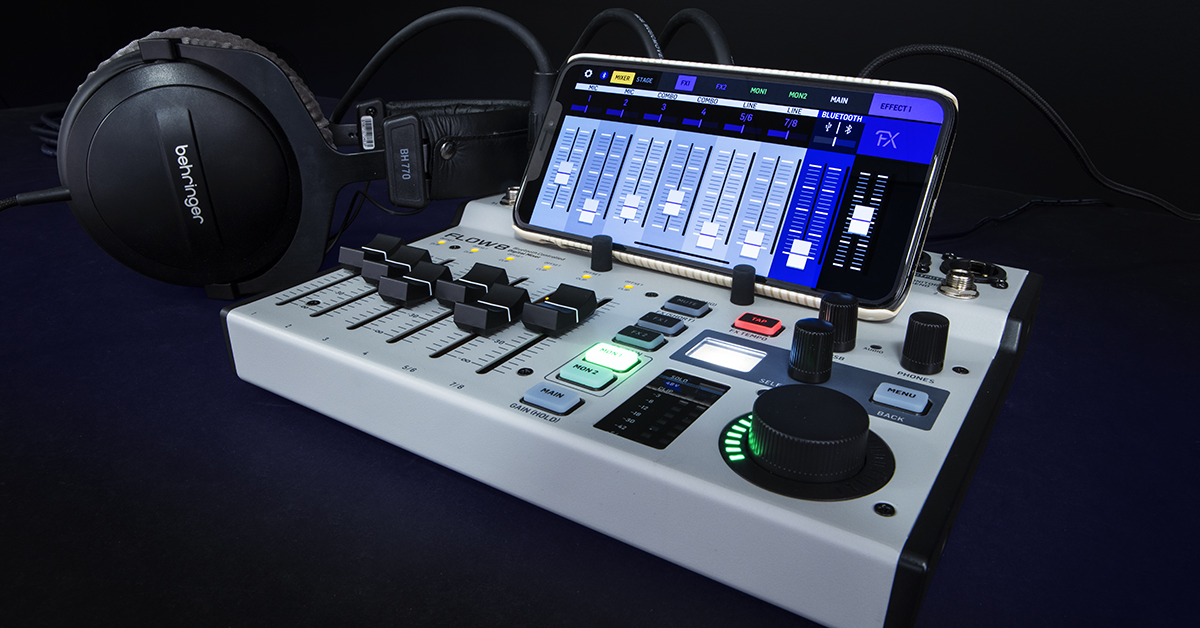
In this guide, we will show you how to get started with the Behringer FLOW 8 mixer. You’ll learn how to set it up, connect via Bluetooth, and record or stream over USB. Follow each of the sections below to get started.
Warranty Registration
By default, Behringer gives you a 1-year warranty. However, if you register your item on the website within 90 days of purchase, Behringer gives you an additional two years on your warranty. It’s free.
TIP: Everything you purchase from Sweetwater comes with our 2-year Total Confidence Coverage (TCC) warranty. However, three years is even better than two, so please register with Behringer today.
FLOW 8 USB driver for Windows
Computers can connect with FLOW 8 via a USB-A to USB-B cable. Windows computers require FLOW 8’s additional driver software to connect, while Mac users can plug in without additional software.
- On your computer, go to the Behringer FLOW 8 product page.
- Click Downloads.
- Under “Drivers, USB, Audio,” locate the newest version of the driver.
- Following the prompts, download and install the driver.
FLOW 8 firmware update
Behringer releases updates to the FLOW 8 mixer via the SimplyPUT app.
- On your computer, go to the Behringer FLOW 8 product page.
- Click Downloads.
- Under “Windows,” “Mac,” or “Firmware,” locate the newest version of SimplyPUT for your system.
- Following the prompts, download and install the app.
Connect FLOW 8 to your computer with a USB-A to USB-B cable.
Launch the SimplyPUT app.
Wait for SimplyPUT to connect to FLOW 8 and to display the latest available firmware software.
Select the most recent version and click UPDATE. SimplyPUT will update FLOW 8. The mixer will restart once the update is complete.
Behringer FLOW 8 Major Firmware Update (Version 11739): New Features
Inputs, outputs, and effects
FLOW 8 has all the features you expect from a typical analog mixing board and more. Follow the steps below to set up an input (such as Mic 1) and send signal to an output (MAIN L/R, MON 1/2, or USB 1/2). Then you can record each channel individually with Recording mode or record the stereo mix with Streaming mode.
IMPORTANT!
Many of FLOW 8’s levels are digitally controlled. That means each fader will control different MAIN, MON, and FX settings, depending on what’s currently selected. Keep that in mind when changing between mix settings.
Preamp gain and channel levels
- Press and hold the MAIN button (keep holding).
- The screen will change colors, and you can move each fader to adjust the channel’s GAIN level.
- Press the SELECT/ADJUST encoder to toggle 48V phantom power for MIC 1 and/or MIC 2.
- Release the MAIN button, and the fader will control the CHANNEL level.
Auto-calibrate with EZ Gain
- Press and hold both the MON 1 and the MON buttons at the same time.
- Using the SELECT/ADJUST encoder, either select one input or ALL for all inputs.
- Press the SELECT/ADJUST encoder to start the calibration.
- Sing/speak/play through the channel(s), and the mixer will auto-calibrate the gain and channel level. It will even switch on +48V (phantom power) when necessary.
Main and monitor levels
- Press the MAIN button, and the faders will control the MAIN mix.
- Press the MON 1 button, and the faders will control the MONITOR SEND 1 mix.
- The MAIN fader will now control the MON 1 level.
- Press the MON 2 button, and the faders will control the MONITOR SEND 2 mix.
- The MAIN fader will now control the MON 2 level.
Effects (FX) levels
- Press the FX 1 button, and the faders will control the FX 1 mix.
- The MAIN fader will now control the FX 1 level.
- Rotate and press the SELECT/ADJUST encoder to select a Reverb, Flanger, or Chorus.
- Press the FX 2 button, and the faders will control the FX 2 mix.
- The MAIN fader will now control the FX 2 level.
- Rotate and press the SELECT/ADJUST encoder to select a Delay/Echo, Flanger, or Chorus.
USB connectivity
- Mac/macOS: Connect FLOW 8 to a Mac, and it will automatically connect as an audio interface.
- PC/Windows: First download and install the FLOW 8 USB driver software. Then connect FLOW 8 to your PC.
Recording mode
- USB Inputs
- Mic 1
- Mic 2
- Mic/Line 3
- Mic/Line 4
- Line 5
- Line 6 (hi-Z)
- Line 7
- Line 8 (hi-Z)
- USB Outputs
- USB (BT/USB)
- USB 1/2 (5/6)
- USB 3/4 (7/8)
- USB (BT/USB)
Record each input channel to your computer
- Press the MENU button.
- Rotate and press the SELECT/ADJUST encoder to select USB-MODE.
- Rotate and press the SELECT/ADJUST encoder to select the RECORDING mode.
Streaming mode
- USB Inputs
- FLOW 8’s Stereo Mix
- USB Outputs
- USB (BT/USB)
- USB 1/2 (5/6)
- USB 3/4 (7/8)
- USB (BT/USB)
Record the main mix to your computer
FLOW 8’s Streaming mode is optimized for sending the mixer’s MAIN stereo mix to your viewers. That means you’ll select FLOW 8’s MAIN mix for the streaming software’s input.
- Press the MENU button.
- Rotate and press the SELECT/ADJUST encoder to select USB-MODE.
- Rotate and press the SELECT/ADJUST encoder to select the STREAMING mode.
Monitor USB playback
The BT/USB knob is the default control for both USB and Bluetooth playback levels, regardless of Recording or Streaming modes. You can also control the computer’s two stereo audio streams to FLOW 8’s channels 5/6 and 7/8. That’s useful if you want to control the Bluetooth audio with the BT/USB encoder and the computer audio with faders 5/6 or 7/8.
- Press the MENU button.
- Rotate and press the SELECT/ADJUST encoder to select INPUT.
- Rotate and press the SELECT/ADJUST encoder to select either channels 5/6 or 7/8.
- For 5/6, select either LINE IN or USB 1/2.
- For 7/8, select either LINE IN or USB 3/4.
Bluetooth setup
If you have not yet done so, make sure to update FLOW 8’s firmware before connecting with Bluetooth. Once done, you can connect to FLOW 8 to stream audio or even remote control the mixer’s settings. Use the MENU button and SELECT/ADJUST encoder to select the Bluetooth connections.
IMPORTANT!
The FLOW 8 app is loaded with features and remote-control capabilities for your FLOW 8 mixer. Download it for your Android or iOS device to access the useful features and advanced settings.
FLOW 8 remote control app
- Enable Bluetooth on your audio streaming device.
- Press the MENU button.
- Rotate and press the SELECT/ADJUST encoder to select PAIRING.
- For the FLOW app, select PAIR APP.
Bluetooth audio streaming
- Enable Bluetooth on your audio streaming device.
- Press the MENU button.
- Rotate and press the SELECT/ADJUST encoder to select PAIRING.
- For the FLOW app, select PAIR AUDIO.
When you need help, Sweetwater has the answers!
Our knowledge base contains over 28,000 expertly written tech articles that will give you answers and help you get the most out of your gear. Our pro musicians and gear experts update content daily to keep you informed and on your way. Best of all, it’s totally FREE, and it’s just another reason that you get more at Sweetwater.com.

