
Arturia MiniFuse Setup Guide
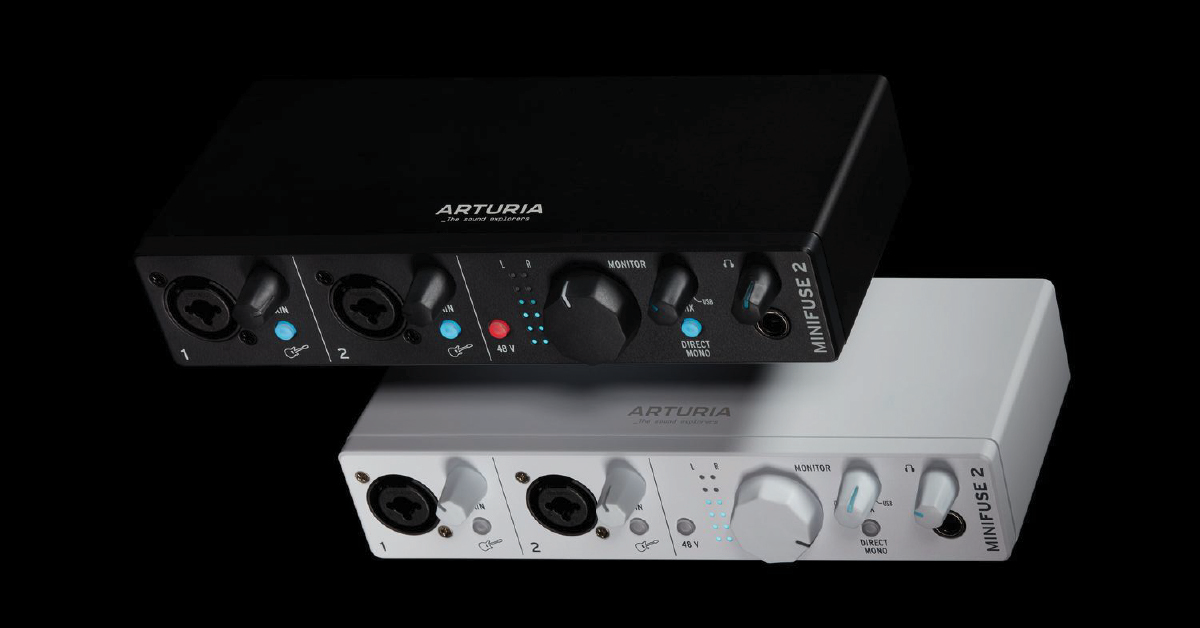
The Arturia MiniFuse interface is a great addition to your studio, so in this guide, we will show you how to register, set up, and connect the interface for the first time. Follow the sections below to get started.
- Register the interface with Arturia
- Download and install ASC and MiniFuse Control
- Update the firmware
- Setup and connections
Register the interface with Arturia
While it’s always exciting to open the box and start using it right away, you’ll first need to register your MiniFus with Arturia. By registering the interface, you’ll get access to Arturia Software Center, MiniFuse Control Center, and a plethora of free virtual instruments, effects plug-ins, and a free copy of the Ableton Live Lite DAW.
- Log in to your Arturia account. If you don’t have an account yet, you can create one here.
- On your account homepage, click Register New Product, enter the MiniFuse’s serial number and unlock code, and then click Register.
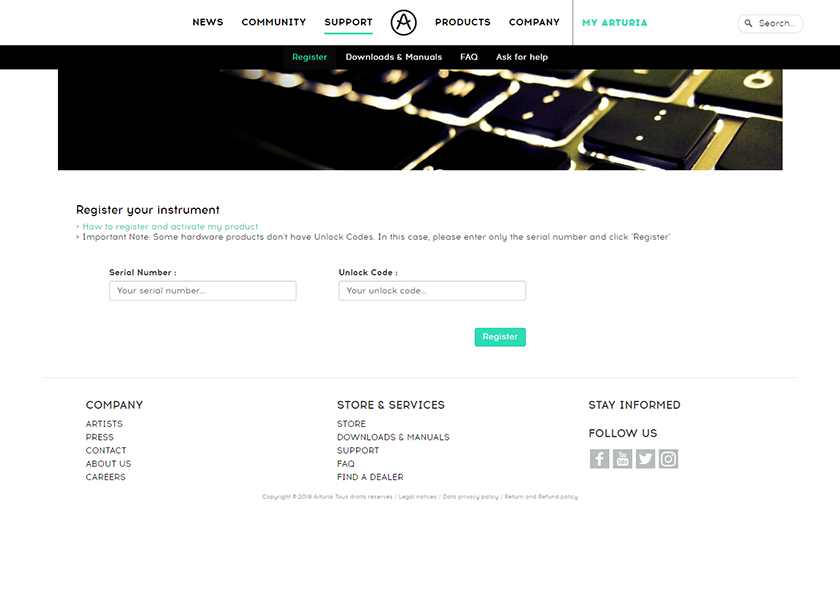
Click the image to register your MiniFuse
Download and install ASC and MiniFuse Control
After the interface has been registered, you’ll need to download and install Arturia Software Center (ASC) and MiniFuse Control. ASC is the application you’ll need to install your free software, and MiniFuse Control is the interface’s standalone software, which is where you’ll change the sample rate, update the firmware, and if you’re a Windows PC user, change the ASIO preferences.
- On your account page, click My Products, locate your MiniFuse, click More Info, then click Access Resources. Alternatively, you can go to Arturia’s Download & Manuals page.
- Once you’ve downloaded the apps, open your Downloads folder, double-click the .exe file (PC) or .pkg file (Mac) installer file, and follow the on-screen instructions.
- Launch ASC, enter your login credentials, then click Install next to the virtual instruments and effects plug-ins you want to install.
- Click your name at the top of ASC, select Preferences, then choose Folders to select the location you want your virtual instruments and plug-ins to be installed to.
Installing Ableton Live Lite
After registering your device, Arturia will deposit a license for Ableton Live Lite into your account. To learn how to download, activate, and install it, check out our Live Lite activation instructions for more information.
Update the firmware
Arturia will release firmware updates from time to time which typically adds new features and optimizes the MiniFuse’s internal software. Firmware updates are performed through MiniFuse Control.
- Connect the interface to your computer and open MiniFuse Control.
- If your computer is connected to the internet, MFC will automatically check for firmware updates every time you launch the application.
- You can manually check for the update by clicking the gear icon on the upper right of the MFC window.
- If it is connected to the internet and there is an update available, click Upgrade To Latest.
Updating the firmware offline
- If you don’t have an internet connection, you’ll need to go to a computer that does, download the latest firmware file,
- Transfer it to your computer, launch MFC, then click the gear icon.
- Click Upgrade from File, navigate to the directory where you transferred the firmware file, then upload it to complete the update.
Setup and connections
After everything is taken care of, it’s time to get recording! Connecting your gear to the MiniFuse is straightforward, so follow these steps to get started.
- Turn the volume knob all the way down, then connect your speakers.
- If you have headphones connected, turn its volume knob all the way down, as well.
- Connect the USB cable from the interface to your computer, then power it on.
- Navigate to your OS sound settings and set it as the default input and output device.
- PC: Right-click the Speaker icon on the Windows taskbar, select Sounds, then click the Playback tab. Locate and select the interface, click Set Default, then click OK to close the menu. Do the same in the Recording tab.
- Mac: Click the Apple icon from the Menu Bar and select System Preferences. Click Sound, then select the MiniFuse under the Input and Output tabs.
- If applicable, connect your headphones to the jack on the front.
- Play some music or a video, and slowly turn the main Volume (and headphone) knob up until it’s at your desired listening level.
- Launch your DAW, and select your interface as the primary playback and recording device.
What’s the USB hub connection for?
One great thing about the Arturia MiniFuse is that it has a built-in USB hub located on the back of the unit. This is especially useful if you don’t have any available USB ports and need to connect a device such as an iLok, eLicenser, or in some cases, MIDI controllers. Please note that this hub can power devices that use up to 250 mA.
Related Articles
When you need help, Sweetwater has the answers!
Our knowledge base contains over 28,000 expertly written tech articles that will give you answers and help you get the most out of your gear. Our pro musicians and gear experts update content daily to keep you informed and on your way. Best of all, it’s totally FREE, and it’s just another reason that you get more at Sweetwater.com.

