
Zoom PodTrak P8 Quickstart Guide

Getting started with the PodTrak P8
In this guide, we will show you how to get up and running with the Zoom PodTrak P8. You’ll learn how to register the PodTrak P8, format the SD card, and how to record audio on the device. Follow the sections below to get started.
How to register the PodTrak P8
Before we begin, you first want to register the P4 with Zoom. To register the device with Zoom, you’ll need the serial number of the recorder, which is located on the back. Follow these steps to register the P4.
- Go to the Zoom product registration page.
- Fill out the required information, including the serial number, which is located on the back of your Zoom PodTrak P4, and then click Submit.
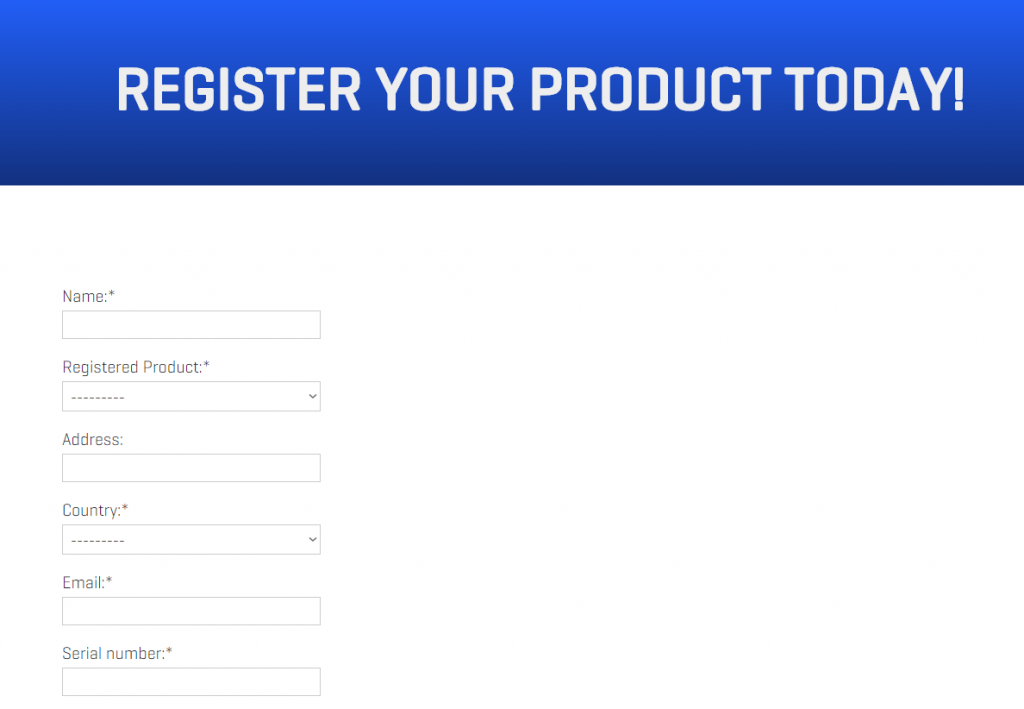
Click the image to register your Zoom PodTrak P8
Formatting SD cards on the PodTrak P8
IMPORTANT: Formatting an SD card will erase all of the data, so make sure to back up any important files beforehand.
Before you can begin recording with your Zoom PodTrak P8, you will need to format the SD card so it can be recognized and function properly. Follow these steps to format the Zoom PodTrak P8 SD card.
- Insert the SD card then power on your P8. Inserting and ejecting SD cards while the unit is turned on can result in data loss.
- Tap the SD Card icon on the top of the touchscreen display.
- Tap Format, then tap Format again when a message appears.
Test SD cards for compatibility
NOTE: Zoom recommends the following Class 10 SD cards for recording:
– 4 GB – 32 GB SDHC
– 64 GB – 512 GB SDXC
There’s no official SD card compatibility list for the P8, but you can perform a quick test to determine whether or not you’ll be able to use it or not. Performing a test is also a good troubleshooting step if you’re receiving errors or if your SD card is performing poorly.
- Tap the SD Card icon on the top of the touchscreen display.
- Tap Test, tap Quick Test, then select Execute.
- Once it’s completed, you should see OK displayed on the screen.
- The test should only last approximately 30-45 seconds.
Card protected error
If you insert the SD card into the Zoom PodTrak P8 and see a Card protected message on the display, take the card out of the P8 and check the security tab on the SD card. If the switch is set to protected mode, the SD card is “locked” so no data can be stored onto it.
PodTrak P8 setup and connections
Setting up the PodTrak P8 is very straightforward. All you need to do is connect your microphones and headphones, then start recording. You can also connect P8 to your computer via USB-C) and other mobile devices (via USB, TRRS, or Bluetooth). The PodTrak P8 does most of the work for you, so follow these steps to get connected.
Smartphone
- Connect your smartphone using a TRRS cable to the jack that has the smartphone icon.
- Adjust the level of the phone input so it won’t clip.
- Launch the software you’ll be using (i.e., Skype, Zoom) and press Record.
Connecting your smartphone via Bluetooth
You can pair your smartphone with the PodTrak P8 via Bluetooth using the Zoom BTA-2. If you do have one, connect it to the two TRRS ports, then press and hold the button on the side of the BTA-2 until it flashes white. Next, go to your smartphone’s Bluetooth settings, and connect to the BTA-2. After it has been paired successfully, follow the steps above to complete the connection process.
Computer, tablet, or smartphone via USB
The PodTrak P8 can be used as an audio interface, as well. When you connect your computer or mobile device to the P8, it will be recorded on Channel 6. The P8 can be bus-powered, so you can conserve your batteries, which can be useful for longer podcasts or meetings. Please note that if you’re in Tablet Mode, bus power will be disabled, and you’ll need to run on the AA batteries.
- Flip the switch on Channel 6 to the USB icon.
- You’ll need to use a Lightning to USB Camera Adapter when connecting to an iOS device.
- Use a USB-C cable to connect the PodTrak P8 to your device.
- Tap the USB icon on the touchscreen, then enable USB Mix Minus.
- If you’re connecting to a tablet or smartphone, Insert AA batteries or connect the power supply, tap the battery icon on the home screen, then tap Tablet Mode.
- Set the level of Channel 6, launch the software you’ll be using (i.e., Skype, Zoom), and press Record.
What is Mix Minus mode?
When Mix Minus mode is disabled, the caller will hear the entire mix, including themselves. That means they’ll hear an echo and will cause feedback. Enabling this will eliminate that echo and prevent feedback.
The Zoom PodTrak P8 : Remote Interviews
Additional resources
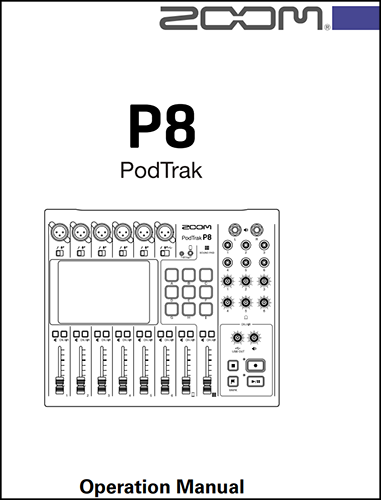
Zoom PodTrak P8 Operation Manual
The Zoom PodTrak P8 : Input Settings
The Zoom PodTrak P8 : Sound Pads
The Zoom PodTrak P8 : Editing Functions
When you need help, Sweetwater has the answers!
Our knowledge base contains over 28,000 expertly written tech articles that will give you answers and help you get the most out of your gear. Our pro musicians and gear experts update content daily to keep you informed and on your way. Best of all, it’s totally FREE, and it’s just another reason that you get more at Sweetwater.com.

