
Zoom M4 MicTrak Quickstart Guide
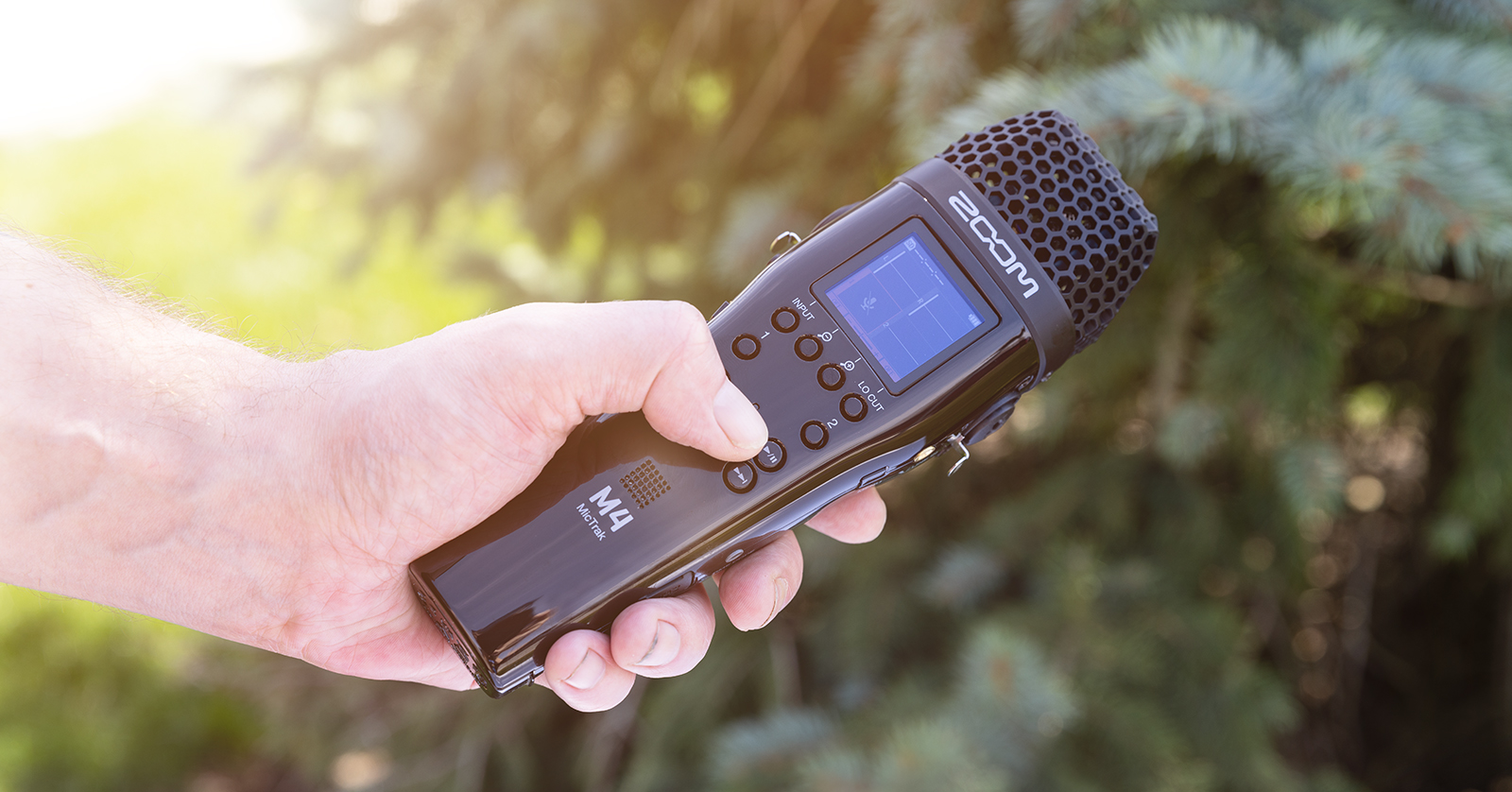
The Zoom M4 MicTrak is a perfect portable recorder for musicians and filmmakers alike, so in this guide, we will show you how to register, set up, and use your new Zoom M4 MicTrak for the first time. Follow the instructions below to get started!
Register the M4 MicTrak
When you first take your M4 MicTrak out of the box, you’ll want to register the device with Zoom. To register the M4 with Zoom, you’ll need the serial number of the recorder, which is located on the back of the unit.
- Go to the Zoom product registration page.
- Fill out the required information, including the serial number, which is located on the back of your M4 MicTrak, and then click Submit.
Format the SD Card
IMPORTANT: Formatting SD cards will erase stored data, so back up any important files before formatting them.
Before you start using your M4 MicTrak, you must format a compatible microSD card directly on the unit to store your recordings correctly. For a complete list of compatible microSD cards, please visit Zoom’s M4 MicTrak SD card compatibility chart and check out Musician’s Guide to SD Cards to learn more about the fundamentals of SD cards!
- Insert your microSD card, then turn on the device.
- Never remove the SD card while using the MicTrak! Doing so can result in data loss.
- Once powered on, press the MENU button. Use the UP and DOWN arrows to navigate to SD Card, then press ENTER.
- Highlight SD Format and press ENTER. On the next screen, highlight Execute, then press the LO-CUT button to format the SD card.
- You can also format the SD card by pressing the RECORD button while turning on the M4 MicTrak. This method will send you directly to the SD card menu.
Testing SD Card Performance
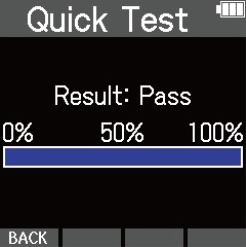
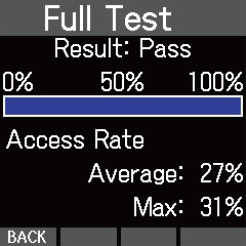
If you can’t record, are receiving SD card errors, or the performance is sluggish, you can perform tests to ensure your SD card is functioning properly. A quick test will scan the SD card for usability. Performing the full test will check the entire SD card.
- Press the MENU button, use the UP and DOWN arrows to navigate to SD Card, then press ENTER.
- Highlight the type of test you wish to perform and press ENTER.
- Wait for the test to complete to get your results.
- The SD card will fail if you perform a Full Test and the access rate MAX hits 100%.
Setup and Connections
You can use the built-in microphone, and the Zoom M4 MicTrak also has two XLR-1/4-inch jacks to connect any instrument or microphone. Simply connect them to the device, and you’re ready to go! What’s great is that the MicTrak has two separate A/D converters and will automatically switch depending on the incoming audio, meaning you don’t have to adjust input levels at all!
Update the Inputs
Before recording, you will want to update the inputs to capture high-quality audio.
- On the home screen, press 1 and 2 to switch between the built-in XY microphone and external inputs 1 and 2.
- If you use the built-in XY mic, press the INPUT button to switch between Off, Stereo, and Mono.
- If you use the external inputs, press the INPUT button to switch between Mic, Mic lightning bolt icon, Line, and Line lightning bolt icon.
- If the Line lightning bolt icon is selected, the input level will be reduced by 20dB.

Update Phantom Power Voltage
IMPORTANT: The selected phantom power voltage is sent to both inputs.
If you plan on using gear that requires phantom power, you may need to update the amount of phantom power voltage.
- Press the MENU button, navigate to and select System, then select Power.
- Select Phantom Volt., then select +24V or +48V.
- If you are experiencing poor battery performance when phantom power is set to +48V, navigate to the phantom voltage settings and switch it to +24V.
Changing the Battery Type
Except for rechargeable AAs, you can use any matched set of AA batteries. However, you must change the battery type settings beforehand to show the correct battery life.
- Verify the AA battery types match, then turn on the device.
- Press the MENU button, navigate to and select System, then select Power.
- Choose Battery Type, change it to the type of batteries inserted, then press the LO-CUT button.
Recording Audio with the Zoom M4 MicTrak
NOTE: The M4 will always record with a bit depth of 32-bit float.
The M4 MicTrak prides itself on using the 32-bit float format, and what’s great is you can utilize it both directly on the unit itself and while recording on a computer! Once you’ve updated your inputs, it’s time to start recording. Recording audio is as simple as pressing the RECORD button, so here are some tips when using the device.
- Press the MENU button and navigate to Rec Settings to access various recording settings.
- Select Sample Rate, choose the audio sample rate you wish to record, then press the Check Mark.
- Press the RECORD button while you’re recording audio to add a mark.
When you need help, Sweetwater has the answers!
Our knowledge base contains over 28,000 expertly written tech articles that will give you answers and help you get the most out of your gear. Our pro musicians and gear experts update content daily to keep you informed and on your way. Best of all, it’s totally FREE, and it’s just another reason that you get more at Sweetwater.com.

