
Universal Audio Apollo Console Routing Explained
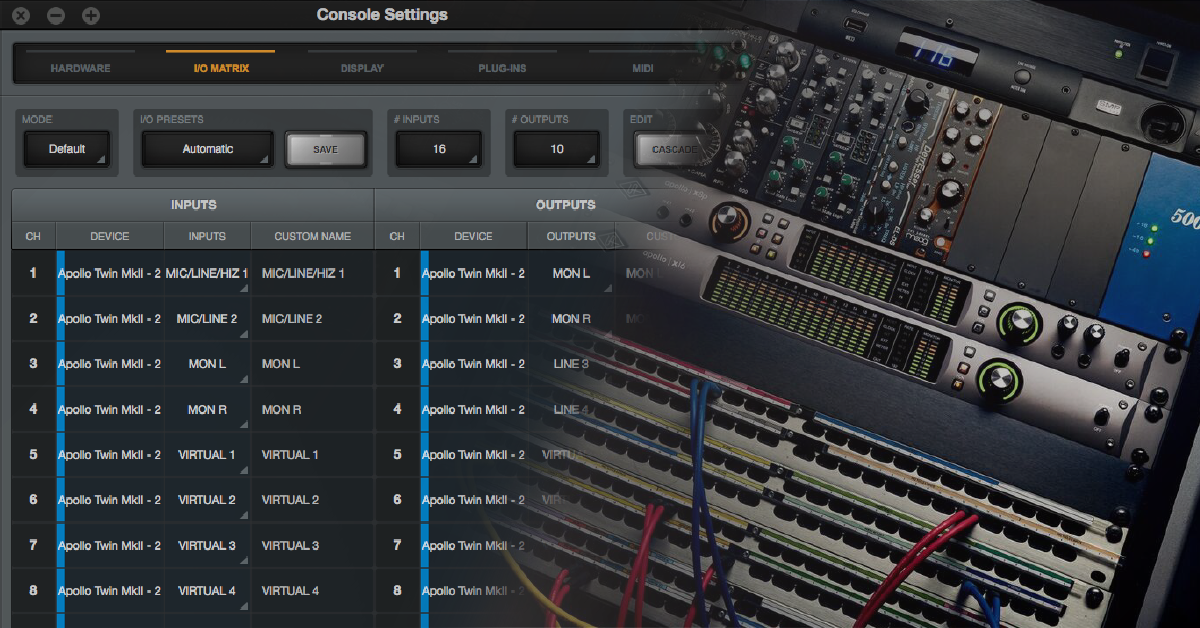
In this article, we’ll explore routing in Console’s I/O Matrix and how to best configure it for your studio. The I/O Matrix in Universal Audio’s Console software gives you a tremendous amount of power and flexibility. Before you can start customizing channel layouts, renaming inputs and outputs, or saving and loading routing settings, you first need to understand how Console and your DAW work together.
Apollo Console inputs
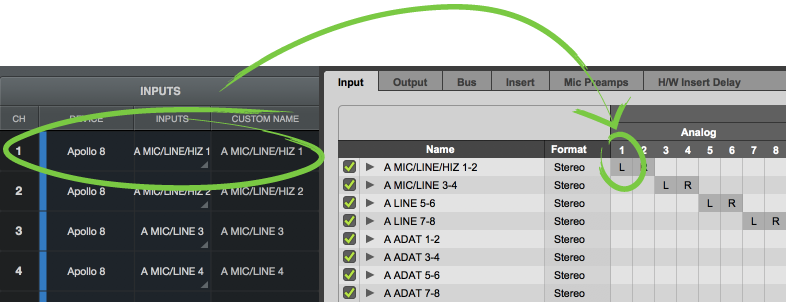
One of Console’s many jobs is to tell your DAW (digital audio workstation) how many channels you have and what their names are. Here’s how it works: When you open your DAW and select an Apollo as your Playback Engine, ASIO Driver, Audio Driver, etc., the DAW will ask the Apollo how many input and output channels are present and what their names are. Then, each of those channels and their names will appear in the I/O window of your DAW. The cool part is that the names and channel layout you use in Console’s I/O Matrix will also show up in your DAW. If you want your first 8 channels to be ADAT and named Drums 1-8, that how they’ll appear in the I/O window of Pro Tools and most other DAWs. Whatever shows up in Console’s I/O Matrix also shows up your DAW. Next, we’ll take a look at how to customize your I/O settings in Console.
Signal shows up in wrong DAW input
Console inputs are the first place to look if your input signal is showing up on the wrong channel of your DAW or not showing up at all.
Customize Console input channels
Customizing I/O settings in Console’s Matrix is great if you’re using more than one Apollo, need to connect an ADAT device, or even if you just want to rearrange the order of your channels. Console’s routing is so flexible that just about any Console channel can be fed by whatever hardware input you want. If you want your first 8 channels to be ADAT instead of Analog, you can easily do that by selecting them as the first 8 inputs in Console, and because Console tells your DAW the names and channel layout your using, those ADAT channels will also be the first 8 inputs in your DAW, too. Here’s how easy it is to change the input source of a Console channel:
- Choose an Input Channel to change.
- Choose an Apollo Device.
- Choose the Input Source.
Multiple Apollo devices
Increasing the number of inputs you can use in your DAW is as easy as plugging in another Apollo, but what if you want the analog inputs from both Apollos to show up next to each other in your list of inputs? By default, the digital channels from the first Apollo will show up in between the analog channels from your two Apollos. You can change that by switching the input source for each of your digital channels to the analog channels on the second Apollo.
If you want to group all of your channels by type, you’ll be changing most of the channels one at a time in Console. Console makes it pretty easy but it isn’t something you’ll want to do regularly, so make sure to save your settings.
Apollo with external preamps
Let’s say you’re running your drums through an 8 channel preamp like the Focusrite Scarlett OctoPre and it’s connected to your Apollo via ADAT. If you want the drums to be your first 8 channels in Pro Tools (or your DAW of choice), you just assign those ADAT channels as the first 8 inputs in Console’s I/O Matrix and then re-select your Apollo as the Pro Tools Playback Engine. Pro Tools will then rescan the new I/O settings. Occasionally, you’ll have to reset the Pro Tools I/O but selecting a new Playback Engine should force Pro Tools to re-scan.
Apollo Console outputs
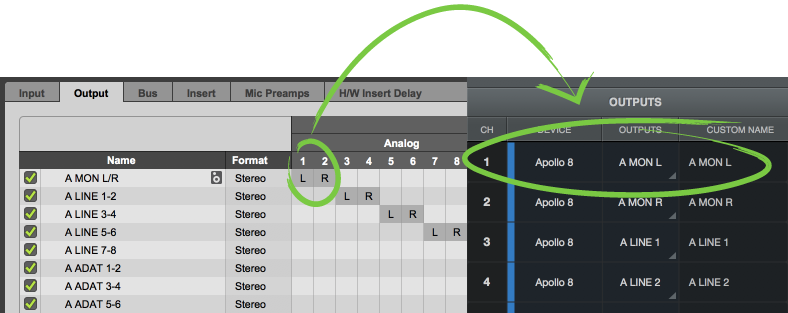
Routing and rearranging Console’s outputs is the same as what we just learned for inputs: Select the channel you want to change and then select what you want to change it to. Also similar to the inputs, whatever shows up in the Outputs section of Console’s I/O Matrix will be what appears in your DAW.
Update Console and DAW routing
After reassigning channels in Console, go back to your DAW and reselect the Apollo as your playback device. That will force your DAW to rescan the Apollo and recognize your changes.
Customize Console output channels
You could, technically, do all routing from the I/O setup window of your DAW, but why bother when it’s as easy as dragging 2 channels in the I/O Matrix? This flexibility also allows you to use the headphone jack on one Apollo while your monitors are connected to another. To route monitor and headphones, just drag MON L&R to wherever you want and then route your DAW to those channels.
By default, Console will route the first two outputs of your DAW to the Monitor outputs on your Apollo but those aren’t the only outputs you can use. Technically, you can send the main outs of your DAW to any two outputs on your Apollo by reassigning the Output Destination in Console.
- Choose an Output Channel.
- Choose the Apollo Device.
- Choose the desired Output Destination.
Save or load Console routing settings
Even though the I/O Matrix makes customizing your I/O settings fast and easy, we still recommend saving your settings whenever you make changes. For whatever reason, I/O settings are really easy to forget. Plus, why remember them when saving and loading is so convenient? If you would like to back up your already saved Console routing settings, locate the file within Documents > Universal Audio > IO Presets. Follow the instructions below to learn how to Save and Load your routing settings.
Save I/O preset
- Click Save.
- Name your preset.
- Click OK.
Load I/O preset
- Click IO Preset.
- Choose your preset.
- Click Load.
Related Content
- Universal Audio Apollo, UAD, and Arrow Setup
- Apollo Headphone and Cue Outputs Setup
- Universal Audio Apollo Thunderbolt Windows Setup
- Universal Audio UAD Plug-In DSP
- How to Reset Universal Audio Apollo Interfaces
When you need help, Sweetwater has the answers!
Our knowledge base contains over 28,000 expertly written tech articles that will give you answers and help you get the most out of your gear. Our pro musicians and gear experts update content daily to keep you informed and on your way. Best of all, it’s totally FREE, and it’s just another reason that you get more at Sweetwater.com.

