
How to Reset Universal Audio Apollo Interfaces
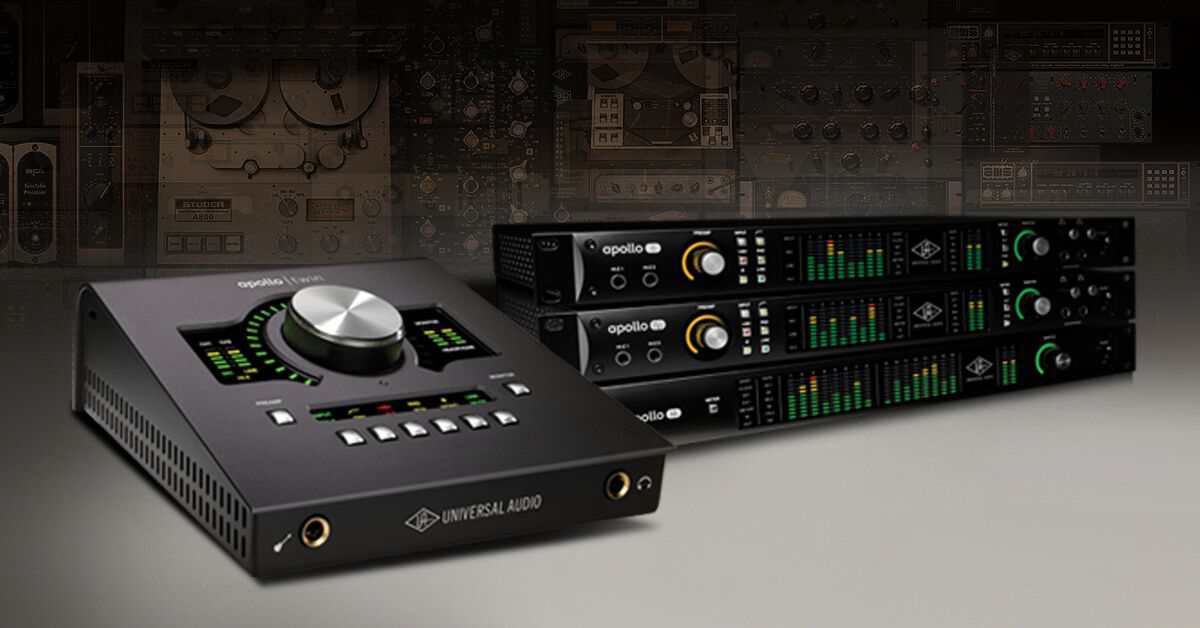
You may need to reset your Apollo interface to get it back to its default settings. If resetting Apollo does not resolve the issue, the problem is likely caused by something else and requires further troubleshooting. Find your Apollo below to reset it.
Back up Console routing settings
Resetting Apollo will erase all its current settings. If you haven’t done so yet, check that your Console settings are saved or backed up. Follow these steps then follow the Apollo reset procedure.
- Launch the Console app.
- Click Save.
- Name your Console preset and click OK.
Apollo reset procedure
Resetting Universal Audio Apollo (and Arrow) interfaces gets them back to their default settings. This is useful when setting up from scratch or troubleshooting an issue. The reset will clear any settings currently saved to Apollo, so make sure to back them up in the Console app before resetting. Once reset you can reload the Console configuration to Apollo.
- Power down your system and anything else connected to Apollo.
- Disconnect the Thunderbolt cable (or Firewire/USB)form Apollo and follow its reset directions below.
- Reconnect everything and power on your system starting with Apollo.
Apollo troubleshooting resources
- Apollo Basic Troubleshooting
- Troubleshooting “No Devices Found” & Other Connection Issues
- Universal Audio Support Resources
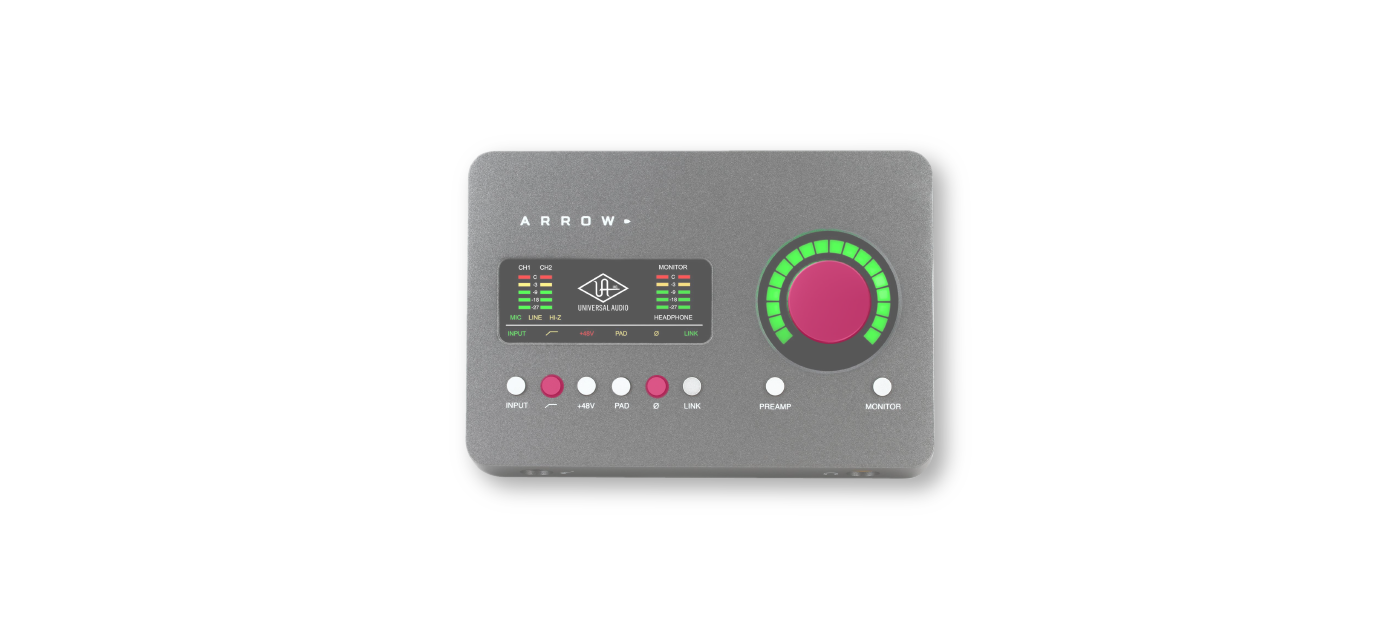
Arrow or Solo
- Power off your computer so that Arrow powers off.
- Hold the LEVEL, LOW CUT, and POLARITY buttons and power on the computer.
- After all front panel LEDs flash rapidly (after several seconds), release the controls allow Arrow to restart.
- Disconnect and then reconnect Arrow to complete the reset.
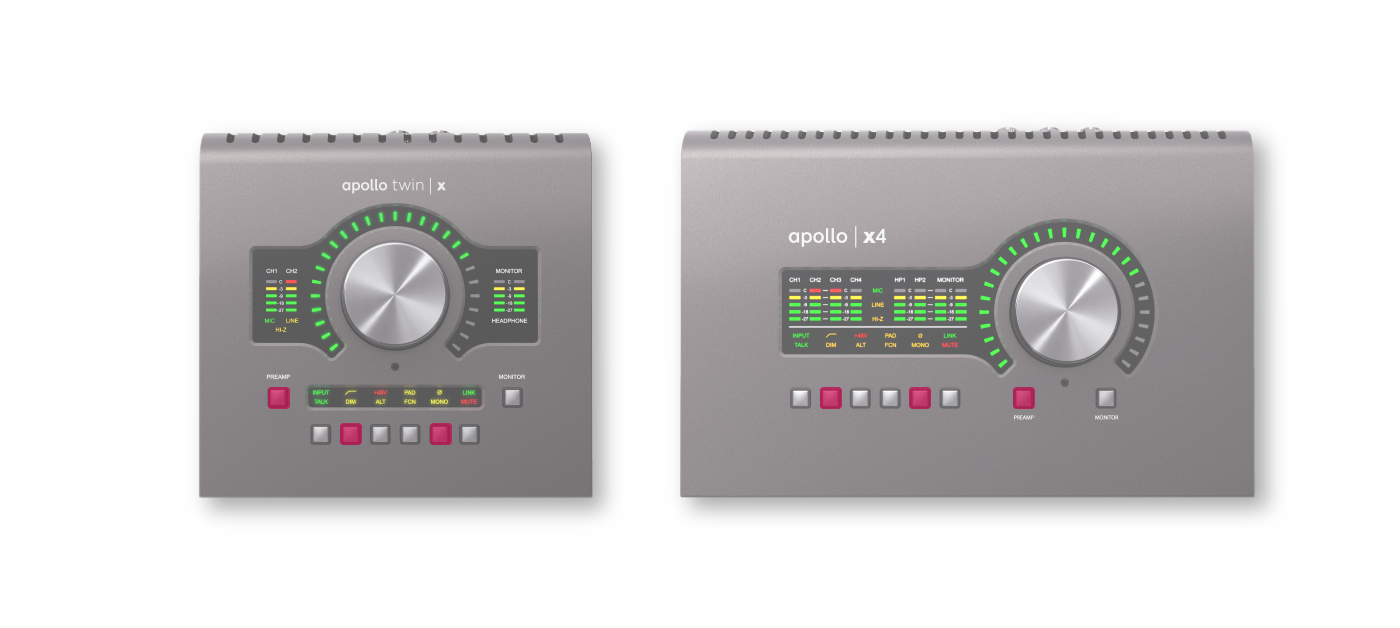
Apollo Twin MkII, Apollo Twin X, Apollo x4
- Power off your system and disconnect the Thunderbolt/USB cable from the computer.
- Hold the PREAMP, LOW CUT, and POLARITY buttons and power on Apollo Twin MkII.
- After all front panel LEDs flash rapidly (after several seconds), release the controls and power off Apollo Twin.
- Reconnect and power on your system starting with Apollo Twin.
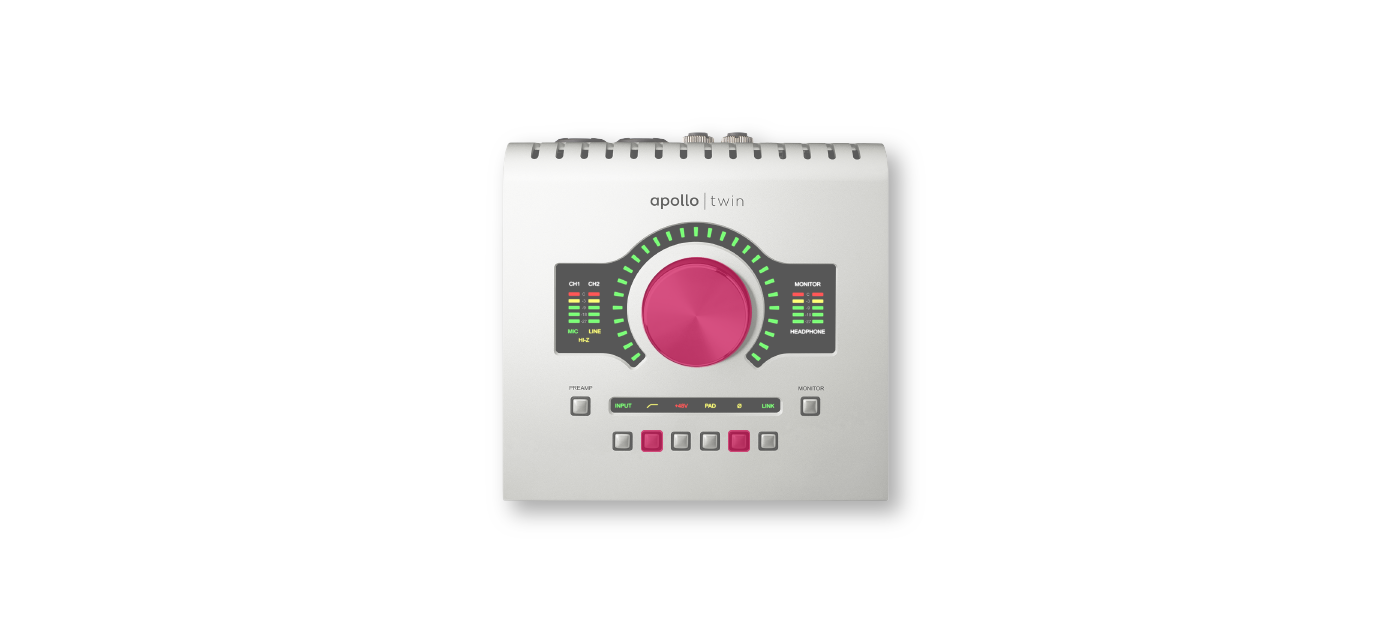
Apollo Twin & Apollo Twin USB
- Power off your system and disconnect the Thunderbolt/USB cable from the computer.
- Hold the LEVEL KNOB, LOW CUT, and POLARITY controls and power on Apollo Twin.
- After all front panel LEDs flash rapidly (after several seconds), release the controls and power off Apollo Twin.
- Reconnect and power on your system starting with Apollo Twin.
Apollo 8, Apollo 8p, Apollo x6, Apollo x8, & Apollo x8p
- Power off your Apollo, then press and hold the PREAMP, LOW CUT, and POLARITY controls.
- Power on your Apollo while holding all three buttons.
- Once all of the front panel LED’s flash, release the controls.

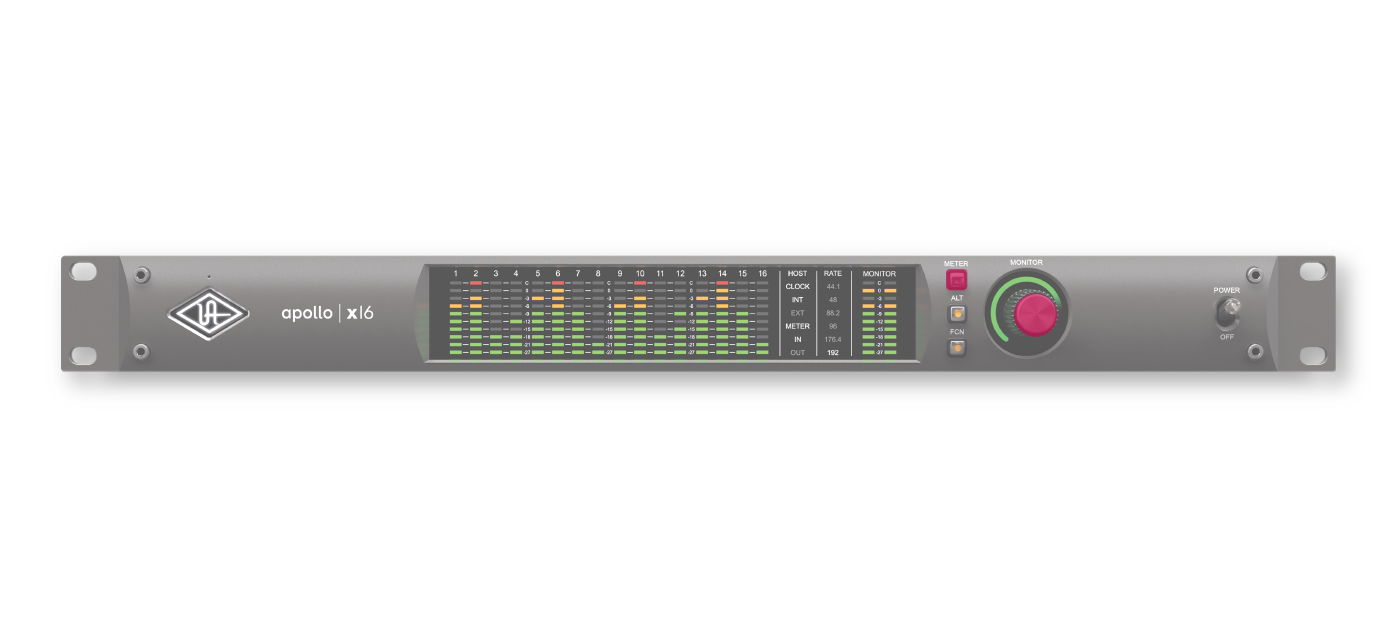
Apollo 16, Apollo 16 MkII, & Apollo x16
- Power off your system and disconnect the Firewire/Thunderbolt cable from the computer.
- Hold the METER and MONITOR controls and power on Apollo 16.
- After all front panel LEDs flash rapidly (after several seconds), release the controls and power off Apollo.
- Reconnect and power on your system starting with Apollo.
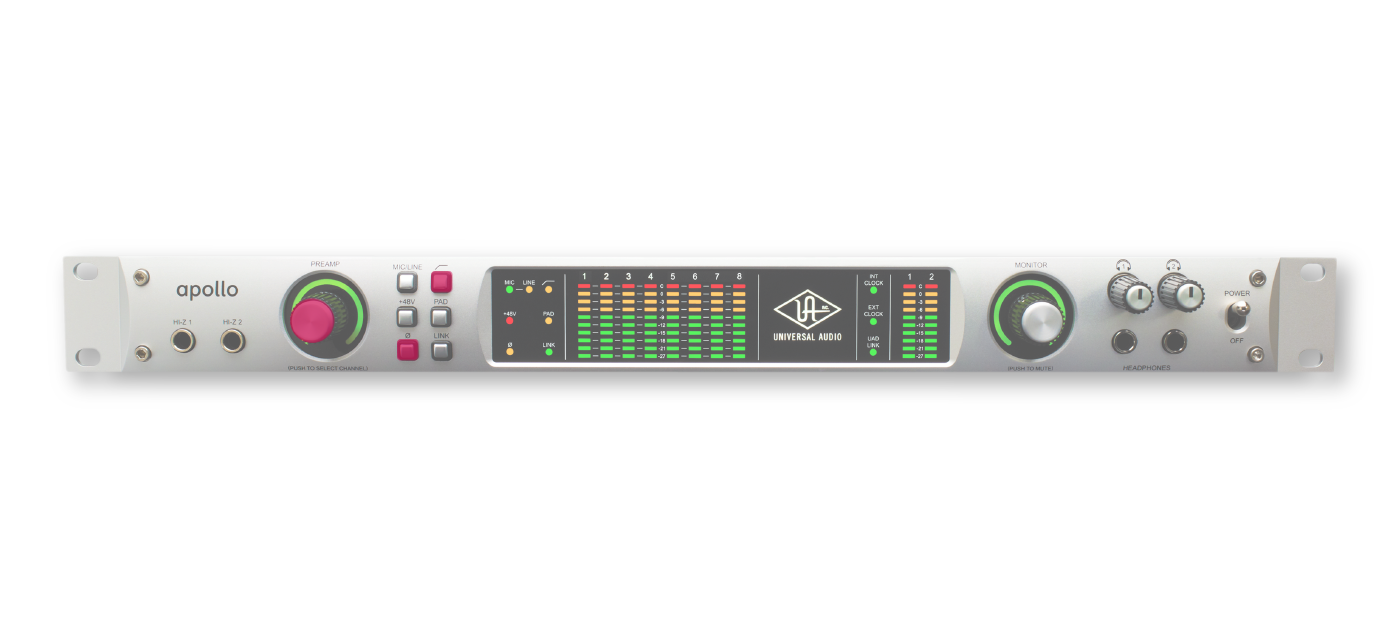
Apollo Firewire
- Power off your system and disconnect the Firewire cable from the computer.
- Hold the PREAMP, LOW CUT, and POLARITY controls and power on Apollo Firewire.
- After all front panel LEDs flash rapidly (after several seconds), release the controls and power off Apollo.
- Reconnect and power on your system starting with Apollo.
Related Content
- Universal Audio Apollo, UAD, and Arrow Setup
- Universal Audio Apollo Console Routing Explained
- Apollo Headphone and Cue Outputs Setup
- Universal Audio Apollo Thunderbolt Windows Setup
- Universal Audio UAD Plug-In DSP
When you need help, Sweetwater has the answers!
Our knowledge base contains over 28,000 expertly written tech articles that will give you answers and help you get the most out of your gear. Our pro musicians and gear experts update content daily to keep you informed and on your way. Best of all, it’s totally FREE, and it’s just another reason that you get more at Sweetwater.com.

