
Universal Audio Apollo e2m Headphone Amp and Line I/O with Dante Quickstart Guide

The Apollo e2m provides you with a headphone amp and line inputs and outputs anywhere you need to set it up on your Dante network, whether you’re in the studio or onstage. You’ll need an Ethernet switch with Power over Ethernet (PoE), the Universal Audio UAD Console app, and the Dante Controller app to get set up. Let’s get started.
- Register Your Purchase and Download the Universal Audio Software
- Install Dante Controller from Audinate
- Register Your Apollo e2m and Update the Firmware
- Apollo e2m Connections and Controls
- Setting Up the Apollo e2m
- Universal Audio Support Resources
Register Your Purchase and Download the Universal Audio Software
Connect Your Hardware Before You Start
Before you get started, you must have a functioning Dante network set up.
Using a Cat 5e or Cat 6 cable, connect your e2m to a network switch with PoE (Power over Ethernet).
Download UA Connect
If you already have a Universal Audio Apollo x16D, then you’ve already installed UA Connect, UAD Software, and UAD Console. Otherwise, install the Universal Audio software as follows.
Before you can use your Apollo e2m, you must create a user account with Universal Audio. Next, download and install the UA Connect app. In this app, register your hardware, and then you will be presented with the UA software you’ll need to use the e2m.
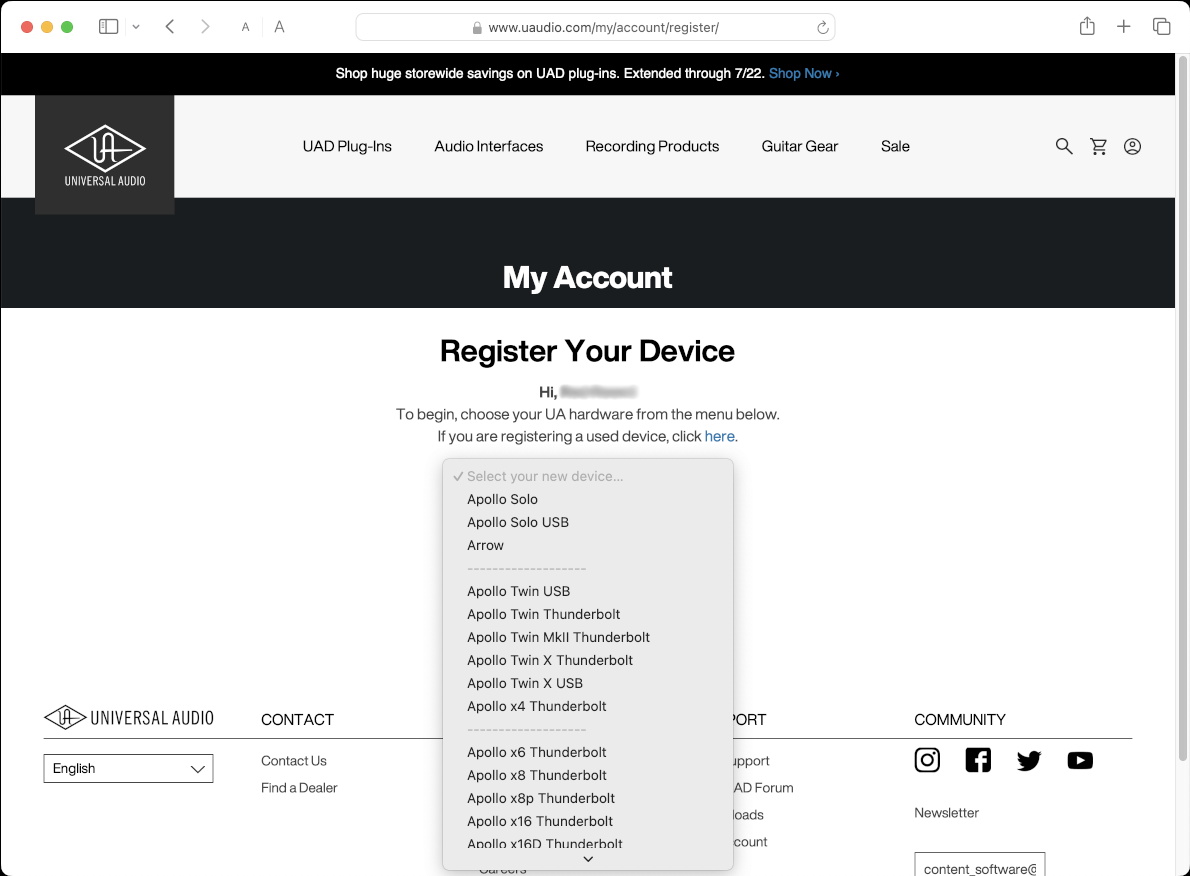
Your UA account’s device-registration page
On your computer, go to the Universal Audio registration page. Create a new account or log in with your existing account.
On the Register Your Device page, pull down the menu to select your model. Click Begin.
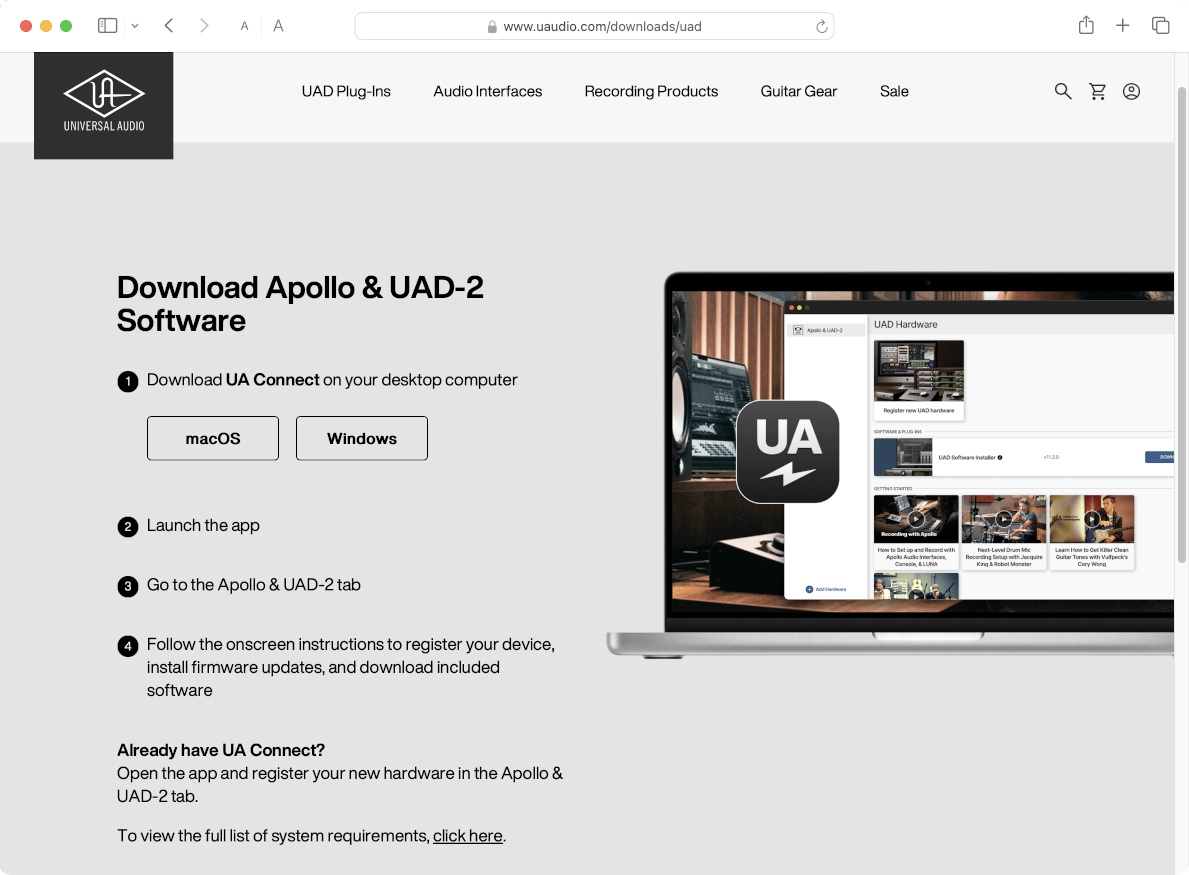
Download the UA Connect app from the Downloads page.
On the Downloads page, under Download UA Connect, click the button for macOS or Windows.
Go to your Downloads folder. Run the installer and follow the prompts.
Bookmark the Apollo e2m User Manual
The user manuals are provided online.
Bookmark the Apollo e2m Stereo Headphone Amp and Line Interface Manual and the UAD Console Manual.
UAD Console is the app you run on your Mac or your Windows PC to configure and operate the e2m and the Apollo x16D. You will need to reference information about using Dante in the Apollo x16D Networked Audio chapter.
Install UAD Software and UAD Console
Connect your e2m to your Dante network Ethernet switch using a Cat 5e or Cat 6 network cable. Confirm that it’s receiving power.
Connect your Mac or your Windows PC to your Ethernet network switch.
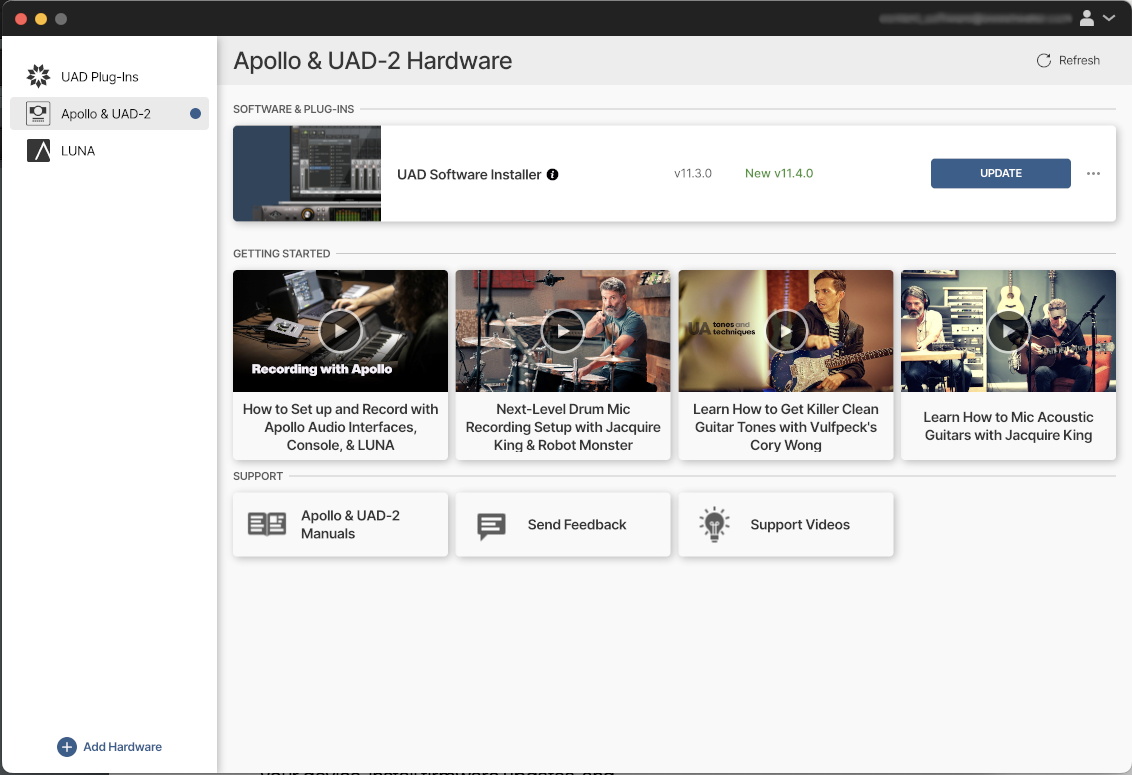
Finding the UAD Software Installer in the UA Connect app
Launch the UA Connect app.
- Log in to the app using your UA account email address and password. Select Remember Me, then click Log In.
- Click the Apollo & UAD-2 tab.
- In the pane on the right, you will see the UAD Software Installer. Click Download to install the software package. Be patient, as it’s a large download. Follow all prompts until your installation is complete.
On macOS, you will receive prompts that you need to open System Settings and grant permission in the Privacy & Security section to allow the new software to function. Learn more in Sweetwater’s Universal Audio Apollo, Satellite, and UAD-2 PCIe Thunderbolt Mac Setup guide.
Install Dante Controller from Audinate
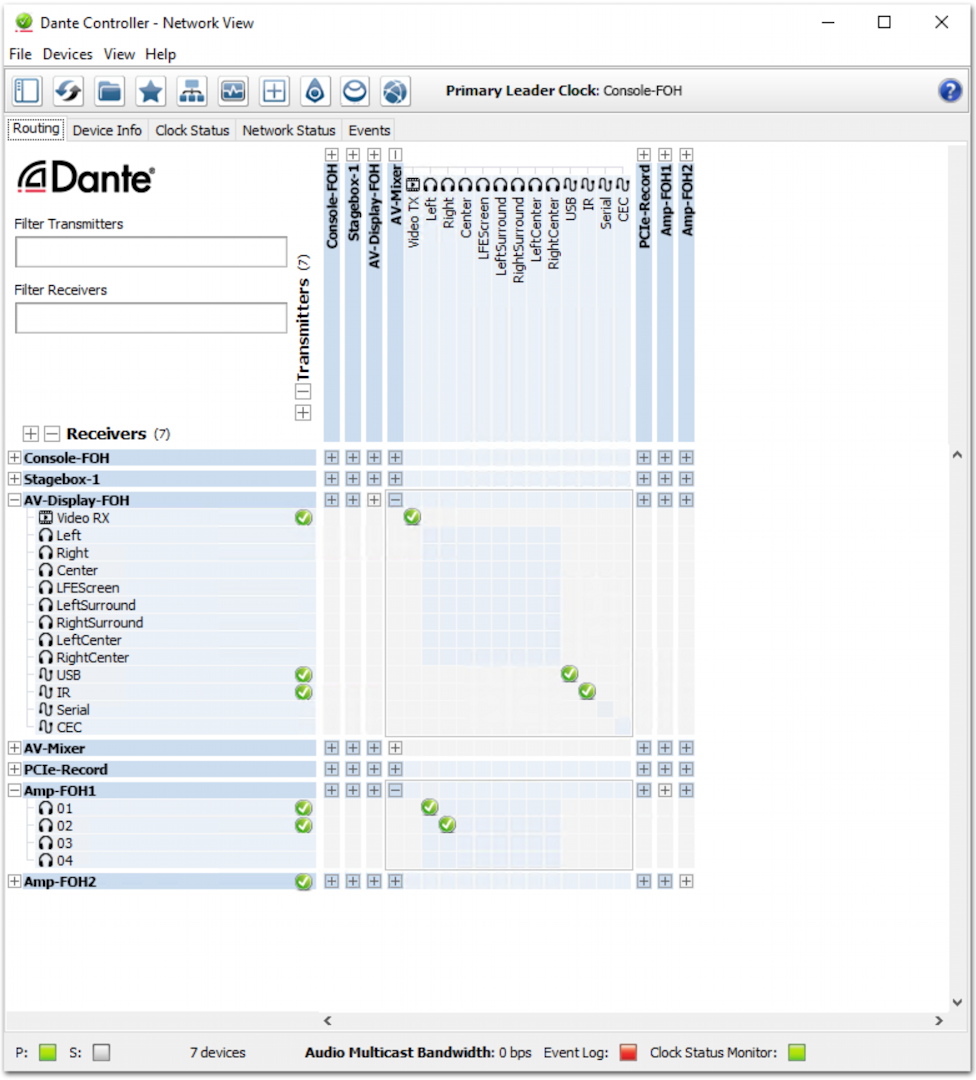
Dante Controller
You need to run both the Dante Controller app and the UAD Console app on your computer to handle the signal routing and configuration for the Apollo e2m.
Dante Controller is provided by the Audinate company, the makers of Dante. To install Dante Controller for your Mac or your Windows PC, go to the Log in page on the Audinate website.
Log in with your Audinate account credentials or create a new account.
Once you’re logged in, go to the Support tab. Select Download Software, then download Dante Controller for macOS or Windows. Follow the installation instructions.
Register Your Apollo e2m and Update the Firmware
Register Your Apollo e2m with UA Connect
Open UA Connect.
- Under the Apollo section, click the Apollo E Series tab.
- In the pane on the left, at the bottom, you will see Add Apollo Hardware.
- In the Set Up Your Hardware dialog, choose the network port to which your e2m is connected.
- Click Scan for Devices.
- Select the device detected and click Identify.
- On the next screen, click Register.
- When registration is complete, click Finish.
Update the Firmware
With the e2m, you update the firmware using the UA Connect app.
In UA Connect, under the Apollo item, select your Apollo E Series device.
In the Firmware area, you will see a notification if there is a new firmware version. Click Update. Follow the instructions to complete the firmware update.
Apollo e2m Connections and Controls
You can place the e2m on a tabletop or mount it on a mic stand. On the underside is a 5/8-inch threaded mounting socket.
Turn the master volume knob all the way down before you connect any cables.
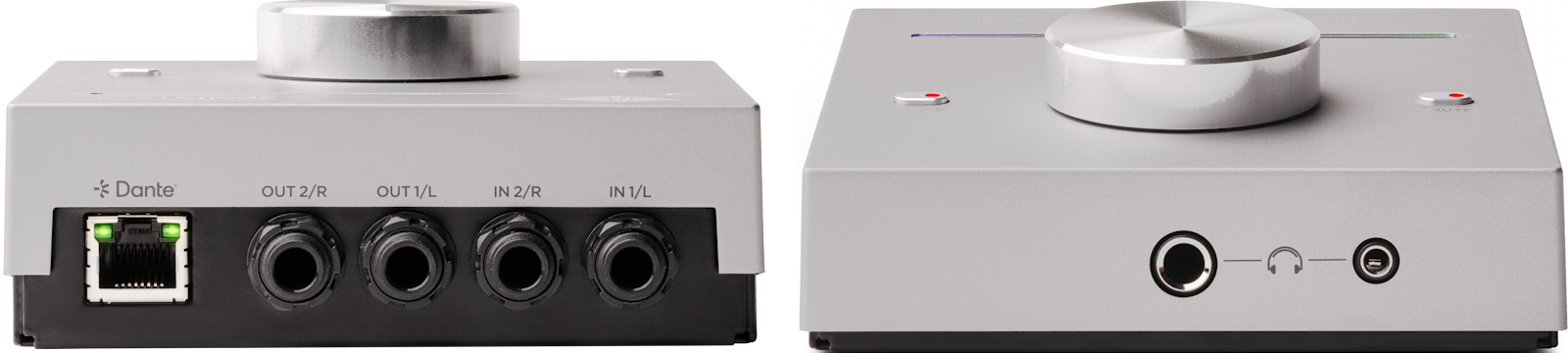
Universal Audio Apollo e2m connections
Connect a Cat 5e or Cat 6 cable from the Dante port on the back of the e2m to your network switch. Confirm that the e2m is receiving power.
Connect headphones to the 1/4-inch TRS or 1/8-inch TRS front-panel headphone jack.
Inputs: Connect analog balanced line-level devices to the In 1/L and In 2/R jacks using 1/4-inch TRS cables. You can also connect unbalanced inputs using TS cables. There is no level control for the inputs. Set the level by adjusting the output from the audio source.
Outputs: Using 1/4-inch TRS balanced connections, connect the e2m to powered monitor speakers, a floor wedge, or a similar unit using the Out 1/L and Out 2/L jacks. You can also connect to unbalanced equipment using TS plugs.
The e2m’s line and headphone outputs send the same stereo signal, controlled by the single volume knob on the front panel.
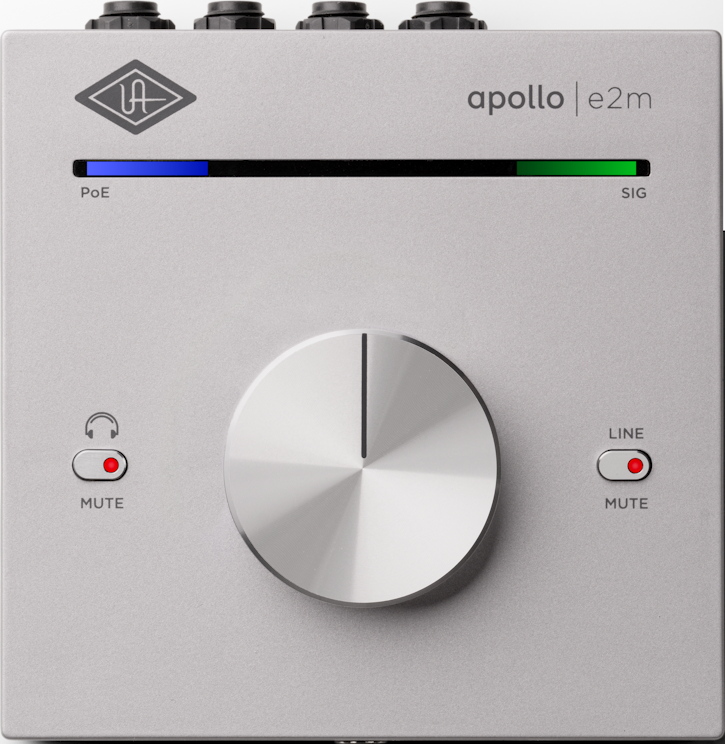
Universal Apollo e2m controls
The large knob in the center is the master output volume.
The button on the left mutes the headphones.
The button on the right mutes the line-level outputs.
The LED bar glows blue to indicate that the unit is receiving power.
The right side of the bar indicates audio output signal strength, going from green to amber to red.
If you have multiple e2m units in your rig, you can identify a particular one from within the UAD Console app. Select a unit with the Identify command, and that unit’s LED bar will blink.
Setting Up the Apollo e2m
Signal Routing in Dante Controller
The e2m can be configured for either Dante or AES67 compatibility within Dante Controller.
On the Dante network, the Apollo e2m provides two receiver and two transmitter channels, either as stereo pairs or individual mono channels. You configure their audio-routing assignments in Dante Controller.
Learn more in the Universal Audio Apollo e2m Manual > Configuring Apollo e2m.
Routing Audio with UAD Console and Apollo x16D
When used with an Apollo x16D, you can create up to four independent cue mixes in UAD Console, mirror the x16D cues to Dante pairs, and route them to Apollo e2m devices. The routing itself is done in Dante Controller.
Learn more in the Universal Audio Apollo e2m Manual > Configuring Apollo e2m.
Here’s our demo video.
Universal Audio Support Resources
Learn more in these guides provided by Universal Audio:
- Universal Audio Support: Apollo x16D, Apollo e1x and e2m: Dante Network Switch & Cable Information
- Universal Audio Support: FAQ: Apollo E Series (Apollo e1x, e2m)
- Universal Audio Support: Dante for Dummies
Related Articles
When you need help, Sweetwater has the answers!
Our knowledge base contains over 28,000 expertly written tech articles that will give you answers and help you get the most out of your gear. Our pro musicians and gear experts update content daily to keep you informed and on your way. Best of all, it’s totally FREE, and it’s just another reason that you get more at Sweetwater.com.

