
Two Notes Torpedo Captor X Reactive Loadbox Quickstart Guide
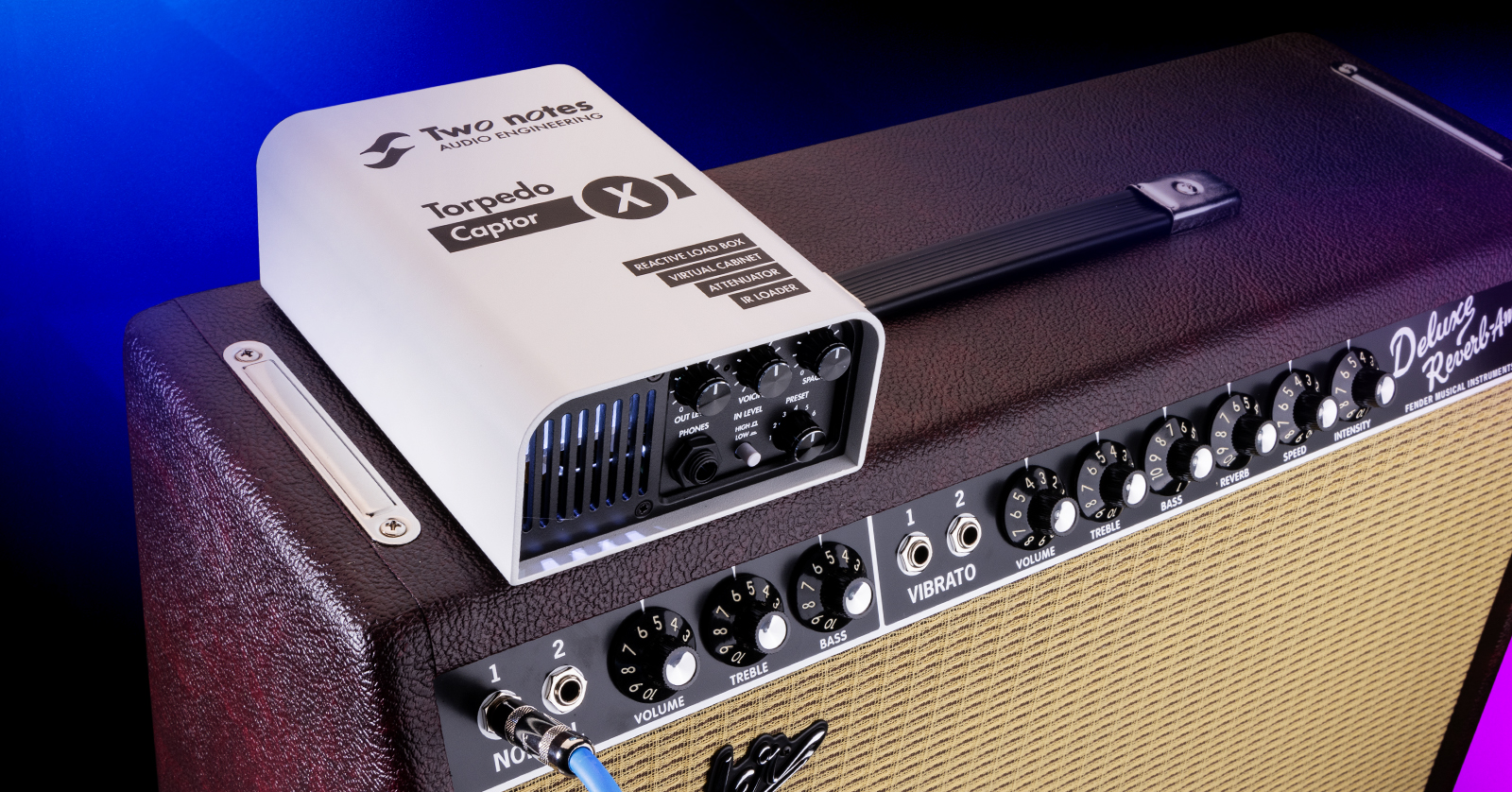
NOTE: This guide covers the original Two notes Torpedo Captor X. We have a guide for the next-generation Torpedo Captor X+ here.
The Two notes Torpedo Captor X is a reactive load box, tube amplifier attenuator, miked guitar cabinet and speaker simulator, impulse response loader, and stereo expander for home, live, and studio use.
The Torpedo Captor X comes in two versions: one for use with an amplifier that outputs an 8-ohm speaker load and another for a 16-ohm speaker load.
This SweetCare Quickstart Guide will help you get started, but it is not a substitute for reading the Two notes Torpedo Captor X User’s Manual, available online at this link.
IMPORTANT! Because you will be using this product with a vacuum-tube guitar amplifier, you need to take care to connect it correctly. Otherwise, you risk damaging your tube amplifier and the Torpedo Captor X.
- Overview of the Torpedo Captor X
- Download the Software and Register Your Purchase with Two notes
- Torpedo Captor X Inputs and Outputs
- Hooking Up the Torpedo Captor X
- Working with Torpedo Remote
Overview of the Torpedo Captor X
You use the Torpedo Captor X by connecting it between your amp and its speaker cabinet using speaker cables. When used as an attenuator, the Torpedo Captor X lowers the amp’s output and passes it through to your speaker cabinet. When used as a reactive load box, the unit enables you to play through your amp silently, with no physical speaker hooked up. It then applies digital signal processing and models different speaker cabinets, microphones, and effects. The Torpedo Captor X then outputs audio that you can monitor through headphones and through XLR jacks to send to an audio interface for recording or to your PA system for live performance.
To access the features of the Torpedo Captor X, including selecting and customizing the virtual cabinets and impulse response models, virtual microphones, stereo expander, and other effects, you need to connect the Torpedo Captor X to your macOS or Windows computer using the included USB cable. All these features are controlled using the Two notes Torpedo Remote app. The USB connection is for controlling the parameters in the Torpedo Captor X’s digital processing; the USB connection does not transmit audio.
Once you get the Torpedo Captor X set up with your computer, you have the option of controlling the Torpedo Captor X from your iOS or Android device by pairing it with your Torpedo Captor X over Bluetooth. Again, this Bluetooth connection is for controlling the parameters; this connection does not transmit audio.
Having set this up, you can start playing your guitar through your amp.
Download the Software and Register Your Purchase with Two notes
Create an Account on the Website
Go to two-notes.com. In the upper-right corner of the web page, click on Login/Register. Log in to your existing account or create a new account if you need one. Write down your username and password. Follow the instructions.
Set Up the Torpedo Remote App
Download and install the Torpedo Remote app for macOS or Windows.
Connect the power supply to the Torpedo Captor X. Attach the included USB cable and connect your Torpedo Captor X to your computer. You may need a USB hub or a USB-A to USB-C adapter dongle to make the connection.
Register Your Purchase
Launch the Torpedo Remote app.
The opening message, “Thank you for your purchase,” explains that when you register your purchase, you will receive:
- A license listing the virtual cabinets you own
- Firmware updates
- An account in the Two notes Store, where you can purchase additional virtual cabinets
- A license for the new Genome plug-in. Genome runs natively on your computer and enable you to apply Torpedo simulations and effects to audio inside your DAW. You can also work with the older Two Notes Torpedo Wall of Sound plug-in.
Update the Firmware
The app will alert you if there is a newer version of the Torpedo Captor X firmware. It will prompt you to download and install it. Follow the instructions.
Set Up the Bluetooth Connection to Your Mobile Device
On your iOS device, install the Two notes Torpedo Wireless Remote app from the Apple App Store.
On your Android device, install the Two notes Torpedo Wireless Remote app from the Google Play Store.
- On your device, launch the app.
- Accept all the requested authorizations.
- In the Bluetooth connection window, follow the on-screen instructions.
- Input the PIN code to pair the Torpedo Captor X and your mobile device.
For more information, consult the Torpedo Captor X User’s Manual in the section Torpedo Remote.
Torpedo Captor X Inputs and Outputs
Back Panel Connections
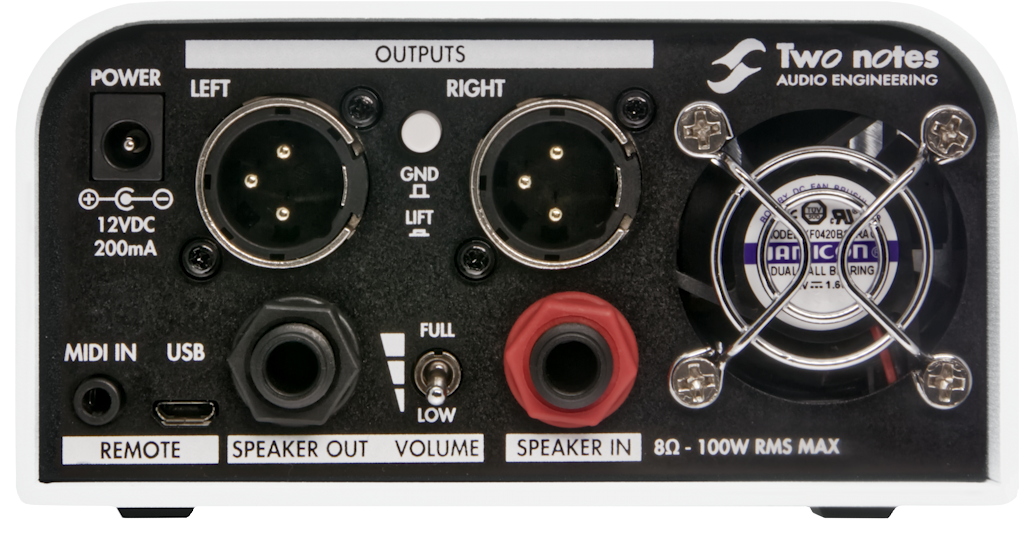
- Power. Use only the included 12V 200mA power adapter.
- Speaker In. Connect a 1/4-inch TS speaker cable from your amp’s speaker output to this connection.
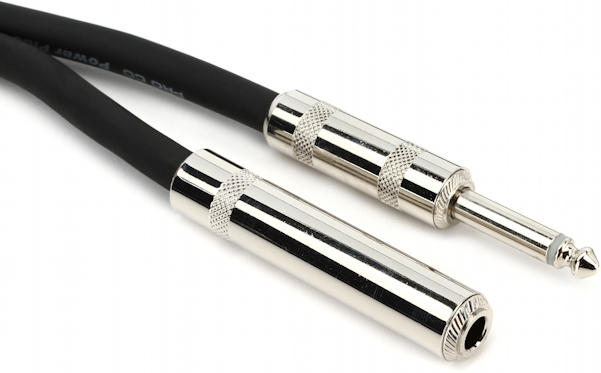
- Speaker Out. Connect a 1/4-inch TS speaker cable to the input on your speaker cabinet. If you are using a combo amp, you will need a speaker cable with a female jack to connect to the plug wired to your speaker.
- Volume.This three-position switch enables you to choose either the full strength of the amp’s output being passed to the speaker or one of two levels of attenuation.
- Fan Exhaust. Keep the space around this clear to allow the fan to pass air through the unit for cooling.
- Ground Lift. Use this switch to eliminate hum from a ground loop.
- Outputs. Use balanced XLR connections to an audio interface or mixer. These can be configured in the Torpedo Remote app as Stereo, Dual Mono, or Dry and Wet.
- USB. Use the included USB cable to connect to your computer to use the Torpedo Remote app.
- MIDI In. This 1/8-inch TRS jack accepts the MIDI cable adapter, included, to provide a standard 5-pin DIN MIDI connection to a MIDI device for controlling the Torpedo Captor X.
Front Panel Connections
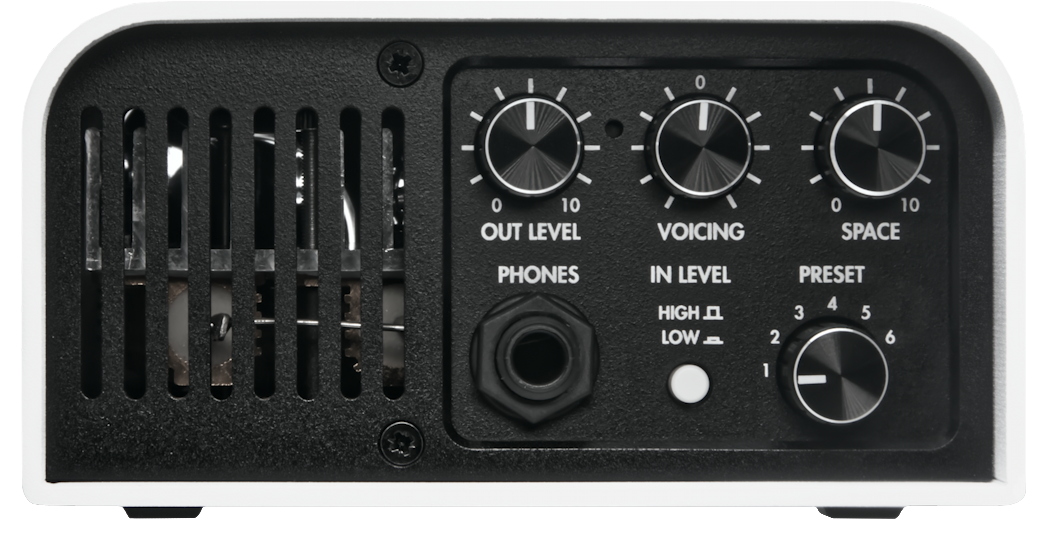
- Out Level. Turn this all the way down before you connect headphones or the XLR outputs. This knob controls the volume level for the headphones and the outputs.
- Phones. Connect your headphones to this 1/4-inch TRS jack.
- In Level. These two switch positions let you set the input level to avoid clipping.
- Voicing knob. This is like a master tone control you can adjust based on the nature of your tube amp and the playing environment.
- Space knob. Adjust the width of the stereo effect in the headphone and XLR outputs.
- Preset knob. Choose between six presets. Using the Torpedo Remote app, you can load custom presets utilizing additional cabinet and microphone models and effects according to the parameters you set.
- Vent. Make sure this grille is not obstructed. This allows the fan to draw air through the unit to cool it.
Hooking Up the Torpedo Captor X
IMPORTANT! Before you proceed, you need to make sure that you have a tube amplifier of 100 watts of power or less, whether it is a combo amp or a separate amp head, and a suitable speaker cabinet. You need an amp with either a 16-ohm output or an 8-ohm output (some models are switchable).
You need to make sure that you have the correct version of the Torpedo Captor X, 16 ohms or 8 ohms, to match the load from your amp.
You will also need speaker cables with the right kind of plugs and jacks to connect the output of the amp to the input of the Torpedo Captor X and the output from the Torpedo Captor X to the input of the speaker cabinet. Do not use instrument cables. Using instrument cables in place of speaker cables will cause equipment to overheat and may lead to damage.
IMPORTANT! Always, before you turn on the power to your amp, make sure your amp is properly connected either to a speaker cabinet or to the Torpedo Captor X, which will provide the proper load. Your amp may suffer damage if it is powered on but not connected to a load.
Read Two notes’ recommendations on the proper use of a load box with a tube amplifier. Pay attention to the section Which output volume for my amplifier? to help you find the “sweet spot” for the ideal volume level without putting too much strain on your amp. This allows you to get the best sound and prevent the tubes from wearing out too fast.
Inside the box, you will find two folding cards, one in English and one in French. These show how to hook things up based on four use cases.
Each of these diagrams are also found in the Torpedo Captor X User’s Manual under Connecting the Torpedo Captor X.
Using the Attenuator with Your Cabinet
- Connect your amp’s output to the Speaker In of the Torpedo Captor X with a speaker cable.
- Connect your cabinet to the Speaker Out, again making sure that you are using a speaker cable and not an instrument cable.
- Set the desired degree of attenuation with the three-position Volume switch.
Only the sound of your amp will be output to your speaker cabinet. The digital effects processing of the Torpedo (cabinet simulation and effects) will not be heard through this connection.
Using Your Amp Silently in Stereo
- Connect your amp’s output to the Speaker In of the Torpedo Captor X with a speaker cable. Do not connect the Speaker Out jack.
- Connect your headphones to the Phones jack.
- On the Torpedo Remote app, select Stereo routing.
- On the Torpedo Captor X, use the Out Level knob to set the headphone volume.
To listen through monitors, connect the XLR outputs to your studio monitors or audio interface using XLR microphone cables.
The Out Level knob controls both the headphones and the XLR outputs.
Playing on Stage with Dual Mono Routing
- Connect your amp’s output to the Speaker In of the Torpedo Captor X with a speaker cable.
- In the Torpedo Remote app, select the Dual/Mono routing to send two different signals from the Torpedo Captor X.
- Use microphone cables to connect to your mixer.
You can also connect the Speaker Out on the Torpedo Captor X to your cabinet to hear the dry amp sound (without the Torpedo Captor X’s effects) on stage.
Recording Your Amp Silently to an Audio Interface
- Connect your amp’s output to the Speaker In of the Captor X, again using a speaker cable. Do not connect the Speaker Out jack.
- In the Torpedo Remote app, select Dual/Mono routing and bypass the Torpedo Processing on the right output.
- Connect the XLR outputs to your audio interface.
The left XLR output will send the full Torpedo signal with effects, and the right XLR output will send the dry signal of the amp to the interface.
Working with Torpedo Remote
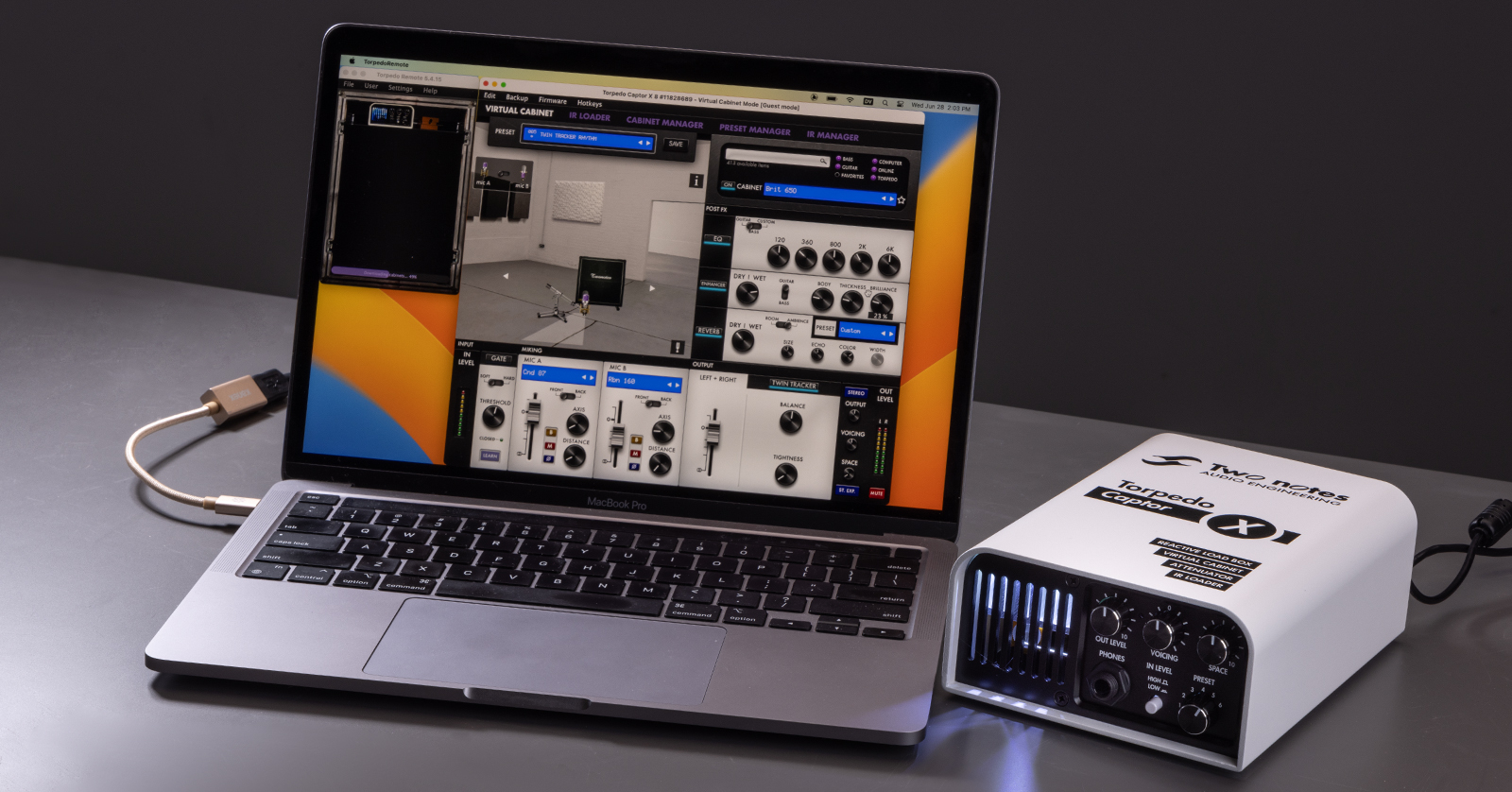
The real power of the Torpedo Captor X is unlocked in the Torpedo Remote app for macOS and Windows PC and in the Torpedo Wireless Remote app for iOS and Android.
The Torpedo Captor X holds six digital cabinet models in its memory. With Torpedo Remote, you can choose between many more.
Parameters you can set include:
- A virtual cabinet and speaker combination, including the room in which the cabinet is placed
- A selection of one or two microphones and their precise placement
- Effects including EQ, Enhancer, Reverb, Stereo simulation, and the Twin Tracker double-tracking effect
For more information, consult the Torpedo Captor X User’s Manual under Creating a preset with a Virtual Cabinet.
The Torpedo Remote app is also where you can buy and download additional virtual cabinets from Two notes and load in IR (impulse response) models from outside sources.
Two notes provides several brief videos to get you oriented:
Don’t forget to read the entire Two notes Torpedo Captor X User’s Manual to learn the full array of features, functions, and parameters available with this device.
Related Content
Related Articles
When you need help, Sweetwater has the answers!
Our knowledge base contains over 28,000 expertly written tech articles that will give you answers and help you get the most out of your gear. Our pro musicians and gear experts update content daily to keep you informed and on your way. Best of all, it’s totally FREE, and it’s just another reason that you get more at Sweetwater.com.

