
Toontrack Software Activation Instructions
In this guide, we will show you how to activate and install your new Toontrack software. That means we’ll show you how to use the Product Manager app to register your software’s serial number and then install it. Continue below to get started.
- Create a Toontrack account
- Install the Product Manager app
- Register, download, and install
- Related Content
Create a Toontrack account
In order to activate your software, you will first need to create an account with Toontrack. If you already have one, just make sure to use the same login so that all of your software is registered to the same account. Otherwise, create a new one and take note of the email address and password.
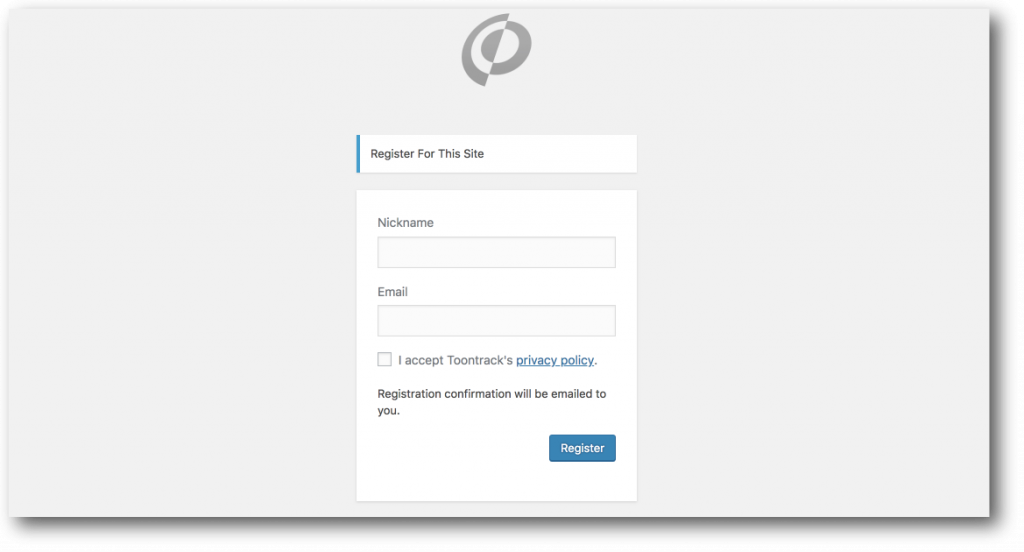
- Go to Toontrack’s registration page.
- Enter your Nickname (username), a valid e-mail address, and then click Register.
- Check your inbox for Toontrack’s e-mail titled your username and password info and click the confirmation link. You will then be prompted to reset your password and log in.
- If you don’t see the e-mail in your inbox, be sure to check your spam/junk folder.
Install the Product Manager app
Once you have your Toontrack login information, it’s time to install the Product Manager app. Once installed, launch it and log in to your account. If this is the first time installing Toontrack software on your computer, you’ll first be prompted to name it. This is so that you can determine which computers have each of your Toontrack products installed and registered to it. We recommend using a simple name such as Studio computer or Laptop.
- Visit Toontrack’s Product Manager page and click Download. When prompted, log into your Toontrack account and then click PC or Mac to start the download.
- Open your Downloads folder and run the installer.
- PC: Right-click the Product_Manager_101.zip file, select Extract All…, and then click Extract. Double-click the new Toontrack Product Manager Installer.exe file and follow the on-screen instructions.
- Mac: Double-click the Product_Manager_MAC.dmg file. In the window that appears, double-click the Installer.pkg file and follow the on-screen instructions.
- Once installed, launch the Product Manager app and log in to your Toontrack account. If prompted, enter a name for the computer (e.g. mobile PC or studio iMac).
Register, download, and install
The final step is to register your product’s Serial Number and then install it. Open the Software Activation Instructions email sent from your Sales Engineer to find the Serial Number and then enter it into the Product Manager application. Once registered, your software will appear in the Product Manager window and can be downloaded, installed, updated, and then authorized. While you can only use the software on one computer at a time, you can still install and authorize it on up to two systems at a time. This is particularly useful if you need to install the software on both a home and a mobile computer.
IMPORTANT!
If you are installing Superior Drummer 3 from an external hard drive, visit our guide here.
- Launch the Product Manager application, and enter your login credentials.
- Copy the Serial Number (e.g. EZ20-SM58-CP30-9001-L33T) from the Software Activation Instructions e-mail.
- Click Register New Product…, paste the Serial Number, and then click Register.
- Locate your software in the Product Manager app, and click Download. Follow the on-screen instructions to download, install, authorize, and then finally update each product.
Sample library locations
Superior Drummer 3, EZdrummer 2, and EZkeys require sound libraries in order to work. That means you’ll need to have enough storage space to download and then install them. You can select the location in the Destination Select/Installation Type section of the installer. We recommend installing them to a unique folder (e.g., Toontrack Sounds) on a dedicated solid-state or 7,200 RPM external hard drive, but your internal hard drive will work, too. Once the sound libraries are installed, use the Product Manager’s Clean Up feature to delete the installer files and get some storage space back.
Related Content
Additional Resources
- Superior Drummer YouTube playlist
- EZdrummer 2 YouTube playlist
- EZkeys YouTube playlist
- EZmix YouTube playlist
When you need help, Sweetwater has the answers!
Our knowledge base contains over 28,000 expertly written tech articles that will give you answers and help you get the most out of your gear. Our pro musicians and gear experts update content daily to keep you informed and on your way. Best of all, it’s totally FREE, and it’s just another reason that you get more at Sweetwater.com.

