
EZDrummer 2 Quickstart Guide
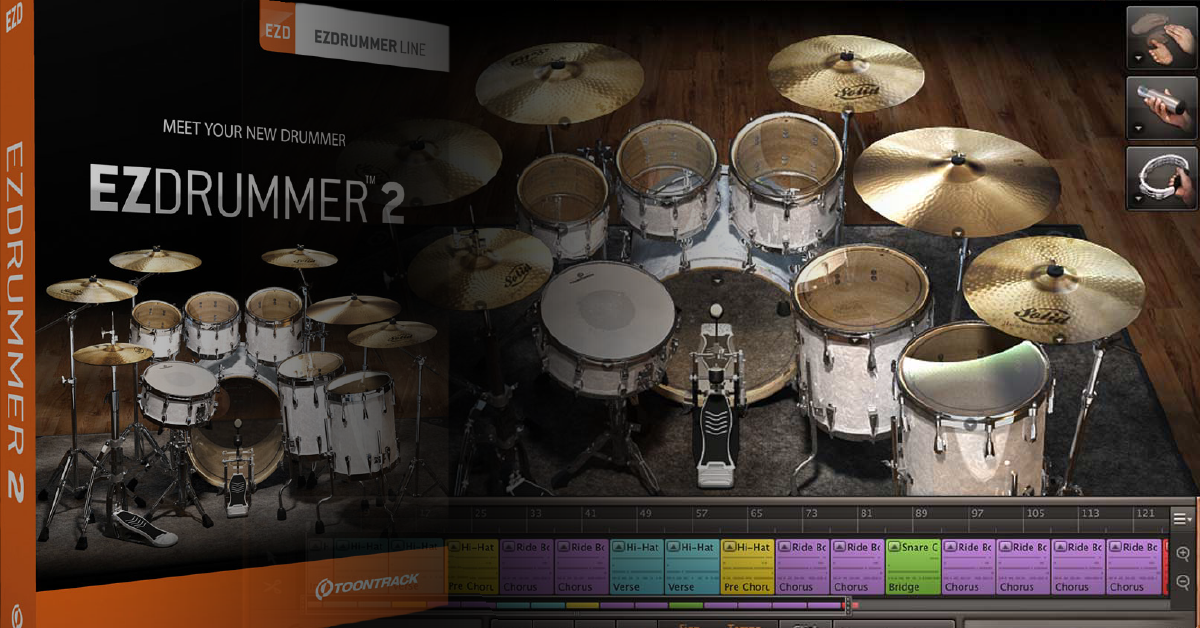
In this guide, we will get you up and running in EZDrummer 2. That means we’ll go through each section of the program, how to create your own drum set, create songs, and how to record. Follow the sections below to get started.
Setup and navigation
Toontrack’s EZDrummer 2 is a virtual drum instrument that you can use either on its own or as a plug-in within your DAW. After registering and installing the software, you can launch the desktop app or load it as a virtual instrument track. All of the functions remain the same, both as a plug-in inside a DAW and standalone mode. If you just want to practice some music or need to get a quick arrangement down, use standalone mode to save some time. If you’re planning on recording, though, consider using it as a virtual instrument within your DAW.
Setting up external hardware
If you’re using an external audio interface, electronic drum set or an external MIDI controller, now is a great time to set them up. This way, you won’t have to make any changes to settings or presets in the future. Make sure that the audio settings and MIDI hardware settings match those of your gear. First, you’ll need to connect it to your computer then enable and configure the hardware within EZDrummer 2.
Navigating EZDrummer 2
There are four tabs on the main window of EZDrummer 2: Drums, Browser, Search, and Mixer. When you first open the program, a drum kit is already preloaded and ready for you to play. If you want to load a loop or change levels to individual drums, you’ll need to use the tabs to get to the correct spot.
Drums
The Drums tab is where you can preview and change drum kits and individual drum samples. You can also adjust settings such as the volume and pitch of the drums and cymbals from here.
Browser
The Browser tab is where you’ll locate libraries, preview, and add MIDI loops to your song. To select a loop, select the EZdrummer library where the loop is, then select the variation. To preview the loop, press the Play button next to it. To add that loop to your song, drag it from the Browser window down to the track section.
Search
In the Search tab, you can search and sort MIDI loops by library, genre, type (like a fill or beat), style, and time signature. If you click Tap 2 Find, you can play a drum beat, then EZDrummer 2 will list loops and fills which match yours most. Alternatively, you can click and drag a MIDI loop into the MIDI drop zone.
Mixer
In the Mixer tab, you can adjust the levels and panning of each drum, work with effects such as reverb and compression, and make any output routing changes. Toontrack included many mixing presets, including built-in effects and preset levels and panning for each drum.
What’s Multichannel?
If you’re changing the output routing, you’ll notice a Multichannel option. With Multichannel enabled, it will allow you to route drums to individual audio tracks within your DAW. This is particularly useful during the mixing process since you’ll have complete control over the levels and effects of each drum and cymbals.
Loading samples and kits
There are a few ways you can load a drum kit within EZDrummer 2. You can either load a preset kit and change individual samples or create your own from scratch. You can also load mixing presets to help you find the right sound. Follow these steps to load a drum sample or kit.
Changing a sample
- Right-click a drum or cymbal and select a sample.
- If you want to use a sample from another EZDrummer library, click the orange drop-down box within the sample window, then select the library where the sample resides.
Preset drum kits
- Right-click any drum or cymbal within the Drum tab.
- Navigate to the Kit dropdown box, then select a preset kit.
Creating a kit from scratch
- Right-click any drum or cymbal within the Drum tab.
- Navigate to the Kit dropdown box, then select Empty Kit.
- Load the samples of your choice by right-clicking the drum or cymbal.
Saving and loading custom kits
Once you’ve built a drum kit you like, you can save it as a preset for future projects. Click the Kit dropdown box, then click Save As. To load the custom kit, navigate to Kits >User kits within the Kit dropdown box.
Import MIDI loops
If you have custom MIDI drum beats, you can import them into EZDrummer. The process is straightforward, too!
- Click Browser, click the three horizontal lines, then select Manage MIDI Libraries.
- Click Add Folder to User Libraries, navigate to the folder where your MIDI files are stored, then click Select Folder.
- Make sure Include In Search is checked, then click OK.
Create and arrange songs
The bottom portion of the EZDrummer 2 window is for creating and arranging songs. From here, you can drag and drop preset MIDI loops from the Browser or Search window, record MIDI, and arrange your songs.
Recording in Standalone mode.
Recording tracks
You can record your own tracks within EZDrummer 2 by clicking the Record button, then pressing the Play button. Check out our guide on recording in EZdrummer 2 for more information.
Using preset loops
Navigate to the Browser or Search tab, locate the loop you want to use, then drag it into the Song track section.
How do I load preset loops in my DAW?
If you’re using EZDrummer 2 within a DAW, you can drag and drop a loop from the Browser or Search window onto the EZDrummer virtual instrument track.
Arranging songs
If you’re writing a song and need to create an arrangement, you have a few options available. The Song Creator feature has preset song arrangements that are useful if you need to record an idea quickly. You can also build your own arrangement and save it to Song Creator for later use.
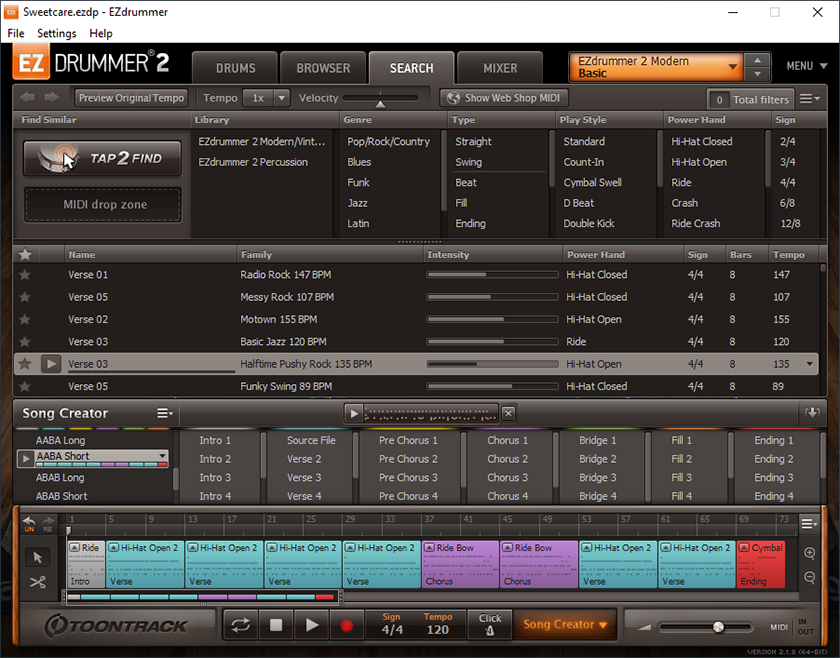
The Song Creator section.
Song Creator
- Click the Song Creator button in the transport section, then drag a MIDI loop from the Browser or Search window into the MIDI Drop Zone. This will populate a list of suggested sections for each part of the song.
- To preview an arrangement, press the play button next to it. To load a preset arrangement, click the down arrow and select Load Structure onto Track.
Creating a custom arrangement
- Drag and drop a preset loop into the Song track section or record one.
- Right-click the loop, select Song Part, then choose the part of the song structure it is.
- Save the arrangement by clicking the Song Creator menu button, then select Save Track as Song Structure.
Related Articles
When you need help, Sweetwater has the answers!
Our knowledge base contains over 28,000 expertly written tech articles that will give you answers and help you get the most out of your gear. Our pro musicians and gear experts update content daily to keep you informed and on your way. Best of all, it’s totally FREE, and it’s just another reason that you get more at Sweetwater.com.

