
Strymon BigSky MX Quickstart Guide
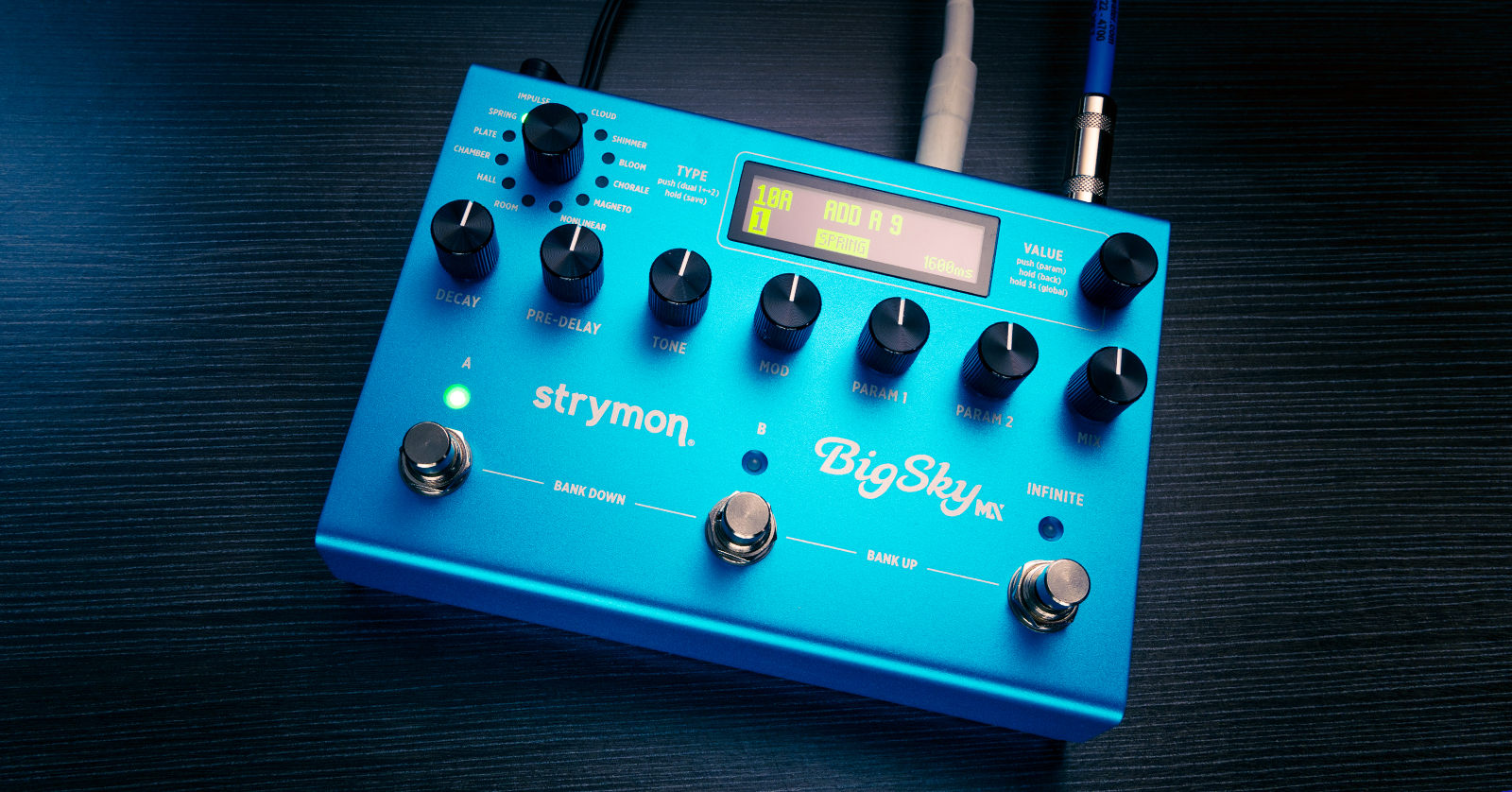
The BigSky MX is Strymon’s next-generation flagship reverb effect. The BigSky MX can be configured in mono and stereo, and can provide two reverbs simultaneously. Strymon provides the Nixie 2 librarian app on your computer to save and organize presets and manage your own impulse responses for additional effects. Let’s get started.
- Download the User Manual
- Update the Firmware
- Setup and Connections
- BigSky MX Presets
- Strymon Nixie 2 App
- Strymon BigSky MX Video Playlist
Download the User Manual
You’ll find Strymon’s printed Quick Start guide in the box, but you will also want to get the full user manual for reference. Download the manual from the Strymon BigSky MX support page.
Update the Firmware
Strymon provides firmware updates that fix bugs and may add new features. When you first get your BigSky MX, you should check to see if there’s an update. Head over to Sweetwater’s Strymon Firmware Update guide and follow the procedure.
Setup and Connections
Find the Rubber Feet
In the box you will find a small black square with four adhesive-backed rubber feet. You can install these on the underside of the pedal for desktop use.
Back Panel Connections
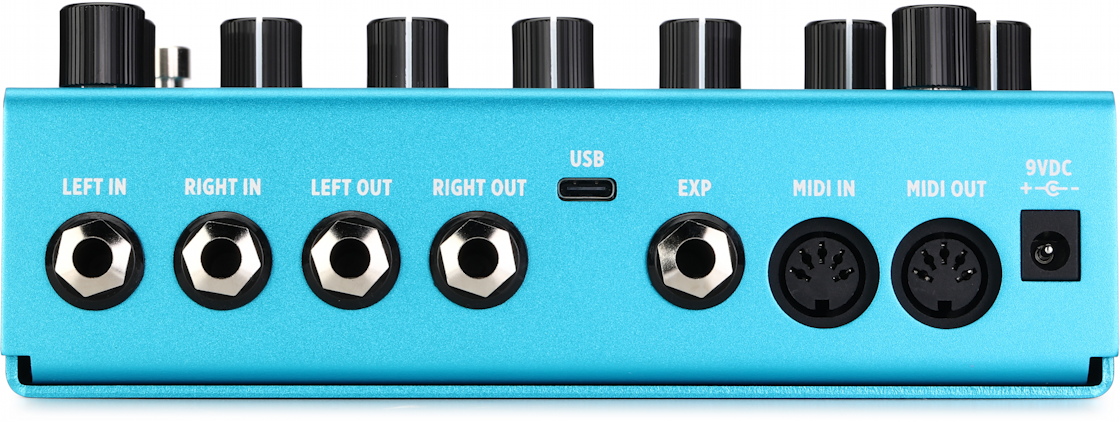
Strymon BigSky MX Rear Panel Connections
9VDC
Connect a power adapter (not included) with specifications of 9VDC, center-negative, and 500mA minimum.
Left and Right Inputs
For a mono signal, connect a 1/4-inch TS instrument cable to the Left Input. For stereo, connect another cable to the Right Input.
Left and Right Outputs
Similarly, use the Left Output for mono, and both connections for stereo.
USB
Connect a USB-C data cable to your Mac or Windows PC to run the Strymon Nixie 2 app, to update the firmware, and to send MIDI control signals from your DAW to the BigSky MX.
EXP
The Expression jack accepts a 1/4-inch TRS cable connection and gives you three control options:
- Connect an expression pedal (sold separately) and assign it for continuous control of BigSky MX parameters.
- Connect a Strymon MultiSwitch or MultiSwitch Plus (sold separately) for external switching of banks and presets.
- Connect a 1/4-inch TRS MIDI adapter or Strymon Conduit (sold separately) to connect a MIDI controller. You can program your controller to send MIDI PC (Program Change) and CC (Continuous Controller) commands to the BigSky MX.
Learn more in the BigSky MX User Manual > Setting Up an Expression Pedal and > Using MIDI.
MIDI In and Out
The BigSky MX also provides standard 5-pin DIN ports for connecting MIDI controllers.
Front Panel Controls
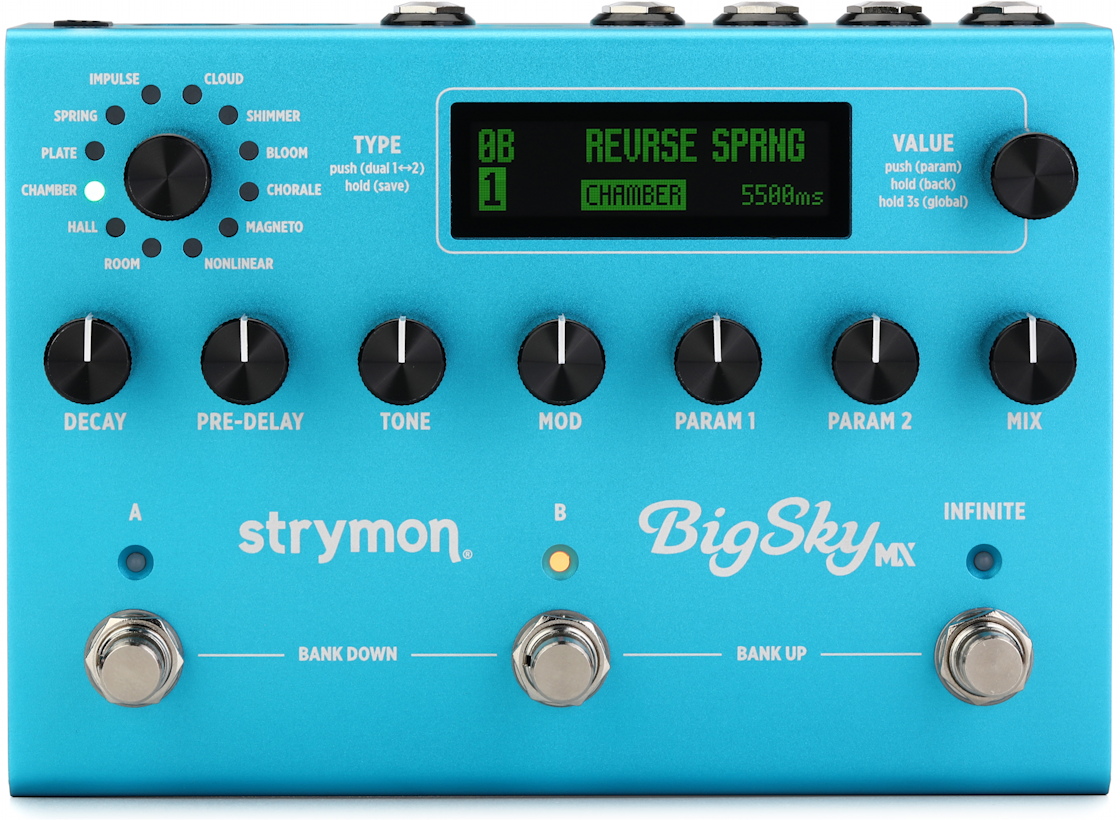
Strymon BigSky MX Front Panel Controls
Reverb Type Encoder
Rotate this dial, surrounded by 12 LEDs, to select a Type, one of the 12 reverb algorithms.
When you select a Type and push the knob in, its parameters are shown on the display screen. After you adjust parameters using the seven parameter knobs, you can press in and hold the Type encoder to save the preset.
Value Encoder
From the Home screen, turn this knob to scroll through the 300 preset locations. Push and release to enter the Parameter menu to edit parameters for the current preset. Hold for 3 seconds to enter the Global Settings menu to customize the unit’s options.
Parameter Knobs
These seven knobs let you adjust parameters. There are dedicated knobs for Decay, Pre-Delay, Tone, and Modulation. The next two knobs, Parameter 1 and Parameter 2, have different functions depending on the reverb type. The Mix knob controls the balance of your analog input signal and the effect.
The exception is for the Nonlinear and Magneto reverb Types, in which the Decay knob adjusts delay time, and the Pre-Delay knob adjusts feedback.
Footswitch A and B
Press A or B to choose between the current bank’s two presets.
Press A and B together to scroll to a lower bank. Press B and the Infinite footswitch together to select a higher bank.
Infinite Footswitch
Hold to create the Infinite sustain or Freeze effect for the current reverb.
With the Infinite effect, your reverb tail is held out infinitely, and further notes you play get added to the reverb tail.
With the Freeze effect, only the notes you are playing when you step on the footswitch get held, and further notes you play are not added.
In Global Settings, you can assign this footswitch to either the Infinite or Freeze effect, and choose latching or momentary mode.
BigSky MX Presets
One BigSky MX preset can contain two different reverb algorithms. This is called Dual Mode. In this mode, you can configure one of three routing options for the preset:
- Series. Your signal goes through one reverb algorithm and the output is then fed into the second algorithm.
- Parallel. Your signal goes through two different algorithms that do not interact with each other.
- Split. Two mono reverb algorithms run in parallel, and each algorithm’s signal goes to a separate output jack, left and right.
Presets are organized into 150 banks with two presets each.
To learn more about all the parameters and global settings, consult the BigSky MX User Manual.
Here’s Strymon’s tutorial video, which walks you through the functions and shows you how to edit and save presets.
Strymon BigSky MX Video Quick Start Guide
Strymon Nixie 2 App

The Strymon Nixie 2 app
Strymon provides the Nixie 2 librarian app for Mac or Windows PC. Use Nixie 2 to back up and load banks of presets, manage your own impulse responses (for use in the BigSkyMX’s impulse response effects algorithm) and check the firmware version.
With your BigSky MX powered by 9V power, connect a USB-C data cable to your computer.
On your computer, go to the Strymon BigSky MX support page and download and install the newest version of Nixie 2 for your operating system. Download the Nixie 2 User Manual as well.
Strymon BigSky MX Video Playlist
Check out Strymon’s playlist of BigSky MX videos on YouTube, including demos of all the reverb algorithms.
Related Articles
When you need help, Sweetwater has the answers!
Our knowledge base contains over 28,000 expertly written tech articles that will give you answers and help you get the most out of your gear. Our pro musicians and gear experts update content daily to keep you informed and on your way. Best of all, it’s totally FREE, and it’s just another reason that you get more at Sweetwater.com.

