
Roland SH-4d Quickstart Guide
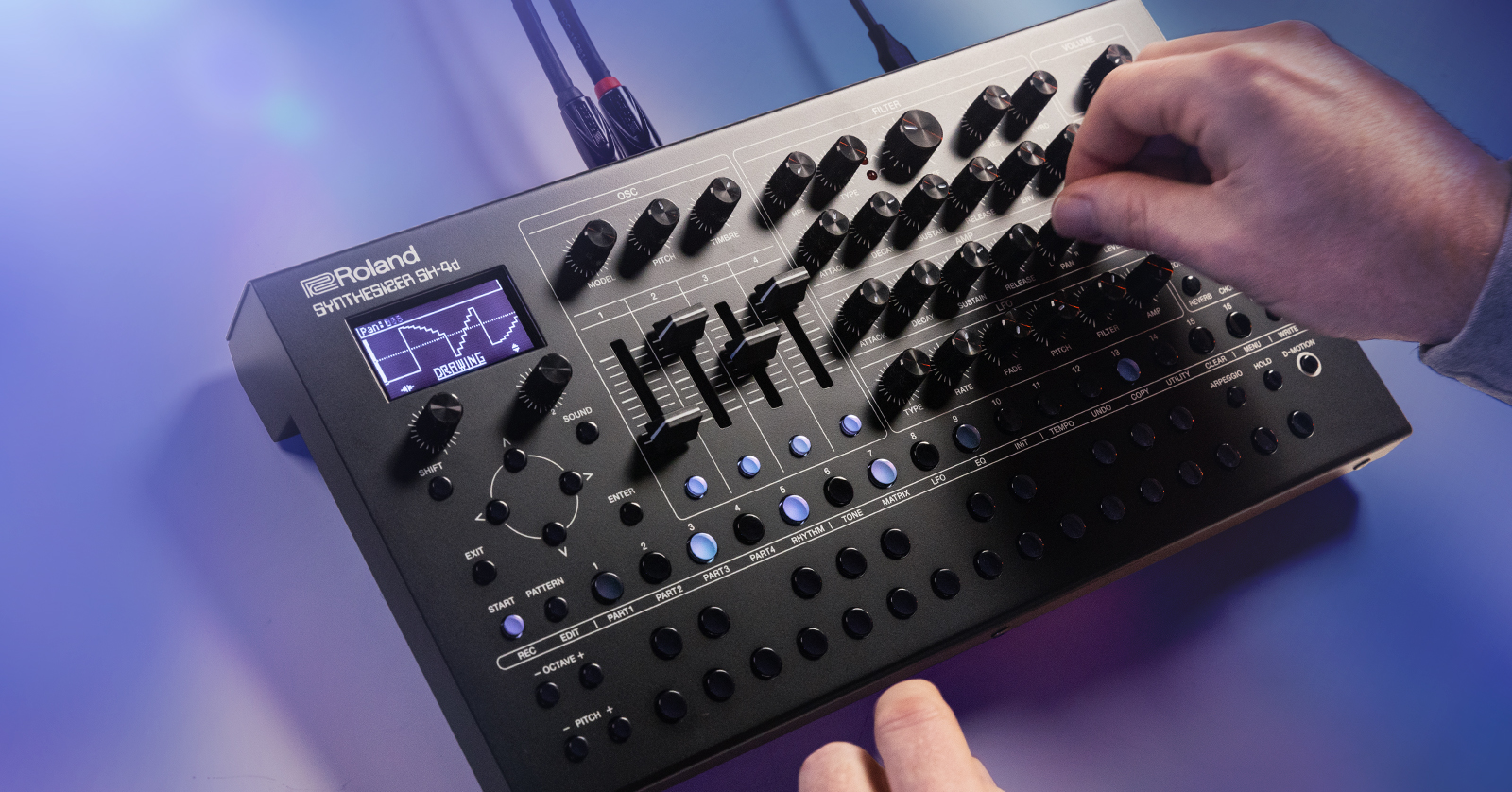
The Roland SH-4d desktop synthesizer offers a wide range of sounds and features. In this guide, we will show you how to get up and running. We can only scratch the surface of such a powerful instrument; fortunately, Roland provides detailed guides and videos to help you along.
- Register the Roland SH-4d
- Powering the SH-4d
- Check for a Firmware Update
- SH-4d Setup and Connections
- Overview of the SH-4d
- SH-4d Controls
- Connecting an External Keyboard
- Programming the SH-4d Synthesizer Sounds
Register the Roland SH-4d
While you are no doubt eager to start playing your new instrument, take a few minutes to register the SH-4d on the Roland website.
Log in to your existing account or create a new one if you need to.
After you confirm your account information and log in, click on the My Gear button. Then click on the Register a Product link.
Fill out the product registration information, including the serial number on the underside of your SH-4d.
After you have registered, download and install the Roland driver software for your version of macOS or Windows.
It’s also handy to download the Roland Quick Start and Owner’s Manual as you will want to refer to them often.
Roland also provides the Owner’s Manual in HTML format online.
Powering the SH-4d
Standalone
For standalone use, you have two options:
- Battery powered with 4 AA batteries
- USB powered with a third-party 5V USB AC power adapter (not included) using the included USB-C to USB-A data cable
Connected to your computer
You can also power the SH-4d by connecting it to your Mac or Windows PC.
Connect the included USB-C to USB-A cable to the USB-C port in the back of the SH-4d and connect the other end to your Mac or Windows PC or to a powered USB hub connected to the computer. If you are using your own cable, then make sure it’s a USB-C data cable and not a charging cable.
When you connect the USB cable to your computer, you can not only power the SH-4d but also transmit audio and MIDI to your DAW. To do this, you need to download and install the Roland driver software for your version of macOS or Windows, as we explained above.
Check for a Firmware Update
Roland periodically releases new product firmware that provides bug fixes and additional features. Roland uses the term “System Program” to refer to firmware. When you first take your SH-4d out of the box, it’s worth checking to see if it needs to be updated.
Click on the link below to go to our SweetCare Roland SH-4d Firmware Update Guide. Follow the instructions and then come back here to start working with your synth.
SH-4d Setup and Connections
With the power switch turned off, connect all the cables you need. Turn the master volume knob on the front panel all the way down.
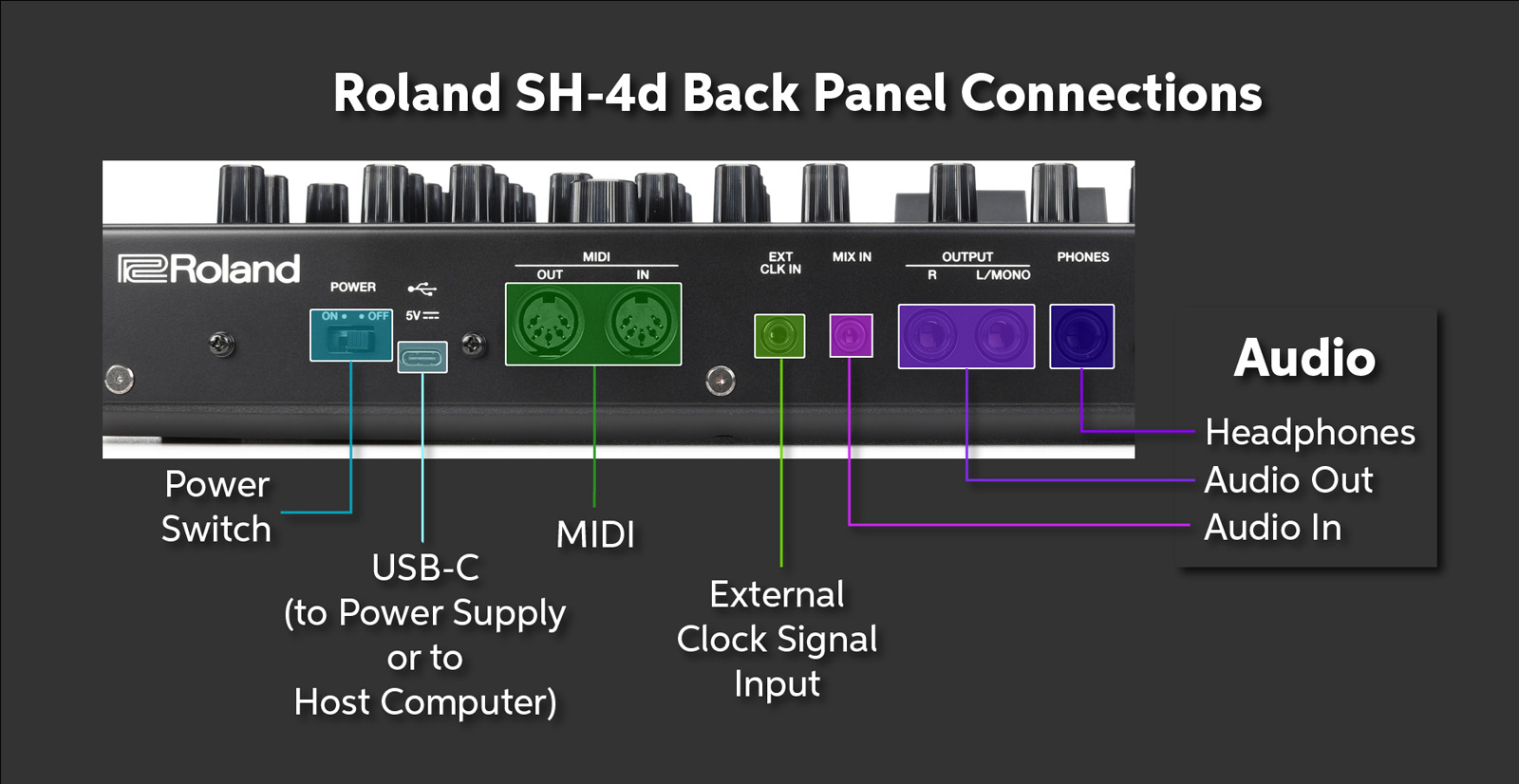
- Phones. Connect headphones with a 1/4-inch TRS jack.
- Output R and L/Mono. Connect 1/4-inch TS cables to your speakers, mixer, or audio interface.
- Mix In. Connect a 1/8-inch TRS cable from a stereo sound source. The audio will be passed through to the Phones and Output jacks.
- External Clock Signal Input. Sync the unit’s sequencer to an external source by connecting a cable with a monaural, 1/8-inch TS jack.
- MIDI In and Out. Connect5-pin DIN MIDI cables for external control.
- USB-C. As explained above, you can connect a USB-C cable either to a power adapter or to your computer.
- Power Switch.
Overview of the SH-4d
Here’s Roland’s video explaining the SH-4d’s functions:
SH-4d Controls
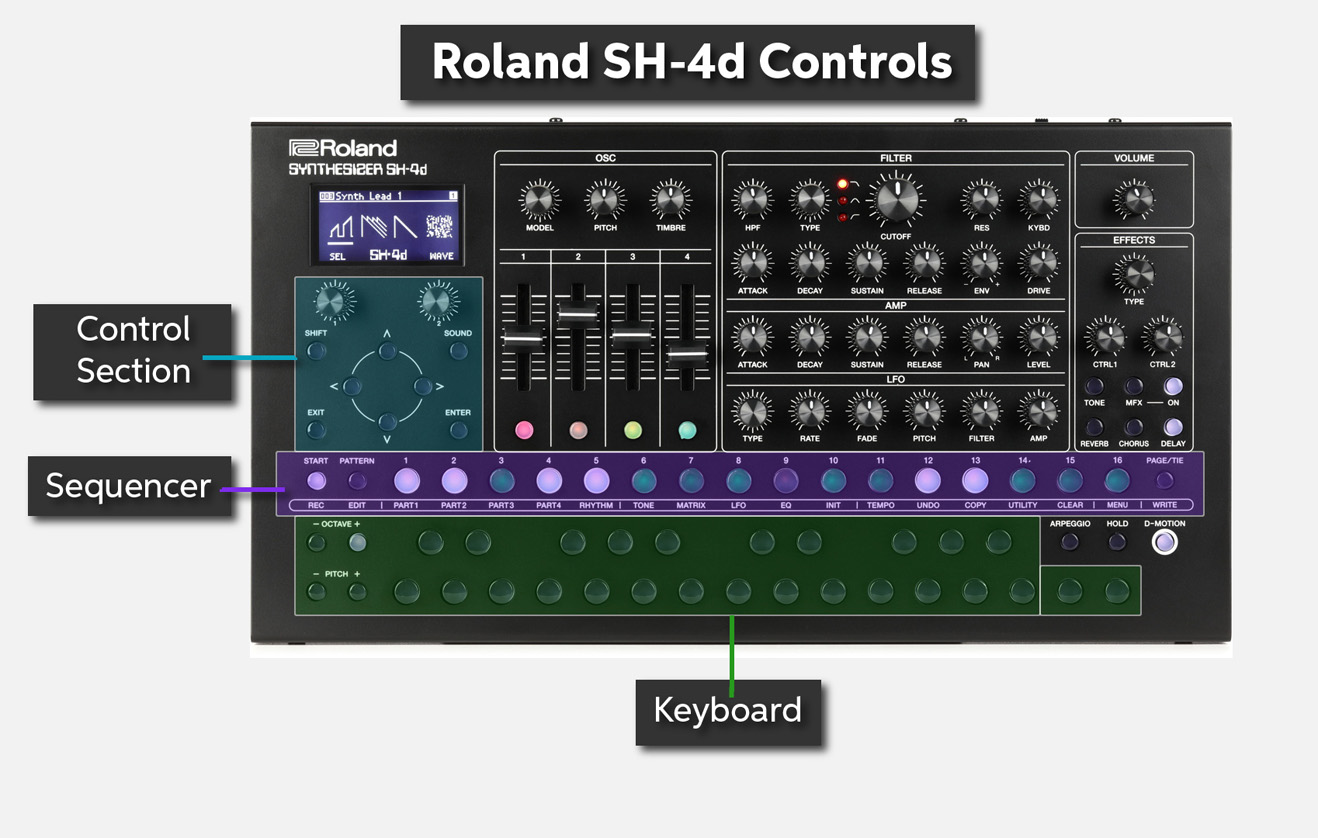
- Control Section. Provides navigation buttons for browsing through tones and selecting them and for sequencer functions
- Osc Section. Enables you to select one of the 11 oscillators (synthesizer models) and provides controls whose functions depend upon the oscillator chosen
- Filter/Amp/LFO Section. Provides real-time, dedicated controls for shaping the filter envelope, amplitude envelope, and low-frequency oscillator parameters for the oscillator
- Volume. This is the master volume control for line outputs and headphones
- Effects Section. Enables you to select and control effects parameters
- Sequencer Section. Controls for inputting notes into the sequencer and for selecting and recalling patterns
- Keyboard. The rows of buttons are laid out like a two-octave keyboard and can be used to play notes and chords. You also have Octave up and down buttons and Pitch buttons.
- Arpeggio and Hold. These buttons turn the arpeggio function on and off
- D-Motion Button. Turns on the unit’s motion control, which enables sound modulation by picking up and tilting the whole unit, according to parameters you can program
Connecting an External Keyboard
While you can program sequences and play the unit using the tiny buttons in the Keyboard section, you can also use the 5-pin MIDI In connection on the back to connect a conventional MIDI controller keyboard so that you can use full-size keys with velocity sensitivity, pitch bend and modulation wheels, foot pedals, and other controls.
After connecting a keyboard and turning on its power, you need to go to the System Settings section of the SH-4d’s menu structure, under MIDI, and enable the Remote Kbd function. Consult the Owner’s Manual section on System Settings.
Programming the SH-4d Synthesizer Sounds
Roland provides a tutorial, with videos, Exploring the SH-4d Oscillators.
We hope you will enjoy exploring the amazing sounds that the SH-4d has to offer.
Related Content
When you need help, Sweetwater has the answers!
Our knowledge base contains over 28,000 expertly written tech articles that will give you answers and help you get the most out of your gear. Our pro musicians and gear experts update content daily to keep you informed and on your way. Best of all, it’s totally FREE, and it’s just another reason that you get more at Sweetwater.com.

