

Roland SH-4d Firmware Update
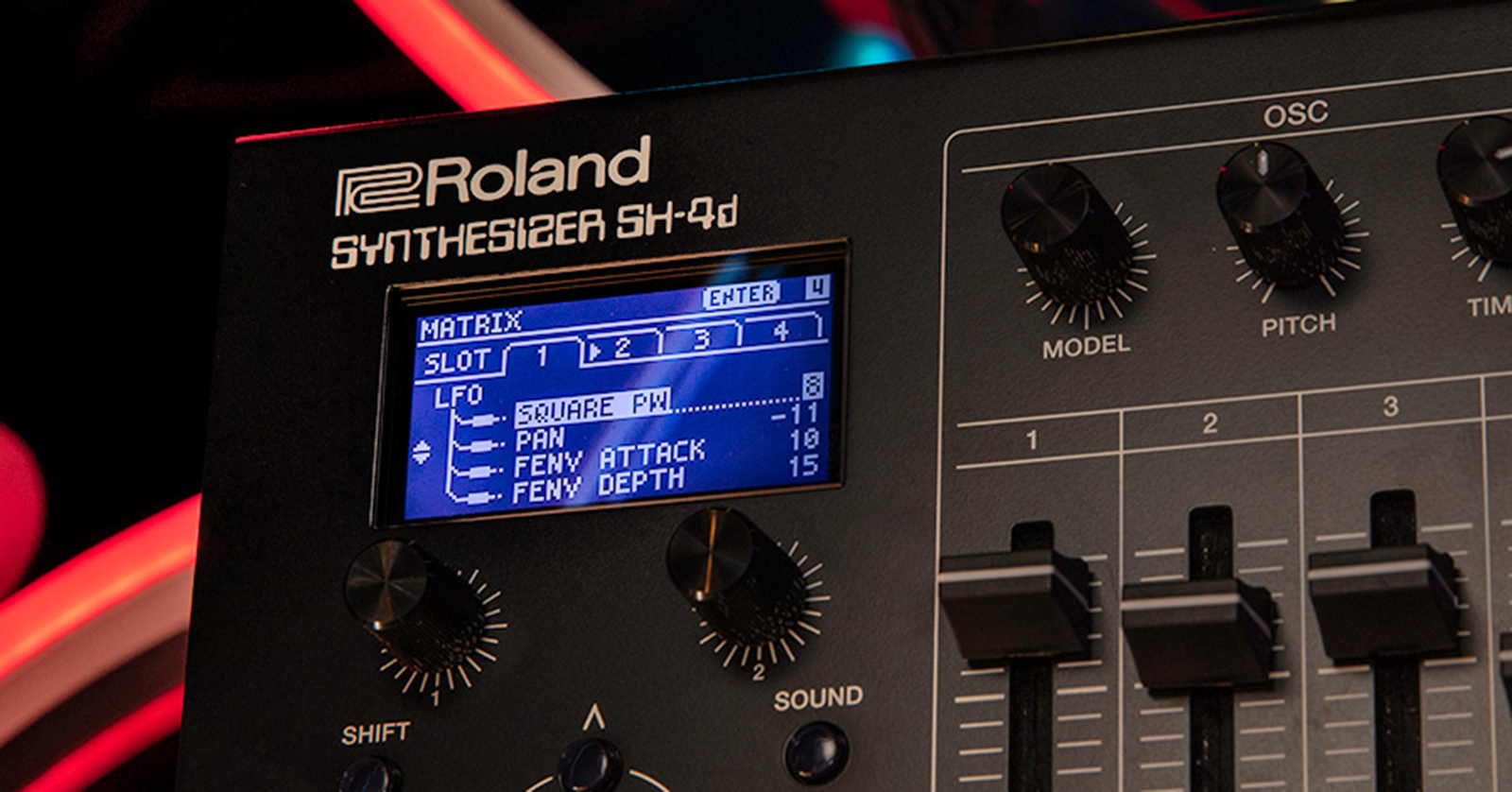
In this guide, we will show you how to perform a firmware update on your Roland SH-4d. Roland refers to their firmware as a System Program.
From time to time, Roland releases a new SH-4d System Program update which provides bug fixes and may add new features to the unit. When you first take your SH-4d out of the box, it’s worth checking to see if it needs to be updated.
- Check to See If You Need to Update the Firmware
- Overview of the SH-4d Firmware Update Process
- Procedure for Updating the Firmware
Check to See If You Need to Update the Firmware
How to Find the Version Number of the System Program on Your SH-4d
- Start with your SH-4d’s power turned off. Turn the power on.
- Hold down the Shift button while pressing the 16 button to display the Menu screen. (The Shift button is on the upper-left side, below the display screen. The 16 button is in the Sequencer section, on the lower-right of the front panel; it’s also labeled Menu.)
- Turn the 1 knob or 2 knob to select Information. Press the Enter button.
- The version number will be shown on the display. Take note of it.
How to Find the Version Number of the Newest SH-4d System Program Update
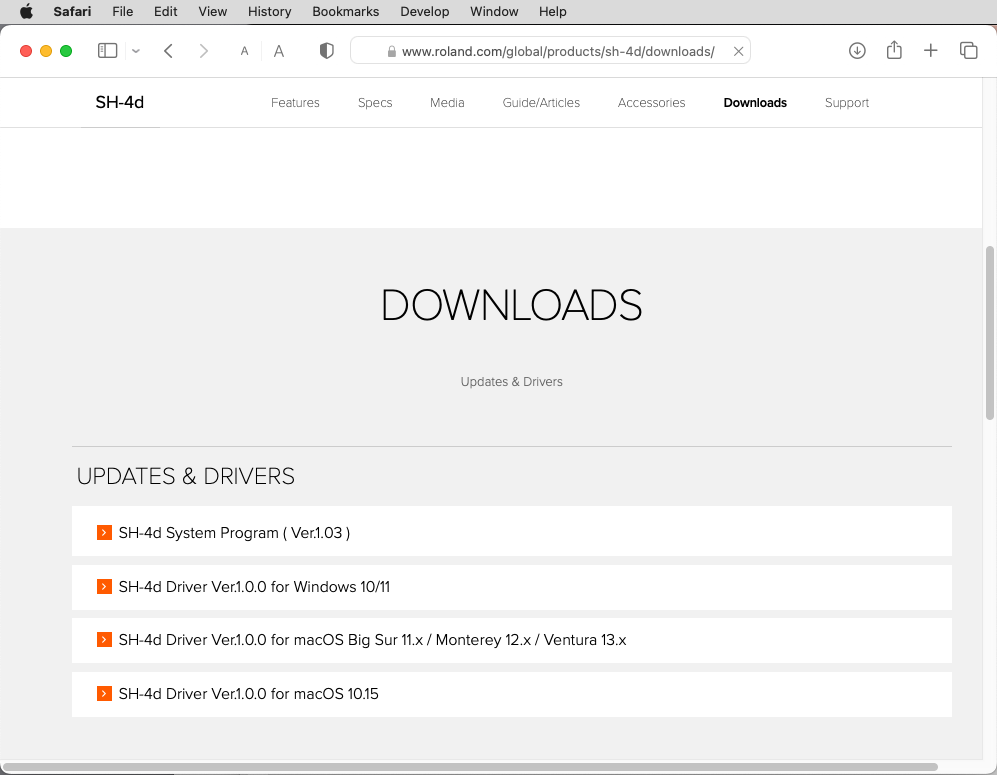
Go to the Roland SH-4d Updates & Drivers page.
You will see the newest version of the System Program on the page. In this example, it’s Ver.1.03.
If the version number of the installer on the Roland page is higher than the one on your unit, you can perform the upgrade. Otherwise, no action is necessary.
Overview of the SH-4d Firmware Update Process
To upgrade the Roland SH-4d to the newest version of its System Program, you connect your SH-4d to your computer using a USB-C data cable. The SH-4d will create a virtual volume on the desktop of your Mac or your Windows PC that looks like an external drive.
From the Roland website, you download the appropriate SH-4d System Program update package to your computer.
From the installer package, you copy the System Program file to this Roland virtual drive volume. This uploads the system program updater to the memory of the SH-4d over the USB cable.
Then, on the SH-4d, you start the upgrade process. The SH-4d will notify you when it is complete.
Procedure for Updating the Firmware
Download and Install the Correct Roland Driver on Your Computer
- On the Roland SH-4d Updates & Drivers page, click on the correct SH-4d Driver for your version of Windows or macOS.
- Read the instructions on the next page. Roland requires you to click the box agreeing with their software license agreement.
- Click the Download File button. Download and install the driver.
Download the System Program Updater
- Go back to the Roland SH-4d Updates & Drivers page. Click on the newest System Program updater.
- The downloaded file is in compressed .zip format. Locate the file.
- If necessary, extract it. The result is a folder named in the form sh4d_sys_vXXX, depending on the version number. Inside the folder is a file with a name in the form SH4d_UPA_up.bin. Do not rename this file. This is the file you will upload to the SH-4d in the subsequent steps.
Connect the SH-4d to Your Computer
- With the SH-4d’s power turned off, connect the USB-C data cable to the unit and connect the other end to your computer.
- On the SH-4d, hold the Shift button and turn on the power switch. The SH-4d drive icon will appear in My Programs on Windows and in the Finder on macOS.
- Copy the updater, named SH4d_UPA_up.bin, to the root of the SH-4d drive. Copy the file itself; do not copy the folder that contains the file.
- Eject the SH-4d drive from your computer.
- Windows: Right-click on the SH-4d icon in My Computer and choose Eject.
- macOS: Drag the SH-4d icon to the Trash.
Perform the Update
IMPORTANT: Do not disconnect or turn off the power to your SH-4d while the update is in progress. You could “brick” your unit, requiring you to send it to Roland for servicing.
- On the SH-4d, press the Shift button. The update will begin. The progress will be shown on the display.
- After about three minutes, the display will indicate, “Turn power off.”
- Turn off the power.
- Wait a few seconds and turn the power back on.
Your SH-4d will boot up.
To verify that the System Update has been completed, follow the How to Find the Version Number of the System Program on Your SH-4d procedure outlined above.
Now that you’ve updated your firmware, head on over to our Quickstart Guide and let us help you get up and running with your SH-4d.
When you need help, Sweetwater has the answers!
Our knowledge base contains over 28,000 expertly written tech articles that will give you answers and help you get the most out of your gear. Our pro musicians and gear experts update content daily to keep you informed and on your way. Best of all, it’s totally FREE, and it’s just another reason that you get more at Sweetwater.com.

