

Roland n/zyme Model Expansion Activation Instructions
In this guide, we will show you how to activate, download, and install the Roland n/zyme Model Expansion sound pack for your Roland Fantom series workstation. Follow the sections below to get started.
Create a Roland Cloud Account
The first step in the process is to create a Roland Cloud account. Once created, you’ll download Roland Cloud Manager, where you’ll download and install your expansion pack. Follow the sections below to get started.
- Log in to your Roland account. If you don’t have one, you can create one here.
- Go to the Roland Cloud Manager download page. Click Download Now.
- On the next page, click Downloads, then choose Download for the OS you’ll use.
- Navigate to your Downloads folder and launch the installer.
- PC: Double-click the Roland-Cloud-Manager-Installer .exe file and follow the on-screen instructions.
- Mac: Double-click the .dmg file, double-click the .pkg file, then follow the on-screen instructions.
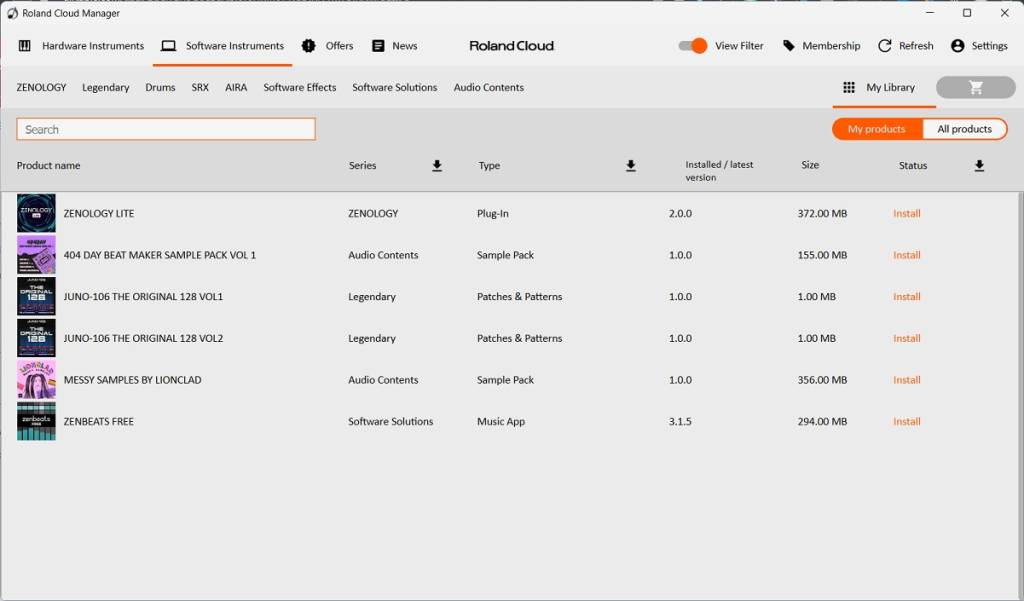
Click the image to download Roland Cloud Manager 3.0.
Activate the Expansion
Now that you’ve created an account, the next step is to register the activation key on the Roland Cloud website. Please note that you must be logged in to your account to register your product.
- Go to the Registration page, then enter the activation key you received from your Sweetwater Sales Engineer.
- Click Submit.

Click the image to activate your Fantom n/zyme Model Expansion
Download and Install n/zyme Model Expansions
The final step is downloading the expansion from Roland Cloud Manager and installing it onto your Fantom.
Format a USB Thumb Drive
IMPORTANT: All data will be erased when formatting your USB thumb drive, so be sure to back up anything important before moving forward.
To install the n/zyme Model Expansion on your Fantom, you must format a USB thumb drive directly from the Fantom.
- Connect the USB thumb drive to the USB MEMORY port on the back of the workstation.
- Press MENU, select UTILITY, then select USB MEMORY FORMAT.
- Press OK to complete the format.
Download and Install
The last step in the process is to download and install the n/zyme Model Expansion to your Roland Fantom.
- Connect the newly formatted USB thumb drive to your computer.
- Launch Roland Cloud Manager, click Hardware Instruments, click Synthesizers, then select FANTOM-6/7/8.
- Click the Download icon to download the expansion.
- Navigate to your Downloads folder, open the expansion folder, then copy and paste only the .exzfile to the root directory of your USB thumb drive.
- Safely disconnect the USB thumb drive from your computer, then connect it to the USB FOR UPDATE port on the back of the Fantom.
- With your Fantom turned off and the USB thumb drive connected, press and hold TEMPO while turning on the Fantom.
- The workstation will then launch into Expansion mode.
- Use the UP/DOWN buttons or [E1] encoder to select EMX007_n_zyme.exz.
- Press the [E6] encoder to install the expansion. Once complete, press the [E5] encoder.
- Do not turn off the workstation during the installation process!
- Power cycle the Fantom. Your new expansion is now successfully installed!
Related Articles
When you need help, Sweetwater has the answers!
Our knowledge base contains over 28,000 expertly written tech articles that will give you answers and help you get the most out of your gear. Our pro musicians and gear experts update content daily to keep you informed and on your way. Best of all, it’s totally FREE, and it’s just another reason that you get more at Sweetwater.com.

