

Roland Fantom Factory Reset
Overview
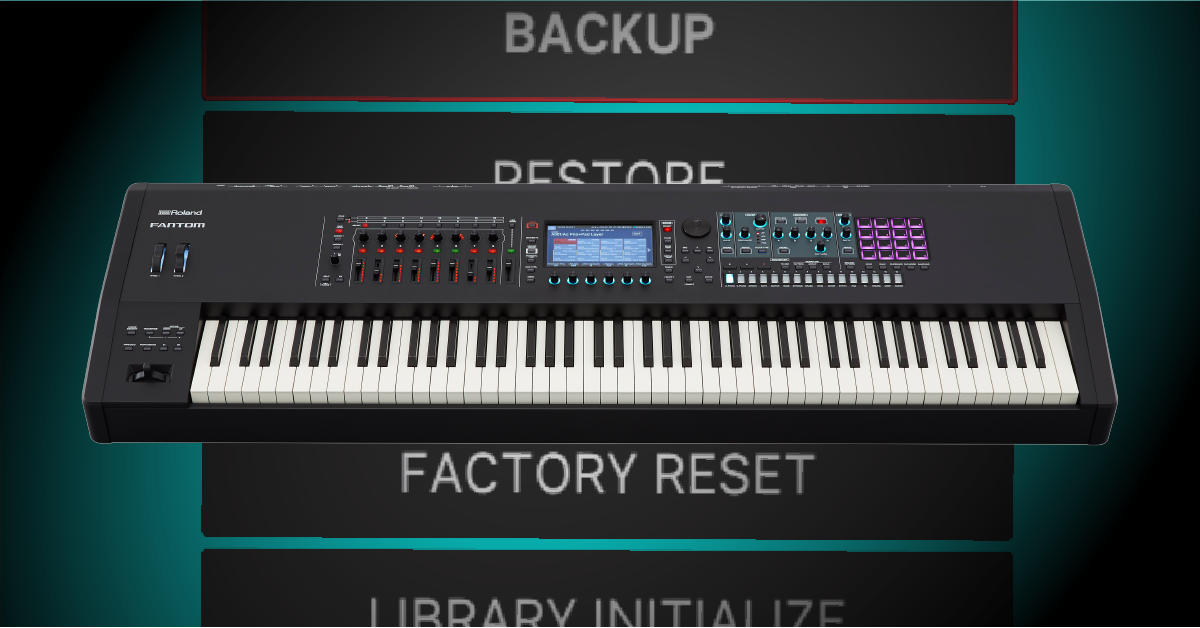
In this guide, we will show you how to format a USB thumb drive, back up user data and perform a factory reset and initialize internal storage on a Roland Fantom workstation. Follow the sections below to get started.
Format the USB thumb drive
Before back up your data and performing a factory reset, you first need to make sure the USB thumb drive is formatted correctly. You can format the thumb drive directly from the workstation. The Fantom can use USB 2.0 thumb drives with a storage capacity of up to 32GB. Follow these steps to format the drive on the Fantom.
- Connect the USB thumb drive to the USB MEMORY port on the back of the workstation.
- Press MENU, select UTILITY and then select USB MEMORY FORMAT.
- Press OK to complete the format.
How to back up Fantom data
TIP: The backup process may take some time depending on how much user data there is, so be sure not to disconnect the thumb drive or turn the Fantom off during backup.
Performing a factory reset on the Roland Fantom will erase data saved on the workstation. So before performing the reset, it’s best practice to back up any data you have to the USB thumb drive. Follow these steps to back up your saved data on a Fantom.
- Press MENU, select UTILITY and then select BACKUP.
- Name the backup file, choose whether or not to include backing up pad samples, and then press OK.
- Press OK once more to begin the backup.
Restoring Fantom data
After performing a factory reset, you can then restore the data which was on the USB thumb drive.
- Press MENU, select UTILITY and then select RESTORE.
- Select the backup file, and then press RESTORE.
- When prompted, turn the Fantom off and back on to complete the restore process.
Perform a factory reset
IMPORTANT: Never turn off the power during a Factory Reset. This may result in corrupted internal data and may prevent the power from being turned on again.
Once your user data is backed up, you can then perform a factory reset or initialize the internal storage. The factory reset will bring the Fantom back to its out-of-the-box settings, whereas initializing the internal storage will only set the factory library contents back to its default state. Any menu or system settings will not be erased.
Factory reset
- Press MENU, select UTILITY and then select FACTORY RESET.
- Press OK to begin the reset. When prompted, turn the Fantom off and back on to complete the reset process.
Initialize internal storage
- Press MENU, select UTILITY and then select INTERNAL STORAGE INITIALIZE.
- Press OK to begin the initialization. When prompted, turn the Fantom off and back on to complete the reset process.
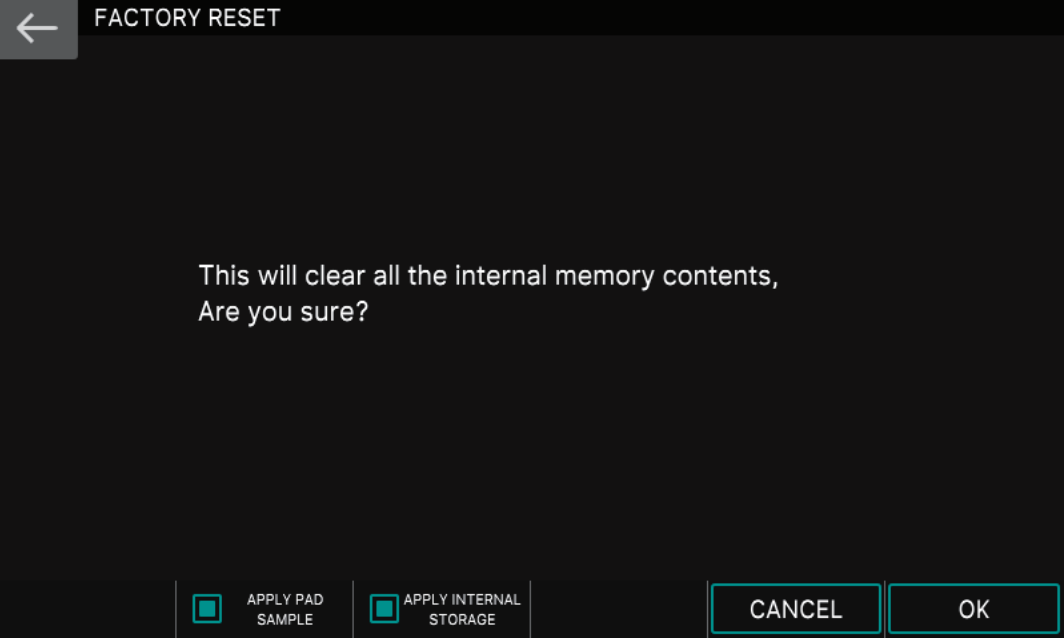
Factory Reset screen
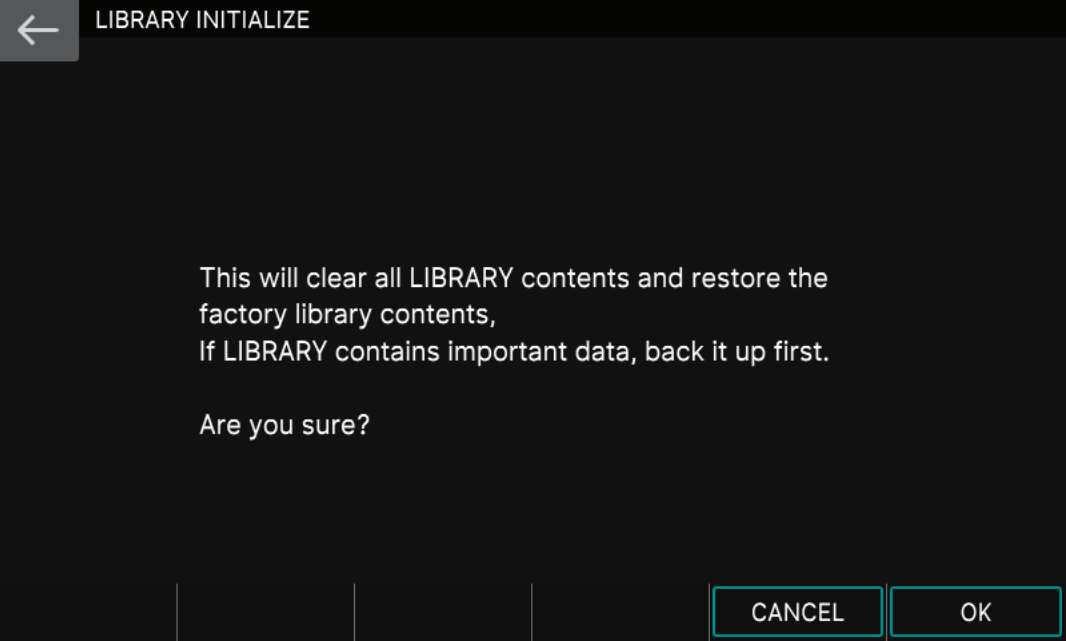
Initialize Internal Storage screen
When you need help, Sweetwater has the answers!
Our knowledge base contains over 28,000 expertly written tech articles that will give you answers and help you get the most out of your gear. Our pro musicians and gear experts update content daily to keep you informed and on your way. Best of all, it’s totally FREE, and it’s just another reason that you get more at Sweetwater.com.

