
Thunderbolt Connections Demystified
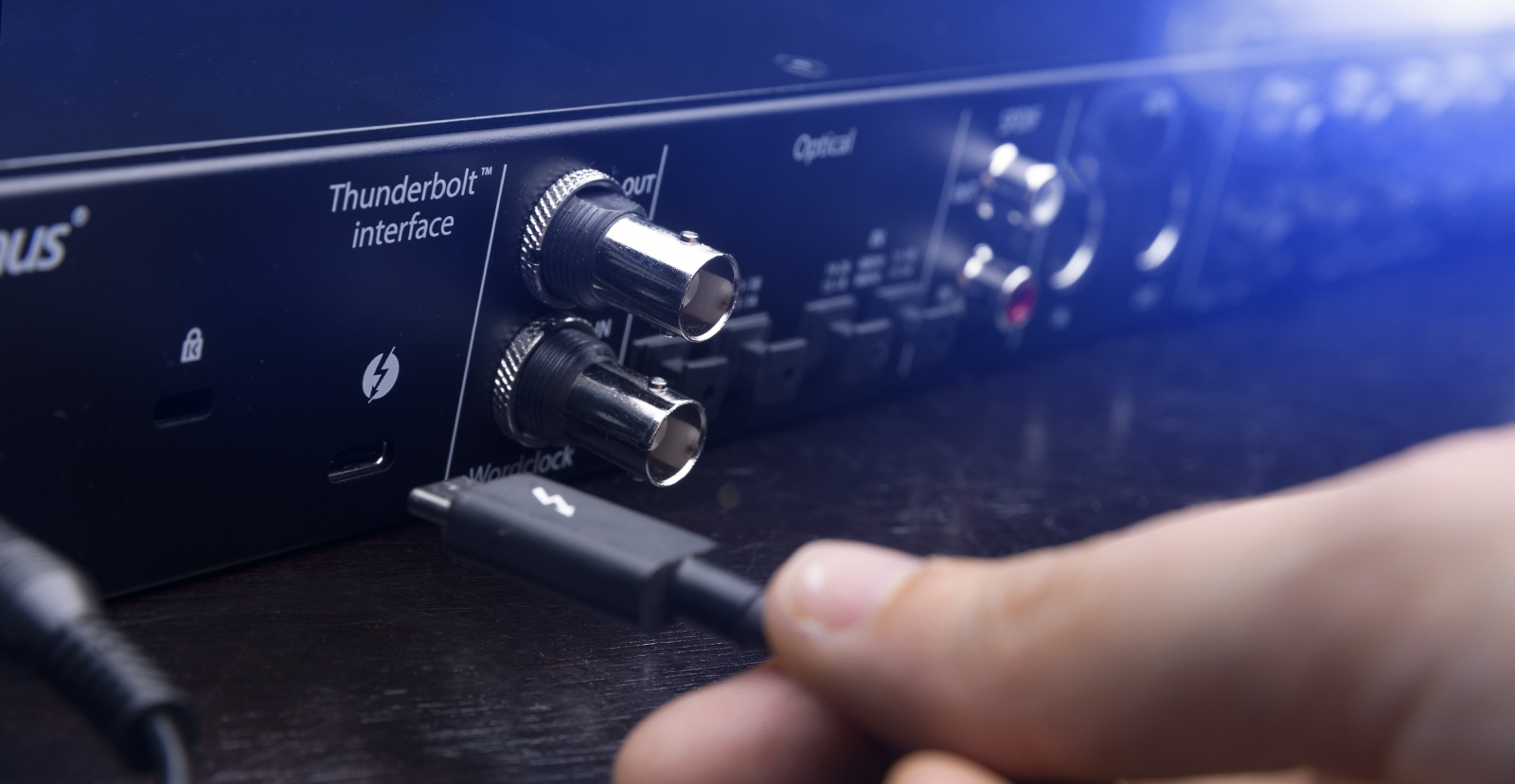
Congratulations on buying a Thunderbolt audio interface. With its high speed and low latency, Thunderbolt is the reference standard for audio interfaces. In this article we will introduce you to the Thunderbolt specification and explain the important distinction between Thunderbolt 3 and 4 cables and USB-C cables.
What is Thunderbolt?
Thunderbolt is an industry-leading, high-speed hardware interface for connecting all sorts of high-bandwidth peripherals to computers: video equipment, hard disk arrays, high-resolution displays, and more. For musicians and audio professionals, Thunderbolt is the fastest, highest-bandwidth method to date for connecting audio interfaces.
Thunderbolt was developed by Intel in collaboration with Apple. Thunderbolt is a proprietary design, in contrast to other interfaces like USB, which are open IEEE industry standards. Apple Macintosh computers have included Thunderbolt since 2011. In recent years many models of PCs that run Windows have also provided Thunderbolt.
Thunderbolt allows peripherals to be daisy-chained, meaning you can connect them in series and all the data will be transmitted to the host computer through one cable connection.
Thunderbolt 3 and 4 can support data transmissions up to 40 Gbps. That’s faster than the more common USB 3 class of devices. For advanced audio interfaces that run DSP plug-ins on the hardware, such as from Avid and Universal Audio, Thunderbolt enables latency that is so low it’s practically zero.
USB-C vs. Thunderbolt 3 and 4
To help you avoid any confusion, let us explain:
The most common computer peripherals, from a wired keyboard or mouse to external hard drives, as well as many audio interfaces, are USB devices. They connect to your computer using USB cables and might use the older USB-A plug and port or the newer USB-C plug and port. But as we’ve explained, Thunderbolt is a different specification.
The potentially confusing thing is that Thunderbolt 3 and 4 devices use the same USB-C plug connector as USB devices. But a Thunderbolt 3 and 4 connection is wired completely differently from USB and requires special Thunderbolt cables to work. You can recognize Thunderbolt cables and Thunderbolt ports because they are labeled with the Thunderbolt symbol.
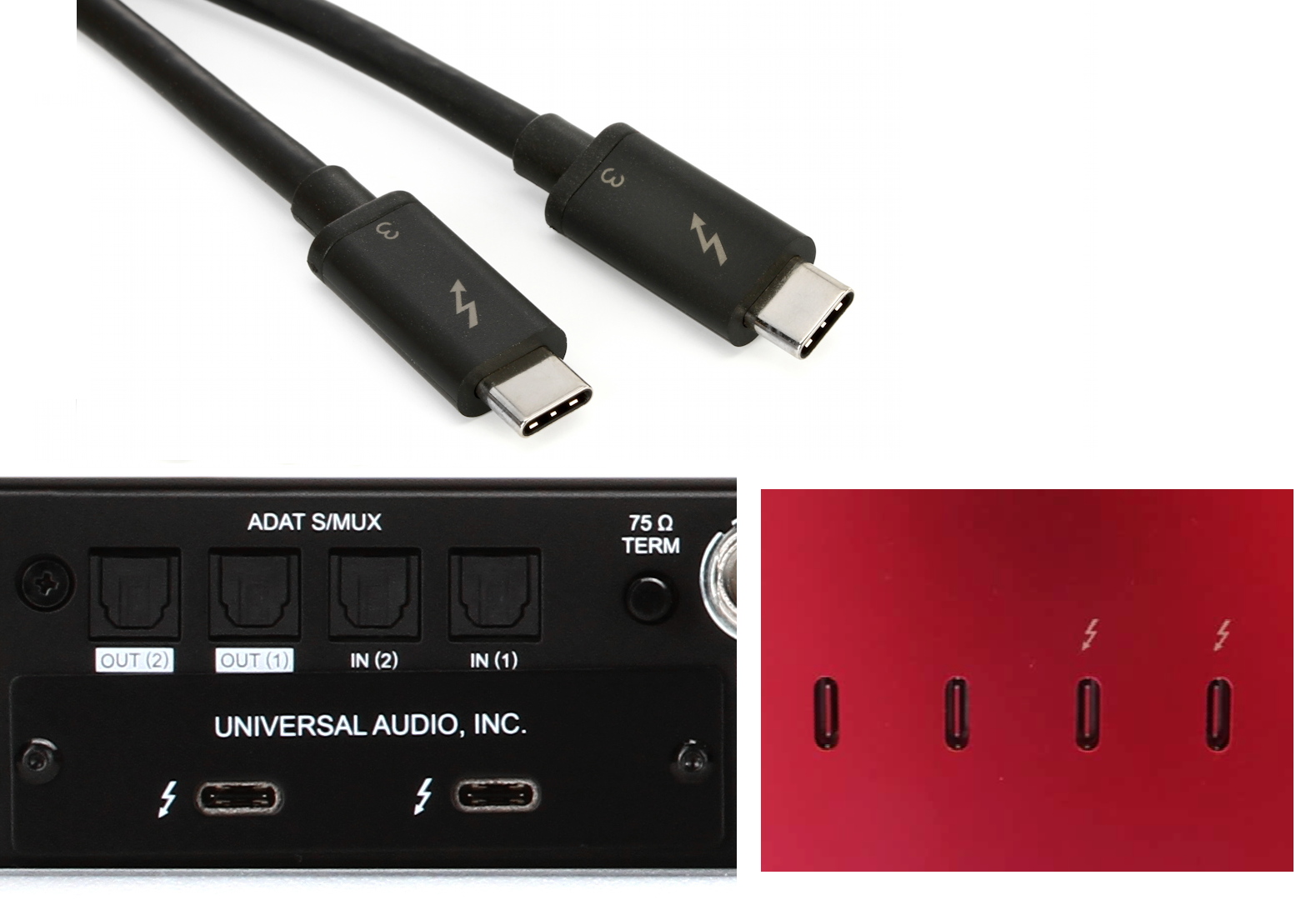
The Thunderbolt symbol on a Thunderbolt 3 cable, a Thunderbolt 3 audio interface, and Thunderbolt 3 ports on an Apple iMac. All use the USB-C connector.
Your computer will only recognize a Thunderbolt device if it is connected to a Thunderbolt cable which is in turn connected to a Thunderbolt port on your computer. With Thunderbolt 3 and 4, that’s a USB-C-shaped port that has the Thunderbolt symbol on it.
If you see a USB-C-shaped port on your computer and it does not have the Thunderbolt symbol on it, then it may not be a Thunderbolt port: it’s probably a regular USB port. The important exception is with laptop computers including Apple MacBooks. If all the USB-C-shaped ports on a Windows or Mac laptop are Thunderbolt ports, they tend not to be labeled with the Thunderbolt symbol. You just have to look up the computer’s specifications to make sure.
The other thing about the Thunderbolt port is that it’s backward compatible with USB. You can plug a USB device into a Thunderbolt port using a USB cable that ends in a USB-C plug. But you can’t plug a Thunderbolt device into a USB port, no matter the shape of the port.
For further information about the relationship between the different specifications of USB and Thunderbolt, and the cables required, check out this inSync article:
Legacy Equipment: Thunderbolt 1 and 2
Nowadays we’re all using Thunderbolt 3 and 4 audio interfaces, but there are still studios using the older Thunderbolt 1 and 2 devices. For the sake of completeness, let’s explain how they are set up.
Thunderbolt 1 and Thunderbolt 2 audio interfaces used the Mini DisplayPort connector plug. They supported a data transmission rate of up to 10 Gbps and 20 Gbps, respectively. Thunderbolt 1 and 2 devices require special Thunderbolt cables with Mini DisplayPort connectors.
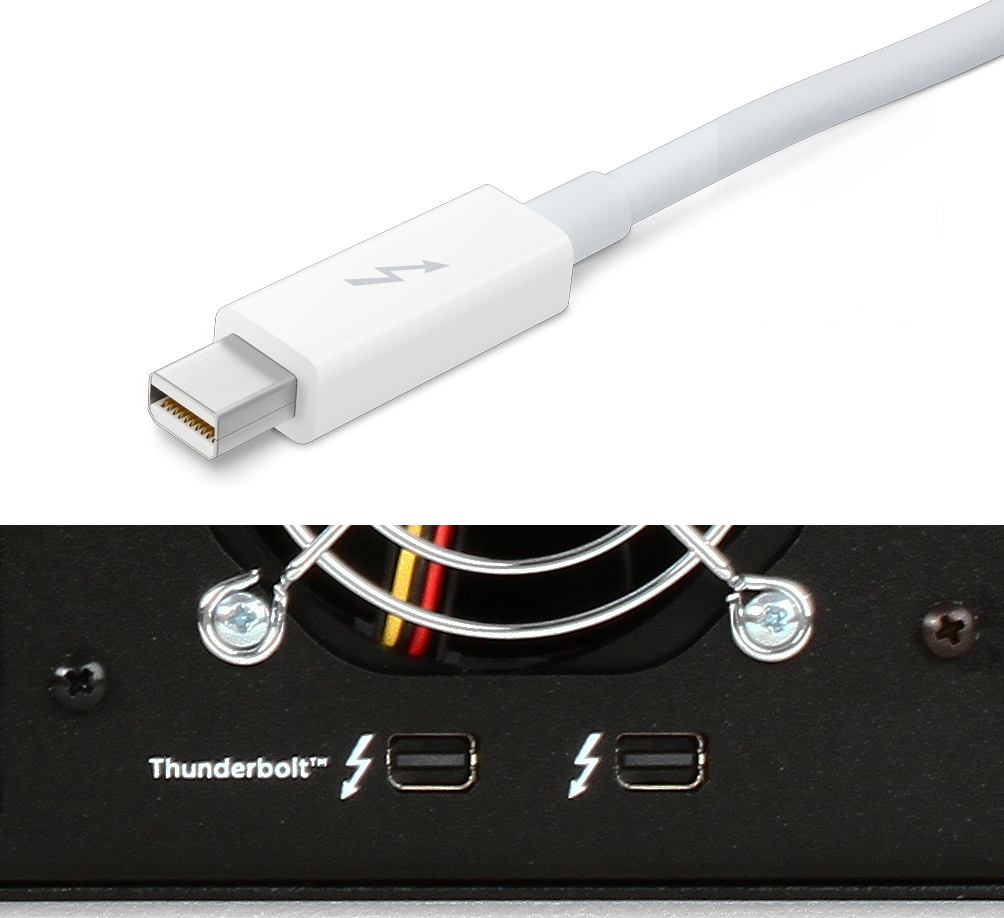
The Thunderbolt symbol on a Thunderbolt 2 cable and a Thunderbolt 2 audio interface. They use the Mini DisplayPort connector.
It may be possible for you to get an old Thunderbolt 1 or 2 audio interface to work with a computer with a Thunderbolt 3 or 4 port with a suitable Thunderbolt adapter cable. This is a special edge-case.
If you see a cable with a Mini DisplayPort connector that does not have the Thunderbolt symbol, you are probably looking at a regular Mini DisplayPort cable, which is still often used to connect a computer to a display monitor.
Passive vs. Active Thunderbolt Cables
In the context of recording studio work, when we talk about Thunderbolt 3 and 4 cables, we mean copper wire cables. There are two primary types of Thunderbolt cables: passive and active. (There is also a third kind, the Thunderbolt fiber optic cable, for cable runs up to 164 ft [50m], but that’s for highly specialized cases.)
Passive Thunderbolt Cables
Passive Thunderbolt copper wire cables work with a cable length of between 18 inches (0.5m) and 6 feet (2m). A passive cable is the correct cable if you only have one Thunderbolt device.
Currently, passive cables are available in two data transmission ratings: 20 Gbps and 40 Gbps. 20 Gbps is usually fine, but if you encounter problems with your connection, you may wish to try a 40 Gbps passive cable.
Active Thunderbolt Cables
Active Thunderbolt cables are more expensive than passive ones and maintain higher data transmission speeds at longer lengths. Active cables have a computer chip at each end in the plug housing. If you chain multiple devices and also need a cable length longer than 18 inches (0.5m), you may need active cables. Apple even has an active Thunderbolt 4 cable that’s 10 feet (3m) long.
Setting Up and Audio Interface for Mac or Windows PC
Now that we’ve demystified the topic, and maybe taught you a thing or two you didn’t know you needed to know, let’s help you with the next step: getting up and running with your new Thunderbolt audio interface. Have a look at this Sweetcare article, “Getting Started with Thunderbolt Audio Interfaces.”
When you need help, Sweetwater has the answers!
Our knowledge base contains over 28,000 expertly written tech articles that will give you answers and help you get the most out of your gear. Our pro musicians and gear experts update content daily to keep you informed and on your way. Best of all, it’s totally FREE, and it’s just another reason that you get more at Sweetwater.com.

