
Reason Quickstart Guide
Getting started with Reason
In this guide, we’ll show you how to get up and running with Reason. That means we’ll show you how to navigate the DAW, set up audio and MIDI devices, and then record with them. Once you successfully activated and installed, follow the sections below to get started.
- Navigate Reason
- Selecting an audio device
- Create and record audio tracks
- Enable a MIDI device
- Create and record MIDI tracks
Navigate Reason
When using Reason, there are four primary areas you’ll work in; the Browser, Mixer, Rack, and Sequencer. While they can be viewed all in one window, the Mixer and Rack sections can be detached into separate windows. You can also use the F3 and F5-F7 to minimize and maximize the areas.
Browser
The Browser is where you will add instruments, effects, and patches. You can also create custom preset lists, to easily recall your favorite plug-ins, instruments, and samples. Press the F3 key to show or hide the browser window.
Mixer
The mixer displays all audio and instrument tracks in channel strips. You can navigate through the mixer either by using the scroll-wheel on your mouse, or click and drag the mouse on the Channel Strip Navigator on the right. You can learn more about the Mixer window here.
Rack
Every effect, instruments, and mixer channel devices in your projects reside in the Rack. You’ll also make any routing and patching changes to the instruments and effects by pressing the Tab key, and then working with the ‘patch cables.’ Move through the Rack using the Rack Navigator on the right side of the window, or use the scroll-wheel on your mouse. Multiple rack columns can be created by dragging an effect or instrument to the right of the current Rack. Having multiple racks will keep your sessions and workflow much more organized. Learn more about how to work with the Rack here.
Sequencer
The Sequencer area is where you’ll be recording your audio and MIDI tracks. You’ll also be doing your edits and arrangements as well. Depending on what type of track you’re working on, you can also work with recording and automation lanes. Learn more about all of the Sequencer functions here.
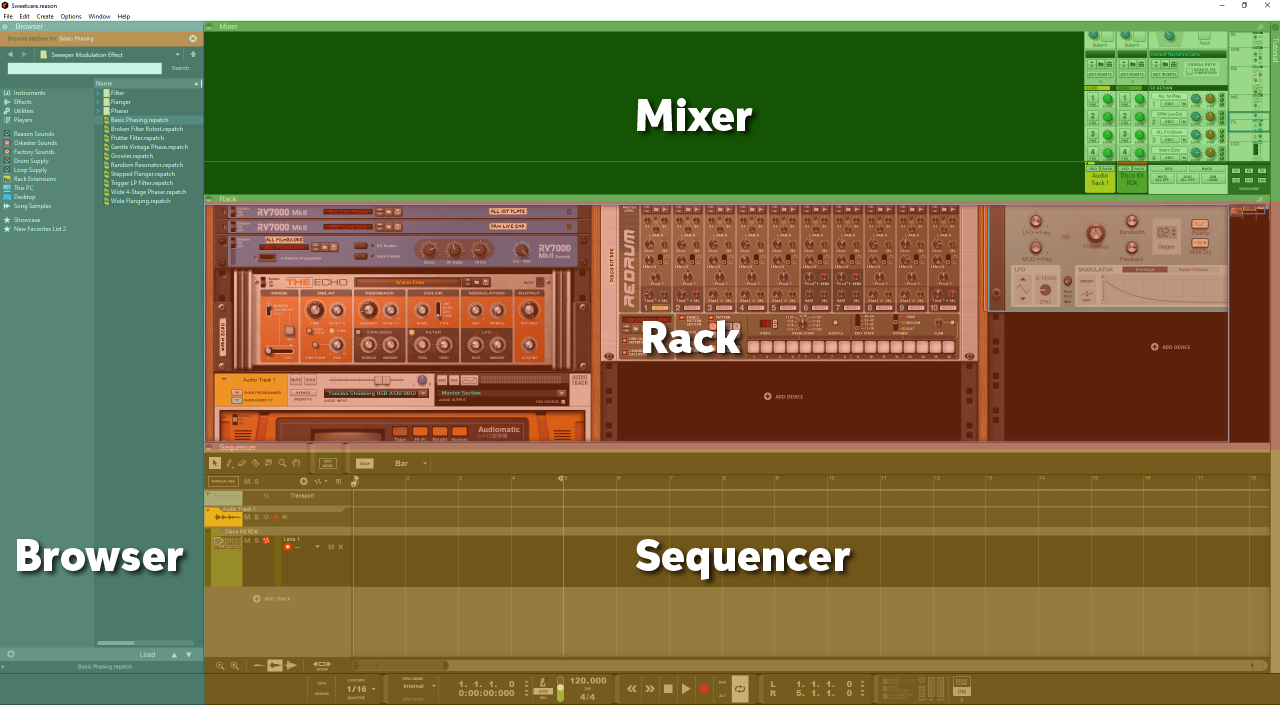
Sections of Reason
Selecting an audio device
Like most DAW’s, Reason has dedicated audio settings, which means you’ll need to select your audio device inside the Audio Preferences. If this is the first time connecting your audio interface, you’ll want to install its driver beforehand. Once done, the interface can be connected directly to the computer and then selected as the default audio device.
- Go to the Edit menu in the top toolbar, select Preferences, and then click the Audio tab.
- Click the drop-down box in the Audio card driver section, and select your audio hardware.
- Adjust the sample rate and buffer size which is most applicable to your project. A lower buffer size will reduce latency, but uses more CPU which can cause audio dropouts and distortion.
Audio device not showing up?
If your audio device does not show up in Reason, make sure you’ve downloaded and installed the correct drivers. Also, visit our troubleshooting guides for PC & Mac.
Configure the inputs and outputs
Now that your audio device is selected, we need to configure the input and output settings in Reason. This means you’re connecting the hardware channels from your audio device to the software paths in Reason. Follow the steps below to update Reason’s I/O settings.
- In the Audio tab of the Preferences window, you will see the number of active input and output channels. By default, Reason automatically enables all of them, but if you need to make any changes, click the Channels button to enable or disable them.
- Save your settings by closing the window.

Reason’s Audio Preferences
Create and record audio tracks
Creating an audio track in Reason is easy once you’ve configured the audio settings. All you need to do is to create the track, select mono or stereo, and then start recording. After you create a track, rename it and change the track color. Keeping organized with good track titles with distinct colors will add a lot to your workflow.
- Click Add Track in the Sequencer window and select Create audio track. Alternatively, you can either use the hotkey command Ctrl+T (PC) or Cmd+T (Mac)
- Select the track, click IN, and then choose Mono or Stereo, as well as the input channels you’ll be using.
- If you would like to hear yourself simultaneously while recording, click the Speaker icon next to the Record Enable button on the track.
- If the speaker doesn’t appear, go to the Audio Preferences window, and select either Automatic or Manual within the Monitoring section.
- Press the Record button (or use the Ctrl+Enter hotkey command) to begin recording. Press the Stop button or Spacebar to stop the recording.
Adding effects plug-ins
You can add effects plug-ins a few different ways; either by clicking Add Device in the Rack window, or navigating through the Browser window then dragging and dropping it into the Rack.
Enable a MIDI device
If you’re using a MIDI device, Reason first needs to recognize that it’s connected to your computer. Reason’s Control Surfaces menu is where MIDI connections are managed. From here, you can activate or deactivate the MIDI ports or channels of your hardware. Follow the steps below to enable each of your MIDI devices.
- Open the Reason menu and select Preferences…
- Select the Control Surfaces tab and choose Auto-detect Surfaces or Add Manually.
- If added manually, select the controller’s manufacturer/protocol and its MIDI ports. Read the information text carefully, as additional configuration with your device may be required.
- Close the Keyboards and Control Surfaces menu.
MIDI device not being recognized?
If your MIDI device does not show up in Cubase, make sure you’ve downloaded and installed the correct drivers. Also, visit our MIDI device troubleshooting guide.
Create and record MIDI tracks
To trigger virtual instrument plug-ins, you need MIDI data. MIDI data can be drawn in with your mouse (in the MIDI Editor window) but also recorded by playing your device. There are two methods for recording MIDI and playing virtual instruments; via an Instrument track or an external MIDI track. The first option is quick and straightforward, but the second is more useful when triggering external gear such as sequencers or synthesizers. Keep in mind that MIDI data only triggers the instrument, and you’ll need to record it to an audio track if you want an actual audio file.
- Click Add Track in the Sequencer window and select the virtual instrument you wish to use. You can also search for your instrument in the Browser then click and drag that into the Rack window.
- If you are triggering external gear like a synth, select External MIDI Instrument within the Built-in Devices list.
- Press the Record button (or use the Ctrl+Enter hotkey command) to begin recording. Press the Stop button or Spacebar to stop the recording.
Additional resources
Making Your First Beat with Reason
43 Ways to Beat Writer’s Block
Getting up and running with Reason in Logic Pro X
Getting up and running with Reason in FL Studio
When you need help, Sweetwater has the answers!
Our knowledge base contains over 28,000 expertly written tech articles that will give you answers and help you get the most out of your gear. Our pro musicians and gear experts update content daily to keep you informed and on your way. Best of all, it’s totally FREE, and it’s just another reason that you get more at Sweetwater.com.

