
Using Plug-ins in Reason
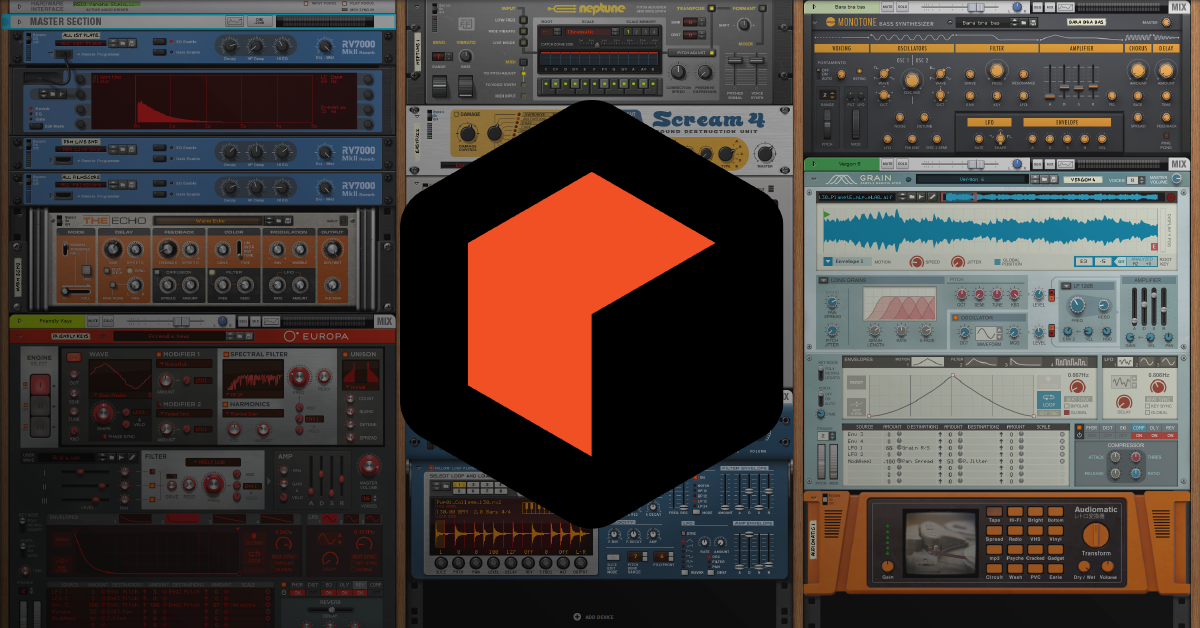
In this guide, we will show you how to work with effects plug-ins and virtual instruments in Reason. We’ll show how to load one and add it to a track. We’ll also show you some tips and tricks along the way. Follow each of the sections below to get started.
- Scanning new plug-ins
- Loading plug-ins on a track
- Using the Reason Rack as a plug-in
- Troubleshooting plug-in issues
Scanning new plug-ins
IMPORTANT: Only VST2 plug-ins and virtual instruments are currently compatible with Reason 11. Visit our guide to learn more about different plug-in formats.
When you first launch Reason, it will scan for any installed VST plugins from its default plug-in path. If you installed a new plug-in or virtual instrument to a custom folder, however, you first need to add that new path within the Advanced Preferences. Follow these steps to add a new plug-in for use with Reason.
- Go to the Edit menu and select Preferences.
- Click the Advanced tab, add the folder path(s) where your plug-ins were installed, and then restart Reason.
Loading plug-ins on a track
Once your plug-ins have been scanned you can then load them into your project. You can load them a few different ways. For effects plug-ins, simply drag and drop it into the Rack window. Virtual instruments can either be dropped into the Rack window, or added in the Sequencer window by clicking Add Track and then selecting it from the Instruments menu.
Routing multi-out virtual instruments
When using a virtual instrument such as Kontakt or Superior Drummer which utilizes multiple outputs, you need to manually create the individual mixer channels for mixing within Reason. Follow these steps to create mixer channels for multi-out virtual instruments.
- Create an instrument track, and switch the rack view to view the back by pressing Tab.
- Click the Down arrow next to CV PROGRAMMER to reveal the I/O.
- Right-click the additional outputs you wish to create a new mixer channel for and select Route to New Mixer Channel.
Using the Reason Rack as a plug-in
The Reason Rack plug-in is currently only compatible with DAW’s which use the .vst3 or AU plug-in format. AAX compatibility is currently under development and will be available later this year.
Reason 11 has a new feature that allows you to use the Reason Rack as a third-party VST3 plug-in within a DAW. Instead of needing to use the ReWire application, you can now just create an instrument track or insert it as an effect on an audio track. Once loaded, you can patch the signal how you want, which is useful if you want to send the effect to an aux track.
- Create an instrument or audio track, and then select Reason Rack Plugin.
- When the Reason Rack window opens, double-click to add a rack instrument/effect. You can also click Add Device to bring up the Browser window and select from the full list of effects and instruments available within Reason.
- Select Flip Rack, and adjust any routing settings via the patch cables.
Troubleshooting plug-in issues
There may be a time where you run into an error when launching Reason, or when you attempt to use a plug-in on a track. It could be due to a number of , from incompatibility, an iLok not being plugged in, or even running an outdated version. Here are a few troubleshooting steps you can take to get the plug-ins working again.
Compatibility and file location
If a plug-in or virtual instrument isn’t showing up, the first thing to check is that the plug-in is compatible. Reason currently supports VST2 and VST 2.4 plug-ins. The other thing to check is that the folder where the plug-in resides is added to the scan list.
Plug-in has been disabled or could not be loaded
Once you’ve confirmed that your plug-in is compatible, the next thing to check is that it didn’t get disabled. More often than not, if the plug-in crashes when it’s being scanned, Reason will disable the plug-in. Follow these steps to re-enable a plug-in.
- Navigate to the Window menu, and select Manage Plugins.
- Locate your plug-in, and if the status is Could not be loaded or Disabled, select it and click Enable.
- Close and then relaunch Reason.
iLok licensed plug-ins
Plug-ins that require iLok licenses and USB dongles will be disabled if the key wasn’t plugged in and the initial activation window was skipped. If this happens, reconnect your iLok, re-enable the plug-in and then relaunch Reason.
Optimize plug-in performance
Loading a series of plug-ins can bog your system down and slow down your workflow. Here are a few plug-in optimization tips to help you along the way.
Increase buffer size and change performance settings
If you hear pops, clicks, or poor audio quality, the buffer size may be too low. Check the DSP meter in the Transport area to see how much processing power the project is using. Remember, inserting more plug-ins will use up more CPU.
Create a mix channel
If you’re using the same effect on multiple tracks, such as reverb on multiple drum tracks, add one instance of that plug-in to a Mix (aux) Channel and route the audio tracks to that channel.
- Navigate to Create and select Mix Channel.
- Add the effects plug-in to the Mix channel and press the Tab key on your keyboard to flip to the back of the Rack
- Change the Audio Output of the channels from Master Section to Mix Channel.
Additional resources
When you need help, Sweetwater has the answers!
Our knowledge base contains over 28,000 expertly written tech articles that will give you answers and help you get the most out of your gear. Our pro musicians and gear experts update content daily to keep you informed and on your way. Best of all, it’s totally FREE, and it’s just another reason that you get more at Sweetwater.com.

