
Native Instruments Kontrol S-Series Mk3 Quickstart Guide
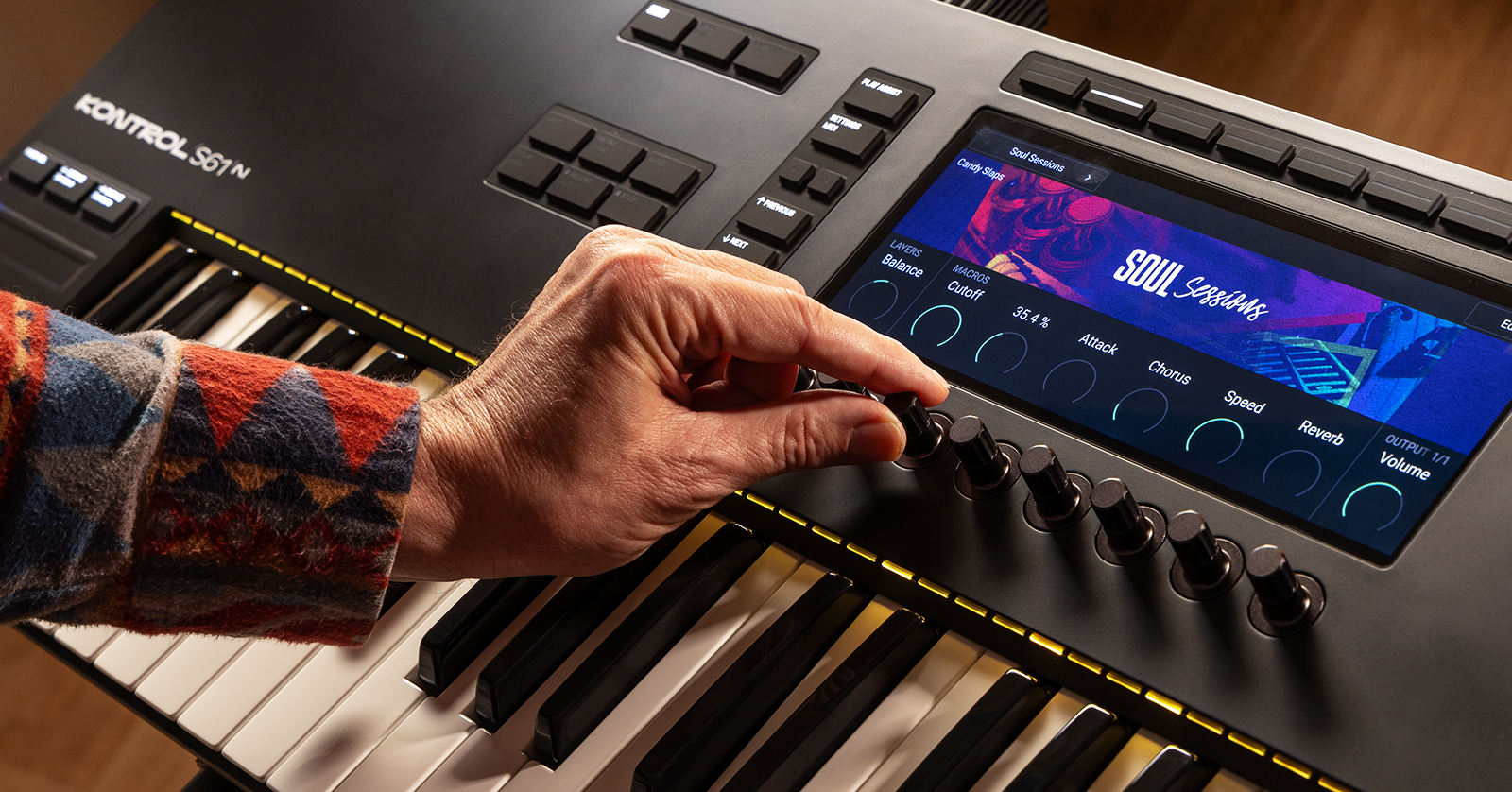
The Native Instruments Kontrol S-Series MK3 is a fantastic keyboard in any studio, so in this guide, we will show you how to register, set up, and use it for the first time. This article only scratches the surface, so check out the Kontrol S-Series MK3 Manual for more information! Follow the sections below to get started.
- Register the Kontrol S-Series MK3
- Update Native Instruments Kontrol S-Series MK3 Firmware
- Setup and Connections
- How to Set Up Kontrol in Applications
- Native Instruments Kontrol S-Series Resources
Register the Kontrol S-Series MK3
IMPORTANT! Make sure you install the Kontrol’s Hardware Connection Service, Kontakt Player and the Komplete Kontrol applications for full functionality!
To use your Kontrol Mk3 keyboard for the first time, you must connect it to your Mac or Windows PC and install and configure Native Instrument’s software and firmware according to the steps Native Instrument provides.
- Log in to your Native Instruments account. If you don’t have an account, click Sign up now, then fill out the necessary information.
- Go to the Native Access 2 download page. Choose the download for your OS.
- Mac users: The Mac installer is available in two versions: one for Intel-based Macs and one for Mac with Apple Silicon. If you’re unsure what to download, click Which Mac installer should I install? Check out our guide about Mac versions to learn more.
- Navigate to your Downloads folder, then locate and launch the installer.
- Once Native Access 2 is installed, connect the Kontrol Mk3 directly to your computer and press the Power button to turn it on.
- If your computer doesn’t have a USB-C port, you must use a USB wall adapter that is at least 5V, 7.5W, 1.5A and connect it to the Kontrol’s USB power port.
- You will see your unit’s serial number and the message “Welcome! Add your serial in Native Access. Get full setup instructions at the Native Instruments Kontrol S-Series Mk3 website.” That website will also walk you through the setup process as outlined below.
- Launch Native Access, click Add Serial, then enter the Serial number listed on the Kontrol Mk3’s display. The Serial Number can also be found on the packaging, as well as the underside of the keyboard.
- The registration may take a few minutes.
- Click Applications, locate Hardware Connection Service, and click Install. This will install the service that syncs your plug-ins with the keyboard.
- IMPORTANT! You must update the firmware as outlined in the instructions below before download and installing any additional software.
- Once registration is complete and the firmware is updated, you must install Kontakt Player and Komplete Kontrol.
- You may also install any additional virtual instruments that come with the Kontrol S-Series Mk3.
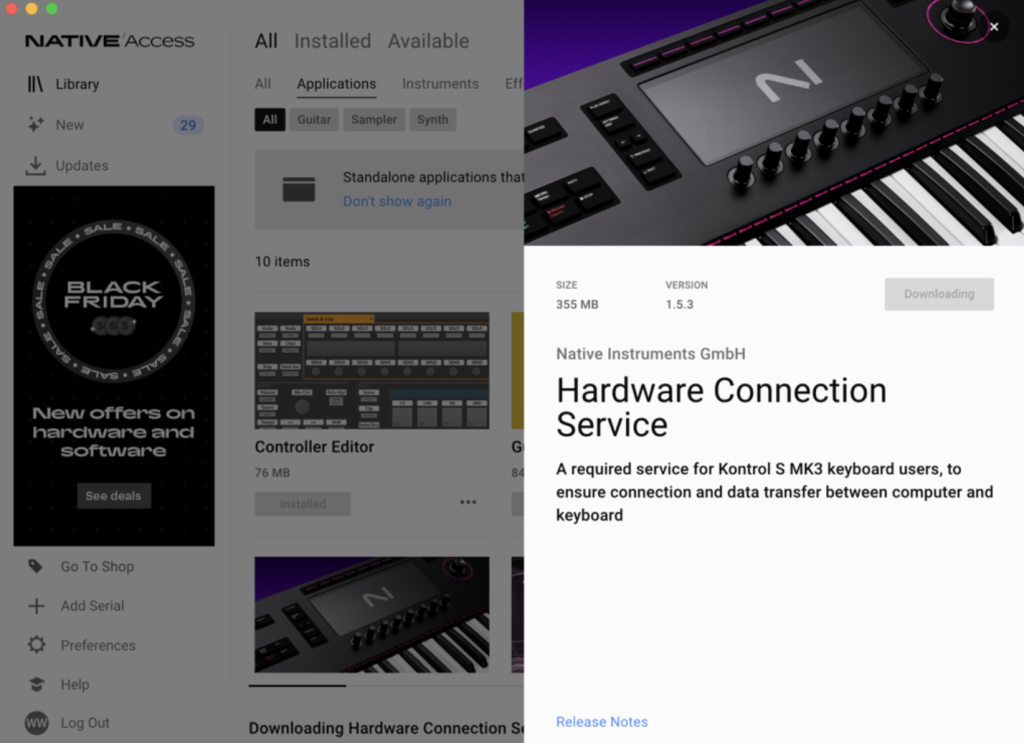
Click Applications, then locate and Hardware Connection Service.
Update Native Instruments Kontrol S-Series MK3 Firmware
IMPORTANT! You must keep your Kontrol Mk3 connected, and disable the sleep settings on your computer before performing the firmware update! If the computer falls asleep (or if you disconnect it), it will result in a failed installation.
Native Instruments will release firmware updates for your Kontrol S-Series MK3 periodically, adding new features and addressing any issues in the current firmware. Whenever the keyboard is connected and the Komplete Kontrol software is running, the Kontrol S-Series MK3 will automatically check to see if a firmware update is available. If there is, you will receive a prompt.
- Disconnect any unnecessary USB devices from your computer (e.g., audio interfaces or USB thumb drives).
- Disable the sleep settings on your computer.
- Windows PC: Click the Windows icon, type Power and Sleep, and select Never from all the dropdown boxes.
- Mac: Launch System Settings, choose Battery, then set Low Power Mode to Never. If you use a desktop, go to System Settings, select Energy Saver, and disable Put hard disk to sleep….
- Connect the Kontrol S-Series MK3 to your computer. Power it on.
- Download the firmware file from the S-Series MK3 firmware update page, then close your browser and any other applications you have running.
- Navigate to your Downloads folder. Locate and extract the Updater application.
- Click Update.
- If you receive any errors when updating the firmware, check out Native Instruments’ firmware update troubleshooting guide.

Setup and Connections
Once you have your Kontrol registered with Native Instruments and its firmware is updated, it’s time to get set up and connected!
USB
The Kontrol is bus powered, meaning (depending on how you’re connecting) no external power supply is necessary. Here are a few tips for connecting the keyboard to your computer.
- Use the USB HOST port when connecting to your computer.
- If you don’t have any USB-C ports on your computer, you must use a USB-C to USB-A cable and a power supply with USB-C connections.
- Do not connect the Kontrol S-Series MK3 to a USB hub! USB hubs (especially passive hubs) cannot provide enough power to both to power the unit and transfer data.
Pedals
There are four 1/4-inch pedal connections on the Kontrol S-Series MK3: two assignable, one sustain, and one expression.
- You can use both continuous and switch pedals.
- The sustain and expression pedals will work as soon as you connect them. However, you can update the settings at any point to suit your needs. To do so, press Settings, press button 2 until you reach the Pedals screen, and use the encoders beneath the screen to update the settings.
MIDI
You can use the Kontrol S-Series MK3 as a standalone MIDI controller or MIDI interface by using the 5-pin MIDI ports.
- When using the Kontrol as a MIDI interface, you must set it as the default MIDI I/O device in your standalone software or DAW. It will show up as KONTROL S[XX] MK (MIDI) on Mac and MIDIIN3 (KONTROL S[xx]MK3) on Windows.
- You must update the Kontrol’s internal MIDI settings if you use the keyboard as a standalone MIDI controller with external MIDI devices. Check out the user manual for specific instructions on how to get set up and connected!
How to Set Up Kontrol in Applications
There are a few ways to set up your Native Instruments Kontrol keyboard: in standalone software such as Kontakt and Komplete Kontrol or in your DAW. Depending on your application, the setup procedure may differ, so we’ll discuss how to set up the keyboard each way.
Kontakt Player
You will update your audio interface and Kontrol S-Series keyboard in Kontakt’s MIDI options.
- Click the Gear icon. Select Audio to open System Options.
- Choose your audio interface’s driver from the Device dropdown box. You can update the specific audio interface’s settings by clicking ASIO Config.
- While you still have System Options open, click MIDI, then select INPUTS.
- Locate Kontrol S(xx) MK3), click Off in the Status column, and select the desired port from Ports A–D.
- If you have something connected to the MIDI port in the rear of the unit, change the status of KONTROL S(xx) MK3 (MIDI) on macOS or MIDIIN3 (KONTROL S[xx] MK3) on Windows.

Komplete Kontrol
Updating your audio interface and Kontrol keyboard MIDI Control settings is done within Komplete Kontrol’s Preferences window.
- Navigate to Komplete Kontrol’s menu, navigate to Edit, and select Preferences.
- Click Audio. Choose your audio interface’s driver from the Device dropdown box. You can update specific audio interface settings by clicking Open Panel.
- Select the main audio outputs within the Routings section.
- Click MIDI, select Input, and click the checkbox next to KONTROL S[XX] MK3.
- If you have something connected to the MIDI port in the rear of the unit, select KONTROL S[xx] MK3 on macOS or MIDIIN3 (KONTROL S[xx] MK3) on Windows.

DAW Controller
Not only can you program the Kontrol to control functions in your virtual instruments and plug-ins, but you can also control functions inside your DAW! This ensures a speedy workflow, so you can spend more time creating and less time switching between your mouse and the keyboard. Check out our DAW controller setup guide to learn more about what DAW controllers are and how they work!
- You must set the keyboard as the default MIDI input and output device. Check out our DAW controller setup guides to learn more about setting up DAW controllers inside a DAW.
- Setup will differ between DAWs, so check out the DAW controller setup portion of the Kontrol S-Series Manual for DAW-specific instructions.
- Some functions may not be programmable. Please refer to the DAW Control section of the Kontrol S-Series Manual for more information.
Native Instruments Kontrol S-Series Resources
Related Articles
When you need help, Sweetwater has the answers!
Our knowledge base contains over 28,000 expertly written tech articles that will give you answers and help you get the most out of your gear. Our pro musicians and gear experts update content daily to keep you informed and on your way. Best of all, it’s totally FREE, and it’s just another reason that you get more at Sweetwater.com.

