
macOS Recovery Explained
IMPORTANT! This article is based on macOS 27 Golden Gate released in 2026. The procedures for working with macOS Recovery are somewhat different for other versions of macOS.
On most of the links to Apple’s instructions in this article, you can go to the top of the page and pull down the Select version menu to choose the specific instructions for macOS 27 Golden Gate, macOS Tahoe 26, macOS Sequoia, macOS Sonoma, macOS 13 Ventura, macOS 12 Monterey, or macOS 11 Big Sur.
At Sweetwater, we provide resources for musicians, audio pros, and content creators who rely on the Apple Mac platform.
macOS Recovery is an important tool that’s part of macOS. Sooner or later, you may need to perform one of the following:
- Repair your internal storage drive if your Mac is malfunctioning
- Reinstall macOS
- Restore all the data from a Time Machine backup at once
- Set the security policy (encryption and passwords) for different drive volumes
- On a Mac with Apple silicon, allow the use of kernel extensions in order to connect a Thunderbolt audio interface or certain other kinds of hardware and software that require this procedure.
- On a Mac with Apple silicon, connect to a second Mac with a USB or Thunderbolt cable to transfer files between computers.
Here’s an overview of macOS Recovery and how you can use it.
- How Do I Access macOS Recovery?
- Am I Running an Intel-based Mac or a Mac with Apple silicon?
- What You Will Need to Know, and Have, Before Starting macOS Recovery
- Got a Time Machine Backup?
- How to Boot into macOS Recovery
- Working in macOS Recovery
- Where to Learn More
How Do I Access macOS Recovery?
macOS Recovery is not an app you can find on your Mac while it is running normally; it’s a mode you access by shutting down your Mac and then booting into macOS Recovery rather than the normal macOS.
macOS Recovery resides on a small, hidden partition of the Startup Disk called the macOS Base System. It’s a miniature OS with specific functions. While in macOS Recovery, you cannot use the Finder, run your apps, or directly access your files. When you are done with macOS Recovery, you reboot into macOS as normal.
Going into macOS Recovery can be disorienting. All your notes, information, and passwords are on the Startup Disk on your Mac, which you cannot access. It would be a good idea to write your information down and print instructions out before you start, unless you have a second Mac or another device you can use while your Mac is in macOS Recovery. Don’t worry: we’ll give you an understanding of the process before you get started.
Once you have performed the functions you need in macOS Recovery, simply restart your Mac. If all is well, it will boot into your normal macOS experience.
Am I Running an Intel-based Mac or a Mac with Apple silicon?
The procedure for booting into macOS Recovery, and what features are available, depends on whether your Mac has an Intel CPU or an Apple silicon chip.
Check out our SweetCare support article, How to tell if you have an Intel-based Mac or a Mac with Apple silicon.
What You Will Need to Know, and Have, Before Starting macOS Recovery
- The version of macOS on your Mac and whether your Mac is Intel-based or has Apple silicon
- Your administrator username and password that you use to log in to your Mac. Make sure to write it down.
- Your Apple ID, both the email address and the password. This is your account with Apple and is not the same as the username and password above.
- An Internet connection, either Wi-Fi or an Ethernet cable connecting your router to your Mac. Ethernet is best. If you use Wi-Fi, you need to know the network name and password to connect, as you will need to type it in while in macOS Recovery.
TIP: If you have a desktop Mac instead of a MacBook, you will have an easier time if you connect a wired keyboard and mouse to use macOS Recovery. While it is possible to configure macOS Recovery to recognize a Bluetooth wireless keyboard and mouse, it is difficult to set up. If you have an Apple Magic Keyboard, you can connect it to your Mac using the USB-C-to-Lightning cable that came with it.
Got a Time Machine Backup?
We hope you have made a Time Machine backup of your system onto an external hard drive and that you maintain regular incremental backups. It’s your best insurance policy against lost data.
If you need to erase and reformat the Startup Disk on your Mac using macOS Recovery, you can then use your Time Machine drive to restore all your data and apps to your Startup Disk and get your system back.
A Time Machine backup is also essential if you are migrating everything from an old Mac to a new Mac.
Check out Sweetwater’s macOS Time Machine Backup Guide:
How to Boot into macOS Recovery
If You Are on an Intel-based Mac
To go into different modes when your Mac boots up, there is a specific set of key combinations that you press and hold and a procedure to follow depending on your setup.
Read the options in Apple’s User Guide Start up your Intel-based Mac in macOS Recovery.
Follow Apple’s instructions in Connect to the Internet using Wi-Fi.
Write down or print out Apple’s instructions before you start the procedure.
If You Are on a Mac with Apple silicon
Follow the steps in Apple’s User Guide Start up your computer in macOS Recovery. There are further instructions if you need to connect a Bluetooth keyboard, trackpad, or mouse and instructions for connecting to Wi-Fi.
Write down or print out the instructions before you start the procedure.
Working in macOS Recovery
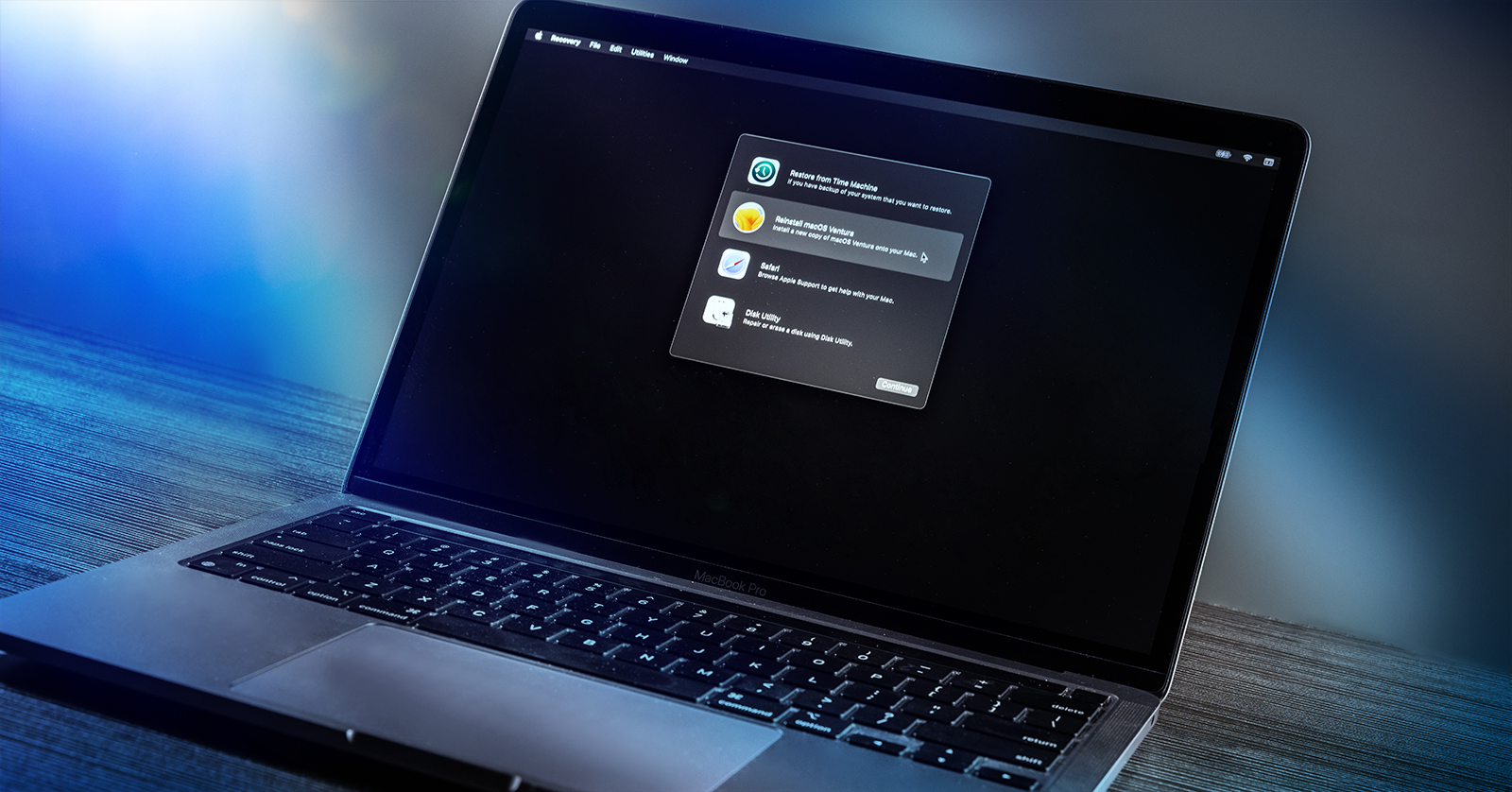
The main screen in macOS Recovery gives you four apps:
- Restore from Time Machine
- Reinstall macOS
- Safari
- Disk Utility
From the Menu Bar at the top of the screen, under Utilities, you can also access these advanced functions:
- Startup Security Utility
- Terminal
- Share Disk…
From the Apple Menu at the top left, you can choose Startup Disk.
From the Window menu, you can also view the recovery log and create a recovery diagnostics file.
Let’s explain what each one is for.
Restore from Time Machine
Connect a Time Machine backup drive (which you created in macOS in its usual mode), and you can restore your files and user settings to your Startup Disk.
- For an Intel-based Mac, learn more at Apple’s User Guide Use Time Machine to restore your system.
- For a Mac with Apple silicon, learn more at Apple’s User Guide Use Time Machine to restore your files.
Reinstall macOS
Reinstall macOS while keeping your data, files, and user settings intact.
- For an Intel-based Mac, learn more at Apple’s User Guide Reinstall macOS.
- For a Mac with Apple silicon, learn more at Apple’s User Guide Reinstall macOS.
Safari
Once you establish an Internet connection, you can access a limited version of Safari. The opening page will be Apple’s instructions for using macOS Recovery. You can open tabs and visit websites, but this mode of Safari doesn’t have your bookmarks and doesn’t enable you to access your stored usernames or passwords to log into any website accounts. It’s mostly for looking up help on the Apple support website.
Disk Utility
Disk Utility is similar in function to Disk Utility in regular macOS, with the important difference that the macOS Recovery version can perform First Aid, Erase, and other functions on the Startup Disk itself. The regular version of Disk Utility can only perform those functions on external drives.
Here’s Sweetwater’s article on using Disk Utility to format a drive:
- For an Intel-based Mac, learn more at Apple’s User Guide Erase and reinstall macOS.
- For a Mac with Apple Silicon, learn more at Apple’s User Guide Erase and reinstall macOS. Learn how to use the First Aid function at Repair your internal storage device.
Startup Security Utility
Set security policies for your Mac. The functionality available depends on whether you have an Intel-based Mac, an Intel-based Mac with the T2 security chip, or a Mac with Apple silicon.
On an Intel-based Mac, you can set a firmware password and a security level for secure boot options.
A firmware password is an extra security measure that prevents your Mac from being booted from a drive other than the Startup Disk unless you enter the password. It also prevents anyone from running macOS Recovery without that password.
Secure boot options are available on an Intel-based Mac with the T2 security chip, which provides data encryption. This lets you set security levels for which versions of macOS you will permit to boot your system and whether it can be booted by an instance of macOS on an external drive.
A Mac with Apple silicon provides file encryption by default, so the security options are different.
- For an Intel-based Mac, learn more at Apple’s User Guide Use Startup Security Utility.
- For a Mac with Apple silicon, learn more at Apple’s User Guide Change the security policy.
Enabling Kernel Extensions
On Mac with Apple silicon, Startup Security Utility is also used to enable kernel extensions. You will need to do this if the installation instructions for your Thunderbolt audio interface, or certain other pieces of hardware and software, require the procedure. Learn more at this SweetCare article: Enabling Kernel Extensions on Mac with Apple silicon.
Terminal
The Terminal is the macOS command-line interface for performing powerful administrative functions. Terminal enables you to access the macOS’s underlying UNIX system. This is an advanced feature that an expert can use to configure your system and fix many problems. Terminal is available within the regular macOS, where it can be used alongside macOS’s usual Finder, apps, and functions.
Terminal is also provided in macOS Recovery because, in Recovery, Terminal is the only way to access and perform actions on files on your Startup Disk.
Learn more at Apple’s Terminal User Guide.
Share Disk…
This function is only available on a Mac with Apple silicon. It enables you to transfer files from the Startup Disk of another Mac to the Startup Disk on your Mac over a USB or Thunderbolt cable while you are in macOS Recovery.
On a Mac with Apple silicon, learn more at Apple’s User Guide, Use Share Disk to transfer files between two Mac computers.
Startup Disk
This is where you choose what drive you want your Mac to boot into when you quit macOS Recovery and your computer reboots. If you only have one macOS system on your Startup Disk, that’s what will be chosen. If you have more than one partition or volume on the internal hard drive with a bootable macOS on it, or you have additional drives connected by cables that have a bootable macOS on them, you can choose one in the Choose Startup Disk dialog. Then click Restart… and your Mac will attempt to reboot from the volume you selected.
Recovery Log and Recovery Diagnostics File
macOS Recovery keeps a log file of all actions performed. This is useful for diagnostics and troubleshooting.
You can generate a Recovery Diagnostics file and save it to an external hard drive. You would do this if you were in contact with Apple or a third-party manufacturer or developer who asks you for the log file to help you troubleshoot problems with your system.
- On an Intel-based Mac, learn more at Apple’s User Guide View the recovery log.
- On a Mac with Apple silicon, learn more at Apple’s User Guide View the recovery log.
Where to Learn More
Now that we’ve explained what all these tools are good for, we encourage you to read Apple’s Intro to macOS Recovery. Remember to pull down the menu at the top of the page and select your version of macOS.
You are an Apple owner, so you can also contact Apple’s support team at this link.
Here at Sweetwater Support, we are always happy to help customers who buy their Mac products from us. Happy music-making.
Related Articles
When you need help, Sweetwater has the answers!
Our knowledge base contains over 28,000 expertly written tech articles that will give you answers and help you get the most out of your gear. Our pro musicians and gear experts update content daily to keep you informed and on your way. Best of all, it’s totally FREE, and it’s just another reason that you get more at Sweetwater.com.

