

How to Configure Native Instruments Audio and MIDI Settings
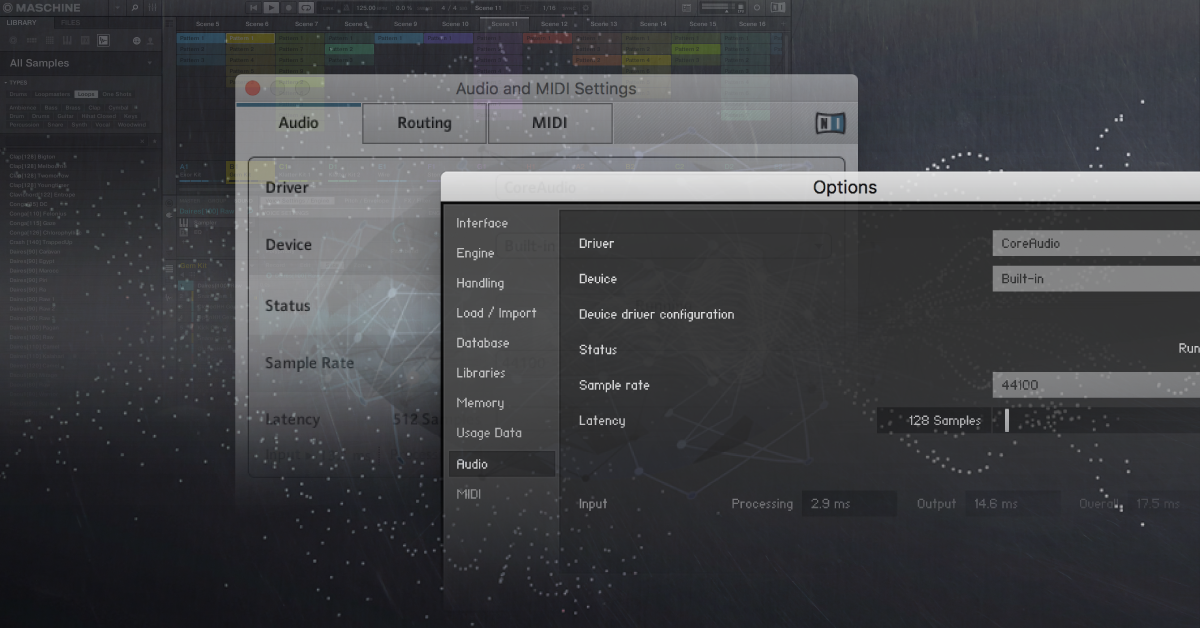
In this guide, we will show you how to update your audio and MIDI settings within Native Instruments applications. Follow the sections below to get started.
Configure audio device settings
USING NATIVE INSTRUMENTS CONTENT IN A DAW: When used as virtual instrument plug-ins, Native Instruments software will use your DAW’s audio settings.
Before you begin using your new Native Instruments virtual instrument, you first need to set it up to communicate with your external hardware. This means updating the software settings to send and receive signal with your audio interface and MIDI controllers. If you aren’t getting sound from your speakers or the software doesn’t respond to your MIDI controllers, the application’s settings likely need to be configured. While each application is visually unique, the settings are accessed similarly.
- Select the Audio tab.
- Choose your Driver and for Device select your audio interface.
- Select the Sample Rate your audio interface is set to.
- Adjust the Latency to the lowest setting that provides the least delay and the best sound quality.
- Remember that lowering the latency will increase the load on your CPU, which can result in audio pops, clicks, and dropouts.
Kontakt
Click File, choose Options, and then select Audio.
Guitar Rig
Click File, select Preferences, then choose Audio.
Absynth, Massive, Reaktor, FM8
Click File, then select Audio and MIDI Settings…
Battery
Click Edit, then choose Audio and MIDI Settings…
I’m not getting any sound!
If your device is detected but you are not getting sound from your Native Instruments software, check that the correct physical outputs of your audio device are selected within the Routing tab. If your device just isn’t showing up after following the steps outlined above, check out our Resolving Audio Interface Issues guides for PC and Mac.
Update MIDI settings
CONTROLLING NATIVE INSTRUMENTS WITH MIDI IN YOUR DAW: Just like the audio settings, Native Instruments virtual instrument plug-ins will use the MIDI settings that are set within your DAW. Make sure those are set up properly so you can use your Native Instruments libraries!
To use your MIDI controllers with Native Instruments software, you will need to open your MIDI settings and turn each device from Off to On.
- Select the MIDI tab.
- Locate your MIDI controller ports and change them to On for both Input and Output tabs.
Komplete Kontrol and Maschine MIDI ports
For Komplete Kontrol and Maschine hardware controllers, turn Port 1 on when transmitting MIDI over USB. Turn Port 2 on when transmitting MIDI over the 5-Pin MIDI cable. If you wish to send MIDI over both ports simultaneously with Komplete Kontrol S-Series keyboards, check out this helpful article from Native Instruments.
My MIDI device isn’t showing up!
If your MIDI device isn’t showing up within your Native Instruments MIDI settings, try a different cables, ports, and also try rebooting your computer. If that doesn’t work, check out our guide on how to resolve MIDI device issues for more troubleshooting steps!
Related Articles
When you need help, Sweetwater has the answers!
Our knowledge base contains over 28,000 expertly written tech articles that will give you answers and help you get the most out of your gear. Our pro musicians and gear experts update content daily to keep you informed and on your way. Best of all, it’s totally FREE, and it’s just another reason that you get more at Sweetwater.com.

