
MPC One: Creating Projects
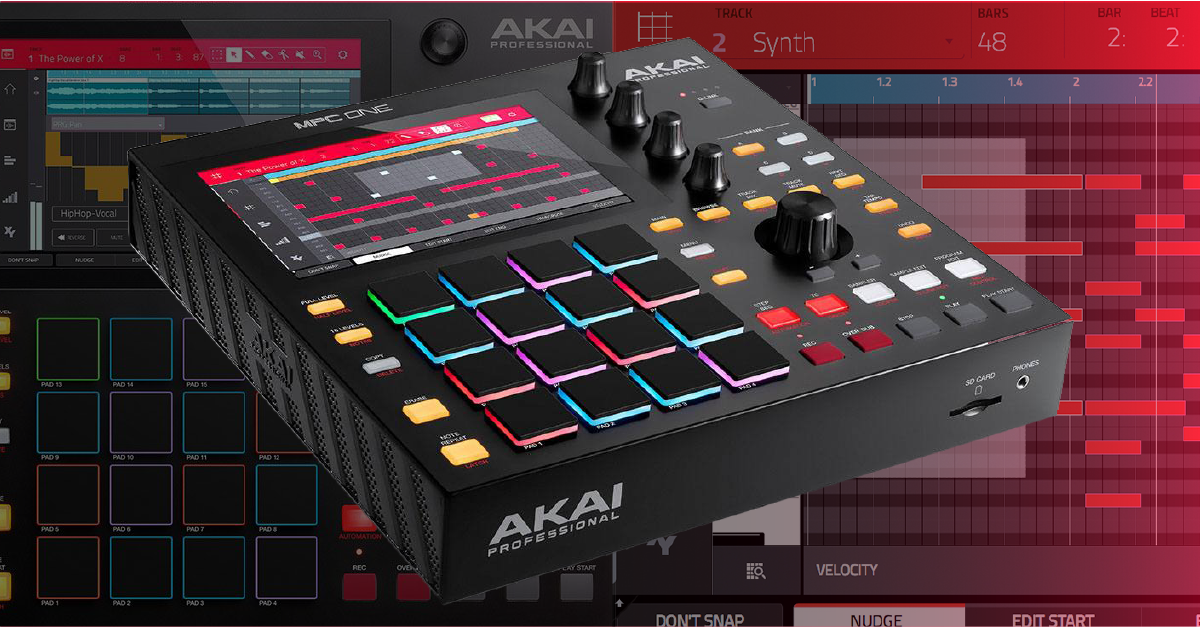
Getting started
In this guide, we will show you how to create, record, and edit tracks and projects. That means you’ll learn how to create a project from scratch, arrange them, as well as apply effects. Be sure to check out Akai’s great quick start video series, as well! Follow the sections below to get started.
Create a project
When you power on the MPC One, you’ll see templates for different genres, as well as full demos for each. Both are very useful to learn the ins and outs of the device, but if you want, you can also create projects from scratch. In this guide, let’s create an empty project.
- Turn the MPC One on, and then press EMPTY PROJECT at the bottom of the touchscreen.
- If you already have a project open and want to create a new one, press the Folder icon on the top of the touch screen and press NEW.
How to record a sequence
TIP: Give your sequences a unique name (i.e. Intro Drums) by tapping the Cursor icon on the touchscreen. This will make it much easier to identify them when editing or creating songs.
Recording music on the MPC One is easy. Just select a track, create or load a preset program, and press record. Once you’ve finished, press stop. Or, if you want to overdub a drum pattern, choose overdub recording. When you begin recording the next track, the start point will be where you ended the last recording. This means if you stopped the previous recording two and a half measures in, the next recording will start there.
Overdub recording
IMPORTANT: If you are layering a drum beat (i.e. recording bass drum and snare, then going back to record a hi-hat pattern) be sure Overdub recording is on. If Overdub recording is off, anything currently on the sequence will be overwritten.
Once the recording has reached the end of the bar length you’ve set, it will automatically switch to overdub recording. Overdub recording lets you build upon the notes/steps which have already been recorded. When going back to record an additional layer, press Over Dub and press play.
Drum beat
Now that everything is set up, let’s load a drum kit and record a beat. For this guide, we will use one of Akai’s preset drum kits but feel free to replace and customize them however you wish.
- In the Track section, press the Drum icon (four squares) then rename the track to Drums.
- Press Browse, press Content and then select Drums.
- Use the Data wheel to scroll through the kits, then press Load. Alternatively, press the Data wheel to load the kit.
- Press the Play button on the screen to audition the kit.
- Press the Main button, press the dropdown box in the Drum Program section, then use the Data wheel to select the kit you loaded.
- If you want additional drum kits, create a new track, follow the instructions above and rename it something unique.
- Use the third small encoder (Q-Link knob) to turn the metronome on. Alternatively, you can tap the Metronome icon and adjust the settings.
- Press the Rec button to arm the recording, and then press Play to begin. Once you’re finished, press the Stop button.
- To start the next recording at the beginning of the track, press the Rec button and then press the Play Start button to begin.
Note repeat
The MPC One can automatically quantize MIDI tracks while you record (Time Correct function). However, you can use the Note repeat function, as well. For example, if you want to record straight 8th, 16th, and 32nd notes on the hi-hat, just overdub and it will automatically be added to the track. All you need to do is hold the Note repeat button and hold down the pad you’re triggering. To change the quantization value, continue holding the Note repeat button and select one of the values.
- The (3) option allows you to perform triplets.
- Hold Shift + Note repeat to enable Latching. This function will keep the note repeat in time with tempo changes.
Making a Custom Drum Program
Using Quantize & Swing
Using Note Repeat
Making Your First Beat
Melody
The process of recording melodies is the same as drums. Instead of pressing the Drum icon, you will press the Plug-in icon. With Melodic instrument plug-ins, you can access Notes mode. This lets you change the scale, octave, and chord layout of the pads. Since you can’t apply the changes and go back to the Main screen, you can record from while in Note mode.
Adding a Plugin Synth
Creating a Melody
Using Chords & Scales Mode
Adding a Bassline
Audio tracks
When you record audio tracks, you can perform basic edits such as time warping, creating fades, and duplicating. You’ll record using audio tracks primarily if you’re recording vocals or a keyboard you don’t plan on sampling.
- Connect your line level device to the MPC One.
- Press Audio on the touchscreen, and select the input (mono or stereo) and output (Stereo/mono, or submix).
- Press Edit audio then press Record on the touchscreen to arm the track.
- Once you’re ready to record, press the Record button and press Play Start. You will get a one measure pre-count then the audio will begin to record.
- After you’re finished recording, press the Stop button, as well as the Record icon on the touchscreen.
Using Audio Tracks
Sampler tracks
Recording sampler tracks is very similar to recording audio tracks. The main difference between the two is that you can make more advanced edits such as splitting (chopping) audio clips in multiple ways (including in real time). You can also assign the clips to specific pads.
- Connect your line level device to the MPC One.
- Press the Sampler button, and select the input and output (stereo or mono).
- Press Record on the touchscreen to arm the recording, and then begin playing your audio source.
- Press Record once more to begin recording your sample.
- After you’ve finished, press the Stop icon on the touchscreen.
- When the Keep or Discard Sample window appears, rename the sample and assign it to a specific program and pad. Press Save and save the recorded sample to a location of your choosing.
Sampling & Chops
Additional resources
Adding Tape Stop FX
Recording Automation
When you need help, Sweetwater has the answers!
Our knowledge base contains over 28,000 expertly written tech articles that will give you answers and help you get the most out of your gear. Our pro musicians and gear experts update content daily to keep you informed and on your way. Best of all, it’s totally FREE, and it’s just another reason that you get more at Sweetwater.com.

