
Midas DP48 Quickstart Guide
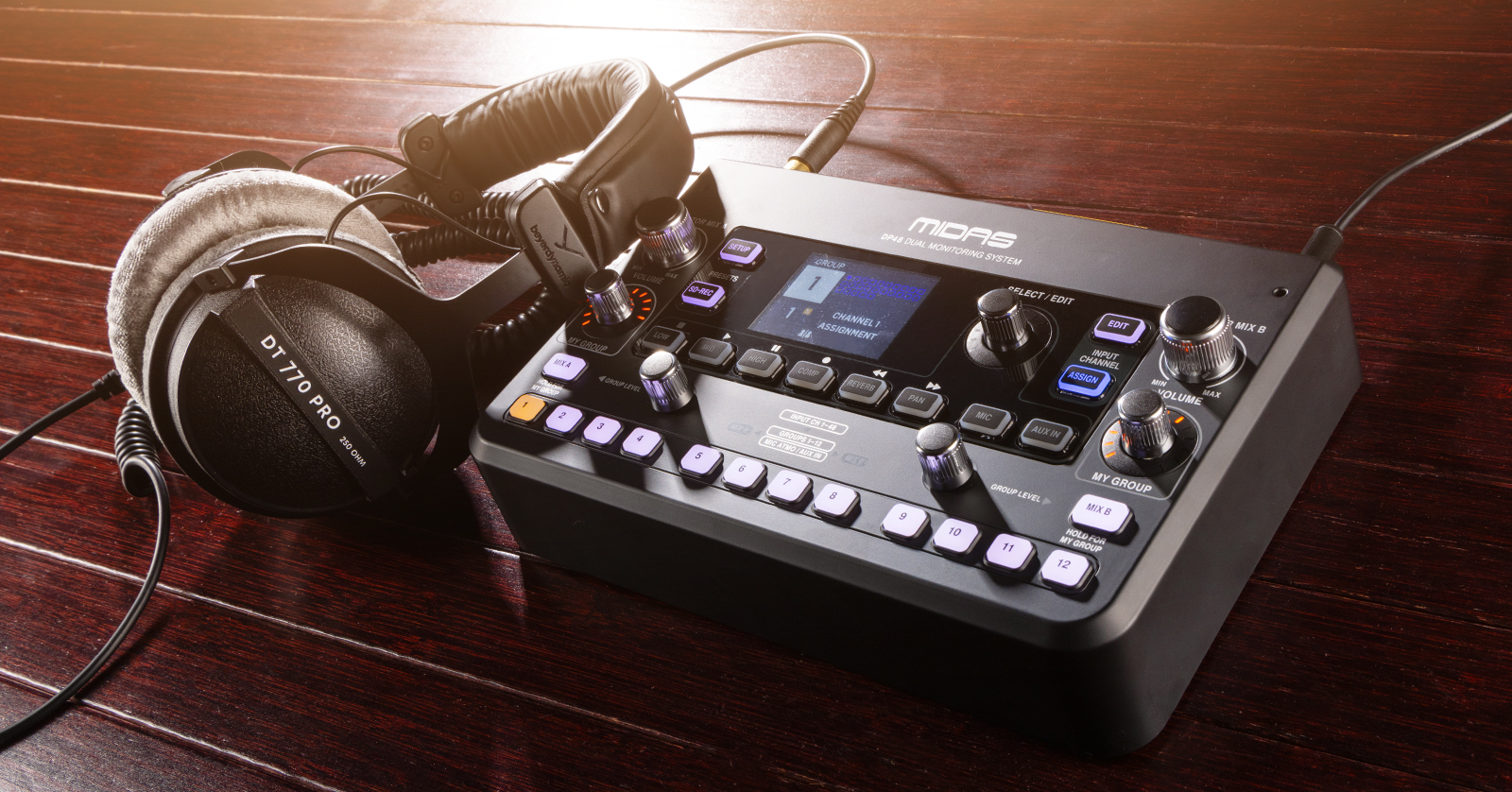
The Midas DP48 is a powerful, easy-to-use personal mixer that is great for any studio or live gig. In this guide, we will show you how to register, set up, and use it onstage for the first time. Follow the sections below to get started. Also, be sure to check out the Midas DP48 user manual for more information!
- Register with Midas
- DP48 Setup and Connections
- Assign Input Sources and Label Groups on Your Mixer
- DP48 Routing
- DP48 Firmware Update
Before we begin
The Behringer X32 and Midas M32 have the same menus, buttons, and functionality, so this article applies to both mixers.
Register with Midas
Before you start using your DP48, you must first register the device with Midas. Upon registration, you’ll receive a free 3-year extended warranty. The registration is only valid for the first 90 days after purchase, so register it as soon as possible!
Download the DP48 Quick Start Guide, manuals and addendum from the DP48 product page on the Midas website. Click Downloads.
DP48 Setup and Connections
Once registered, it’s time to connect the DP48 to your mixer. The AES50 connection is required and sends audio from the mixer to the DP48. Each DP48 must also be powered using either the included power supply or Power of Ethernet (PoE) from the AES50 connection. AES50 with PoE is only available on the HUB4 and will only power the first device connected to each port. Additional mixers connected via THRU will require power supply adapters.
IMPORTANT!
Turn both MONITOR MIX knobs all the way down before turning the unit on. This ensures no sudden, loud signal passes through which can potentially damage drivers (or hurt your ears!)
- Connect the DP48’s AES50 IN port to its source with a Cat5-e cable:
- Mixer: AES50 A (IN)
- Stage Box: AES50 B (THRU)
- DP48: AES50 THRU
- HUB4: Port 1-4
- The first connected unit will turn on if receiving PoE. Daisy chained units required a power supply adapter.
- Connect the included power supply and press the power button.
Assign Input Sources and Label Groups on Your Mixer
Now that you have your DP48 connected to the mixer, the next step is to prep the DP48 by updating the settings on your mixer so they can communicate correctly.
Assign Input Sources on your Mixer
To send the signal correctly, you must first assign the input sources on your mixer via the Routing menu. This guide will show you the basic, standard routing procedure using the mixer’s physical hardware connections to get you up and running.
- Press the Routing button on your mixer to open the routing options and begin streaming audio.
- Select where your audio input sources are coming from (Local, AES, Card).
- For example, if you’re using the physical inputs on your mixer, change the input sources to Local.
- Back on the Routing options, navigate to the AES tab where you connected the DP48, then select the same input sources.
- For example, if you set your sources to Local, the AES settings should also be set to Local.
Label the Groups on the Mixer
NOTE: You can only name the groups directly from your mixer. Once named, they will then be broadcasted to your DP48.
Now that the DP48 is powered on, you must rename the groups so they display correctly.
- On the DP48, press the SETUP button, then use the Select/Edit knob. Scroll until you see REMOTE, and press the knob to enable it.
- Go to your mixer, press the Library button, then navigate to the AES50 tab. The DP48 will be shown on the right side of the screen.
- Highlight the first group, press the EDIT button, then use the appropriate knobs to name the group. Press the Close knob when complete.
- Use the last knob underneath the display to select what AES-50 port the DP48 is connected to, then press the knob to broadcast it. The names should now appear on your DP48.
DP48 Routing
Now that everything is prepped, it’s time to start creating your mix!
- Press the ASSIGN button to pull up the grid view for all the potential outputs you can assign to a group.
- Select the group you want to assign outputs; the group button should now light orange.
- Use the SELECT/EDIT knob to scroll to select the channel you want to assign, then press the knob in. You can assign as many outputs to a group as you would like. Once you assign an output to a group, that square will be outlined in blue.
- There should be output now from both the Stereo headphone jacks and the Mono line outs on the back of the unit.
- You can then adjust the volume by using the “Monitor Mix A” and “Monitor Mix B” knobs on the right and left sides of the unit.
DP48 Firmware Update
NOTE: You will be installing the firmware on the DP48 via SD card that is formatted to FAT or FAT32. If your computer doesn’t have an SD card slot, you will need and SD card reader.
Midas will release firmware updates which will address bugs and include additional features to the DP48. Keeping the firmware up-to-date will ensure you get the best performance possible.
- Turn off the DP48.
- Go to the Midas DP48 product page. Click Downloads. Locate the latest firmware and download it.
- Navigate to your Downloads folder, then locate and extract the firmware file.
- Copy the dp48m_xx.upd file onto an SD card. The file must be placed inside a folder labeled DP48M, and that folder must be located in the root directory of the SD card.
- Insert the SD card into the SD card slot on the back of the DP48.
- Hold the ‘Setup” button while turning the DP48 on.
- Wait until the update process is completed and the DP48 has finished booting.
- Do not turn off the unit or remove the SD card until the update as finished and the unit has booted back up again.

When you need help, Sweetwater has the answers!
Our knowledge base contains over 28,000 expertly written tech articles that will give you answers and help you get the most out of your gear. Our pro musicians and gear experts update content daily to keep you informed and on your way. Best of all, it’s totally FREE, and it’s just another reason that you get more at Sweetwater.com.

