
M-Audio Oxygen Pro Quickstart Guide
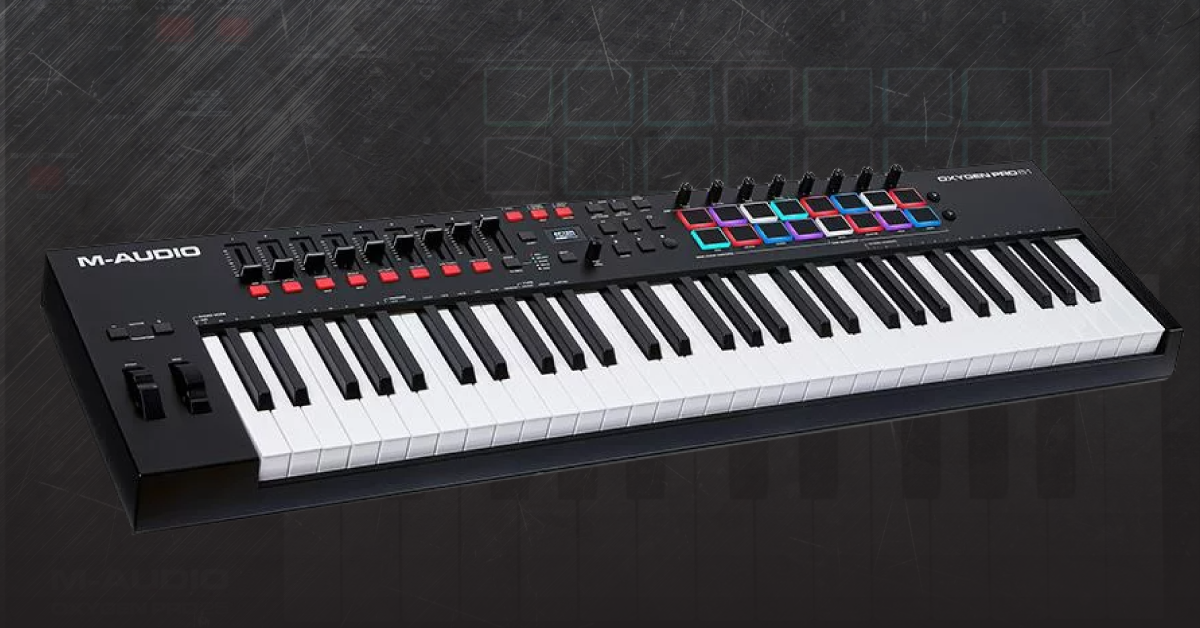
In this guide, we’ll show you how to register, set up, and connect the M-Audio Oxygen Pro MIDI keyboard controller for the first time. Follow the section below to get started.
Register the Oxygen Pro
Your M-Audio Oxygen Pro comes with a large software bundle that includes plenty of additional plug-ins and sound content, and a few DAW’s so you can get creative and record right away. To get the content, though, you must register the Oxygen Pro with M-Audio on their website
- Log in to your M-Audio account. If you don’t have an account yet, you can create one here.
- Once signed in, click Register Product.
- Fill out the required information, including the serial number and the date of purchase located on your Sweetwater invoice, then click Register My Product.
- After registration is complete, all of your software and its respective activation numbers will appear in your account. Just download the software and follow M-Audio’s activation instructions to complete the process!
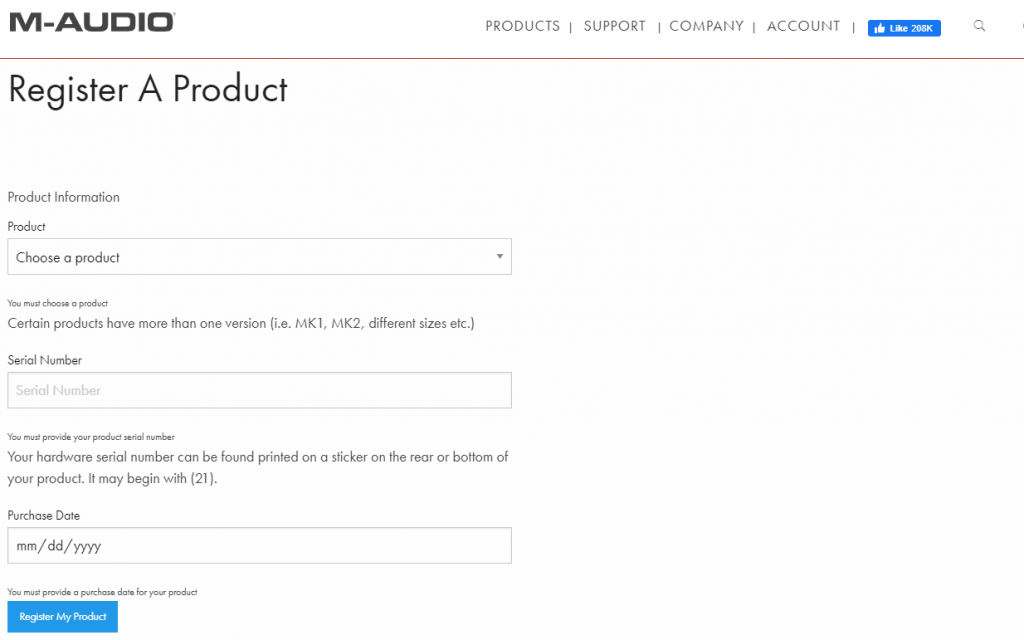
Click the image to register your Oxygen Pro
Setup and connections
The M-Audio Oxygen Pro is a great addition to add to your studio rig, as it’s compatible with every major DAW on the market. What’s more, is that it has custom-built presets for those DAW’s as well! This means that all of the controls work with your DAW right off the bat, with no additional setup required. The Oxygen Pro is class-compliant as well, so you don’t need to download any drivers. All you have to do is plug it into your computer via USB, and you’re all set!
It’s also bus-powered, which means your computer powers it. We highly recommend connecting the M-Audio Oxygen Pro directly to your computer, as USB hubs (particularly unpowered hubs) may not provide sufficient power for the Oxygen Pro and can result in loss of connectivity and performance.
My Oxygen Pro isn’t showing up!
If the device is powering on but not being recognized by your computer, try a different USB port and USB cable. Also, be sure that they are fully connected at both ends. If neither of these solutions works, check out our guide for more information on troubleshooting MIDI devices on PC and Mac.
How to use the modes
A unique feature of the M-Audio Oxygen Pro is that it has two different program modes: one mode is DAW specific and has its own MIDI control presets, and the other mode allows you to create your own presets!
DAW mode
When you’re in DAW mode, all controls are automatically assigned (mapped) to the DAW that you selected. This means no additional setup in your DAW’s MIDI setup menu is required.
- Press and hold the DAW button to open the DAW Select screen.
- Use the Select/Scroll knob to go through all of the DAW’s.
- You customize controls for your Oxygen Pro while in User mode (learn more about user mode on page 10 of the Oxygen Pro user manual.)
- Once you’ve found your DAW, press the Select/Scroll knob to confirm.
- Launch your DAW.
- Select the M-Audio Oxygen Pro as your MIDI device. It should now be fully operational as a keyboard and controller.
- Check out our guide to learn more on how to set up your MIDI keyboard within your DAW.
Preset mode
Preset mode allows you to create your own presets that you can save for later recall. This is particularly useful if you feel like one workflow is faster than the other. Once you’ve selected Preset mode, check out page 10 of the Oxygen Pro user manual to learn more about custom mapping.
- Press and hold the Preset button to open the Preset Select screen.
- Use the Select/Scroll knob to go through all of the available presets loaded on the Oxygen Pro.
- Once you’ve found the preset you wish to load, press the Select/Scroll knob to select it.
- Launch your DAW and select the M-Audio Oxygen Pro as your MIDI device.
Change mode parameters
- Open the Global Settings on the Oxygen Pro by holding Shift and pressing Mode.
- Use the select/scroll knob to change the setting between Mac or PC.
- Change an encoder parameter by holding the SHIFT button then pressing Pad 9-11.
- The encoders can change the Pan, Device, and Sends parameters.
- Edit pads to trigger DAW shortcuts by holding the SHIFT button, then pressing Pad 13-16.
- The pads can enable Save, Quantize, Undo, and View.
Related Articles
When you need help, Sweetwater has the answers!
Our knowledge base contains over 28,000 expertly written tech articles that will give you answers and help you get the most out of your gear. Our pro musicians and gear experts update content daily to keep you informed and on your way. Best of all, it’s totally FREE, and it’s just another reason that you get more at Sweetwater.com.

