
Korg opsix Quickstart Guide
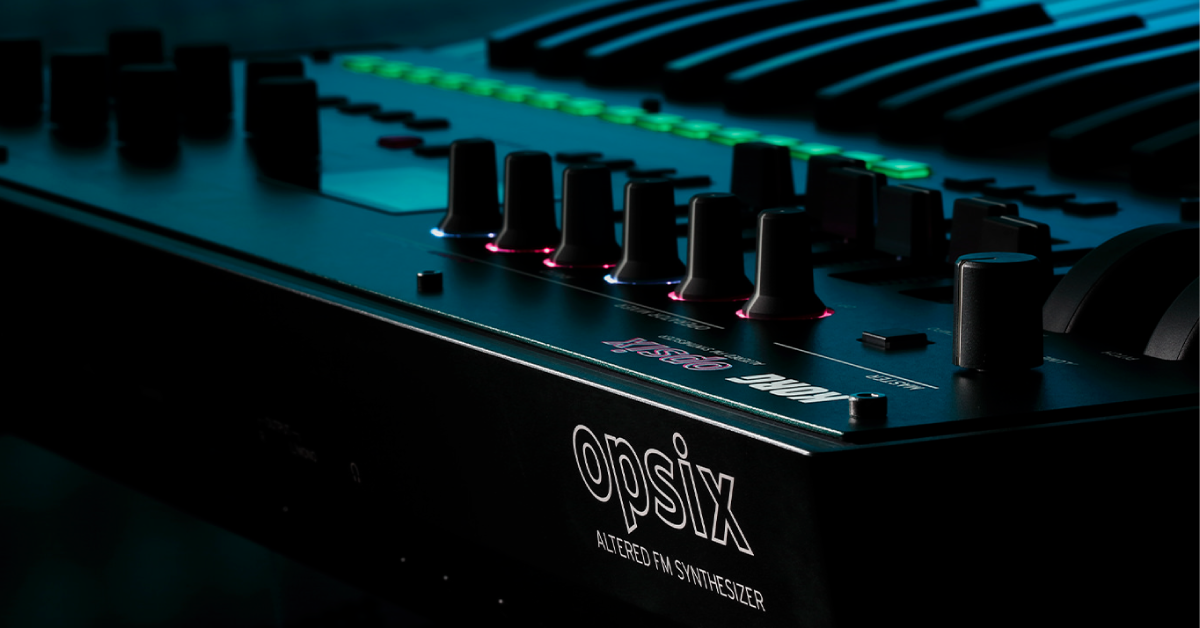
Getting started with the Korg opsix
In this guide, we will show you how to register, set up, and operate the Korg opsix for the first time., but follow the sections below to get started.
Register the opsix with Korg
Before we dive into using the wavestate, the first thing to do is register the synth with Korg. If you register the device within the first 90 days of purchase, Korg will extend your warranty for an extra year, and you will also receive free bundled software.
- Go to the Korg product registration page and create or log in to your Korg account.
- On your account page, click Register A Product, fill out the required information, then click Save.
- Keep your Sweetwater invoice handy, as you’ll need to enter the purchase date.
Register the software bundle
When you purchase the Korg wavestate, you’ll receive licenses for virtual instruments, effects plug-ins, Reason Studio’s Reason Lite, and free keyboard lessons. All you need to do is go to the Korg License Center page, enter the bundle code number on the card included in the box, and then click Submit. Once complete, you’ll receive licenses and activation instructions for each piece of software.
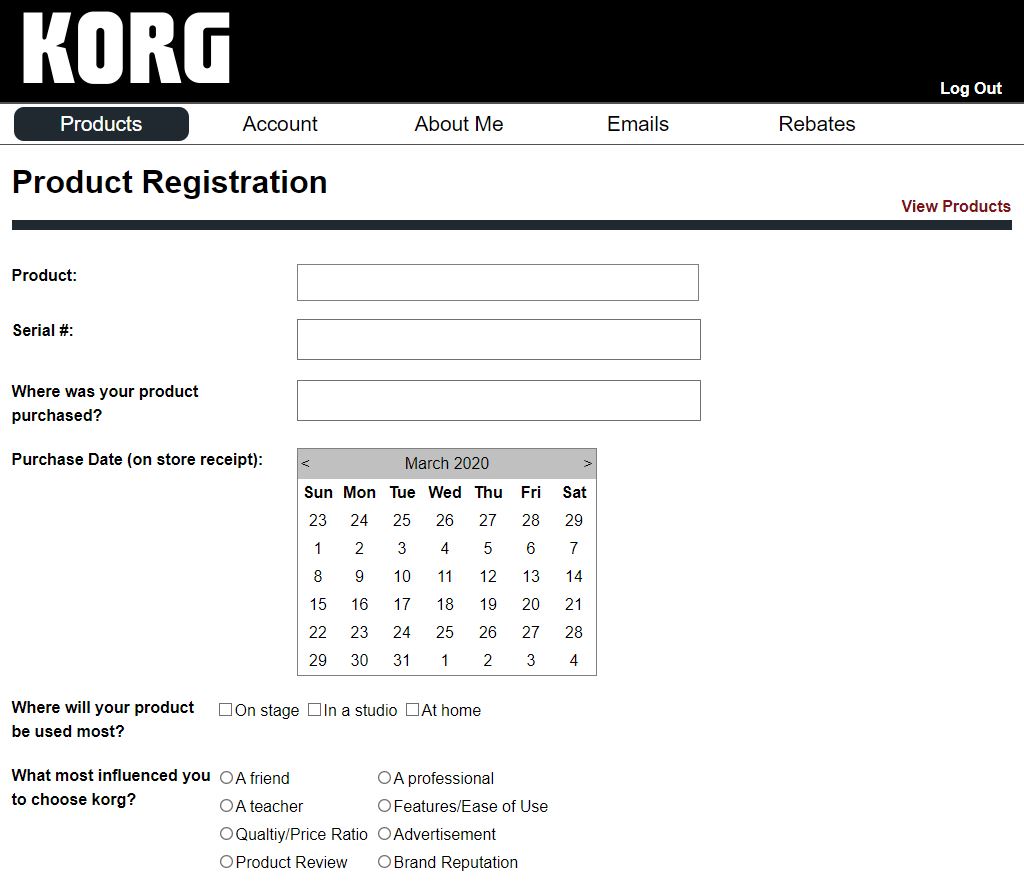
Click the image to register the Korg opsix
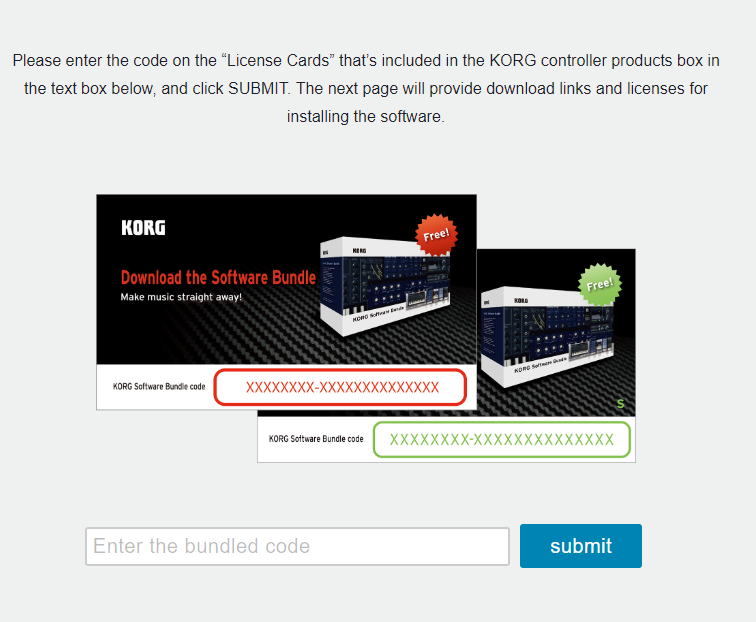
Click the image to register the Korg software bundle
Korg opsix fundamentals
At its core, the Korg opsix is an FM synth, but the number of additional controls to play with makes it so unique. There are two things about the opsix you need to learn: operators and algorithms. Let’s go over these fundamentals of the opsix. For a deep dive on the opsix, check out the opsix manual for a deep dive.
Operators
The Operators are comprised of two elements: modulators (blue) and carriers (red). Depending on the algorithm that’s currently selected, the six Operators will react differently.
NOTE: If all of the red carrier Operator faders are down and the blue modulator faders are up, you won’t get any sound.
- Red Operator (carriers): The encoder will control the pitch, and the fader will control the volume.
- Blue Operator (modulators): the encoder will control the carrier’s modulation (tone) it’s linked to, and the fader will control the amount of modulation.
- Purpler Operator: If you’re using a user algorithm, the Operator will act as both. Learn more about this on page 23 in the opsix Owner’s Manual.
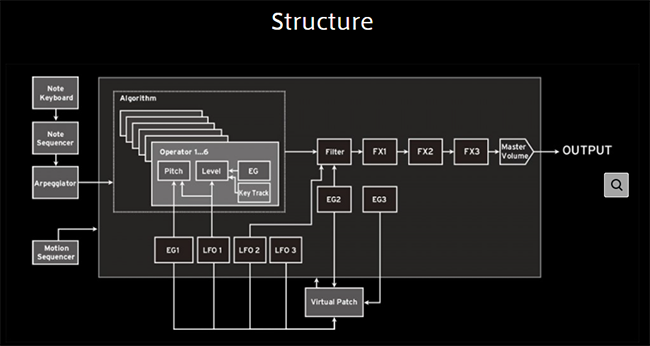
Patch structure
Algorithms
While it may sound confusing, algorithms are simply just how the Operators are grouped (stacked) with one another. Different algorithms will result in entirely different sounds. Modulator Operators (blue) don’t produce sound and are linked to carrier Operators (red). The carrier Operators output the modulated audio signal.
Think of a modulator Operator like a MIDI keyboard. They send a signal that controls something but won’t produce sound. Check out our diagram below to get an idea of the algorithm’s “signal flow” of the Korg opsix.
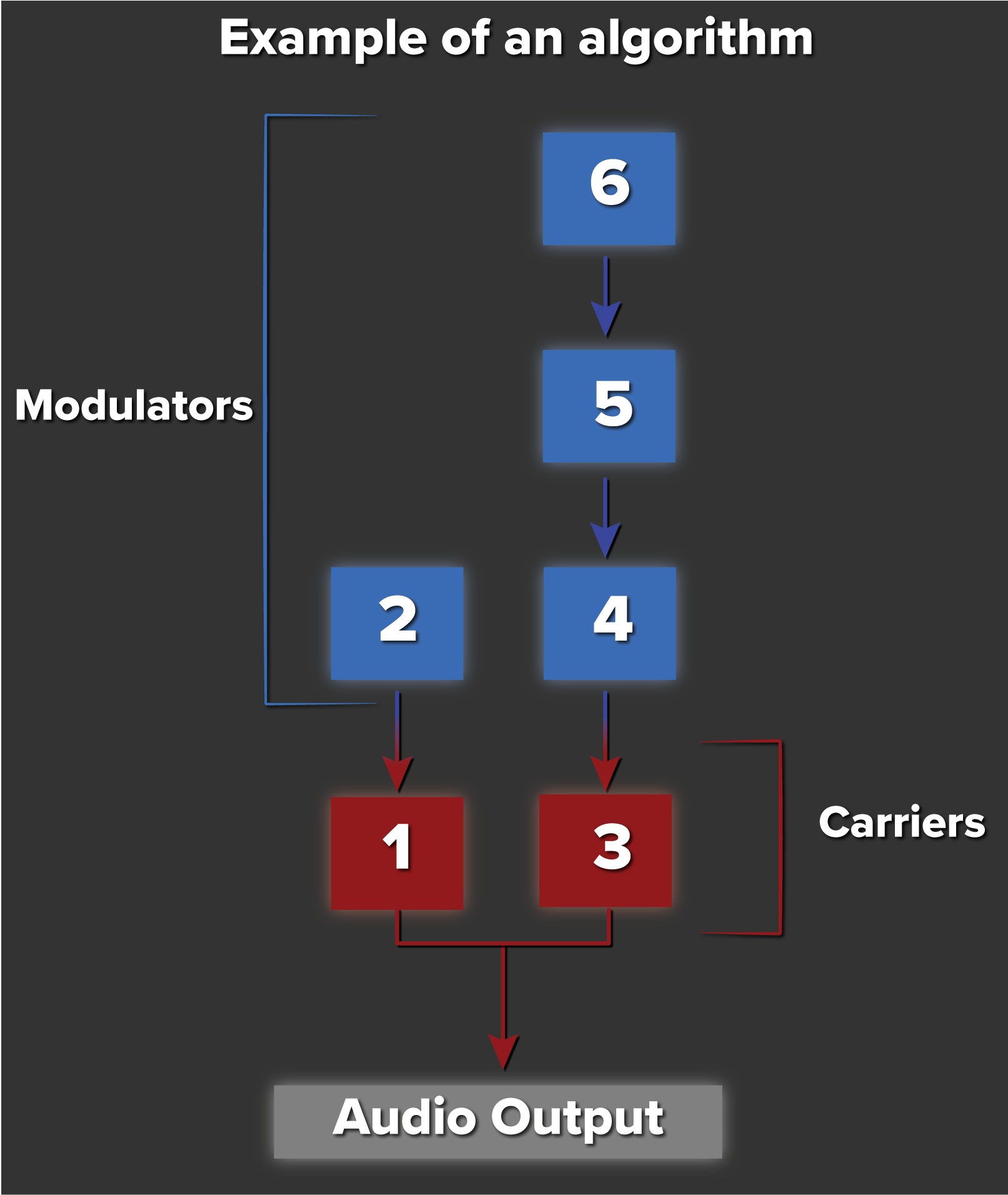
Algorithm signal flow
How to create a patch
The opsix includes 250 factory presets, but you can create up to an additional 250 user presets. You can even import presets from a Yamaha DX7! While they won’t sound exactly the same, it’ll give you a chance to create a more modern sound with a classic synth. Let’s create a patch from scratch, but feel free to play around with some factory presets and navigate through the menus and check out the opsix manual to better understand how the opsix works.
- Use the Program encoder to navigate to an empty preset. You can also hold SHIFT + INITIALIZE to clear the current preset and start from scratch.
- All Operators will be carriers on a blank preset.
- Turn the A encoder located in the Data Entry section to change the algorithm.
- Use the + and – OP SELECT buttons to select an operator to edit and then use the six DATA ENTRY encoders to edit the parameters.
- Use the OPERATOR and PROCESSOR buttons to edit the patch even further.
- Check out the Owner’s Manual for a full list and details on each parameter available on the Korg opsix.
Saving programs
IMPORTANT: Do not turn the opsix off while it’s saving a program. Doing so may corrupt internal data or potentially brick the unit.
Once you’ve found that perfect sound, you’ll want to name and save it to one of the blank user slots. It’s straightforward, so follow these steps to save a program on your opsix.
- Press the Write button, then update the name.
- Program encoder: Changes the character at the current cursor position.
- SHIFT encoder: Changes the character type.
- PAGE < and > buttons: Moves the cursor. Hold SHIFT and press the < button to delete the current character and press the > to insert a space.
- Press the YES button to confirm the updated program name.
- Turn the Program encoder and select the slot you wish to save it.
- You can select a different program if you want to keep the original one.
- Press YES to save your program.
Create an initialized patch
Additional resources
Related Articles
When you need help, Sweetwater has the answers!
Our knowledge base contains over 28,000 expertly written tech articles that will give you answers and help you get the most out of your gear. Our pro musicians and gear experts update content daily to keep you informed and on your way. Best of all, it’s totally FREE, and it’s just another reason that you get more at Sweetwater.com.

