

Intro to Pro Tools: Measuring Time and Recording with a Click Track
Pro Tools lets you measure time in minutes and seconds (absolute time) or bars and beats (relative time). For music production, measuring time in bars and beats is often most effective for make sure all your parts are in time with each other. You can adjust the parameters of the time scale using the Timebase Rulers to the left of the timeline. Here’s how:
- To set the Main Time Scale, click on the Main Counter selector (located in the transport window) and select one of the time scales.
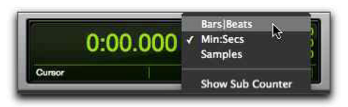
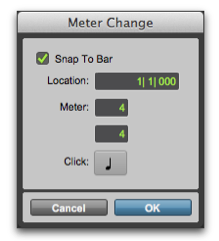
- If you’ve selected Bars and Beats, you can set the meter by using the Timebase Rulers. Click the + symbol next to Meter.

- When the Meter Change dialogue opens, you can set your meter by changing the values in the two boxes next to Meter. Be sure that the location is set to 1|1|000 if you want that meter to be at the beginning. The Click menu will set a note value for the beat.
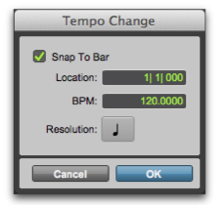
- You can also adjust the session tempo using the Timebase Rulers. To set the the tempo, click on the + symbol next to Tempo.
- When the Tempo Change dialogue opens, you can manually enter the tempo you want, your you can tap the T key on your keyboard to tap in the tempo. Make sure the location is set to 1|1|000 to ensure that the tempo gets set at the beginning of the session. When you click the the Resolution menu, you can select a note value for the beat.
Now that you’ve set your session meter and tempo, you can record with a click track to get your tracks in time. Here’s how:
- Choose Track>Create Click Track.
- Pro Tools will create a new Auxiliary Input track with the Click plug-in on the first insert for that track. When you start recording or playback, the click will give you an audible representation of the session tempo.
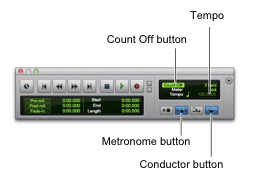
- If you want the click track to give you a Count Off before the recording starts, click the Count Off button located in the Transport Window.
Helpful Links
Intro to Pro Tools: Importing Audio
Intro to Pro Tools: How to Export Your Mix
Pro Tools is playing out of my built-in speakers instead of my interface.
How do I trash my Pro Tools preferences?
Pro Tools won’t recognize my interface!
When you need help, Sweetwater has the answers!
Our knowledge base contains over 28,000 expertly written tech articles that will give you answers and help you get the most out of your gear. Our pro musicians and gear experts update content daily to keep you informed and on your way. Best of all, it’s totally FREE, and it’s just another reason that you get more at Sweetwater.com.

