

How To Use CHKDSK in Windows
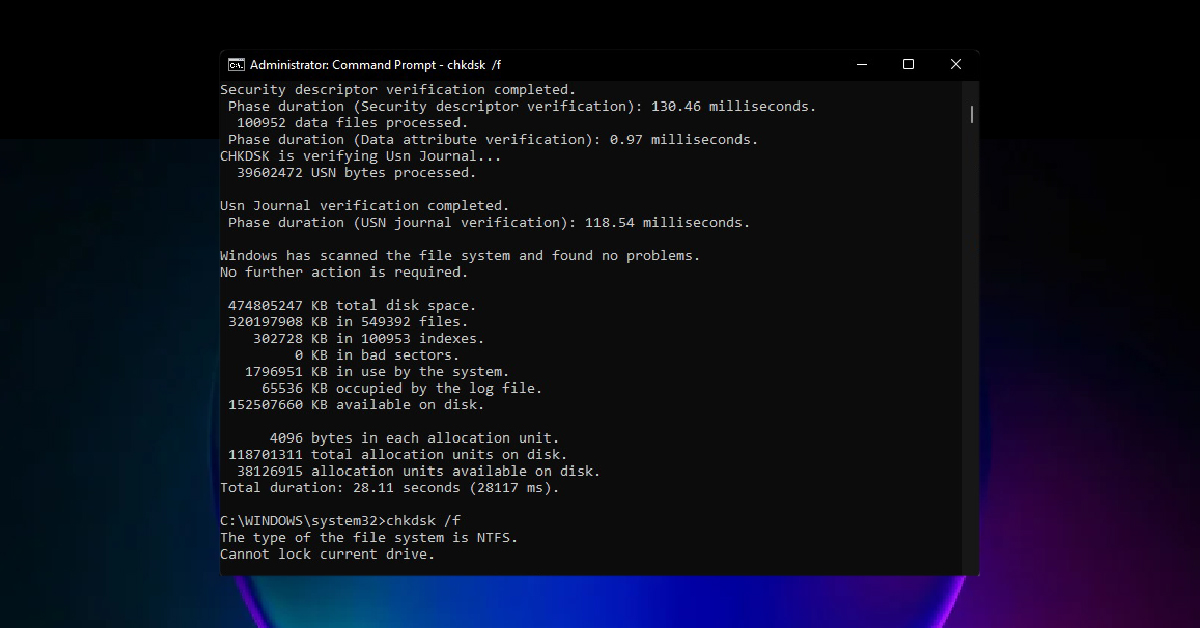
If you’re having hard drive issues such as accessing specific files, or if your computer is freezing, there’s a simple way to check and fix your issues — running the CHKDSK command. In this guide, we’ll discuss what CHKDSK is and how to use it. Follow the sections below to get started.
What is CHKDSK?
If you think of Windows system troubleshooting tools as a waterfall, CHKDSK (check disk) is at the top. So, if you’ve tried the basic things such as uninstalling and reinstalling problematic drivers or software, CHKDSK can help scan for potential hard drive issues.
CHKDSK scans the entire local drive you have selected for any logical (soft) sectors and physical (hard) sectors on your hard drive. If anything is found, it will repair the logical sectors and mark physical sectors as bad so the computer cannot access them. You’ll typically run CHKDSK if Windows constantly crashes or randomly shuts down. (This can happen as a result of a power surge or if the power cable is accidentally disconnected without properly shutting down.)
How to run CHKDSK
If your computer becomes sluggish all of a sudden, takes a while to shut down, or just crashes, running the CHKDSK command is an excellent first step in narrowing down the issue. Unlike the other Windows diagnostic tools, you can run CHKDSK one of two ways: via File Explorer or the Command Prompt.
File Explorer
Running CHKDSK using File Explorer is straightforward. You’ll just need to open the disk’s properties in question and run the scan as Administrator.
- Double-click My PC, right-click the drive in question, then click Properties.
- Click the Tools tab and click the Check button in the Error checking area.
- Windows will go through an initial scan to see if you need to continue with an in-depth scan. If Windows finds that nothing is wrong, you’ll receive a notification that says that.
- Click Scan to begin running CHKDSK.
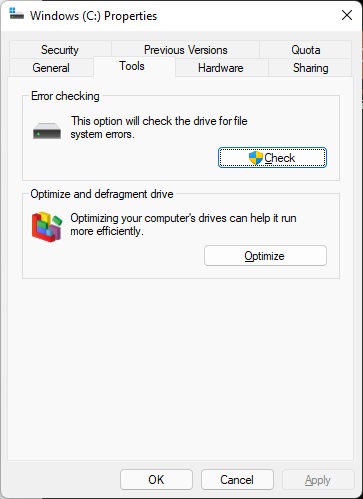
Running CHKDSK in File Explorer
Command Prompt
TIP: If you don’t include a parameter at the end of chkdsk <volume>, it will only scan the disk and not attempt to fix anything. For example, typing chkdsk c: will only scan and show you what’s wrong. Typing chkdsk c: /f will first check the drive. Then if there are any errors present, it will trigger the /f command to fix the issues.
While you can run CHKDSK via File Explorer, you have more control when using it in an elevated Command Prompt. The larger the hard drive and the more errors found, the longer the scan will take, so be patient!
- Open an elevated Command Prompt.
- Once you’re in Command Prompt, type
chkdsk <volume> /f- If you receive a message stating that it can’t run due to other processes being in use, press the Y key. The scan will begin once the computer is restarted.
- After the scan is complete, you will see one of the following messages:
- No errors were found.
- Errors were found and fixed.
- Could not check the disk, did not or could not fix errors.
- Once /f is complete, you’ll want to run the chkdsk /r command, especially if you receive a “Could not check the disk” error. Simply replace
chkdsk <volume> /fwithchkdsk <volume> /r, and it will perform the repair command.
What’s the difference between /f and /r?
There are 15(!) different commands when using CHKDSK in the Command Prompt. When troubleshooting, two will be used most commonly: /f and /r. The other commands are for more advanced operations, so check out Microsoft’s article for in-depth information on the different chkdsk parameters you can run.
/f stands for fix and /r stands for repair. While fix and repair sound very similar, the repair command is a deeper scan than the fix command. The fix (/f) command will only fix soft disk errors, whereas the repair (/r) includes the /f command and also finds and attempts to repair physical disk errors.
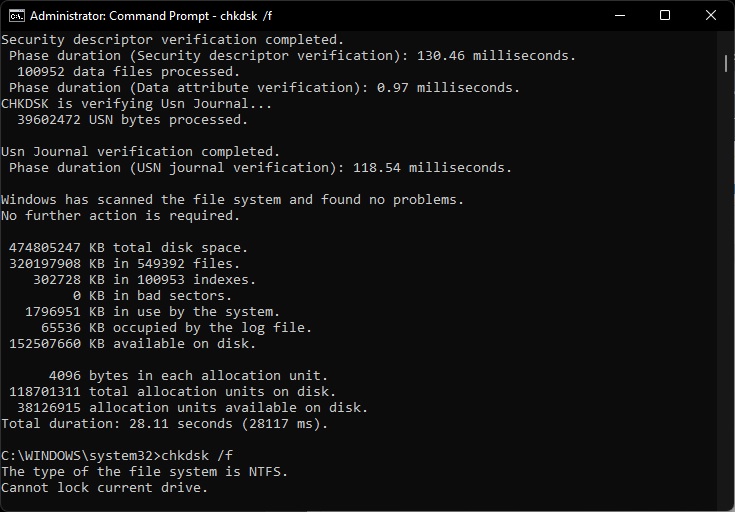
Running CHKDSK in Command Prompt
Related Articles
When you need help, Sweetwater has the answers!
Our knowledge base contains over 28,000 expertly written tech articles that will give you answers and help you get the most out of your gear. Our pro musicians and gear experts update content daily to keep you informed and on your way. Best of all, it’s totally FREE, and it’s just another reason that you get more at Sweetwater.com.

