

How do I authorize my Toontrack software offline?
To authorize your Toontrack software offline, follow the steps below.
1. Install your software on your offline computer. To do so, download the installers on a computer that is connected to the internet, then transfer the files to your offline computer with some sort of media storage such as a CD or a USB flash drive.
2. Once it’s installed, launch your software.
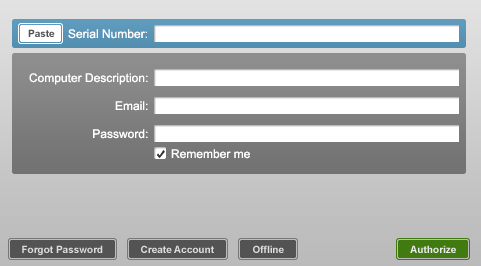
3. The first time you open it, you will be prompted to authorize your software. Click Offline.
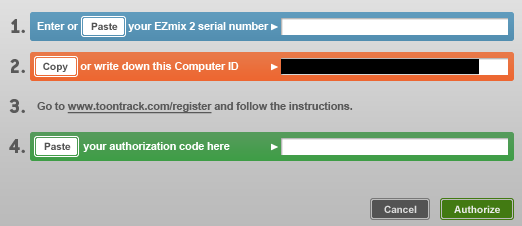
4. In the top field on the next window, you can enter the same serial number you used to register your product at toontrack.com. You will also be given a computer ID. Write down your computer ID.
5. On your computer that is connected to the internet, go to Your Products page at toontrack.com. Once there, select the software that you are trying to authorize.
6. Click Authorize Product.

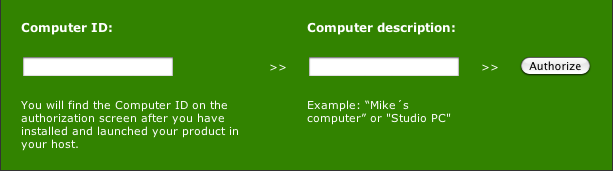
7. On the next page, enter your computer ID in the appropriate field. In the Computer Description field, enter anything you like. Click Authorize.
8. You will be given an authorization code. Write that down and go back to your offline computer.

9. In the last field in the offline authorization window, enter your authorization code, then click Authorize.
10. That’s it!
When you need help, Sweetwater has the answers!
Our knowledge base contains over 28,000 expertly written tech articles that will give you answers and help you get the most out of your gear. Our pro musicians and gear experts update content daily to keep you informed and on your way. Best of all, it’s totally FREE, and it’s just another reason that you get more at Sweetwater.com.

