
Avid Media Composer Software Activation Instructions
Getting started
In this guide, we will show you how to get your new Media Composer software. That means we’ll show you how to create an account, register the product, and then install and activate the software. Follow the sections below to get started.
Register the activation code
In order to install Media Composer, you’ll first need to register the activation code with Avid. New users will need to create an Avid Master Account, but returning users can continue using the same login information. Follow these steps to register the activation code.
Registering renewal codes
If you are renewing a current Media Composer license, you will need to navigate to the My Products tab in your Avid Master Account, click on Media Composer, and then copy and paste the code into the Renewal Code box on the right side of the window.
- Sign in to your Avid Master Account. If you don’t have one, you can create one at this time.
- In the My Products section of your account page, click Avid Software Activation and Download.
- Copy the Activation Code you received from your Sweetwater Sales Engineer and go to the Avid Activation page.
- Paste the code into the box, click Activate Product, and follow the on-screen instructions to complete the registration process.
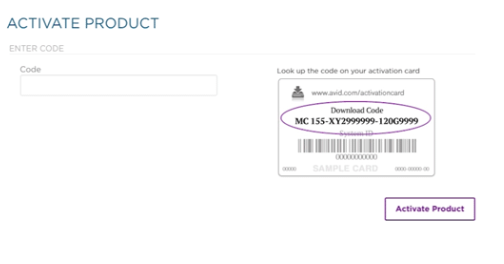
Click the image to activate your Avid product.
Activating Academic licenses
Academic versions of Media Composer must be verified by Identit-e before you can receive your license. Once activated on Avid’s website, Avid will provide you a new EDU verification code on the My Products and Subscriptions page of your Avid Master Account. You will then need to submit your new code and any additional documentation to Identit-e’s eligibility confirmation page.
When Identit-e has verified your eligibility, they will send a verification email and code to the email address you used for academic verification. You will then register the included code by entering it in your Avid account. Learn more about this topic on Avid’s eligibility page.
- Register your Activation code with Avid (above).
- Visit Identit-e’s eligibility page, enter the EDU verification code, and then click continue.
- Complete the eligibility form and make sure to enter your academic email address. If required, upload clear copies of any additional documentation. Here are some useful PDF scanners we found for Android and iOS.
- Check the registered email address for a confirmation email from Identit-e. Find the new Activation Code in the email and enter it on Avid’s Activation page.
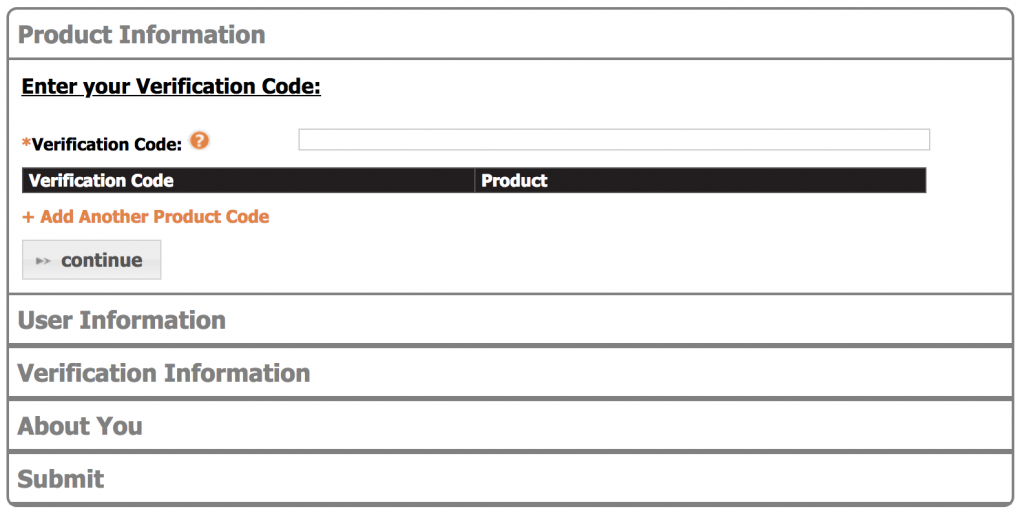
Click here to register your academic license with Identit-e.
Install the software
Once the product is registered to your account, the next step is to download and install the software. Go to your Avid account and select the installer for Media Composer and for your operating system.
- Navigate to the Media Composer drop-down on your Avid account page, and select the installer for your operating system.
- Go to your Downloads folder, and launch the installer file.
- PC: Right-click the .zip file, select Extract all…, and then click Extract. Double-click the new .exe file and follow the on-screen instructions.
- Mac: Double-click the .dmg file. In the window that appears, double-click the .pkg file and follow the on-screen instructions.
- Restart your computer once the installation is complete.
Activate the product
Media Composer uses the Avid Link app to activate your license(s) unlike Pro Tools, which requires iLok activation. Avid Link is installed during the Media Composer installation, however, you can also download it from your Avid account page or from the Avid Link product page. While you can use Media Composer on multiple computers, the license can only be tied to one machine at one time. Follow these steps to complete the activation process.
- Launch the Avid Media Composer app.
- Click Electronic Activation and then click Continue.
- When the Avid Link app opens, navigate to Media Composer, and click the down arrow to open the dropdown menu.
- Click License, click the arrow in the License Status section, and then click Use License.
- Click Continue to complete the activation process.
Deactivating a Media Composer license
If you need to deactivate a Media Composer license to use it on another computer, click License, click the arrow in the License Status section, and then click Deactivate. Once deactivated, you can then reactivate it to another computer.
Activating a Media Composer license with Avid Link.
Additional resources
- Media Composer YouTube Tutorial Playlist
- Media Composer Supported Video File Formats
- Media Composer Tutorials
When you need help, Sweetwater has the answers!
Our knowledge base contains over 28,000 expertly written tech articles that will give you answers and help you get the most out of your gear. Our pro musicians and gear experts update content daily to keep you informed and on your way. Best of all, it’s totally FREE, and it’s just another reason that you get more at Sweetwater.com.

