
IK Multimedia Software Activation Instructions

How to authorize and install IK Multimedia software
Here at Sweetwater, we are dedicated to ensuring that you have the best experience possible. That’s why, in this article, we will walk you through every step between authorizing IK Multimedia software and launching it for the first time. You may want to leave this article open in a separate tab or window for reference.
- Download and install IK Multimedia Product Manager
- Register the IK Multimedia software
- Download and install the plug-in
Download and install IK Multimedia Product Manager
The IK Multimedia Product Manager application is where you’ll register, authorize, and install all of your IK Multimedia virtual instruments, effects plug-ins, and hardware drivers. The content will be downloaded to whichever location you set.
- Go to the IK Multimedia Product Manager product page, and click on the download for your OS.
- After the download is complete, go to your Downloads folder and launch the installer.
- Log in using your IK Multimedia username and password. If you don’t have an account, you can create one here.

Click the image to download IK Product Manager for your OS
Register and authorize the IK Multimedia software
Now that you’ve created an account, you can now register the plug-in with IK Multimedia and then authorize the software through the Manage My Products section of Product Manager. The virtual instrument and effects plug-ins will be registered in the Software tab of Product Manager, and the sound libraries will be downloaded in the Sounds tab.
IMPORTANT: Products are grouped in families. This means that any add-on for a specific plug-in will be listed in the Products tab of that particular plug-in. For example, if you purchased the Mesa/Boogie Software Suite, it will show up in the Amplitube Products tab.
- Launch IK Multimedia Product Manager.
- On the homepage, click Register.
- Copy and paste the Serial Number you received from your Sweetwater Sales Engineer into the blank field, then click Register.
- After you register the product, click the Padlock (Authorize) to authorize the plug-in.
- You can also have the plug-in automatically authorize upon installation of the plug-in.
You can authorize your IK Multimedia software up to 3 different computers at once. Once you have reached the limit and need to authorize a new machine, you will need to deauthorize one. To do this, click Deauthorize and then click Authorize to authorize the new computer.
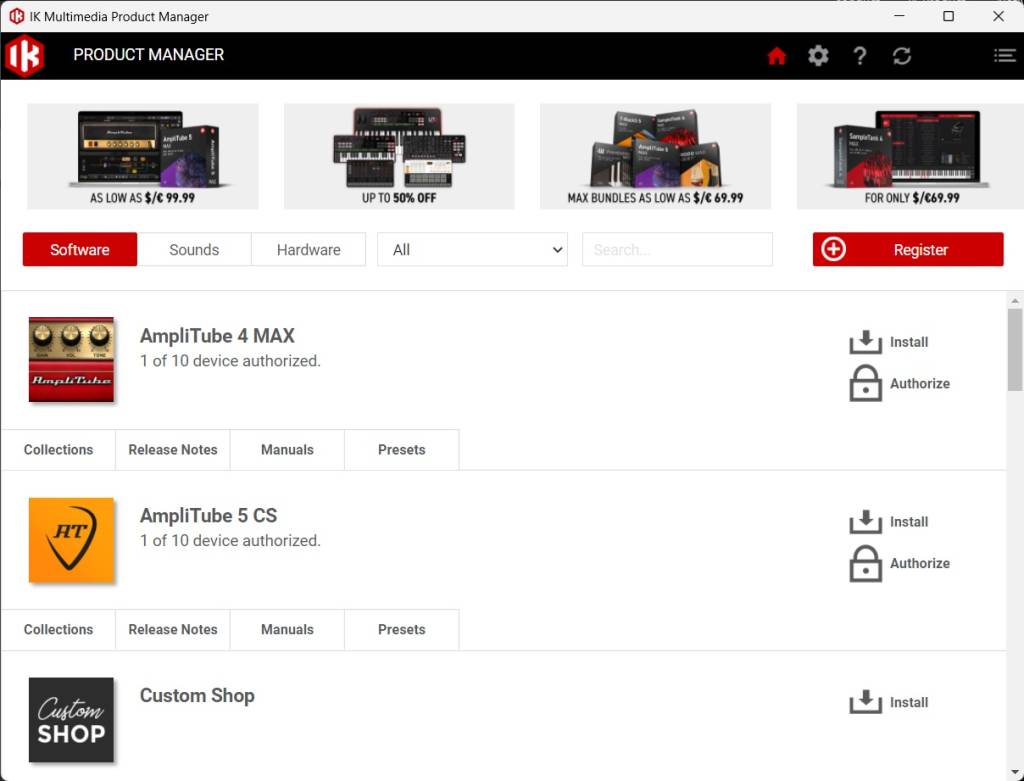
Click Register to enter your Serial Number
Download and install the plug-in
After authorizing the software, The last step is to download and install the plug-in within the IK Product Manager application. You can have a custom download location for your IK Multimedia plug-ins, but the standard location should suffice.
If by any chance, you’re not sure where the download file path is, or if you want to change the location where your plug-ins are installed, you’ll want to go into the IK Multimedia Product Manager Preferences menu.
IMPORTANT NOTE FOR MAC USERS: Before installing your IK Multimedia plug-in, you must change the download path, as the default download path does not exist. To change the plug-in path, click the Gear icon, click BROWSE, then change the path to your Downloads folder.
Follow these steps to download your IK Multimedia plug-in.
- Click the Install button located next to your plug-in.
- Follow the on-screen instructions to complete the installation process.
Important note for Windows 10 users
If you receive the following error: “(your product) NOT installed code :undefined”, you’ll need to add the IK Multimedia Product Manager folder to the Windows Security exclusion list. The default location for the Product Manager folder is C:\Users\Audio\Documents\IK Multimedia. Check out Microsoft’s article on how to add an exclusion to the Windows Security list.
Download and install virtual instrument libraries
If you’ve purchased a virtual instrument that uses sound libraries, such as Miroslav Philharmonik or SampleTank, the final step is to download the sound libraries. When installing your IK Multimedia software, you’ll need to make sure you have the required space necessary. For example, the Miroslav Philharmonik 2 virtual instrument requires at least 58GB of free hard drive space.
- Click the Sounds tab to access the library downloads.
- Click Install to begin the download process.
- The download process takes time, so be sure not to close out the Product Manager.
- After the download is complete, go to your Downloads folder and extract the .zip file.
- Open the Sounds Content folder, then run the Sound Content installer.
- During the installation process, you’ll be prompted to choose a location where the libraries will be installed. We highly recommend installing them on an external hard drive.
- Launch your IK Multimedia virtual instrument, and go to the Settings window.
- Add the file path where the libraries were installed to, then click OK.
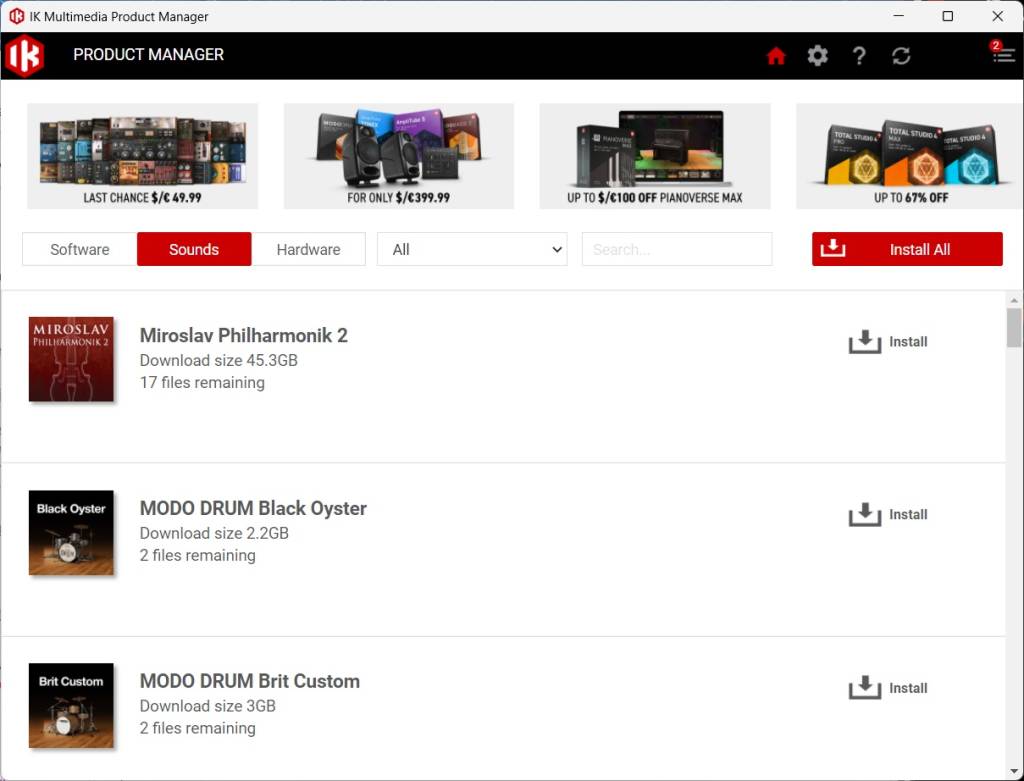
Click the Install icon to download and install sound libraries
Related Articles
When you need help, Sweetwater has the answers!
Our knowledge base contains over 28,000 expertly written tech articles that will give you answers and help you get the most out of your gear. Our pro musicians and gear experts update content daily to keep you informed and on your way. Best of all, it’s totally FREE, and it’s just another reason that you get more at Sweetwater.com.

