
HeadRush Prime and Core Quickstart Guide
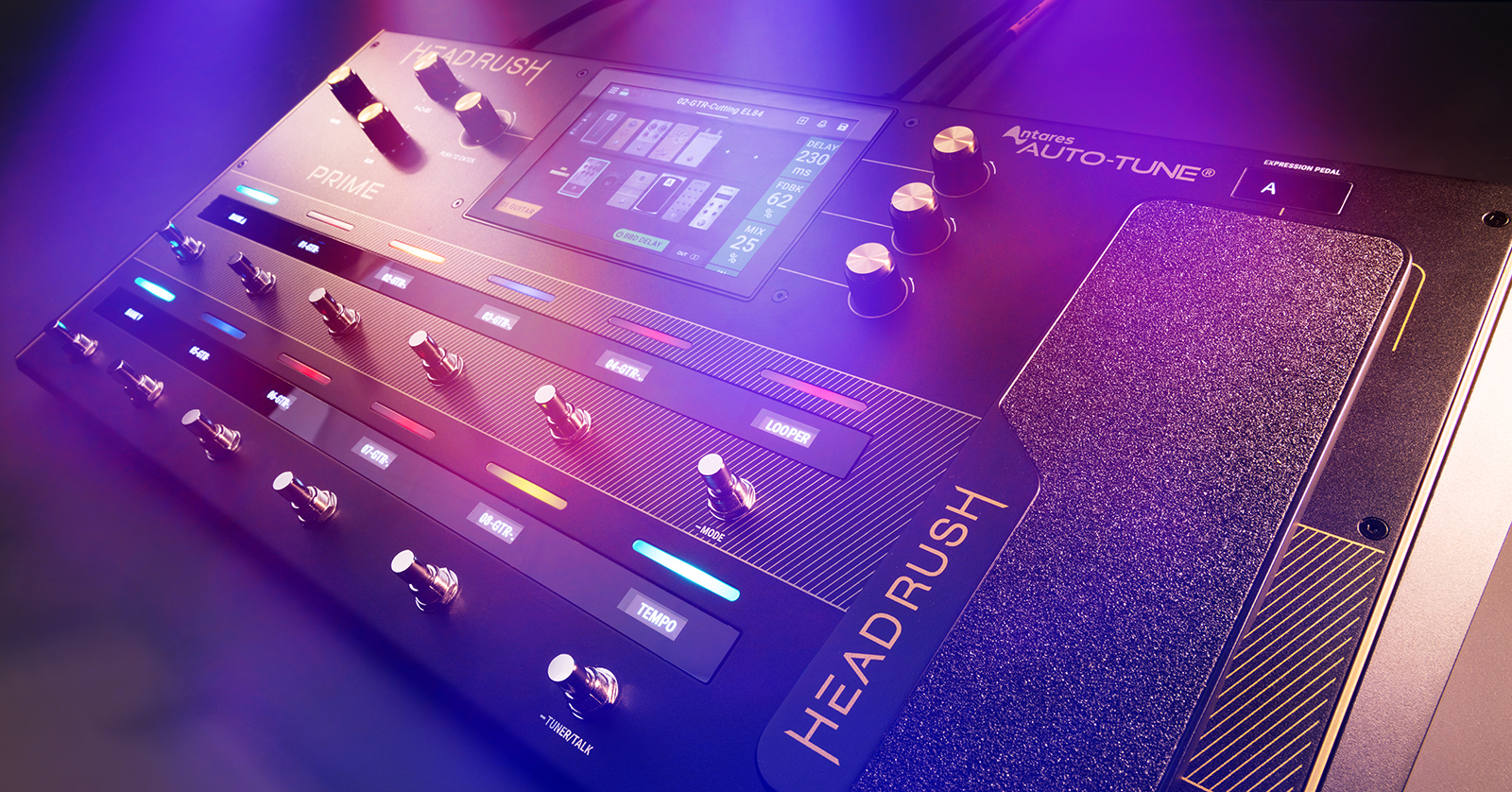
The HeadRush Prime and HeadRush Core are powerful multi-effects pedal processors for guitar, bass, and vocals. We will show you how to register, connect, and use your HeadRush unit for the first time. Follow the sections below to get started.
- HeadRush Prime or HeadRush Core?
- Register your HeadRush and claim your software
- HeadRush 5.1 Firmware Update adds Neural Amp Modeler NAM A2 captures from Tone3000
- Setup and Connections
- How to Clone an Amp
- How to Create New Rig
- Using the HeadRush Remote Editor App
HeadRush Prime or HeadRush Core?
The HeadRush Prime and HeadRush Core have a similar design and similar functions, but different form factors and controls. As getting started with each unit is much the same, we’ve written one guide for both.
Most of the information in HeadRush’s tutorial videos on the HeadRush Prime also applies to the HeadRush Core; we will link to those below.
Register your HeadRush and claim your software
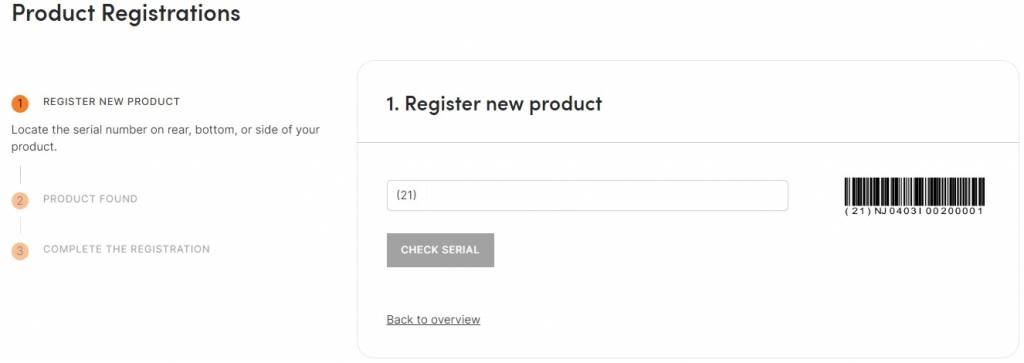
Before you get started, you first need to register your purchase with HeadRush, to obtain your warranty coverage and access support resources.
Your purchase of the Prime, Core, or Flex Prime units entitles you to a free copy of the HeadRush ReValver app, and its companion Amp Cloner app. Once you register your purchase, you can download and use these apps on your Mac or Windows PC to capture and edit amps, effects, and even virtual instruments, to create clones that you can upload to your Prime, Core, or Flex Prime units.
- Log into your inMusic account. If you don’t have one, click Create Account and complete the necessary information.
- On your account home page, click REGISTER NEW PRODUCT, then enter the Serial Number, which can be found on the side of the box.
- Fill out the necessary information to complete the registration process.
- Once your HeadRush is registered, go to the HeadRush Downloads page and download the latest version of the User Guide.
HeadRush 5.1 Firmware Update adds Neural Amp Modeler NAM A2 captures from Tone3000
On August 1, 2026, HeadRush released the free HeadRush 5.1 Firmware Update for the Prime, Core and Flex Prime models. In addition to providing the drum machine, Tidal integration, new amp models and effects, and many other quality of life improvements that came with Firmware 5.0, the new 5.1 now gives these HeadRush models the ability to load Neural Amp Modeler NAM A2 captures directly from the Tone3000 website using the HeadRush Cloud menu on the touchscreen on your unit.
Read HeadRush’s Tone3000 Integration announcement for details.
Sweetwater recommends that you install new firmware updates as they arrive. You can do this over Wi-Fi or the USB connection to your computer.
Head over to our SweetCare HeadRush Prime, Core and Flex Prime Firmware Update guide for firmware update instructions.
Setup and Connections
The HeadRush is built with creativity in mind, and the ways you can incorporate it into your guitar rig are nearly endless! You can connect it directly to your amp, PA, or mixer, depending on your setup. You can also use it in your effects chain, and if you want to use it in your studio, connect it to your computer via USB.
The HeadRush Prime and HeadRush Core also come equipped with a Wi-Fi connection that you can use to connect to HeadRush’s Cloud service for sharing presets and clones. You can also update the firmware over Wi-Fi, as we explain in the section above.
You can also use Bluetooth to connect to a device or computer to stream audio to the HeadRush for backing tracks and practice.
You can also import IRs and audio tracks via DropBox over Wi-Fi, or over the USB connection to your computer, and store those tracks on the HeadRush for playback.
Connect to your guitar amp
The most common way to connect your HeadRush unit is directly to your guitar amp. Like other guitar pedals, you connect its MONO (L) directly to your guitar amp’s input. When connecting it to a stereo source, use the L and R outputs. No additional routing setup is necessary if you’re connecting directly to an amp. However, if you connect it to a PA system, mixer, or other line-level sources, you must navigate the audio settings menu and switch it to Line.
Before connecting your HeadRush to a guitar amp, turn the level of both the amp and guitar down and make sure that the Amp/Line switch is set to Amp. This is because guitar amps are expecting an instrument-level signal. If you connect the HeadRush to your guitar amp and it’s set to Line, the signal is already amplified, and it can result in speaker damage.
- Press the Menu icon at the top left of the display, then press GLOBAL SETTINGS.
- Press AUDIO and turn the menu encoder (left of the display) until the 1/4-inch Level is selected. Switch between Line and Amp.
Connect to your effects loop
Adding the HeadRush in an effects loop is easy. You must use its FX Sends and Returns to incorporate it into your pedal chain. This is very handy, especially if you want to use the HeadRush preamp (or utilize its Amp Clone and IR features) or add more effects to your signal chain. Once everything is connected, you can add an FX Loop block to your preset!
- Select an empty block on the preset.
- Once you’re in the Model Selector, scroll down and press FX-Loop, then press Default to add an effects loop block.
How to Clone an Amp
IMPORTANT: Don’t connect a powered speaker to the HeadRush’s mic outputs. Doing so can result in speaker damage!
One outstanding feature of the HeadRush Prime and Core is the ability to clone an amp/head, a basic guitar amp, or a pedal. This is particularly handy if you want to simulate your amp rig at home while on the road.
- Go to the Menu and select Amp Cloner.
- Select what you want to clone (Amp/Cab, Amp, Pedal), then press Next.
- Follow the on-screen instructions and view the wiring diagram.
- Once everything is connected, proceed with the cloning process.
Create a New Rig
Now that you know how everything works, let’s create a basic preset. It’s a straightforward process, too! Rigs consist of multiple blocks. These blocks are the signal processors in the HeadRush. These include the effects, amps, IRs, etc. These blocks can be arranged in any way you’d like by dragging the block to where you want to place it. This is especially useful for creating a “virtual” effects loop.
The HeadRush Prime and Core have tons of effects pedals and IRs, and with new firmware updates, more and more are added. This means the tone possibilities are limitless, so follow these steps to create a rig from scratch.
- Press the + icon at the top right of the display to create a blank preset.
- Double-tap the IN GUITAR icon to update the input gain, gate threshold, noise filter, etc.
- Press the Signal Path icon (indicated by multiple squares) on the display and select the signal path you wish to have.
- Press an empty slot (block) to open the Model Selector; navigate through the amp, cabs, or effects; and add what you’d like.
- Once added, you can double-tap it to change the parameters.
- To remove a block, press and drag it to the bottom of the display.
- Press the Disk icon to save your rig.
Auto-Tune technology
One thing that sets HeadRush Prime and Core apart from the rest is the integrated Antares Auto-Tune technology. If you’re connecting a vocal microphone, you can select an empty block and, within the Vocal presets, select Auto-Tune.
Using the HeadRush Remote Editor App
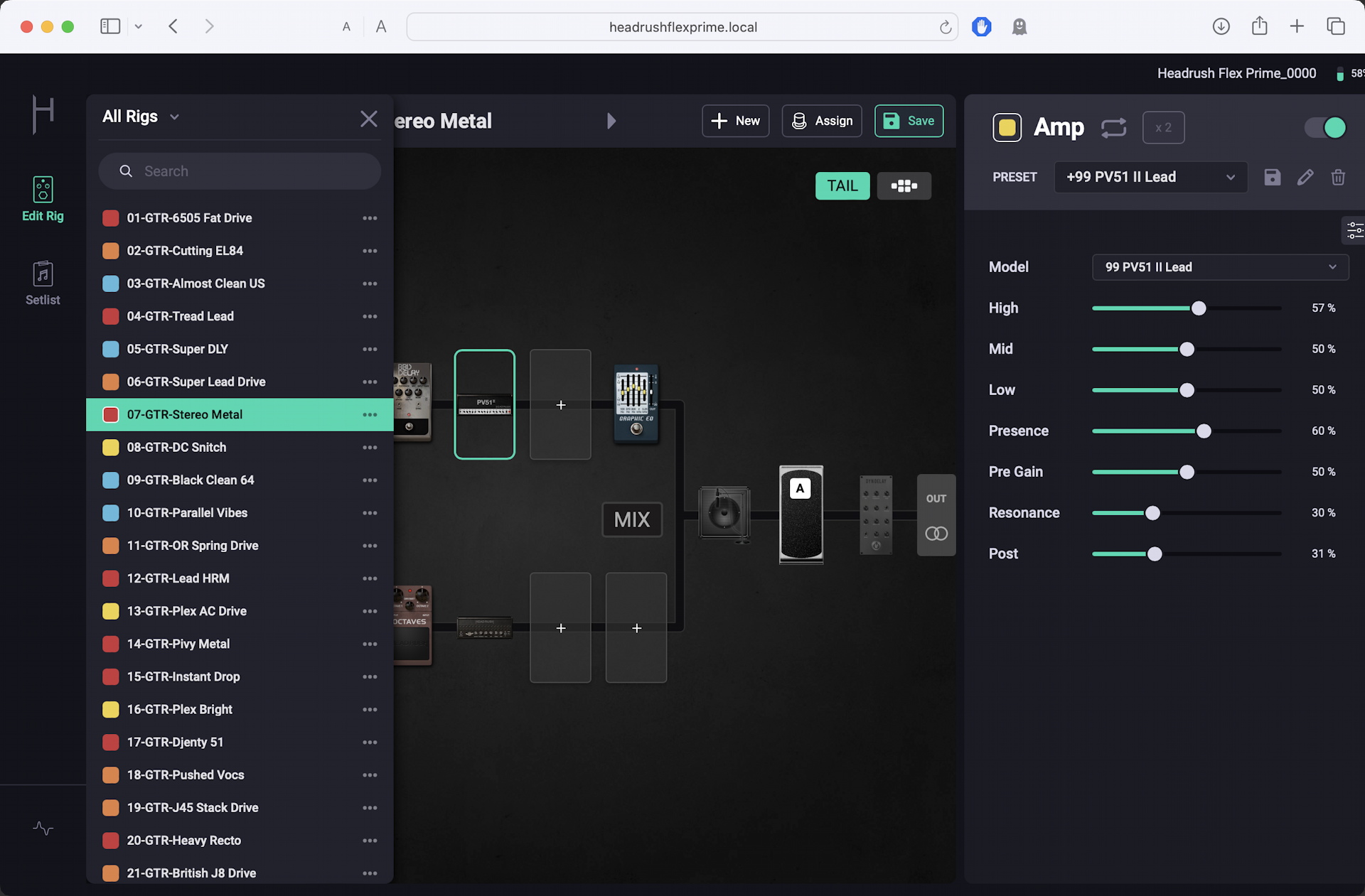
The HeadRush Remote Editor for the HeadRush Flex Prime
As we stated above, when you update to Firmware 4.0, your HeadRush Prime or HeadRush Core gain the ability to use the Remote Editor app for macOS, Windows, iPad and Android tablet.
Check out our SweetCare HeadRush Remote Editor Quickstart Guide.
Vendor Resources
Additional Videos
- HeadRush PRIME – Practice Tool Overview
- HeadRush PRIME – Global Settings Overview
- HeadRush PRIME – How to Clone Distortion, Overdrive, and Fuzz Pedals
- HeadRush PRIME – Creating and Using Setlists
- HeadRush PRIME – Creating and Using Scenes
Related Articles
When you need help, Sweetwater has the answers!
Our knowledge base contains over 28,000 expertly written tech articles that will give you answers and help you get the most out of your gear. Our pro musicians and gear experts update content daily to keep you informed and on your way. Best of all, it’s totally FREE, and it’s just another reason that you get more at Sweetwater.com.

