
HeadRush Remote Editor Quickstart Guide
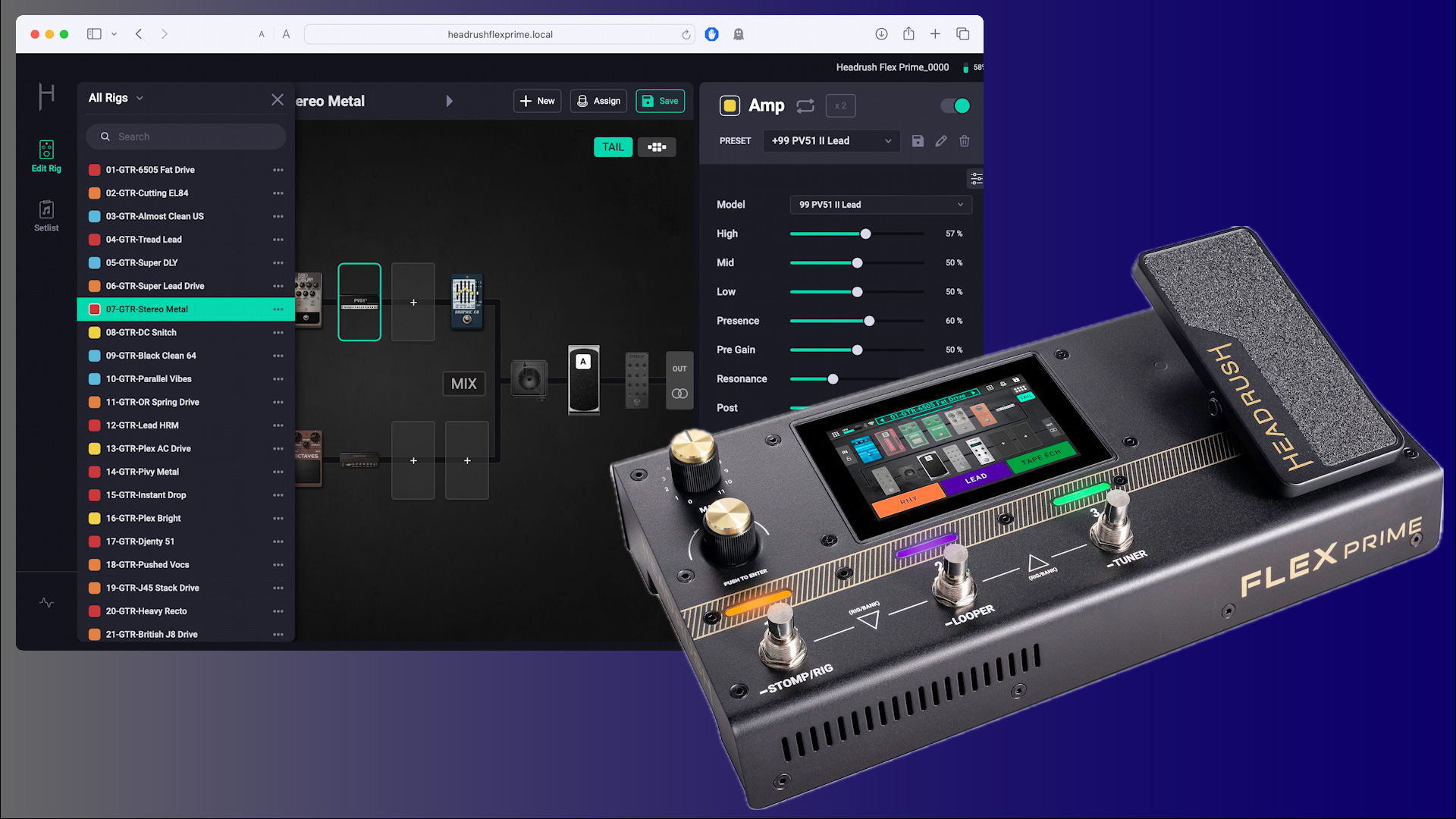
With the release of the HeadRush Flex Prime in November 2024, HeadRush introduced the HeadRush Remote Editor app. The HeadRush Remote Editor is also a new feature for HeadRush Prime and HeadRush Core pedalboards that are updated to firmware 4.0 or higher.
The Remote Editor is a web browser–based app that you can use over Wi-Fi on macOS, Windows, iPads, and tablets running Android. The Remote Editor gives you a convenient way to create and edit Rigs, manage Setlists, and more. It’s useful onstage as a means to adjust any effects parameters from a tablet without having to bend over and use the touch screen on your HeadRush board.
Here’s how to get started.
- What Is the HeadRush Remote Editor App?
- Update the Firmware
- Connecting to the HeadRush Remote Editor
- Download the Owner’s Manual
What Is the HeadRush Remote Editor App?
The Remote Editor is not an app that you download and install on your computer or your tablet. Rather, the Remote Editor runs on the HeadRush board itself. You use your computer or tablet’s web browser to log in to the HeadRush board over Wi-Fi. The Remote Editor will appear in your browser window.
The Remote Editor works the same on Mac and Windows computers, iPads, and Android tablets. HeadRush recommends that you use it on a tablet with a screen of seven inches or larger or on your laptop screen or desktop computer monitor. That way, you can see a lot more parameters at once, compared to what you can see on the HeadRush board’s touch screen.
Update the Firmware
In order to use the Remote Editor, your HeadRush Prime, Core, or Flex Prime unit needs to be running firmware 4.0 or higher.
HeadRush makes the firmware-update process easy. Head over to our SweetCare HeadRush Prime, Core, and Flex Prime firmware update guide, follow the instructions, and come back here.
Connecting to the HeadRush Remote Editor

HeadRush Remote Editor app in the Safari web browser on macOS

Accessing the Tone3000 website from within HeadRush Cloud through the Remote Editor app with HeadRush Firmware 5.1
Here’s how to access the Remote Editor.
- On the Flex Prime’s touch screen, tap the Menu icon in the upper-left corner.
- Select Global Settings.
- In the Global Settings page, in the pane on the left, scroll down and tap Wi-Fi.
- Make sure that Wi-Fi is turned on. Connect your Flex Prime to your local network using the Wi-Fi router’s password.
- Make sure that HeadRush Remote is turned on.
- On your computer or device (connected to the same network and Wi-Fi router as the Flex Prime), open your web browser. In the address bar, type one of the following depending on your model:
- http://HeadRushPrime.local
- http://HeadRushCore.local
- http://HeadRushFlexPrime.local
Hit Enter.
You’ll see the Remote Editor’s interface. It is similar to the layout of your unit’s touchscreen but provides a lot more information in one view.
Here’s HeadRush’s tutorial video for the Remote Editor.
HeadRush: Editing Rigs with the New Web Editor
Download the Owner’s Manual

Downloading the newest HeadRush User Guide for your model
With firmware version 5.1, HeadRush has provided new versions of the User Guide for Prime, Core, and Flex Prime models. These provide reference material for using NAM A2 through Tone3000, and other features.
Whenever you update the firmware, check to see if there’s a new version of the User Guide for your model on the HeadRush Downloads page.
Related Articles
When you need help, Sweetwater has the answers!
Our knowledge base contains over 28,000 expertly written tech articles that will give you answers and help you get the most out of your gear. Our pro musicians and gear experts update content daily to keep you informed and on your way. Best of all, it’s totally FREE, and it’s just another reason that you get more at Sweetwater.com.

