
HeadRush Prime, Core, and Flex Prime Firmware Update
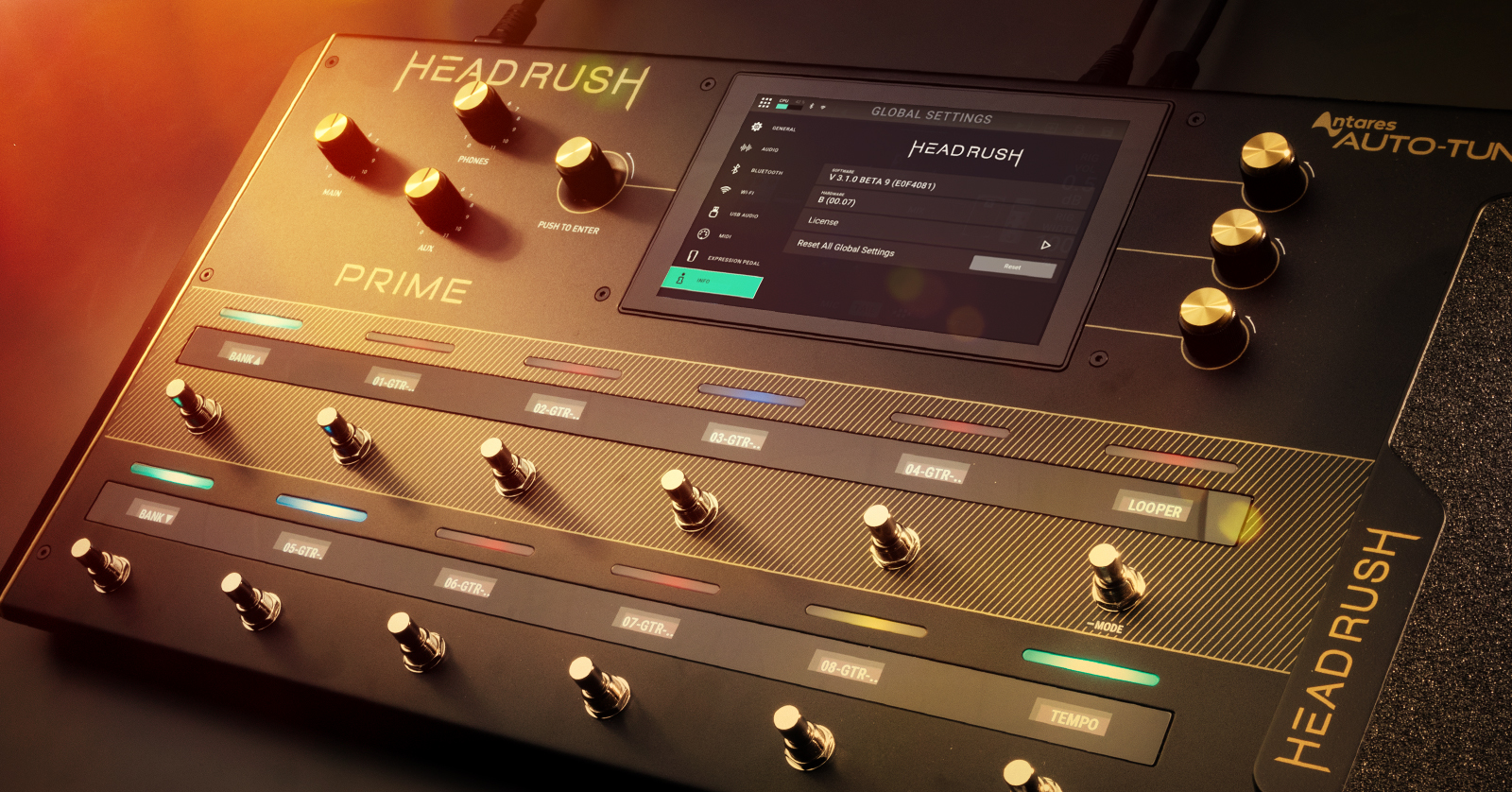
HeadRush periodically releases new firmware for its Prime, Core, and Flex Prime pedalboards. These free updates fix bugs and may add new features, capabilities, models, and effects. HeadRush makes it easy to update, so let’s get started.
- HeadRush 5.1 Firmware Update adds Neural Amp Modeler NAM A2 captures from Tone3000
- Check Your Firmware Version
- Back Up Your Presets First
- HeadRush Prime, Core, and Flex Prime Firmware Update
- Don’t Forget to Download the Owner’s Manual!
HeadRush 5.1 Firmware Update adds Neural Amp Modeler NAM A2 captures from Tone3000

The Tone3000 website as viewed through the HeadRush Cloud interface on the HeadRush touchscreen
On August 1, 2026, HeadRush released the free HeadRush 5.1 Firmware Update for the Prime, Core and Flex Prime models. In addition to providing the drum machine, Tidal integration, new amp models and effects, and many other quality of life improvements that came with Firmware 5.0, the new 5.1 now gives these HeadRush models the ability to load Neural Amp Modeler NAM A2 captures directly from the Tone3000 website using the HeadRush Cloud menu on the touchscreen on your unit.
Read HeadRush’s Tone3000 Integration announcement for details.
If you don’t see the new Tone3000 tab in your HeadRush Cloud menu, you need to update your firmware according to the instructions below.
Here’s HeadRush’s video announcing Tone3000 support:
HeadRush x TONE3000 | Access the World’s Best Guitar Tones Instantly
Check Your Firmware Version
Check your unit to find out what version of the firmware it’s running. If there’s a newer version on the HeadRush website, then you’ll want to update.
- On your unit, press the Menu icon at the top-left of the display, and select Global Settings.
- Press Info.
- Go to the HeadRush Downloads page and look up your unit’s model (Prime, Core, or Flex Prime). Compare the firmware version on your unit to the latest version of the Firmware Updater listed on the Downloads page.
- If they match, then you’re good to go! If they don’t, then continue below to update the firmware.
Back Up Your Presets First
HeadRush advises that before you install a firmware update, you should make a backup of your presets to your Mac or your Windows PC.
Here’s an overview. You back up your presets by connecting your HeadRush unit to your Mac or your Windows PC with a USB data cable and putting the HeadRush into USB Transfer mode. On your computer, you’ll see a new HeadRush drive icon. When you open this drive, you’ll see the files stored on your HeadRush unit. Copy these files to your computer to make backups.
Follow this procedure:
- If you are on Windows, go to the HeadRush Downloads page and find the listing for your HeadRush model. Download and install the Windows driver. No driver is needed if you are on macOS.
- Connect your HeadRush unit to your computer using a USB data cable and an adapter (if needed).
- With your computer powered on, power on your HeadRush unit using its power switch.
- On your HeadRush touchscreen, tap the Menu icon in the upper-left corner. Then tap the USB Transfer icon.
- In the Mac Finder or the Windows File Explorer, you’ll see a new icon labeled “HeadRush.”
- Open the HeadRush drive icon. You can now copy files to a folder on your computer. Be careful, however, that you are copying files and not dragging them out of the HeadRush drive icon — this may actually delete files from your HeadRush unit. Any changes you make to the contents of the HeadRush are immediate.
- When you are finished copying files, don’t unplug the USB cable. Rather, you must select the HeadRush drive icon and perform the Eject procedure for Mac or Windows in order to make sure that files don’t get corrupted. If you aren’t sure how to do this, here are our SweetCare instructions: How to Safely Eject an External Hard Drive.
- Once you have safely ejected the HeadRush drive on your computer, go to the HeadRush unit’s touch screen. Tap Sync to commit any changes.
- The HeadRush unit will display a meter to indicate its progress in syncing files. The last screen you were on before going into USB Transfer mode will reappear when the process is finished. Do not disconnect or power off the HeadRush unit until the process is complete.
- You can now disconnect the USB cable.
Learn more in the User Guide for your model of HeadRush unit under Operation > USB > Transferring Files & Settings.
HeadRush Prime, Core, and Flex Prime Firmware Update
There are two methods for updating the firmware.
The first is automatically, over Wi-Fi.
If your unit is starting out with an older firmware version and doesn’t prompt you to update automatically, then you can use the second method, which involves connecting your HeadRush unit to your Mac or your Windows PC using a USB cable and downloading the firmware-updater utility from the HeadRush website.
Automatic Firmware Update over Wi-Fi
The HeadRush Prime, HeadRush Core, and HeadRush Flex Prime all use Wi-Fi. When connected to the internet, they will prompt you if there’s a firmware update available.
- If you didn’t connect to a Wi-Fi network when you first powered on your HeadRush unit, then press the Menu icon, select Global Settings, and press Wi-Fi.
- Locate and connect to your local Wi-Fi network. Use its passcode if prompted.
If the unit informs you that there’s an update available, stop and select Cancel.
Next, make a backup of your presets to your computer according to the instructions in the section above.
Now that you’ve got a backup, it’s safe to proceed.
- Go back to the Global Settings, tap Firmware Update, and select Via Wi-Fi.
- The device will reboot and go through the firmware-update process. Be patient, and don’t unplug or power down your unit until the display informs you that the process has completed.
Manual Firmware Update over USB
NOTE: Make sure you are downloading the firmware updater for your model of HeadRush, and not a different model, to avoid any problems.

Downloading the Mac or Windows updater for the newest version of the firmware for your HeadRush model
If you see that you have a firmware version lower than 5.0, and your HeadRush does not prompt you to update, you can do so manually.
Make sure to back up your data first according to the instructions above. Then proceed.
IMPORTANT: Be patient during the firmware update. Do not quit the app on your computer, and do not disconnect the USB cable until the app informs you that the firmware update has been completed.
- On your computer, go to the HeadRush Downloads page. Locate the listings for your model.
- If you are on Windows, first download and install the HeadRush Windows Driver. There is no driver to install for macOS.
- Download the “READ ME” file for the firmware update. Take note of its instructions.
- Download the newest Firmware Updater app for macOS or Windows.
- Extract the downloaded file, and you’ll see the app on your computer.
- Connect your HeadRush unit to your computer using a USB data cable and an adapter (if needed). Power on your HeadRush unit using its power supply.
- On your HeadRush unit’s display screen, tap the Menu icon in the upper-left corner of the Main screen, and then tap the Firmware Update icon.
- On the Firmware Update screen, you will be prompted to shut down your HeadRush unit and update the firmware. Select Yes. After restarting, the HeadRush unit’s display screen will show “Update” at the bottom edge.
- On your computer, launch the HeadRush firmware-updater app that you downloaded in the step above.
- When the Updater window appears, click Update.
- Do not disconnect or power off the HeadRush unit, or your computer, until the app indicates that the update has been completed.
- The Updater app window will display “Done.” Your HeadRush unit will reboot.
- On your computer, click Done to close the Updater app.
- When the HeadRush unit reboots, you will see the new version number of the firmware at the bottom of the screen. This indicates that the update was successful.
Don’t Forget to Download the Owner’s Manual!
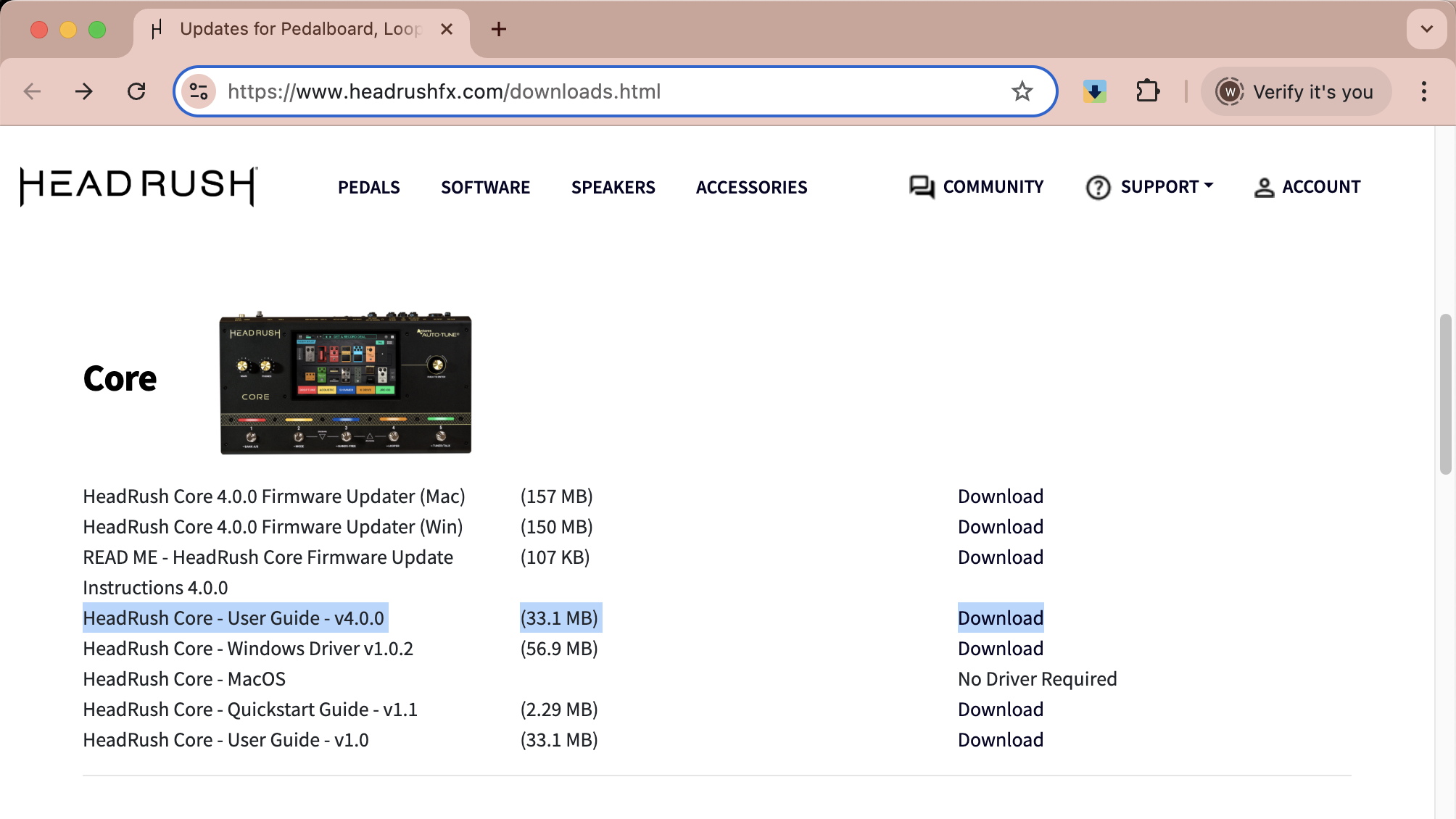
Downloading the newest HeadRush User Guide for your model
With firmware version 5.1, HeadRush has provided new versions of the User Guide for Prime, Core, and Flex Prime models. These add reference material for using NAM A2 through Tone3000, and other features.
Whenever you update the firmware, check to see if there’s a new version of the User Guide for your model on the HeadRush Downloads page.
Whether you have updated the firmware automatically over Wi-Fi or through the USB connection to your computer, you will also want to download the “READ ME” file for the firmware update. It provides lists of all the new features that come with the firmware update, including any new amp and effects models.
Related Articles
When you need help, Sweetwater has the answers!
Our knowledge base contains over 28,000 expertly written tech articles that will give you answers and help you get the most out of your gear. Our pro musicians and gear experts update content daily to keep you informed and on your way. Best of all, it’s totally FREE, and it’s just another reason that you get more at Sweetwater.com.

