
HeadRush Flex Prime Quickstart Guide
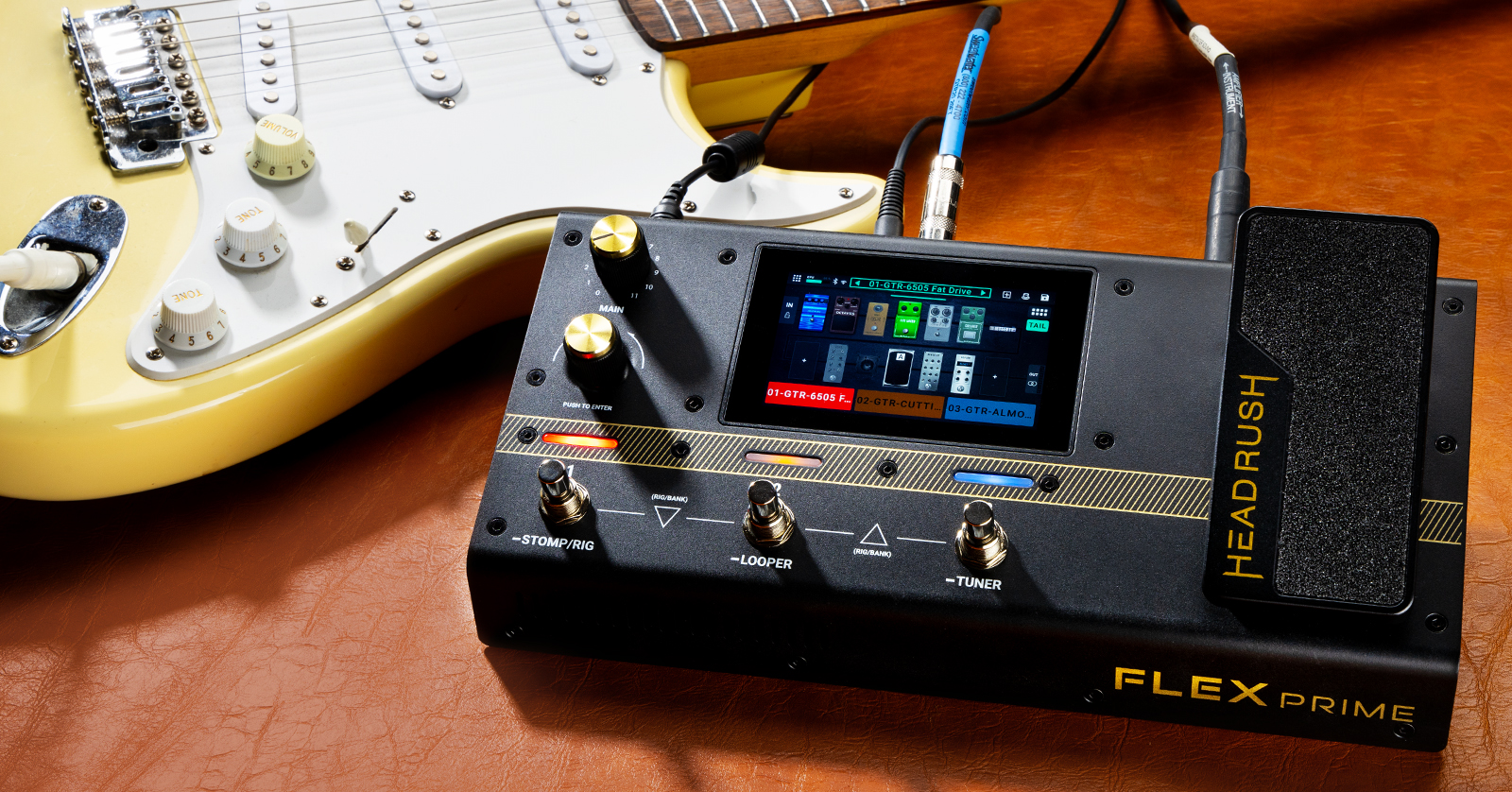
The HeadRush Flex Prime is a capable and compact guitar and bass amp and effects modeler with an impressive range of functions for live performance. It’s got a Wi-Fi connection, Bluetooth, and it provides a USB audio interface to your computer and your DAW. You can make and edit your own amp and effects clones on your computer with the included ReValver and Amp Cloner apps and transfer them to your Flex Prime. HeadRush also provides the Remote Editor app for your computer or tablet to easily edit and manage Rigs and Setlists.
Keep reading to get started.
- Register your purchase and claim your software
- HeadRush 5.1 Firmware Update adds Neural Amp Modeler NAM A2 captures from Tone3000
- HeadRush Flex Prime Connections and Controls
- HeadRush Remote Editor app
- Getting Started with the HeadRush Flex Prime
Register your purchase and claim your software
Registration Procedure
Before you get started, you first need to register your purchase with HeadRush on the website of its parent company, InMusic. Registration activates your warranty and gives you access to the ReValver and Amp Cloner software.
- Log into your inMusic account. If you don’t have one, click Create Account and complete the necessary information.
- On your account home page, click Register New Product, then enter the serial number, which can be found on the side of the box.
- Fill out the necessary information to complete the registration process.

Click the image to log into your inMusic account.
Download the owner’s manual
You’ll need the newest version of the HeadRush Flex Prime User Guide. Go to the HeadRush Downloads page, scroll down to “Flex Prime,” and download it.
HeadRush ReValver and Amp Cloner apps
Your purchase of the Flex Prime entitles you to a free copy of the HeadRush ReValver app, and its companion Amp Cloner app. Once you register your purchase, you can download and use these apps on your Mac or Windows PC.
With ReValver and Amp Cloner, you can clone, or capture, amps, effects, and even virtual instruments for use with your Flex Prime. The SuperClone feature enables you to combine multiple clones of the same amp into a more realistic model. You can even combine clones of two or more different amps or effects into one model and morph between the original sounds with the turn of a knob. Once you have created a clone, you can upload it to you Flex Prime, Prime, or Core unit, or share it with others through the HeadRush Cloud.
Here’s HeadRush’s video introducing ReValver and Amp Cloner.
ReValver Amp Cloner by HeadRush: Overview
HeadRush 5.1 Firmware Update adds Neural Amp Modeler NAM A2 captures from Tone3000
On August 1, 2026, HeadRush released the free HeadRush 5.1 Firmware Update for the Prime, Core and Flex Prime models. In addition to providing the drum machine, Tidal integration, new amp models and effects, and many other quality of life improvements that came with Firmware 5.0, the new 5.1 now gives these HeadRush models the ability to load Neural Amp Modeler NAM A2 captures directly from the Tone3000 website using the HeadRush Cloud menu on the touchscreen on your unit.
Read HeadRush’s Tone3000 Integration announcement for details.
Sweetwater recommends that you install new firmware updates as they arrive. You can do this over Wi-Fi or the USB connection to your computer.
To update the firmware, follow the instructions in our SweetCare HeadRush Prime, Core and Flex Prime Firmware Update guide.
Then come back here and keep reading.
HeadRush Flex Prime Connections and Controls
Before you connect any cables to your Flex Prime, make sure the power is off. Start with the Main knob on the front panel turned all the way down.
Connections
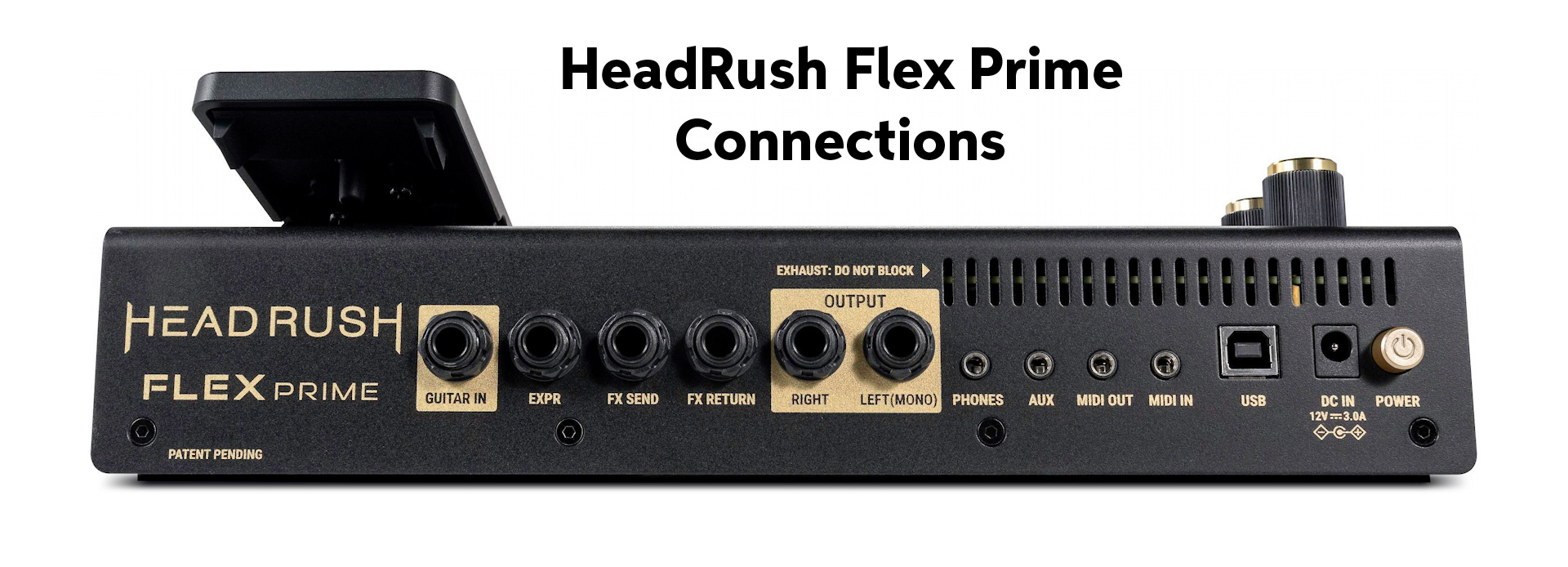
HeadRush Flex Prime Connections
Power Connection
Use only the 12V 3.0A power supply that comes with the unit.
Guitar In
Use a standard 1/4-inch TS instrument cable to connect your guitar.
Expression
The EXPR jack is for connecting an optional secondary external expression pedal (not included) that uses a 1/4-inch TRS connection.
Configure an external pedal’s functions in Global Settings > Expression Pedal.
Learn more in the HeadRush Flex Prime User Guide > Global Settings > Expression Pedal.
Effects Send and Return
Use the FX Send and FX Return jacks to patch a signal from the Flex Prime to an external effects module or the effects loop of a guitar amplifier.
- If you want a monaural signal, connect 1/4-inch TS instrument cables.
- If you want a stereo signal, connect TRS cables and enable Stereo FX Send and Return in the Global Settings > Audio menu.
Output
Connect these outputs to your amplifier, FRFR speaker, mixer, or audio interface. If you only need a monaural output, connect a 1/4-inch TRS cable for a balanced signal to the Left (Mono) jack. If you need stereo, connect a second 1/4-inch TRS cable to the Right jack.
The outputs can be set to Amp Level or Line Level in the Global Settings > Audio menu.
Phones
Connect standard 1/8-inch TRS headphones. Control the volume with the Main knob on the front panel.
Auxiliary Input
The AUX jack gives you the option of connecting an auxiliary analog audio input from a phone, tablet or other external source, using a 1/8-inch TRS stereo cable. Audio going into this input is routed directly to the outputs and is unaffected by the Main volume knob, so you’ll control the signal level from the external device.
MIDI In and Out
You can use MIDI gear with standard 5-pin DIN connections with the Flex Prime by connecting 1/8-inch TRS MIDI Type-A adapters, sold separately.
Note that these 1/8-inch MIDI ports are not for audio connections.
Learn more in the HeadRush Flex Prime User Guide > 4.18 Global Settings > MIDI.
USB
The USB-B port is for connecting a data cable to your Mac or Windows PC. This has several uses:
- Transfer files and settings: Back up data from the Flex Prime’s memory to your computer, and import audio, IR and other files from the computer.
- Use your Flex Prime as a 4-input, 4-output 24-bit audio interface to your computer, for recording with your DAW. You can also use the Flex Prime to reamp audio tracks from your DAW. If you are on Windows, you must install the HeadRush audio driver from the website.
- If you encounter a situation where you can’t update over Wi-Fi, use the USB connection to update the firmware using the HeadRush updater app running on your computer.
Learn more in the HeadRush Flex Prime User Guide > 4.15 USB.
Wi-Fi and Bluetooth
In the Global Settings menu, accessed from the display screen, you can enable and access Wi-Fi and Bluetooth.
Connect your Flex Prime to your Wi-Fi router and you enable many functions, including:
- Connecting to HeadRush’s Cloud service for sharing presets, models and speaker cabinet impulse responses (IRs).
- Connecting the Flex Prime directly to your DropBox account for loading IRs, downloading audio recordings for playback and practice, and more.
- Using the Remote Editor app on your computer or tablet.
- Updating the firmware over the air. When connected to the internet over Wi-Fi, the Flex Prime notifies you when a new firmware update is available and prompts you to install it.
You can make a Bluetooth audio connection to a phone, tablet or computer for streaming audio for backing tracks or practice as well.
Learn more in the HeadRush Flex Prime User Guide > Global Settings.
Controls
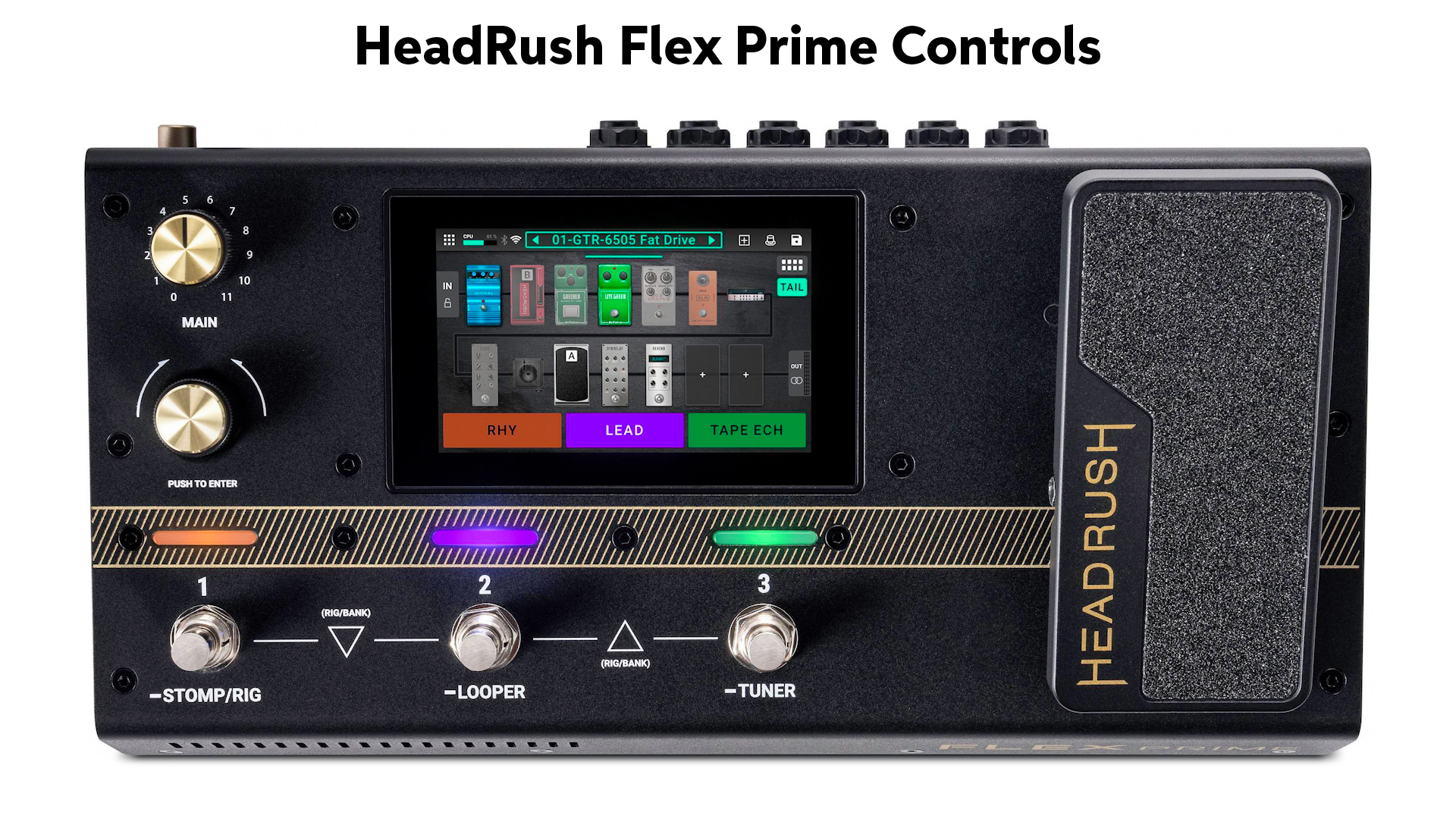
HeadRush Flex Prime Controls
Main knob
This controls the output volume level for both the main outputs and the headphones.
Display
The multi-touch display screen is where you navigate the functions of the Flex Prime. Touch icons to make selections, and use the hardware controls to adjust parameters.
As we will explain below, you also have the option of using the Remote Editor app on your computer or tablet to program most of the functions accessible from the Display screen.
Encoder
The knob labeled Push to Enter is the Encoder. Turn it to scroll through the available menu options on the display screen.
When you tap on a parameter in the touch screen, you can drag with your finger to raise or lower its value. Alternately, once you have selected the parameter, you can adjust its value using the Encoder, which you may find to be easier and more precise.
Push the encoder to confirm your selection.
Footswitches
The three footswitches turn on and turn off the assigned block or scene, load the assigned Rig, and perform other functions, including using the Looper and the Tuner.
Learn more in the HeadRush Flex Prime User Guide > 4.5 Footswitch Modes.
Footswitch Indicators
These lights show whether the corresponding Block, Rig or Scene is turned on or off.
Expression Pedal
The built-in expression pedal can be used to adjust different parameters depending on the preset.
Press the toe of the pedal down to switch between Banks.
Learn more in the HeadRush Flex Prime User Guide > 4.6.3 Hardware Assign > Expression Pedal.
HeadRush Remote Editor app

HeadRush Remote Editor app in Safari on a MacBook Pro
The HeadRush Flex Prime introduced the new Remote Editor app, which is also available on the HeadRush Prime and HeadRush Core models when updated with firmware 4.0 or higher.
The Remote Editor is an editor/librarian app that enables you to create and edit Rigs and manage Setlists on your computer or device, reducing the need to bend over and use the Flex Prime’s touch screen and knobs.
Check out our SweetCare HeadRush Remote Editor Quickstart Guide.
Getting Started with the HeadRush Flex Prime
HeadRush Video Tutorials
Now that you are updated and connected, watch these short tutorial videos from HeadRush to walk you through all the basic features so you can start rocking out.
HeadRush Flex Prime Overview and Features
HeadRush Flex Prime: Getting Started
HeadRush Flex Prime FAQ
HeadRush provides a helpful Flex Prime Frequently Asked Questions page on their support site.
Related Articles
When you need help, Sweetwater has the answers!
Our knowledge base contains over 28,000 expertly written tech articles that will give you answers and help you get the most out of your gear. Our pro musicians and gear experts update content daily to keep you informed and on your way. Best of all, it’s totally FREE, and it’s just another reason that you get more at Sweetwater.com.

