
Elgato Stream Deck Setup Guide
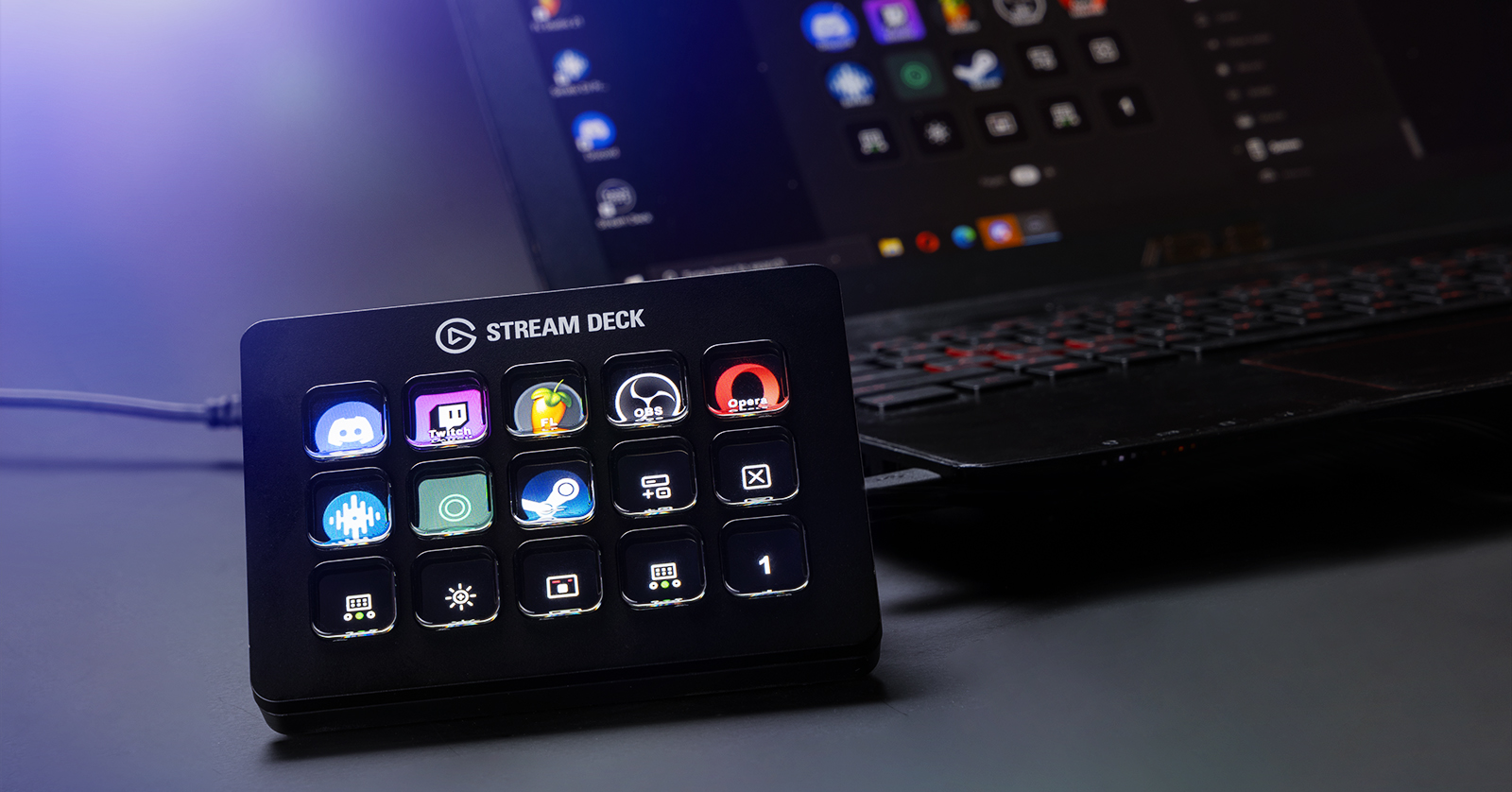
The Elgato Stream Deck is a must-have for any studio musician, content creator, or streamer, so in this guide, we will show you how to set up and use the Stream Deck for the first time. Follow the sections below to get started. This article only scratches the surface, so check out Elgato’s Stream Deck support pages to learn more!
- Setup and Connections
- Update Stream Deck Firmware
- Assign Functions
- Creating Folders and Profiles
- Additional Elgato Stream Deck Resources
Stream Deck Setup and Connections
Setting up your Elgato Stream Deck couldn’t be easier. Download the Stream Deck software, connect the controller to your computer, and you’re ready!
There are a few things to note about your Stream Deck. You must connect the Stream Deck directly to your computer. Connecting it to a USB hub, especially a passive hub, can prevent the unit from properly communicating with your computer. Also, it’s recommended to use a USB cable with a maximum length of three feet. While you can try longer cables, they may result in connectivity- or operational issues.
- Go to the Elgato Downloads page. Next to FILTER BY SYSTEM, click your OS.
- Scroll down to Stream Deck and click Download. Also make sure to download the latest version of Wave Link.
- You can also download OBS Studio directly from the Elgato Downloads page.
- Once the software is downloaded, navigate to your Downloads folder, launch the installer file, and follow the on-screen instructions.
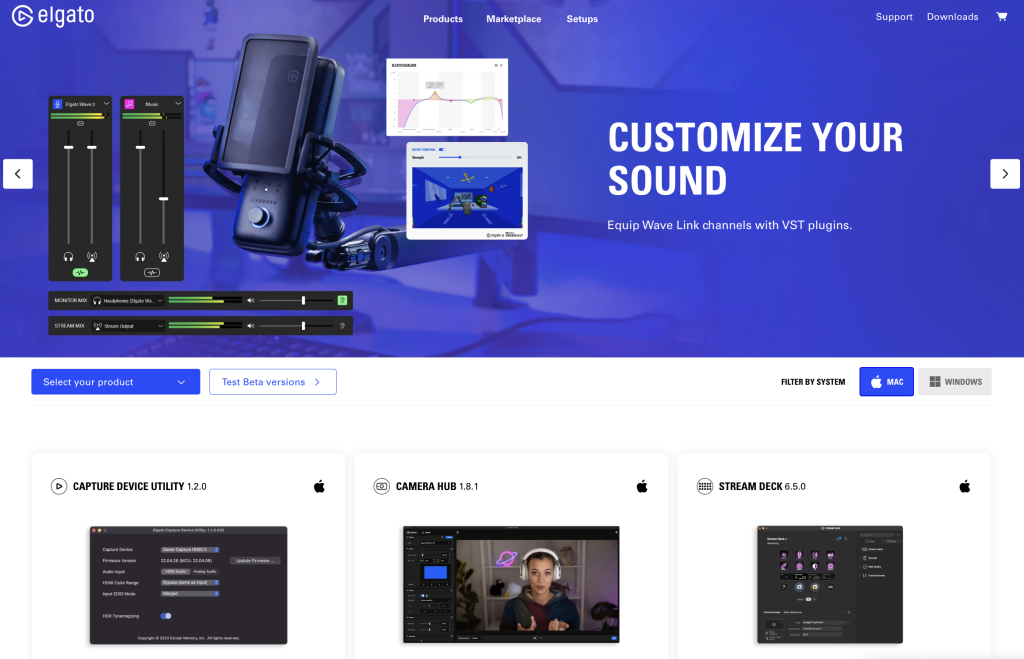
Click the image to download Stream Deck and Wave Link.
Update Stream Deck Firmware
NOTE: After the initial firmware update, Elgato recommends updating the firmware only if you’re experiencing issues with your Stream Deck.
Elgato will periodically release firmware updates, often adding new features or addressing bugs in the current version. So, before using it for the first time, you’ll want to make sure your Stream Deck firmware is up to date!
- Launch the Stream Deck application.
- Click the Gear icon, click the General tab (if it isn’t already selected), and click Check for updates.
- If the firmware is out of date, it will automatically install the latest version.
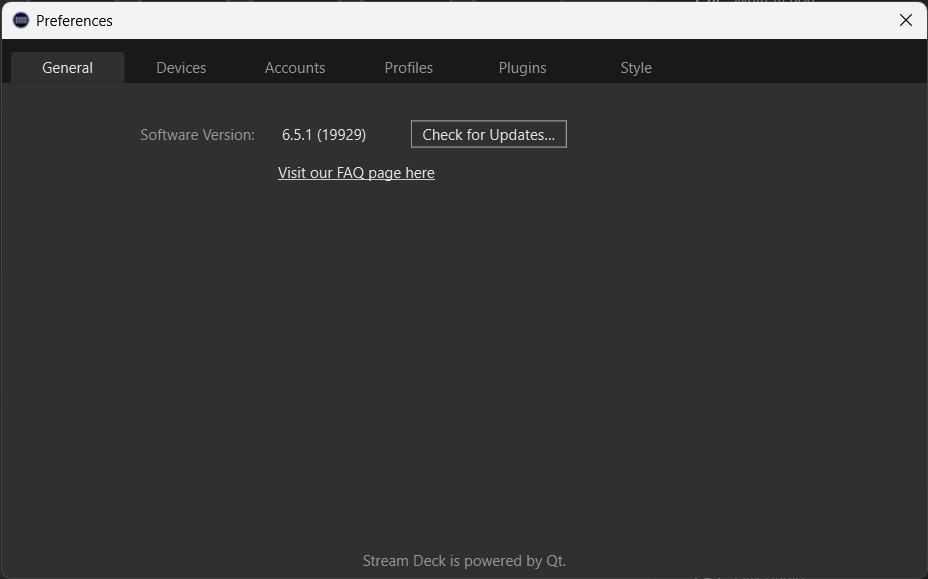
Click the Gear icon and click General tab to update your firmware.
Assign Functions
TIP: Click the Sort icon located to the right of the search bar. From here, you can choose what applications and functions will appear on the software by turning them on and off. This will help improve your workflow, as the sidebar may become challenging to manage, especially for more advanced setups.
Once you connect the Stream Deck hardware, it’s time to use the Stream Deck software to assign functions to the pads. The process is straightforward.
- With your Stream Deck connected, launch the Stream Deck software. The software is a mirror image of the device’s buttons.
- Using the category dropdowns on the right side of the application, locate the function you want to add.
- Click and drag the action to the button to which you want to assign it.
- The button will be autosaved as soon as you assign it, so you don’t need to launch the software every time you want to use your Stream Deck.
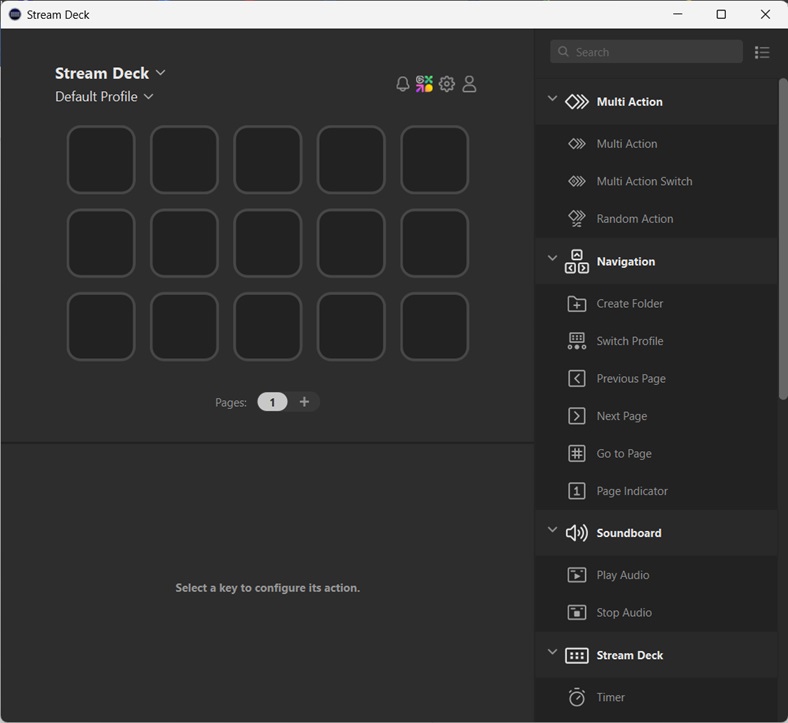
Stream Deck homepage
Opening Applications
You can open applications directly from your Stream Deck from the System category.
- Use the System category dropdown, then click and drag Open (rocket icon) to any button on your Stream Deck.
- At the bottom of the screen, click … next to App/File, then locate the application’s shortcut file location. Depending on how you installed the software, the shortcut is either located on your Desktop or in the installation path.
- Click the icon and select Open. The application is now added to your Stream Deck.
- The software’s name is automatically added to the button. You can remove or rename it using the Title field located at the bottom of the Stream Deck software.
Creating Folders and Profiles
Folders and Profiles are helpful ways to organize your Stream Deck. These are especially useful if you have a smaller Stream Deck and want to utilize it to its full potential.
Folders
Folders allow you to store assigned function buttons in one spot. This is useful if you have many buttons that you want to store in one spot but don’t need to switch between them regularly. Check out Elgato’s Folder Support page to learn more!
- Open the Stream Deck application.
- Right-click an empty key, then choose Create Folder. Alternatively, drag-and-drop the Create Folder icon from the Stream Deck category dropdown.
- Press the folder to open it, then drag any assigned function buttons. If you have a subfolder and want to return to the main page, press and hold the Return key.
Profiles
Profiles allow you to assign specific buttons to switch between within an application. Creating profiles will enable you to use your most used commands with the press of a button. Think of them as a group of hotkeys. Check out Elgato’s Profile Support page to learn more!
- Open the Stream Deck application, then click + to create a new profile. Name your profile so you can remember what it’s for.
- Click and drag the assigned function buttons associated with your application.
How to Organize your Stream deck with Folders, Pages, and Profiles
How to Use Profile Menus on Elgato Stream Deck
Additional Elgato Stream Deck Resources
Introduction to Stream Deck
How to Set Up Hotkeys with Elgato Stream Deck
How to Use Wave Link
How to Set Up Elgato Stream Deck +
Related Articles
When you need help, Sweetwater has the answers!
Our knowledge base contains over 28,000 expertly written tech articles that will give you answers and help you get the most out of your gear. Our pro musicians and gear experts update content daily to keep you informed and on your way. Best of all, it’s totally FREE, and it’s just another reason that you get more at Sweetwater.com.

