

Best Service Activation Instructions For Best Engine Instruments

Overview
Here at Sweetwater we are dedicated to ensuring you have the best software purchasing experience possible. That’s why we’ve created this step-by-step guide which will take you from activating to launching your Best Service software for the first time. Keep this tab open for a reference guide throughout the registration and installation process.
Serial Number Registration
Before you can use your Best Service virtual instrument, you will need to register the Serial Number your Sales Engineer sent you. Follow these instructions to activate your instrument. If your Best Service virtual instrument is a Kontakt library, click here for your activation instructions.
Register the Serial Number
1. Create a Best Service Account. If you already have an account, there’s no need to create another, just sign in.
2. On your account page, click My Products then Registration. A window will open where you can copy and paste the Serial Number. If done correctly, your new library will appear.
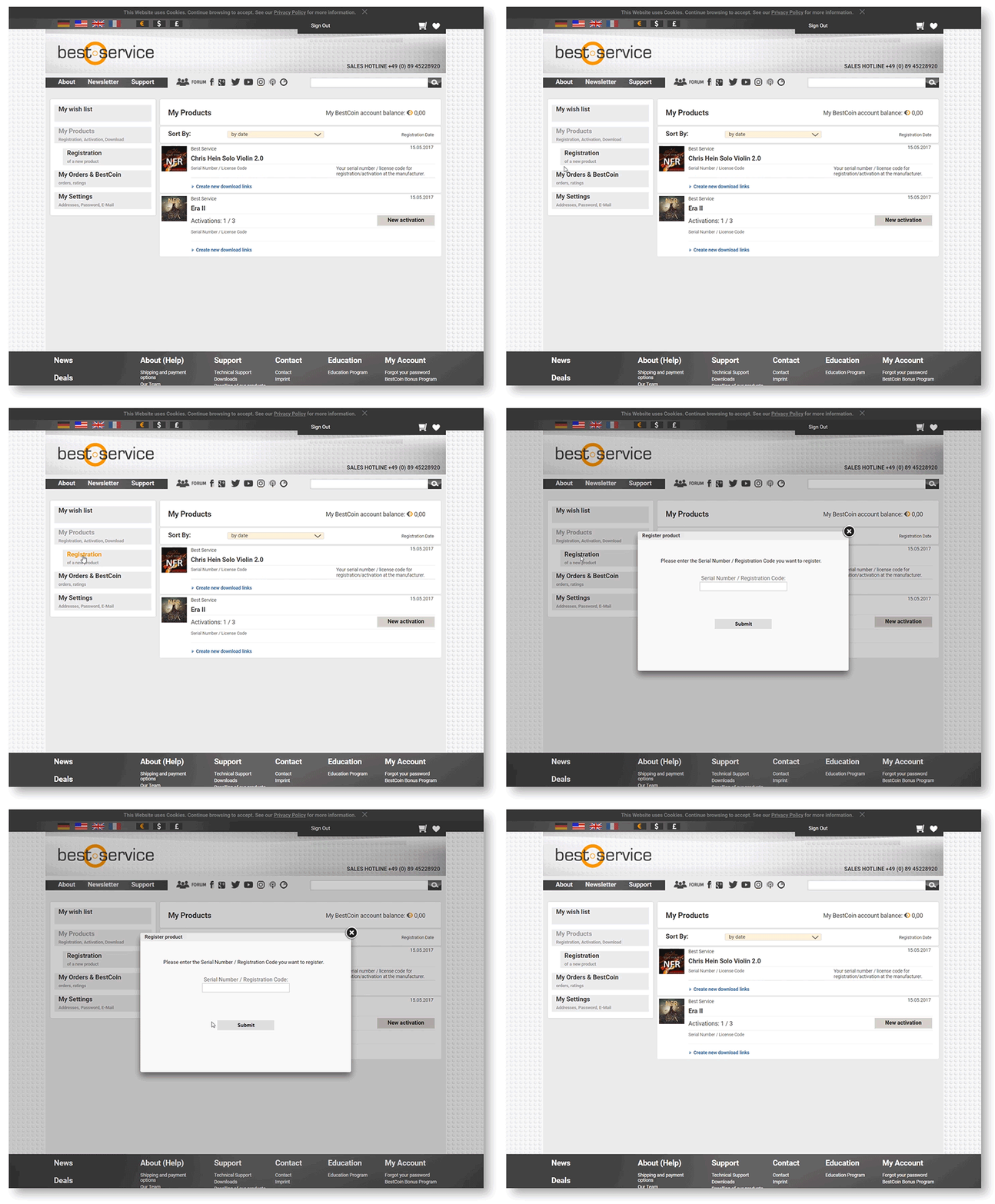
Click the image to register your serial number.
Download and Install Engine & Libraries
Once you have successfully registered the virtual instrument, the next step is to download and install the Best Service Engine and libraries. Your instruments are sound libraries which load into the Engine software. Once installed, you can access Engine through either the standalone app or as a DAW plug-in. Follow the steps below to install your software.
Download and Install Best Service Engine
1. Visit the Best Service download page and download the latest version of the Best Service Engine for your operating system.
2. Open your Downloads folder and uncompress the .zip file.
3. Double-click the .exe (PC) or .pkg (Mac) installer file and follow the on-screen instructions.
Download and Install the Sample Libraries
1. Visit your Best Service account page, download all available .rar files.
2. Open your Downloads folder and create a new folder called Best Service Libraries. Move all of the Best Service library .rar files into the new folder.
3. Within the new folder, extract only the first .rar file. All others will be processed automatically.
- Windows users: You will need to install software such as 7-Zip to extract .rar files.
- Mac users: You will need to install software such as Unarchiver to extract .rar files.
Download Tips
- These sample libraries contain a lot files, so download times will take awhile depending on your internet connection. We recommend downloading one at a time.
- You can only download the library files a maximum of five times.
- We recommend you install your libraries to an external drive, if possible.
Add & Activate the Library to Engine
Once you have extracted the library, the next step is to load it into the Best Service Engine. You can do this in either the standalone program or plug-in. Follow the steps below to load your library.
Adding the Best Service Library to Engine
1. Launch Engine and click the Preferences button.
2. Click Libraries, then click add library.
3. Navigate to the folder that your library is in and click Open.
4. Click Save Preferences and restart Engine.
Activate the Library
1. Select click here to load an instrument, navigate to your library, and load a sample. A library activation window will appear with your Serial Number listed.
2. Go to the User Area of your Best Service account and click New Registration which will generate a response code.
3. Copy the Response Code that appears and paste it into the library activation window, then click Submit.
Missing File Error
When you first load the sample from your library, you will receive an error stating that there are missing files. This warning will go away once you enter in your Response Code.
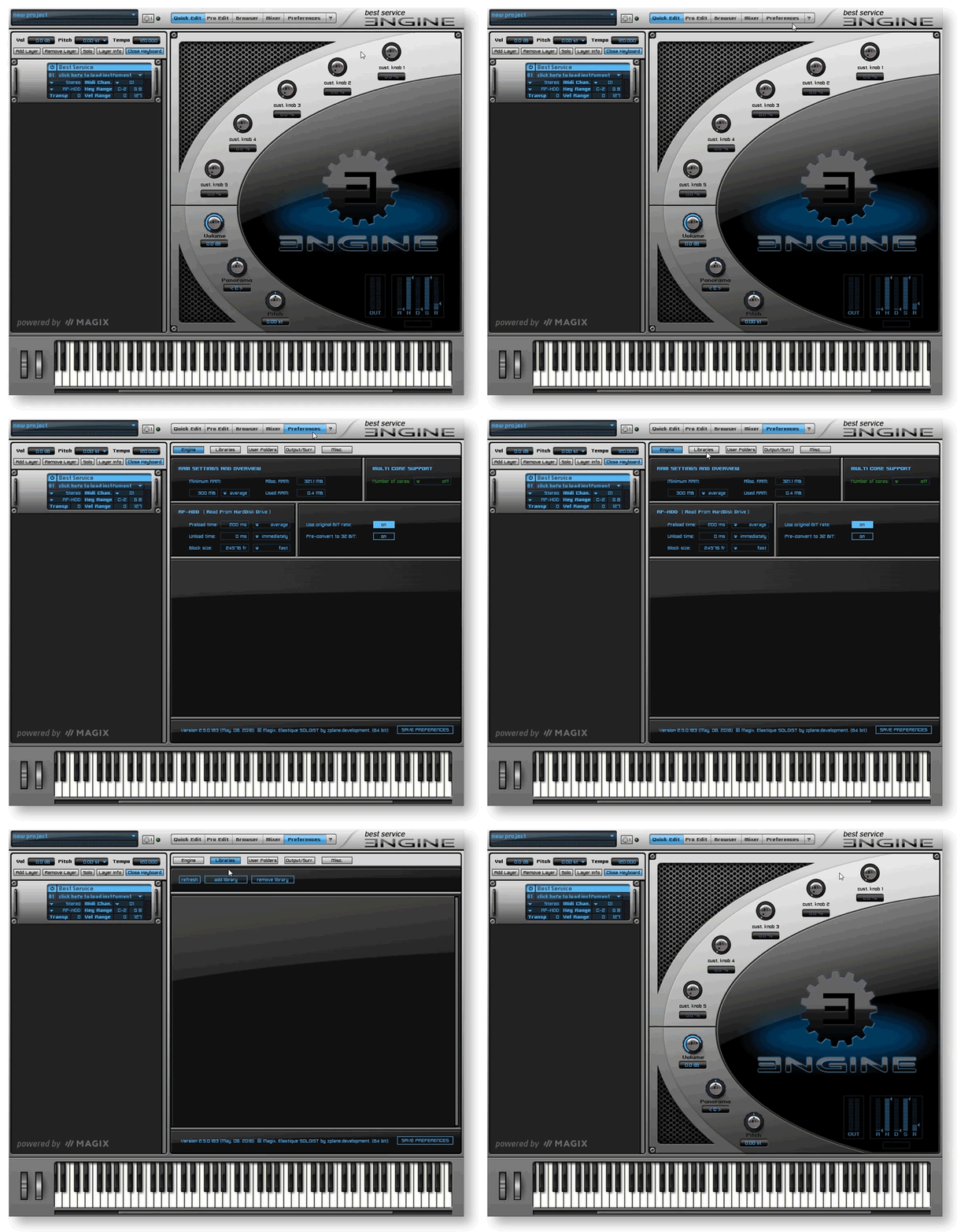
Adding a Library to Engine.
Getting Started Videos
Now that you’ve successfully added your Best Service library, here are a few tutorial videos to help get you started!
Titan 2 Loading Presets & Sections
The Orchestra Quick Tips
The Orchestra Instruments Walkthrough
Engine Quick Start Tutorial
When you need help, Sweetwater has the answers!
Our knowledge base contains over 28,000 expertly written tech articles that will give you answers and help you get the most out of your gear. Our pro musicians and gear experts update content daily to keep you informed and on your way. Best of all, it’s totally FREE, and it’s just another reason that you get more at Sweetwater.com.

