

Best Service Activation Instructions For Kontakt Instruments

Sweetwater is dedicated to ensuring you have the best software purchasing experience possible. That’s why we’ve created this step-by-step guide that will take you from activating to launching your Best Service software for Kontakt for the first time. Follow the instructions below to get started.
NOTE: If your Best Service virtual instrument uses the Best Service Engine, click here for your activation instructions.
- Register the Best Service Serial Number
- Download the Sound Libraries and Kontakt Player
- Activate the Best Service License with Native Instruments
- How to Add Best Service Libraries in Kontakt
Register the Best Service Serial Number
NOTE: You will only use this registration code once. Upon registration, Best Service will generate a different code to activate the virtual instrument with Native Instruments.
Before using your Best Service virtual instrument for Kontakt player, you must register the Serial Number your Sweetwater Sales Engineer sent and your libraries.
- Create a Best Service account. If you already have a Best Service account, you can sign in here.
- On your account homepage, click Registration (located underneath My Products), copy and paste the Serial Number you received from your Sweetwater Sales Engineer, then click Submit.
- Your new library will appear in your account, and a new serial number will be generated, which you will need.
Registering your Best Service software
Download the Sound Libraries and Kontakt Player
IMPORTANT! Best Service sound libraries can be quite large, so we highly recommend installing them on a dedicated external SSD.
Once registered, you can now download your Best Service Kontakt libraries.
- After you add the virtual instrument to your account, click Click here for Instructions and Downloads, then download the latest version of Best Service Download Utility for your OS.
- Take note of the Download Code beneath, as you will need that to enter it into the Download Utility.
- Navigate to your Downloads folder, extract the Download Utility folder, then launch the installer.
- Copy and paste the Download Code, choose the temporary and content destination folder, then click Start.
- Your sound libraries will be installed to the destination folder!
Download Kontakt Player
Kontakt Player is the free library host plug-in that you need for your Best Service sound libraries.
- Go to the Kontakt Player download page, enter your email address, and click Get Download Link.
- Native Instruments will then send you a download link. If you don’t see the email, check your Spam folder!
- Click the link, download Kontakt Player, then launch the installer.
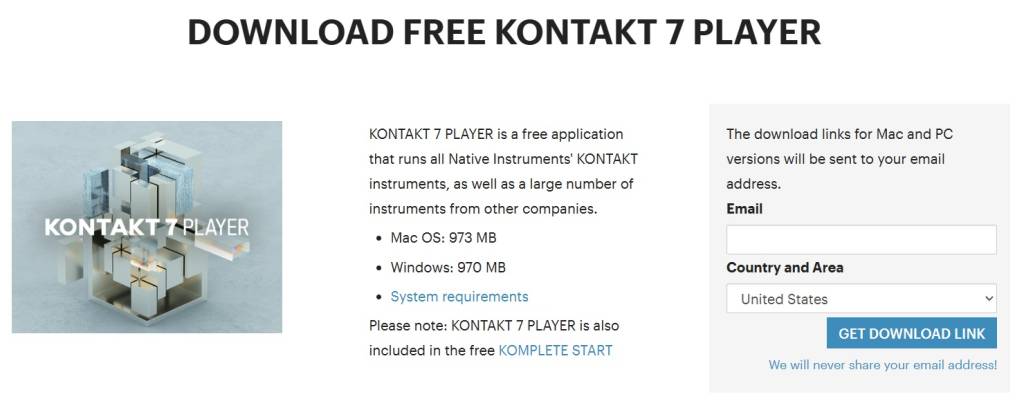
Click the image to download Kontakt Player.
Activate the Best Service License with Native Instruments
Your Best Service instrument uses the Native Instruments Kontakt player, so the license must be activated with Native Instruments.
- Log into your Native Instruments account. If you don’t have one, click Sign up now and fill out the necessary information.
- If you haven’t already, download and install Native Access.
- Launch Native Access, click Add Serial (located on the left side of the app), copy and paste your virtual instrument’s License Code from your Best Service account, then click Add Serial.
- The License Code format in your Best Service account is xxxxx-xxxxx-xxxxx-xxxxx-xxxxx.
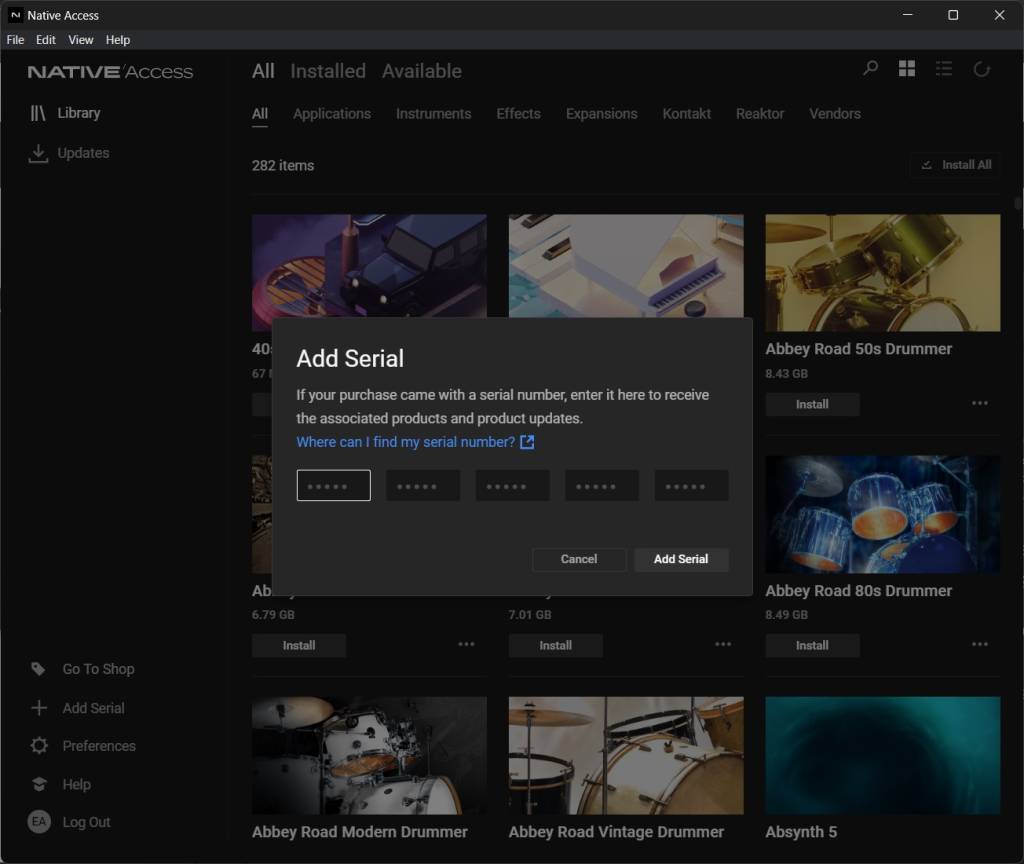
Activate the Best Service license code to Native Access.
How to Add Best Service Libraries in Kontakt
After adding the license code in Native Access, you will be prompted to select the location where you installed your libraries, as outlined in this guide’s Download the Sound Libraries section.
If you have skipped this step or have moved the libraries to a different hard drive after activating your Best Service software, you can update the location in the Preferences menu using this same procedure.
- Click Preferences.
- Select File Management, click Browse in the Content Location field, then choose the folder where you installed the Best Service library. You may need to restart Native Access to apply the changes.
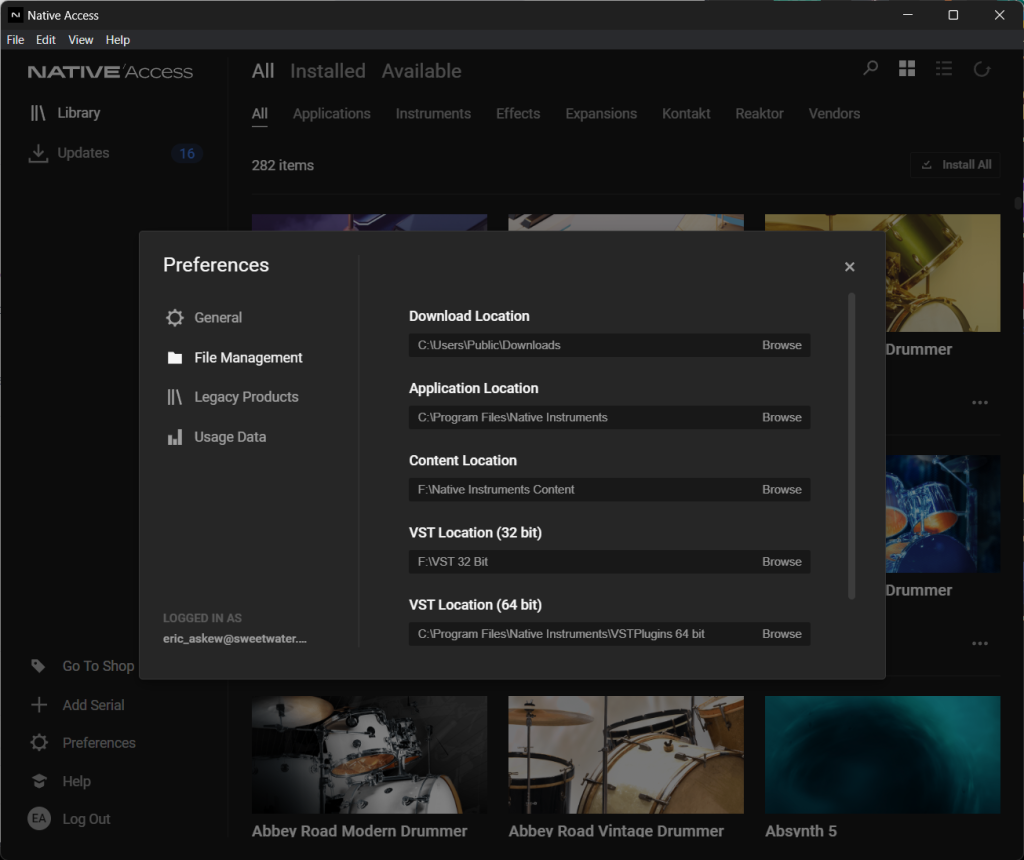
Native Access File Management window
Related Articles
When you need help, Sweetwater has the answers!
Our knowledge base contains over 28,000 expertly written tech articles that will give you answers and help you get the most out of your gear. Our pro musicians and gear experts update content daily to keep you informed and on your way. Best of all, it’s totally FREE, and it’s just another reason that you get more at Sweetwater.com.

