
Arturia AudioFuse 16Rig Quickstart Guide
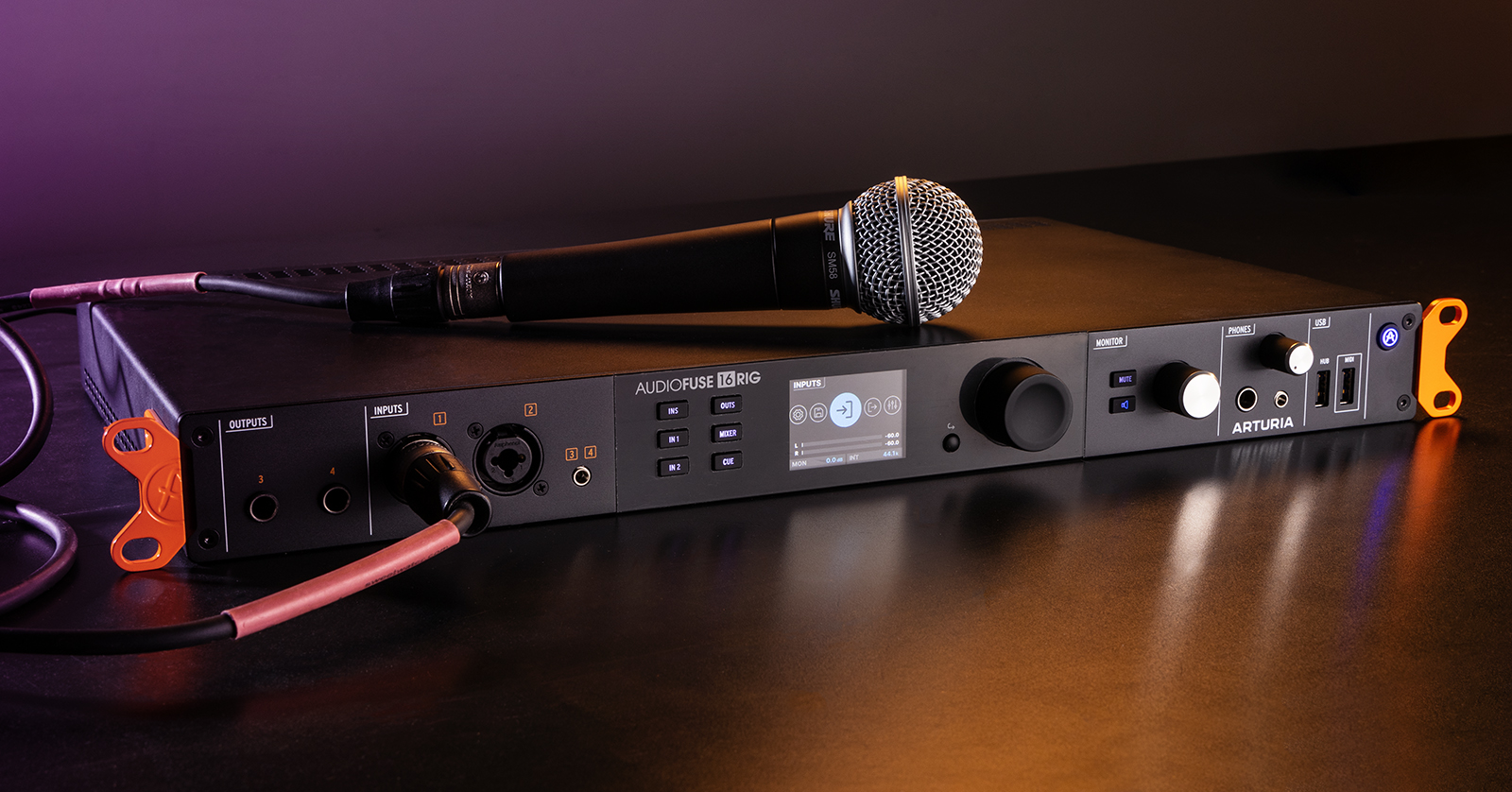
The Arturia AudioFuse 16Rig is a powerful interface, and in this guide, we will show you how to register, set up, and use the interface for the first time. Check out the user manual and video playlist tutorial for in-depth information! Follow the sections below to get started.
- Register the AudioFuse 16Rig
- Update the FIrmware
- Install the Rack Ears and Rear Supports
- Setup and Connections
- Arturia AudioFuse 16Rig Resources
Register the AudioFuse 16Rig
Before using the AudioFuse 16Rig, you must register the interface with Arturia. You can download AudioFuse Control Center and AudioFuse Creative Suite upon registration.
AudioFuse Control Center is the standalone software to lay out mixes, update routing and monitoring, and perform firmware updates. You’ll want to download this immediately.
AudioFuse Creative Suite is an effects plug-in suite that comes with your purchase and registration of the 16Rig. These high-quality effects plug-ins are great companions to your interface, so while they aren’t necessary for use, it’s most certainly handy to have them ready!
Follow these instructions to register the interface. Alternatively, visit the AudioFuse 16Rig Registration Tunnel, which will guide you through the process.
- Go to the registration page. Enter your Arturia account credentials, or, if you don’t have one yet, click CREATE ACCOUNT. Enter the necessary information.
- Enter the serial number and the unlock code located on the registration card included in the packaging. Click REGISTER.
- You can also locate the serial number and the unlock code underneath your interface.
- Once the interface is registered, AudioFuse Control Center and AudioFuse Creative Suite will appear in your Arturia account.

Click the image to register your Arturia AudioFuse 16Rig.
Update the Firmware
Arturia will release firmware updates for the AudioFuse 16Rig, often adding new features and addressing any bugs that are present in the current version. In this guide, we will show you how to update the firmware of the Arturia AudioFuse 16Rig audio interface. Follow the instructions below to get started.
- Go to the AudioFuse 16Rig resource page and look for the latest firmware version listed. While you’re on the page, click the Download button in case the firmware is out-of-date.
- Launch Arturia AudioFuse Control Center. You may receive a notification stating the firmware is out of date.
- If you don’t receive a notification, click the Gear icon, click the Firmware Update tab, and compare the installed version to the one listed on the resource page.
- If you’re online, click the Upgrade to Latest button.
- If you’re offline, click Upgrade from File, locate and choose the firmware file you downloaded in step 1.
Tutorials | ArturiaFuse Control Center – Overview
Install the Rack Ears and Rear Supports
IMPORTANT! The AudioFuse 16Rig generates heat and will need ample space for the unit to keep cool. If you’re installing it on your rack, make sure there’s an open rack space above or below it so it gets optimal airflow. Do not block the vents, either!
You can mount your AudioFuse 16Rig on your rack, or you can use it as a tabletop interface using the included supports if you don’t have a rack. Make sure you only use the included rack screws, as they’re specifically designed for the interface.
Rackmount
Use four of the included screws on each ear to install the interface in your rack. Make sure the ears are securely fastened to both the interface and the rack!
Tabletop
If you want to place the interface on your desk instead, you must install the rear mounts.
- Stick the rubber pads on the orange rack ears. The ears should be facing down and toward the center, as shown in the picture below.
- Line up the guide holes located at the bottom rear of the unit with the holes of the black supports.
- Screw them in securely, then flip the unit back around.

Install the rack ears so they are facing down and toward the center.
Setup and Connections
With your AudioFuse 16Rig now registered and installed, it’s time to get set up and connected. We’ll cover the basic connections, and more information can be found in the user manual.
Audio I/O
The AudioFuse 16Rig has plenty of analog and digital audio connections, allowing routing flexibility. Before we show you how to record, here are a few things to note.
- Inputs 1 and 2 on the front are often used for guitars and microphones.
- The interface will automatically detect when an XLR cable is connected. FRONT MIC will show on the display. Once the cable is connected, a 48V button that allows you to turn phantom power on or off will appear.
- Input 3 and 4 accept 1/8-inch (3.5mm) connections, so you can record audio from your smartphone, tablet, or any other audio device with a 1/8-inch input.
- Outputs 3 and 4 are used for extra headphones and will duplicate the signal coming out of outputs 3 and 4 on the back of the unit. You can also use these outputs for re-amping!
AudioFuse 16Rig | How To Use 4 Pairs of Headphones
USB
One unique feature of the AudioFuse 16Rig is the presence of USB-A ports on the front and back. The USB port labeled “MIDI” lets you connect MIDI controllers that do not have standard 5-pin MIDI connections. Many MIDI controllers nowadays do not have the standard MIDI connection, so this is a perfect way to incorporate them into your recording.
The USB hub labeled “HUB” works as a powered USB hub to connect external USB devices like dongles and hard drives. An additional USB hub connection on the rear of the unit has the same functionality. These ports are particularly useful if your computer or laptop has a limited number of USB ports available.
Digital I/O
The Arturia AudioFuse 16Rig offers digital audio connections specifically for ADAT and word clock. Here are a few tips about the digital I/O provided. Check out our guide about understanding digital clocking for more information!
- The ADAT ports can provide 16 additional audio channels at 44.1/48kHz or eight channels at 88.2/96kHz.
- The BNC connections are internally terminated, so no external termination is necessary.
AudioFuse 16Rig | Hardware Overview
Getting Ready to Record
Now that you know about the available connections, it’s time to get recording!
- Connect your mic, guitar, or other instrument to the front input 1 or 2. The interface will automatically detect the type of cable that’s connected.
- Press the channel button it’s connected to (if connected to input 1, press IN 1; if connected to input 2, press IN 2), sing/play at performance level, and adjust the gain until it’s set to the appropriate level.
- Use the encoder knob to scroll through different pages to adjust other settings.
- Update the inputs and outputs in your DAW, and you’re all set!
Re-amping
Another great feature of the AudioFuse 16Rig is that you can re-amp your instrument! This allows you to record a clean signal and process that clean signal through things like guitar pedals and amps. The process is simple, so check out Arturia’s video to learn how to re-amp your audio signal.
AudioFuse 16Rig | How To Reamp
Arturia AudioFuse 16Rig Resources
Arturia Tutorials | AudioFuse 16Rig Playlist
Related Articles
When you need help, Sweetwater has the answers!
Our knowledge base contains over 28,000 expertly written tech articles that will give you answers and help you get the most out of your gear. Our pro musicians and gear experts update content daily to keep you informed and on your way. Best of all, it’s totally FREE, and it’s just another reason that you get more at Sweetwater.com.

