
Zoom Q8 Quickstart Guide
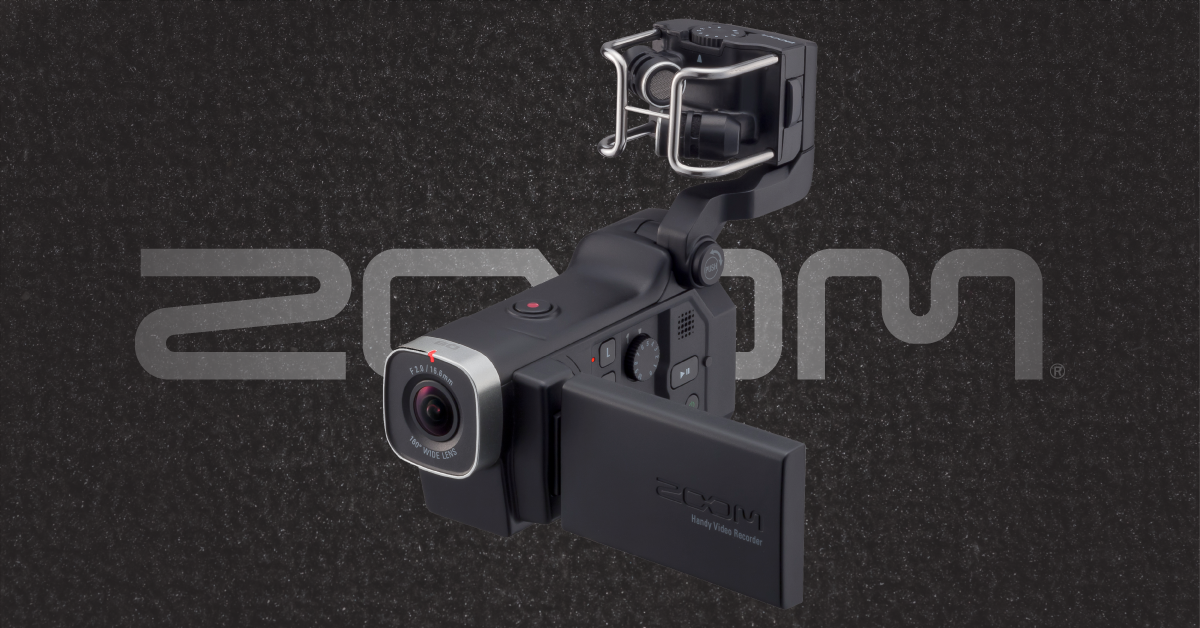
Getting started with the Zoom Q8
In this guide, we will show you how to register, set up, and use a Zoom Q8 video camera for the first time. Follow the sections below to get started.
Format the SD card on the Zoom Q8
IMPORTANT: Formatting the SD card will erase any data that is currently stored on there. Be sure that anything important has been backed up to your computer before continuing.
Before you can use the Zoom Q8, you have to format the SD card on the Q8 to work. It’s a straightforward process, so follow these steps to format the SD card on the Zoom Q8.
- Press the Menu (cog) button to enter the main menu.
- Press Setting, tap 2 located on the left side of the window, then tap SD Card.
- Press Format, then press Yes when the confirmation message appears.
- Once the SD card is formatted, the display will read Done.
Card protected error
If you insert the SD card into the Zoom Q8 and see a Card protected message on the display, take the card out of the Q8 and check the security tab on the SD card. If the switch is set to protected mode, the SD card is “locked,” so no data can be stored onto it.
Zoom Q8 SD card compatibility
If your Zoom Q8 isn’t recognizing the SD card, or you continue to receive errors, please make sure that the SD card is compatible with the device. You can check out Zoom’s compatibility list for more information.
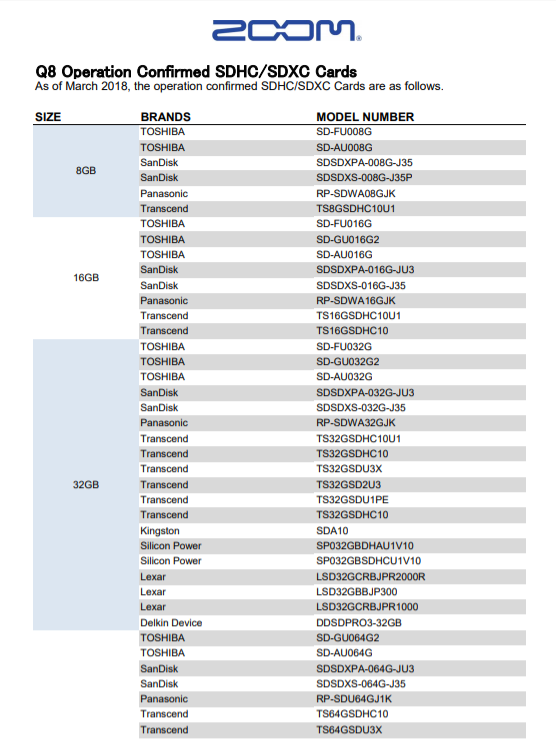
Click the image to view all SD cards compatible with your Zoom Q8
Zoom Q8 recording modes
There are four different recording modes on the Q8 video recorder: MOV, MOV+WAV, Stereo Audio, and Multi Audio. Depending on your application, you may prefer one over the others, so we’ll cover each mode, so you can determine which one will be best for your performance.
Video (MOV)
When you’re recording in MOV mode, All audio, including any external inputs (including the XLR combo jacks), will be embedded within the video file. This means no separate audio channels will be created.
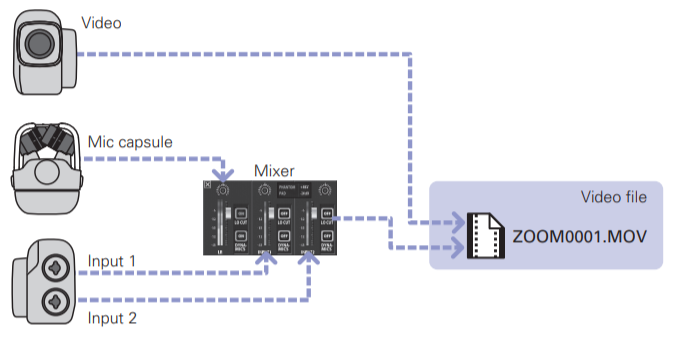
MOV mode signal flow
Video and Audio (MOV+WAV)
MOV+WAV mode is for when you want the audio to be recorded as a separate file. This mode is best suited if you plan on editing audio in post-production. Please note that when in MOV+WAV mode, you can only select either 44.1/48kHz, 16/24bit formats. Also, it can’t be output from an HDMI TV.
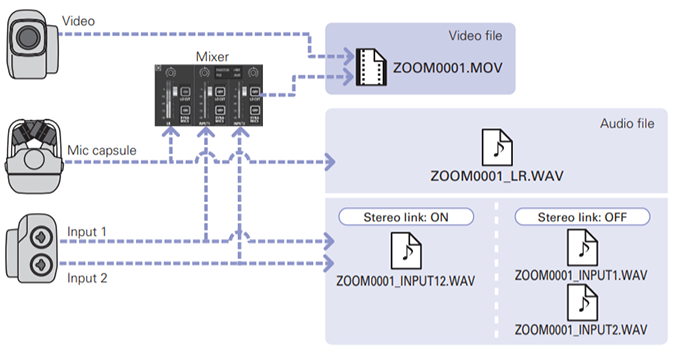
MOV+WAV mode signal flow
Stereo Audio
Stereo Audio mode will merge both the mic capsule and the external inputs into one master stereo file. While you’re in Stereo Audio mode, the video camera will be disabled.
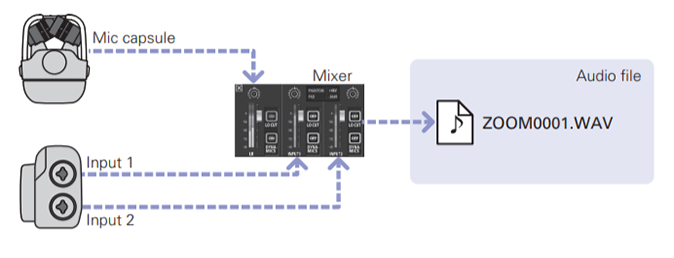
STEREO AUDIO mode signal flow
Multi Audio
While in Multi Audio mode, it will record two tracks. One from the capsule, and the other from the external inputs. If Stereo Link is enabled, it will create one stereo track from the external inputs. Please note that the audio will be recorded before passing through the mixer level and pan adjustments. Also, the names of the files created will depend on the on/off status.
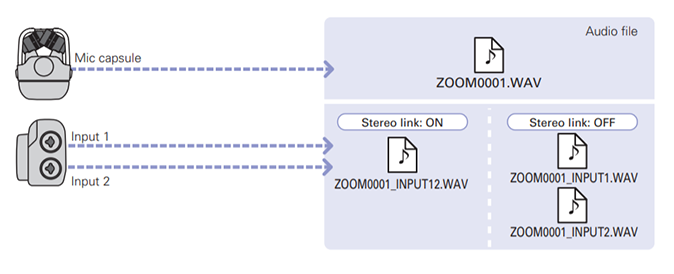
MULTI AUDIO mode signal flow
How to record using the Zoom Q8
IMPORTANT: If you receive a “Low Speed Card!” and the video stops recording, it means that your SD card’s transfer speed is not fast enough. Zoom recommends using an SD card that is Class 10 or faster. Refer to the Zoom Q8 SD card compatibility section above.
Now that you know what modes you can use, you can start recording. It’s the same process for each mode, so follow these instructions to start recording using your Zoom Q8!
- Tap the Mixer icon, begin performing and use the dials on the side to adjust the level of XLR combo jacks and the dial on the back to adjust the detachable mic capsule level.
- If the dial’s lights begin to blink red, that means you’re clipping and will need to turn the level down.
- Tap the Menu (cog) icon, then tap Recording Mode.
- Tap Create, then select one of the four record modes (interlink to H2 above).
- Tap Video and Audio to update their settings.
- Once everything is selected, go back to the main display and press the buttons of the tracks (L, R, 1, 2) you wish to record.
- To record inputs 1 and 2 as a stereo track, press both buttons at the same time.
- Press the Record button on the top to begin recording. Once you’ve finished, press the Record button to stop.
Additional resources
Zoom Q8: Firmware Update
When you need help, Sweetwater has the answers!
Our knowledge base contains over 28,000 expertly written tech articles that will give you answers and help you get the most out of your gear. Our pro musicians and gear experts update content daily to keep you informed and on your way. Best of all, it’s totally FREE, and it’s just another reason that you get more at Sweetwater.com.

