
Zoom H4n Pro Setup Guide
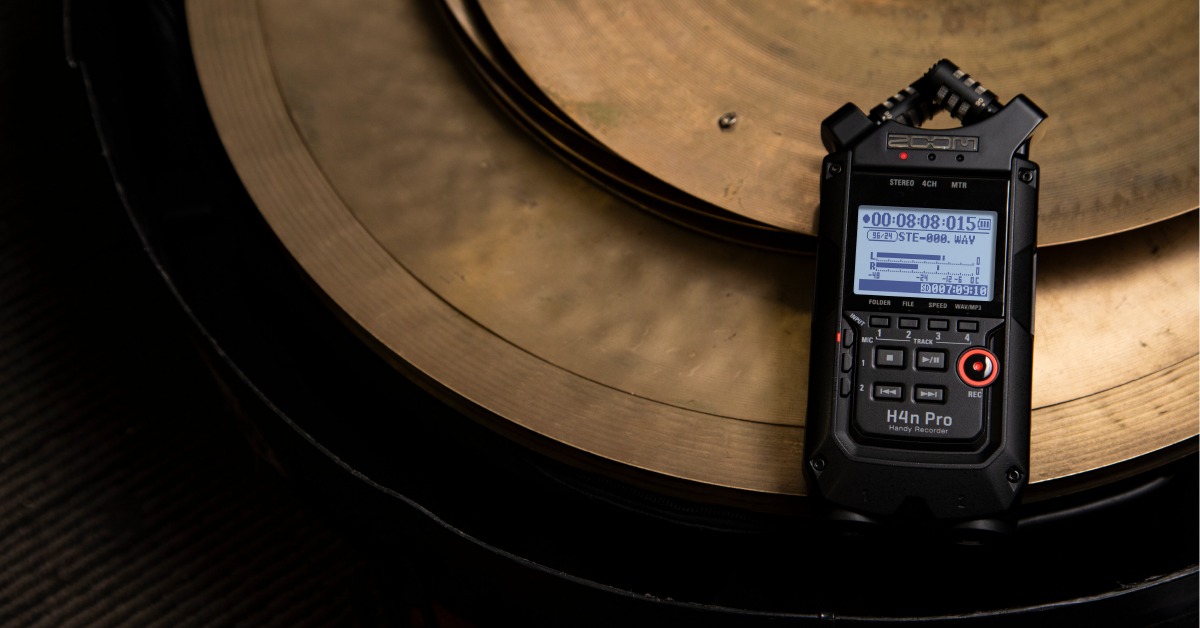
Getting started with the Zoom H4n Pro
In this guide, we will show you how to get up and running with the Zoom H4n Pro. You’ll learn how to register the Zoom H4n Pro, format the SD card, and how to record audio on the recorder. Follow the sections below to get started.
How to register the Zoom H4n Pro
Before we begin, you first want to register the H4n Pro with Zoom and also activate Cubase LE and Wavelab LE. In order to register the device with Zoom. Follow these steps to register the Zoom H4n Pro.
- Go to the Zoom product registration page.
- Fill out the required information, including the serial number which is located on the back of your Zoom H4n Pro, and then click Submit.
Format the Zoom H4n SD card
Before you can begin recording with your Zoom H4n Pro, you will need to format the SD card so it’s recognized by the unit. You can use SD cards with a 32GB storage capacity. If it is larger than 32GB, the card will not be recognized. For a full list of compatible SD cards please visit Zoom’s compatibility list and also check out the H4n manual. Follow these steps to format the Zoom H4n SD card.
IMPORTANT: Formatting an SD card erases all data, so be sure to back up any important files before formatting.
- Insert the SD card and wait for the card to be recognized by the device. It may take a few moments.
- Press the Menu button, and use the dial wheel to scroll down to SD CARD.
- Press the dial wheel to enter the SD CARD menu, select FORMAT, and then select YES.
- If you insert the SD card before turning the unit on for the first time, you will receive a message asking if you would like to format the card. Simply select YES with the dial wheel, and press it to format the card.
Why isn’t my SD card being recognized on the Zoom H4n?
If you receive a No Card error when inserting the SD card, Check the security tab on each of the SD cards. If the switch is set to protected mode then the card is locked, it won’t be read. If you are using a MicroSD card with an adapter, be sure that the MicroSD card is inserted all the way. For more information check out the Zoom H4n Pro manual.
Recording audio with the Zoom H4n Pro
There are a few different ways you can record with the Zoom H4n Pro. Either directly to the SD card, or it can be used as a standard audio interface to record audio into a DAW. Depending on the application you’ll want to choose one over the other, but you’ll first want to set the levels. If the levels aren’t set properly on your Zoom H4n Pro before recording, the audio can begin to clip or be too quiet.
Recording to an SD card
IMPORTANT: Be sure to set the level of the mics before recording on your Zoom H4n Pro. Press the RECORD button once so it flashes, and then use the Rec Level + and – buttons to adjust the microphone level.
You have three different modes you can select when recording directly to an SD card; Stereo, Four-Channel, or Multitrack. Switching between these modes make it easy for when you need to record a single audio source like a sound effect, or if you need to record your band rehearsal.
- Files are saved into folders, which you can access by pressing the FOLDER button underneath the display. If you want to change where the file is recorded, press the FOLDER button then use the dial wheel to select the new destination folder.
- Press the MENU button, use the dial wheel to navigate to MODE, and then press it.
- Select Stereo, 4CH, or MTR and then press the dial wheel to change the record mode.
- Select the input source by pressing the Mic (the H4n Pro’s built-in microphone), 1, or 2 button on the side.
- Press the RECORD button to arm the device for recording then press the RECORD button again to begin. Press STOP once you’ve completed the recording.
Phantom power
If you are connecting an external condenser microphone via the XLR combo jack, you will need to enable phantom power. To do this, press MENU, navigate to INPUT, then PHANTOM, and select +24v or +48v. Setting the phantom power to +24v will decrease battery consumption, but condenser microphones may not work as well as they should.
Plug-in power
If you are using an electret condenser microphone which is connected via the ⅛” connector on the back of the unit (such as a camera-mounted microphone), you will also need to engage plug-in power from the INPUT menu. Please refer to the microphone’s owner’s manual to confirm if it requires power.
MTR and Overdubbing
Recording to a computer with the Zoom H4n Pro
The Zoom H4n Pro can also be used as an audio interface when connected to a Mac or PC. The device is class-compliant on Mac computers, meaning no additional driver software is required. PC users, however, must download and install the H4n ASIO driver before connecting it, which can be found on the Zoom H4n download page. Follow these steps to set up the Zoom H4n Pro with your computer.
- Navigate to USB within the MENU, and then select Audio I/F.
- Select the sample rate you wish to set the device to, select Connect, and connect the device to the computer.
- PC Users: Download the Zoom H4n Pro ASIO driver here before you connect the device.
- Launch your DAW, navigate to its audio settings, and select the Zoom as the primary recording device.
- Select the input source by pressing the Mic (the H4n Pro’s built-in microphone), 1, or 2 button on the side, and then press record within your DAW to start recording.
While in USB Audio I/F mode, you can press the MENU button on the Zoom H4n Pro to change different settings. You can apply effects, turn the tuner on or off, and also toggle input monitoring, phantom power, and plug-in power. This is also where you will disconnect the device before unplugging it from your computer.
Zoom H4n Pro Firmware Update
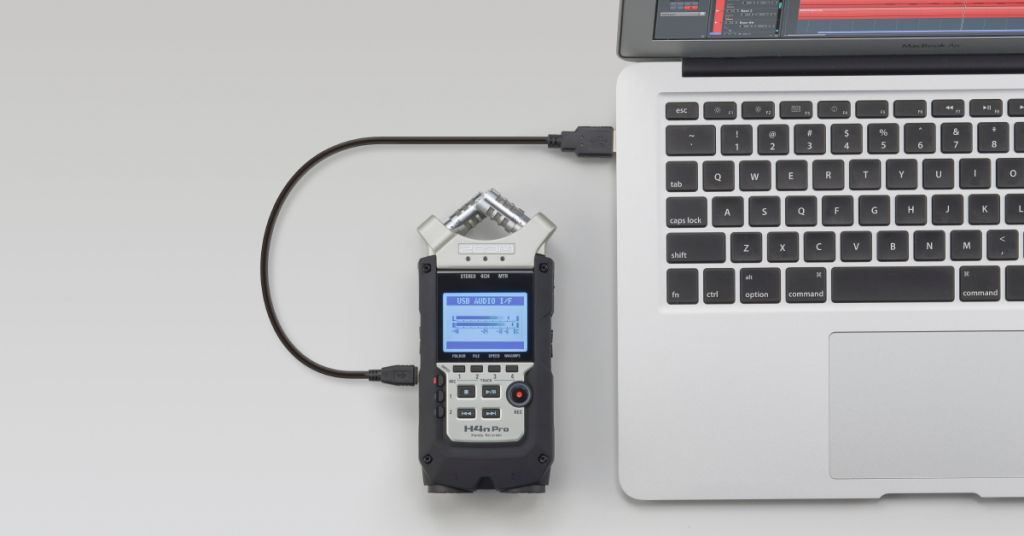
Learn how to perform a firmware update on your Zoom H4n Pro recorder.
Zoom H4n manual
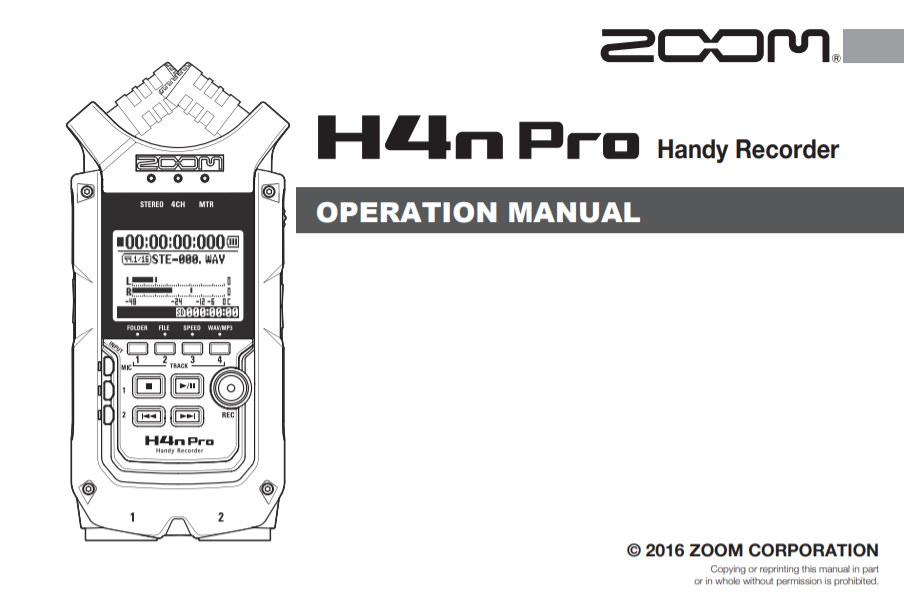
For details and troubleshooting tips on your Zoom H4n, Check out the H4n manual!
Additional resources
When you need help, Sweetwater has the answers!
Our knowledge base contains over 28,000 expertly written tech articles that will give you answers and help you get the most out of your gear. Our pro musicians and gear experts update content daily to keep you informed and on your way. Best of all, it’s totally FREE, and it’s just another reason that you get more at Sweetwater.com.

