

Yamaha Montage Performances and Live Sets
Getting started
In this guide, we will show you how to create, save, and load sounds. You’ll learn how to create different types of sounds and use them in a Performance. Follow the sections below to get started.
Parts, Performances, and Live Sets
While you can edit sounds in an infinite amount of ways, it breaks down to three things; Elements, Parts, and Performances. The Performances can then be saved to a Live Set to recall them quickly. This is particularly useful in live situations, so you don’t need to dive through the menus each time you need to change a Performance in the middle of a song. Think of a Live Set as multiple layers. Elements make up the Parts, and the Parts make up the Performance. The performances can then be used in the Live Set.
- There are three different elements; AWM2 (Used for a pitched instrument that is played over the full range of the keyboard), FMX (Synth sound), and Drum (Percussion/drum sounds that are assigned to individual notes).
- You can add up to eight Elements to a Part, and 16 Parts for a Performance.
- Learn more about using the Category and Part Search here.
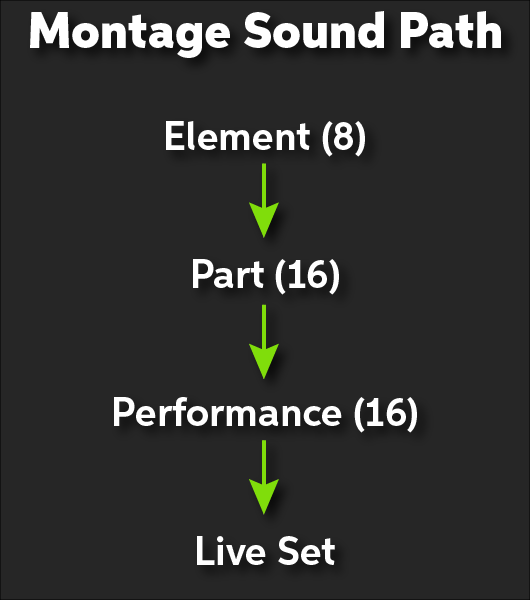
Yamaha Montage sound path.
Creating a Performance
Creating a Performance is very easy with the Montage. All you need to do is add a preset part, build one from scratch, and then save it. Follow these steps to create a new performance.
Constructing a Part
- Press the Category Search button and select the bank where the parts reside.
- Press the Sound group you wish to choose from (i.e., Piano, SynLead, Pad/Choir) and then select the part you want to add.
- If you wish to create an empty Part, press the Init button, and select the type of part; AWM2, FM-X, or Drum.
- Preset Performances often have multiple Parts, so you may need to edit them within the Performance Edit window.
- Press the Exit button to return to the Performance Edit window.
- To add more parts, press the + sign on an empty Part and repeat steps 1 & 2.
Import custom samples
You can import custom audio files such as MP3, WAV, or AIFF with a USB thumb drive connected to the USB TO DEVICE on the back of the synthesizer. Before using the thumb drive, be sure that it’s formatted correctly for FAT. Follow these steps to import a custom sample to use as a Part.
- Connect the USB drive to your computer and copy the audio file.
- Connect the drive to the Montage, navigate to the Performance Edit screen, and create an Init Part.
- Press the name of the part, press Edit, and then select the Element number you want to load it.
- Press Select Waveform, and select the audio file you wish to add. Once the file is imported, go back to the Element Edit screen, and press ON to turn the Element on.
Save a Performance
Saving custom Performances require you to go to the Utility menu. Once saved, they are stored in the Montage’s internal storage. Performances are erased when you complete firmware updates or factory resets, so always back them up as a good practice. Visit our Factory Reset or Firmware Update guide to learn how to back up your data.
Save to the Montage
- Press the Utility button or cog icon on the touch panel, and then press Contents.
- Press Store/Save, press Content Type, and select Performance.
- Press Store As New Performance, rename it and then press Done.
Save to a USB thumb drive
- Connect a USB thumb drive to the Montage and navigate to the Contents page within the Utility Menu.
- Press Store/Save, press Content Type, and select Backup File.
- Select the thumb drive that’s connected and press Done.
Inside the PERFORMANCE: Programming a Scene
Inside the PERFORMANCE: Multi-Part Performances
Inside the PERFORMANCE: Using the Super Knob
Creating a Live Set
Now that you know how to build parts and create a performance, the last thing to do is load Performances to create a Live Set. The Montage comes with 16 preset Live Sets, but there are eight user banks of 256 live sets, meaning you can have a total of 2,048 User Live Sets! You can toggle through live sets via the touch panel, the navigation buttons on the side, or if you use an FC5 foot pedal, you can assign it to toggle which is very useful during live sets. Follow these steps to create a new Live Set.
- Press the Live Set button, press the Down arrow in the Bank section to select User, and use the Up and Down arrows to select the Live Set page.
- Press Category Search, and navigate to the Performance you wish to add.
- With the sound selected, hold the SHIFT button and press Live Set.
- Press the slot you wish to add the Performance to, and then press Enter.
Save a Live Set
Saving a Live Set is similar to saving a Performance. However, it will be saved to a Library, which means all user Live Sets will be combined into one folder and can only be saved onto a USB thumb drive. Follow these steps to save a Live Set to a Library folder.
- Connect a USB thumb drive to your Montage.
- Press the Utility button, and navigate to the Contents page.
- Select Store/Save and choose Library File from the Content Type box.
- Press Library File, give the file a unique name and then press Done.
- Press Store/Save, choose Content Type and select Backup File to back up all User Content on the Montage.
Additional Yamaha Montage resources
- Performance Basics and the Live Set: Part 1
- Performance Basics and the Live Set: Part 2
- Mastering MONTAGE: Montage USER and LIBRARY Files
Related Articles
When you need help, Sweetwater has the answers!
Our knowledge base contains over 28,000 expertly written tech articles that will give you answers and help you get the most out of your gear. Our pro musicians and gear experts update content daily to keep you informed and on your way. Best of all, it’s totally FREE, and it’s just another reason that you get more at Sweetwater.com.

