
Working with External Instruments in Cubase
In this guide, we will show you how to set up and configure external instruments in Cubase. Follow the sections below to get started.
Getting ready to record
NOTE: You must use Cubase Pro if you want to utilize external MIDI instruments in Cubase. Other Cubase versions (Artist, AI, Elements, and LE) do not have this capability.
After making the audio and MIDI connections described in the Basic Connections article, you’ll need to adjust a few settings in Cubase before you’re ready to record.
- Open the Studio menu, choose Audio Connections, then the External Instruments tab.
- Click Add External Instrument.
- In the new window that opens, give your external instrument a name (e.g., Roland TD-50 module)
- This will help you keep your project organized, especially if you plan to use more than one external MIDI instrument.
- Choose the number of Mono and Stereo returns.
- For example, if your external MIDI instrument is connected to the audio interface with a single cable, you would choose one mono return. If your external instrument is connected to the audio interface with two cables, you would select one stereo return.
- Click Associate MIDI Device and select your MIDI device. If you are using a direct USB connection from your external MIDI device to the computer, you will choose the name of your external MIDI instrument.
- If you connect the external MIDI instrument to a MIDI interface with MIDI cables, you will select the name of your MIDI interface.
- Click OK. You will now see your new external MIDI instrument listed in the bottom part of the External Instruments window.
- Click into the Device Port Column and then select the input(s) on your audio interface to which your external MIDI instrument is connected.
- For example, if you connected the audio cables from your external instrument to inputs 3 and 4 on the interface, you would choose inputs 3 and 4.
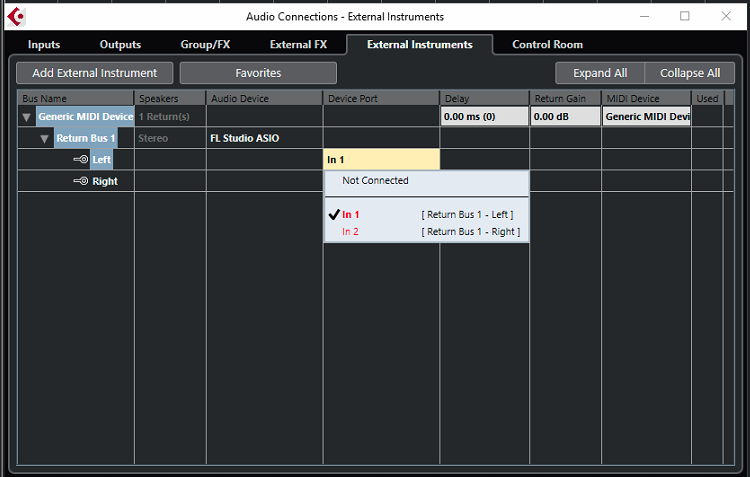
Selecting the number of sends and returns
Add the external instrument to your project
The next thing you need to do is add the external instrument to your project by creating, then naming the new instrument track.
- Open the Studio menu and choose VST Instruments. Alternatively, use the F11 hotkey to open the same window.
- Click the Add Track Instrument button located to the right of the track’s record button.
- Select the name of the external instrument you created in the previous section.
- External instruments are indicated by an X icon in the list next to their names in the Instrument pop-up menu.
- Click Add Track.

Recording
The new track added to your project will now behave exactly like any other VST instrument in Cubase. When it is armed for recording, it will respond to MIDI notes sent from your MIDI controller, and you can record MIDI into the track just like any other software synth. From this point, you have two options.
Option 1
You can leave the track as it is (MIDI data on a VST instrument track) in the project, and the MIDI will be converted to audio along with all your other tracks when the project is exported as an Audio Mixdown.
Option 2
You can freeze the track, which will convert the track to an audio track. Freezing the track is very easy.
- Open the VST Instruments window (F11).
- Locate the Freeze Icon (snowflake) next to the name of your External Instrument and click it.
- Choose Freeze Instrument Only.
- That’s all there is to it. This basic recipe can be followed to record any external MIDI instrument in Cubase.
Related Articles
When you need help, Sweetwater has the answers!
Our knowledge base contains over 28,000 expertly written tech articles that will give you answers and help you get the most out of your gear. Our pro musicians and gear experts update content daily to keep you informed and on your way. Best of all, it’s totally FREE, and it’s just another reason that you get more at Sweetwater.com.

