
UVI Software Activation Instructions
Getting started
In this guide, we will show you how to register and install UVI software. Follow each of the sections below to get started. Visit UVI’s Getting Started page for more information about activating UVI software.
- Create an iLok account
- Download UVI Portal
- Register serial number
- Activate iLok license
- Install UVI software
Create an iLok account
UVI software is licensed with an iLok. That means to use it, you will need to connect its iLok license to your computer. If you don’t already have an iLok account, you’ll need to create one and install the iLok License Manager app. Follow the steps below to get started. If you already have an account, pass these steps and continue to Download UVI Portal. Learn more about iLok licensing in our iLok Setup Guide.
Create an iLok account during registration
You can also create an iLok account through UVI when registering your software’s serial number.
- Visit iLok’s registration page and complete the registration form. Take note of your User ID and password.
- Open the iLok Account Activation email and click on the verification link.
- Download and install the iLok License Manager.
- Launch the iLok License Manager app and sign in to your iLok account.
- (optional) Connect an iLok and when prompted, click Yes to register it to your account.
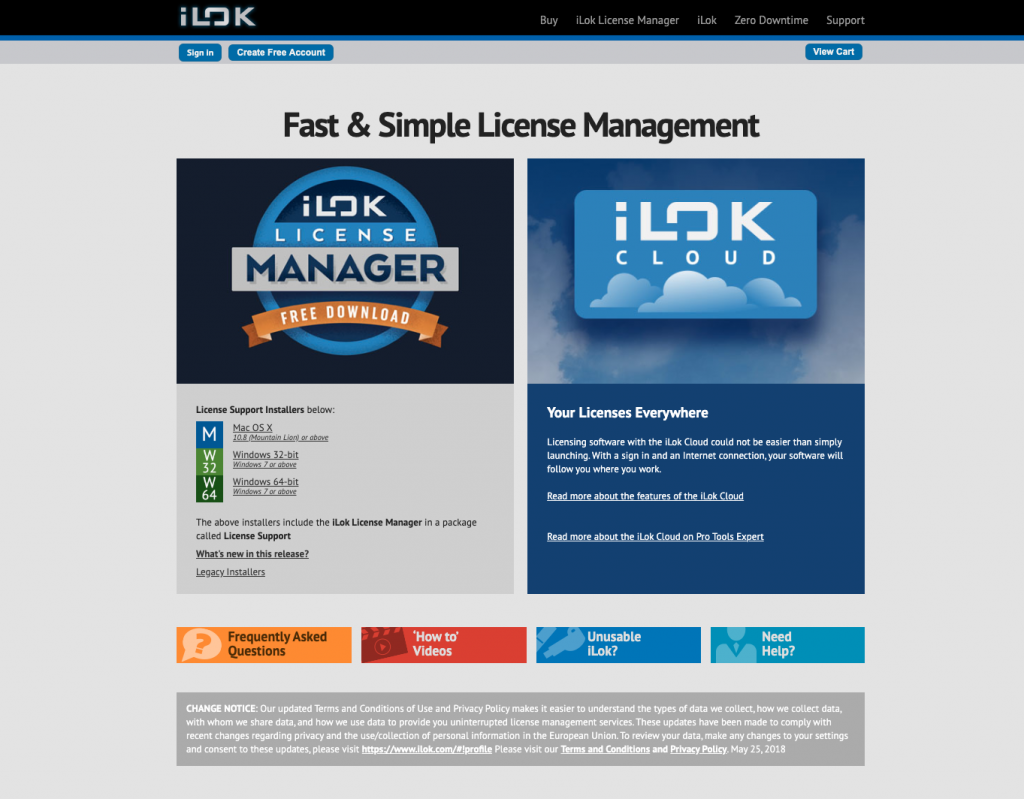
Download the iLok License Manager app from iLok.com.
Download UVI Portal
You’ll need a UVI account and the UVI Portal app to get your new software. New users will need to create a new account, but if you already have one just continue using the same login. Follow the steps below to log in to your UVI account and install the UVI Portal.
- Create a UVI account or log in with your current one.
- Go to the UVI Portal page and click the download button for your operating system.
- Open the Downloads folder and launch the installer:
- PC: Double-click the UVI Portal .exe file and follow the on-screen instructions.
- Mac: Double-click the UVI Portal .dmg file. In the window that appears, drag the UVI Portal icon to the Applications folder.
- Launch the UVI Portal and sign in.
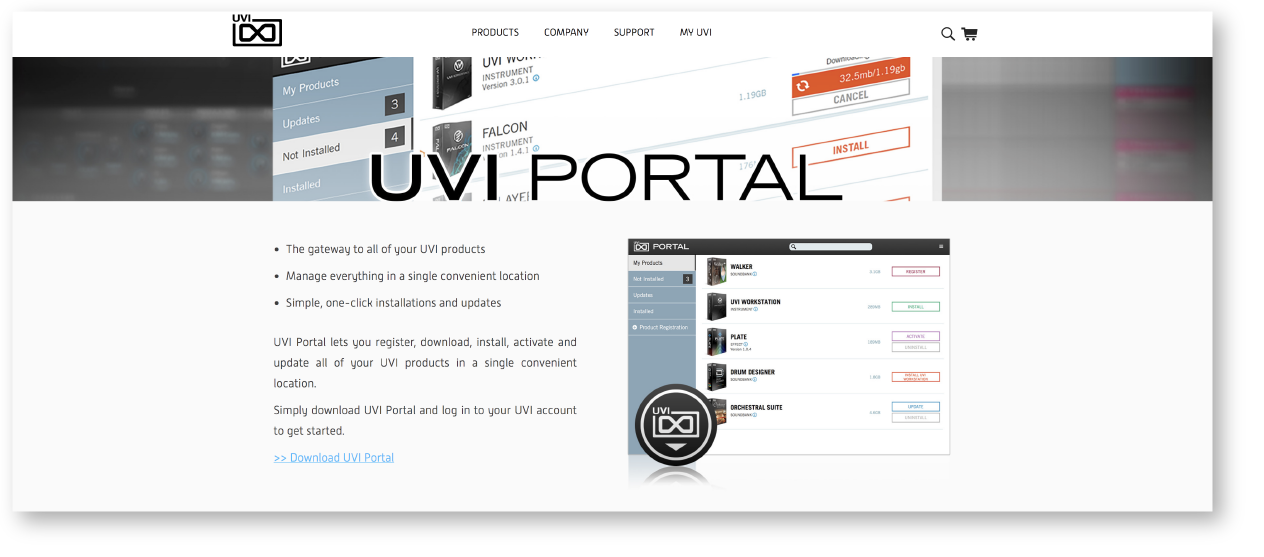
Go to the UVI Portal download page.
Register serial number
Your software is registered via the UVI Portal. You’ll need the Serial Number sent from your Sweetwater Sales Engineer. Open the email, find the Serial Number, and then enter it into the UVI Portal. You also need enter your iLok information to receive the license. Make sure to enter the correct iLok User ID. Once registered you’ll be able to download your software.
- Copy the Serial Number in the Software Activation Instructions email.
- In the UVI Portal, click the Product Registration tab.
- Paste the Serial Number and click OK.
- Click I already have an iLok account and enter your iLok User ID (from Create an iLok account).
- Agree to UVI’s EULA by checking the box and then click Register.
Register your Serial Number with the UVI Portal.
Activate iLok license
Once you have registered your Serial Number(s) with UVI, an iLok License will be deposited to your iLok account. Log in to the iLok License Manager app and move the license from your account to either the computer or a connected iLok USB dongle.
- Sign in to the iLok License Manager and click the Available tab.
- Locate your license and drag it to either your computer or a connected iLok USB dongle.
- Wait for the license to transfer to complete and click OK.
Transferring an iLok license to your computer.
Install UVI software
UVI SoundBanks are .ufs files which can be loaded into the UVI Workstation (free) or Falcon. That means to get the software working you’ll need both the player and the SoundBank. The UVI Portal will take care of installing SoundBanks to the specified paths, but SoundBank locations can be reconfigured in the UVI Workstation Preferences (Menu > Preferences > SoundBanks). Download the player and then all affiliated SoundBanks.
If your UVI software is not a soundbank, such as a stand-alone instrument or effect plug-in, the software will be located in your applications folder or as a plug-in in your favorite DAW. Regardless of which product you have, all UVI software can also be downloaded from the UVI My Products page and then installed manually. Learn more about installing UVI software.
- By default, your UVI SoundBanks will be installed to :
- PC: Program Files > UVISoundBanks
- Mac: Library > Application Support > UVISoundBanks
- To change the install location, such as to an external hard drive:
- Click the top-right menu and select Preferences….
- Click the folder button and then create and select the new folder.
- Click the Not Installed tab to view available downloads.
- Click the Install button to begin the download and installation.
Additional resources
UVI Workstation Overview
When you need help, Sweetwater has the answers!
Our knowledge base contains over 28,000 expertly written tech articles that will give you answers and help you get the most out of your gear. Our pro musicians and gear experts update content daily to keep you informed and on your way. Best of all, it’s totally FREE, and it’s just another reason that you get more at Sweetwater.com.

