
sonible Software Activation Instructions
In this guide, we will show you how to register, download, and activate your sonible software for the first time. Follow the instructions below to get started.
Create sonible and iLok acounts
To register, download, and activate your Sonible plugin(s), you first need to create a Sonible and, if desired, an iLok account.
Sonible
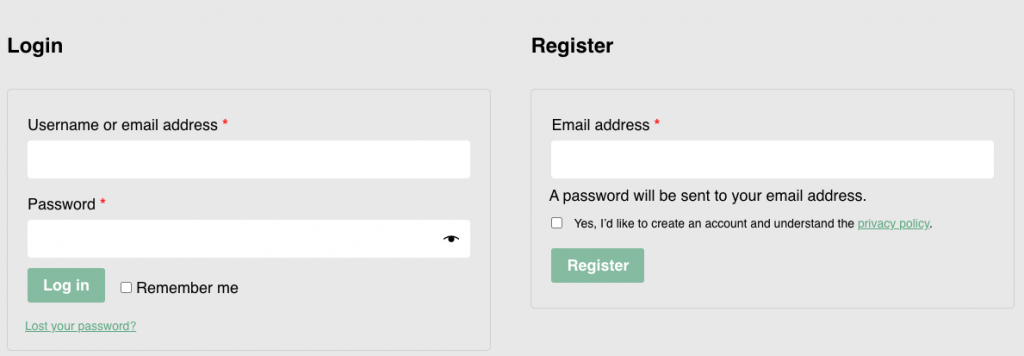
The first step is to create an account with sonible. If you already have an account, log in using your account credentials and skip to iLok.
- Go to the Sonible home page, then click My Account.
- Check your email, as sonible will send you a randomly generated password.
- Open the email sonible sent and click Activate My Account. This will take you to your sonible account home page.
- To change your password, click Account Details, copy and paste the password sent into the Current Password field.
- Enter a new password, then click Save Changes
iLok (optional)
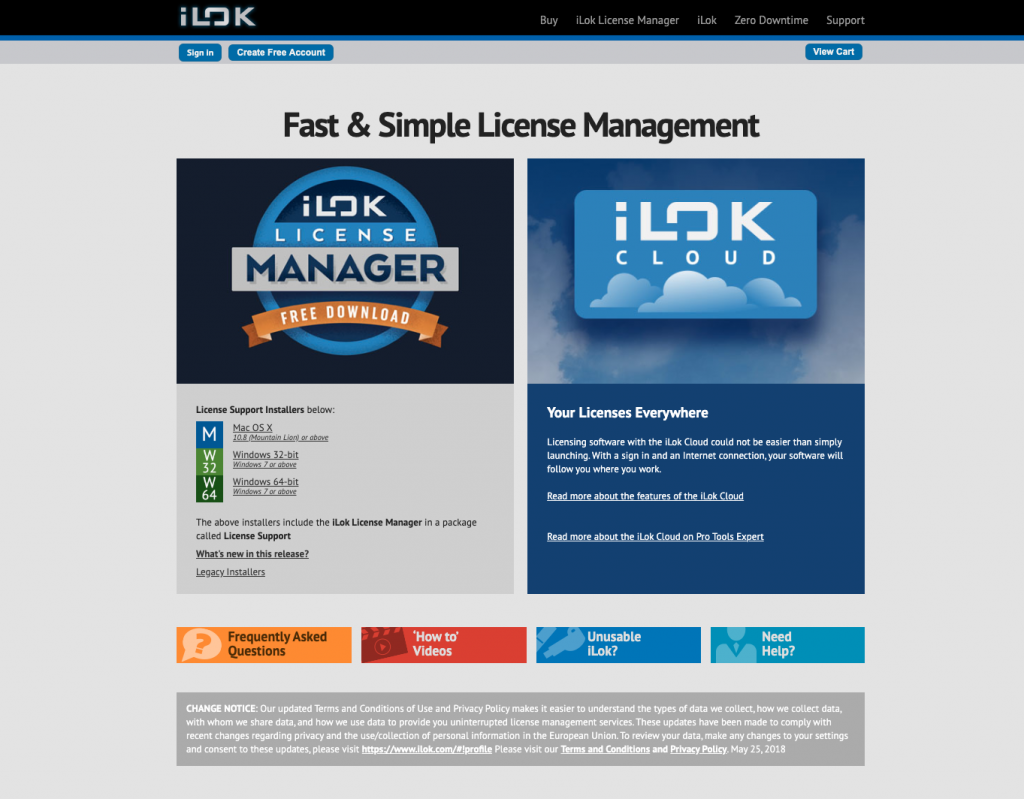
You can activate sonible software with an iLok. If you choose to activate your sonible account to iLok, you’ll need to create an iLok account and install the iLok License Manager app. Follow the steps below to get started. If you already have an account or choose not to use iLok, pass these steps, and continue to register the plug-in. Check out our iLok Setup Guide for more information.
- Visit iLok’s registration page and complete the registration form.
- Please take note of your User ID and password, as they are case-sensitive.
- Open the iLok Account Activation email and click on the verification link.
- Download and install the iLok License Manager.
- Launch the iLok License Manager app and sign in to your account
- (Optional) Connect an iLok and click Yes to register the dongle to your account when prompted.
Register the plug-in
Once your Sonible and iLok accounts have been created, the next step is registering the plug-in with Sonible using the license key you received from your Sweetwater Sales Engineer. Follow these steps to register the plug-in.
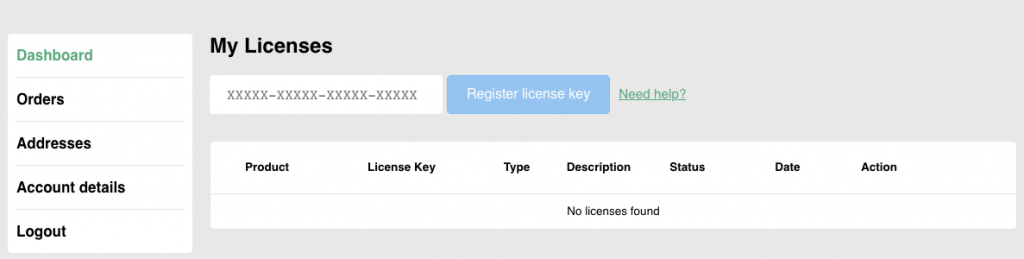
- Go to your sonible account home page.
- Copy and paste the license key from the email you received from your Sweetwater Sales Engineer.
- Click Register license key to complete the registration process.
Registering sonible plug-ins to your iLok account
You can activate your sonible plug-in on two different computers using the same license key. You can also transfer one of the activations to your iLok account. Follow these steps to activate the plug-in via iLok.
- After registering your product in the instructions above, click the green transfer to iLok.
- In the window that appears, enter your iLok user ID.
- Make sure that you enter the iLok user ID exactly as you created it, as you cannot undo the license transfer.
Download and install
After registering the plug-in, You’ll need to download and install your sonible process. The process is simple.
- Once the product appears in your account, click the green Download link, then select the latest installer for your OS.
- Navigate to your Downloads folder, then navigate and launch the plug-in installer.
- Pay attention to where your plugins are installed, as you may need to add the folder path in your DAW for them to be listed. Check out our guide about plug-in paths and plug-in formats for more information!
Activate the plug-in
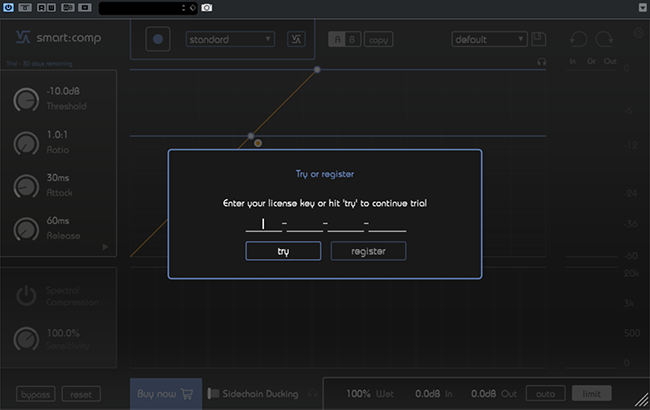
The final step in the process is to activate your software. If you activate the plug-in via iLok, no additional steps are necessary. However, if you choose not to use iLok, you must enter the license key you received from your Sales Engineer.
- Launch your DAW and insert the Sonible plug-in on an audio track.
- When the activation window appears, copy and paste the license key you received from your Sweetwater Sales Engineer.
- Enjoy your new software!
When you need help, Sweetwater has the answers!
Our knowledge base contains over 28,000 expertly written tech articles that will give you answers and help you get the most out of your gear. Our pro musicians and gear experts update content daily to keep you informed and on your way. Best of all, it’s totally FREE, and it’s just another reason that you get more at Sweetwater.com.

