
Roland TR-06 Setup Guide
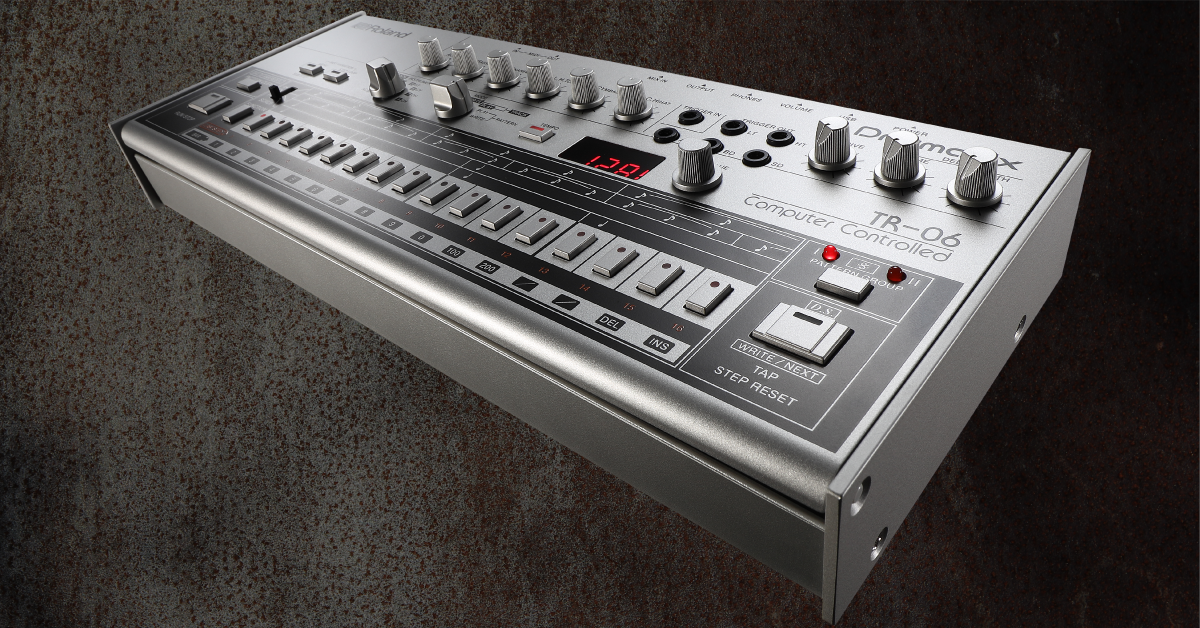
In this guide, we’ll show you how to register the Roland TR-06, go through its setup and connections, and also how to make a drumbeat. Follow the sections below to get started.
Register the TR-06
Before we dive into setting up your TR-06, the first thing to do is register the product with Roland. By registering the TR-06, you’ll gain access to Roland’s product support, an extended warranty, training videos, and clinic information. Follow the steps below to register and then continue to TR-06 setup and connections.
- Log in to your Roland Backstage account. If you don’t have one yet, you can create one here.
- Roland will then send an account activation email to the registered email address to complete the account creation process.
- On your account home page, click My Gear and select Register a Product.
- Fill out the required information, including the serial number located on the bottom of the TR-06, and click Register.
- Keep your Sweetwater invoice handy, as you will need to enter the purchase date, method, and Dealer (Sweetwater).
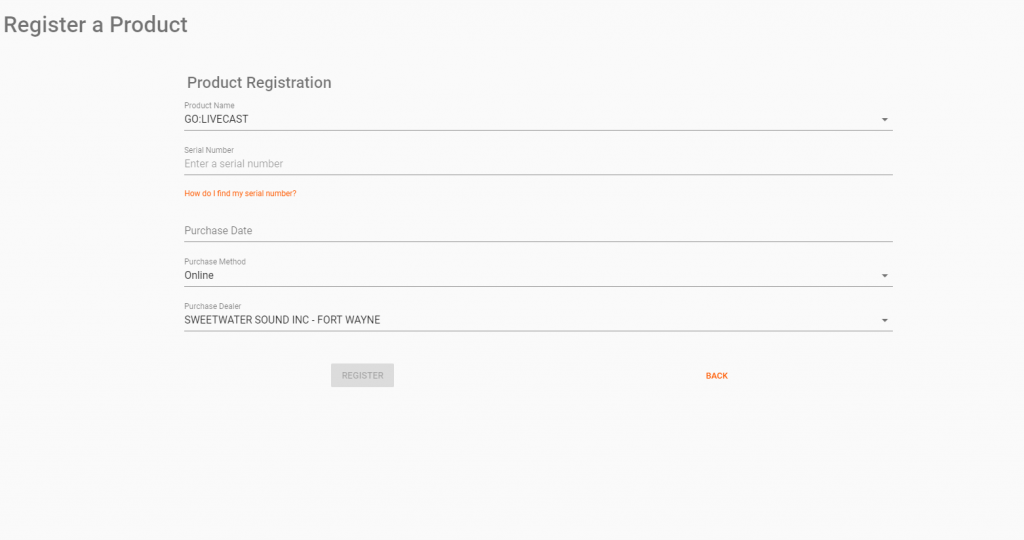
Click the image to register the Roland TR-06
TR-06 setup and connections
The Roland TR-06 is a faithful update to the Roland TR-606 with a few modifications. It has more hardware connections, but it also has a few internal tweaks, including multiple samples for each drum. Let’s go over some setup and connections.
MIDI
One way to connect the TR-06 to external hardware is via 5-pin MIDI cables. For the TR-06 to control the external gear, connect a MIDI cable from the MIDI OUT port on the TR-06 to the MIDI IN port on the external device. If you want to have external hardware control the Roland TR-06, connect a 5-pin MIDI cable from the MIDI OUT on the external hardware to the MIDI IN of the TR-06.
USB
IMPORTANT: Roland recommends that you not use a micro-USB cable that is only designed for charging, as those cables can’t transmit data.
While four AA batteries can power the TR-06, it can also be powered via the USB port. You can also connect the TR-06 to your computer to send audio and MIDI data. For the TR-06 to work correctly with the computer, you’ll need to download the TR-06 driver.
Audio
There are three stereo audio jacks on the TR-06. All three have ⅛-inch connections, so if you’re connecting to something with a ¼-inch jack, you’ll need to use an ⅛-inch to ¼-inch adapter.
- PHONES (for headphones)
- OUTPUT (for monitors, speakers, amplifiers)
- MIX IN (connecting external audio output)
Trigger
IMPORTANT: Make sure only to use mono cables. Stereo cables will not work correctly.
These ⅛-inch MONO connections are for syncing with external gear that you want to trigger. When you connect something to the TRIGGER IN jack, the TR-06 clock is bypassed and will instead be triggered by the external device receiving the trigger pulse. When connecting to one of the drum’s sound jacks (LT, HT, BD, SD), the external gear will be triggered whenever that note is triggered on the TR-06. The drum sample will still play.
If you connect something to the AC jack, the external synth will be triggered to wherever the accent is placed. You can change the AC source at any time. The AC sources include an accent, beginning of a pattern (HEAD), end of a pattern (End), cymbal (CY), OH (OH), or CH (CH).
- MENU, turning the VALUE knob until you see tr. AC, then press the WRITE/NEXT button.
- Use the VALUE knob to select the AC source, then press the WRITE/NEXT button again to go back to the menu.
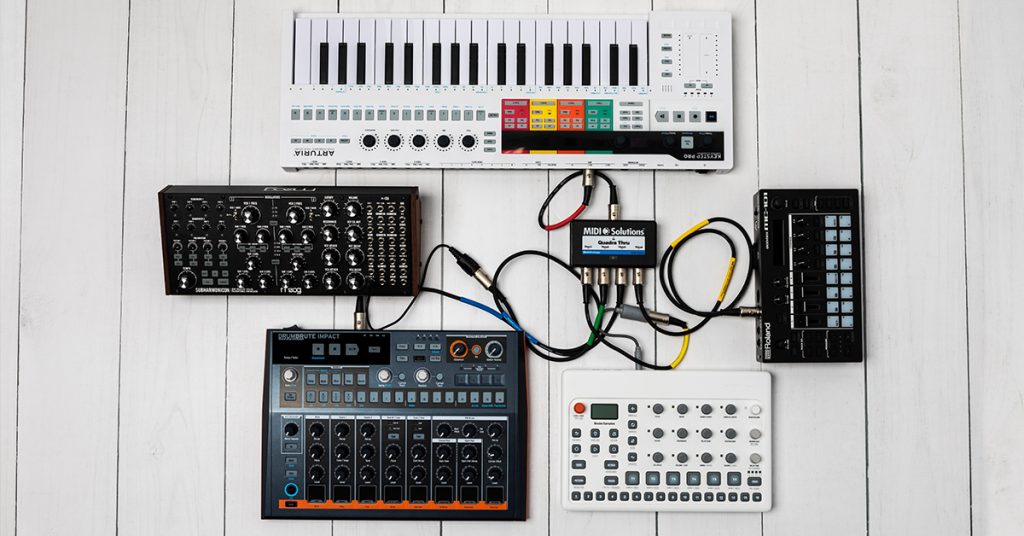
Learn more about how to sync your MIDI devices together!
How to create a beat on the TR-06
The TR-06 has eight tracks, and you can create 128 patterns (beats) per track. In the pattern, you can change parameters such as dynamics, specify the scale, copy and shuffle patterns, and set the probability (the probability a note would play. Adjusting this setting truly gives you a unique beat!). We’re only scratching the surface in this guide, so be sure to check out the TR-06 manual for more details!
- Turn the TRACK/PATTERN knob and set it to the track’s WRITE mode.
- Press and hold the FUNCTION button and use the VALUE knob to adjust the length of the pattern.
- Use the TRACK/INSTRUMENT (1-8) knob to select the track you want to record your pattern.
- TRACK/PATTERN knob and set it to the pattern’s WRITE mode.
- Use the TRACK/INSTRUMENT knob to select the instrument you want to record.
- Press the RUN/STOP button, then use the step (1-16) buttons to enter the note.
Change sound parameters
Unlike its older sibling, the TR-606, it has parameters that you can alter to make your track sound truly unique. Some of these parameters include the type of delay and distortion used, editing the attack and tone, and even being able to change the instrument altogether! For a full list of parameters and their descriptions, check out the Menu Settings section of the TR-06 manual.
Change effects parameters
- Use the TRACK/INSTRUMENT knob to select the instrument you want to update.
- Press the MENU button, then use the VALUE knob to select the parameter you wish to change.
- Press the WRITE/NEXT button and use the VALUE knob to change the value of the parameter.
Change the instrument
- Press and hold the MENU and STEP LOOP buttons until InSt appears on the display.
- Press the number of the corresponding instrument you want to change. The numbers are indicated by the black box in the TRACK/INSTRUMENT section.
- Press MENU to exit out of the instrument selection.
Related content
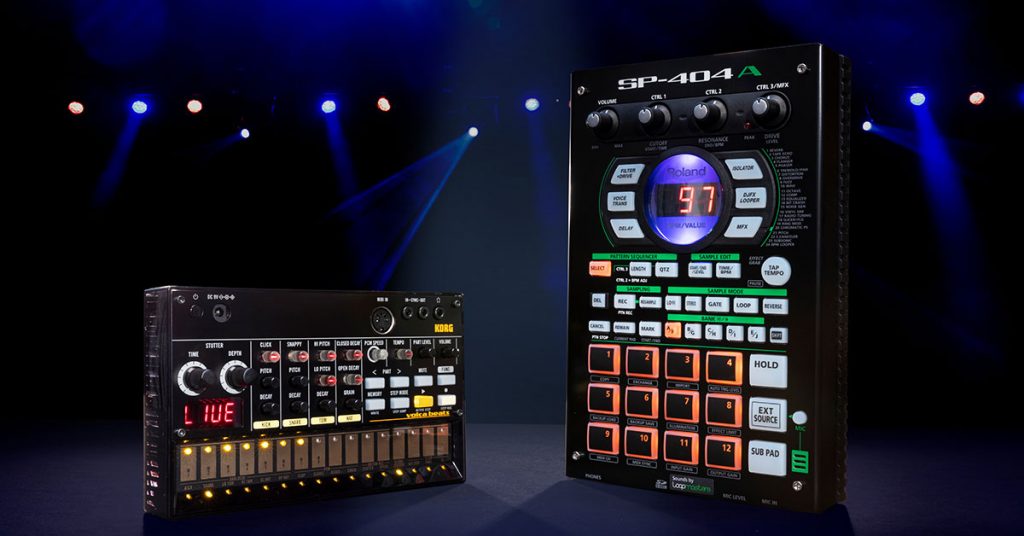
Learn more about the differences between drum machines and samplers!
Additional resources
Roland Boutique TR-06 Drum Machine Overview (Part 1 of 2)
Roland Boutique TR-06 Drum Machine Overview (Part 2 of 2)
When you need help, Sweetwater has the answers!
Our knowledge base contains over 28,000 expertly written tech articles that will give you answers and help you get the most out of your gear. Our pro musicians and gear experts update content daily to keep you informed and on your way. Best of all, it’s totally FREE, and it’s just another reason that you get more at Sweetwater.com.

