
Roland TD-27 Quickstart Guide
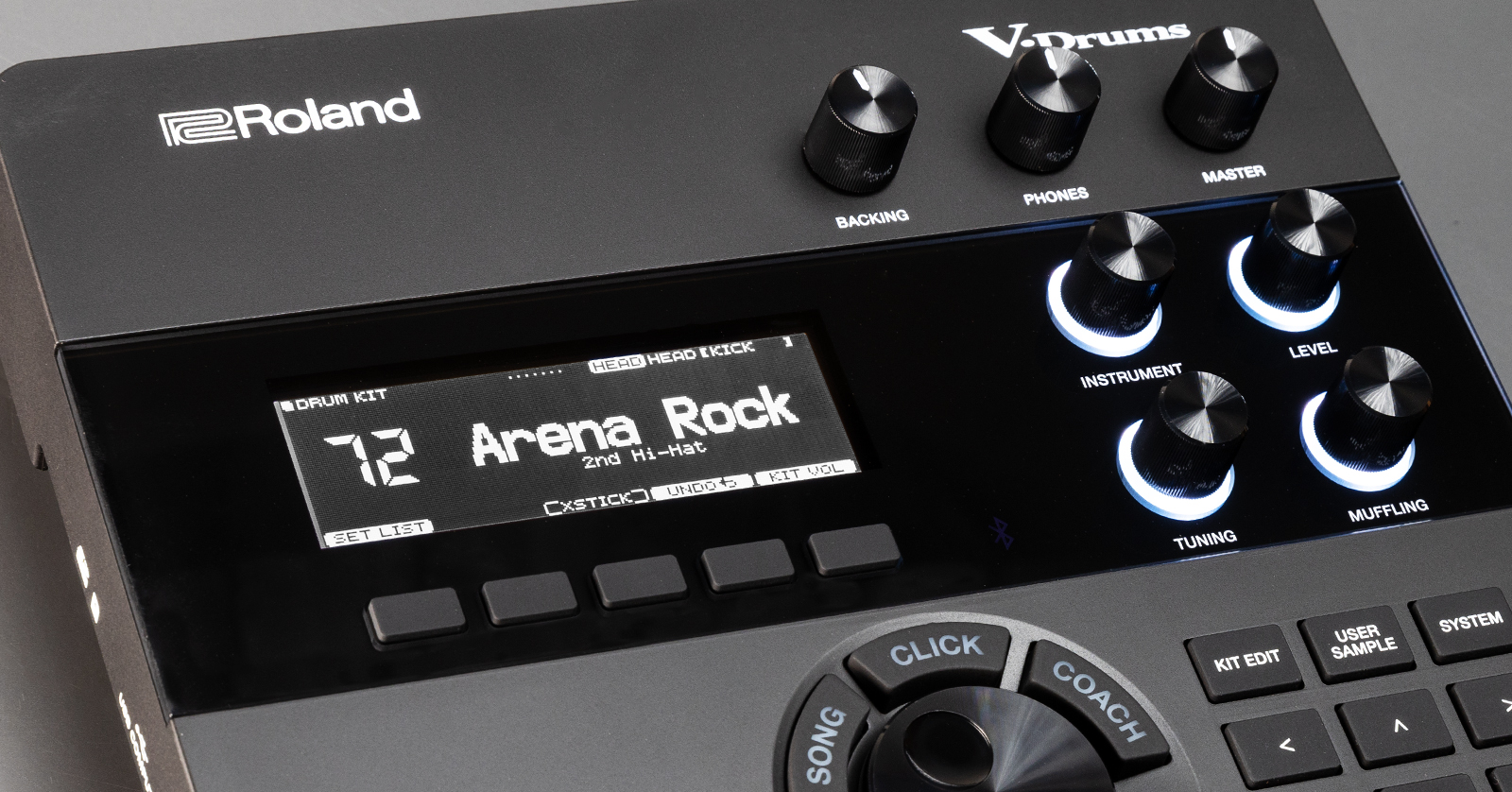
The Roland TD-27 is a great electronic drum kit to use both in the studio and onstage. In this guide, we will show you how to register, set up, and use it for the first time. Follow the sections below to get started. Also, be sure to check out the TD-27 Quick Start guide and Reference Manual for more information!
Register the Kit
When you take the kit out of the box, you must first register the TD-27 with Roland. After registering the module, you can access Roland’s product support, an extended warranty, training videos, and clinic information. Follow the steps below to register your TD-27.
- Log in to your Roland Backstage account. If you don’t have one yet, then you can create one here.
- Roland will then send an account activation email to the registered email address so you can complete the account creation process.
- Check your spam folder if you don’t see the email.
- On your account home page, click My Gear and select Register a Product.
- Fill out the required information, including the serial number on the drum module, and click Register.
- Keep your Sweetwater invoice handy, as you must enter your purchase date, purchase method, and dealer (Sweetwater).
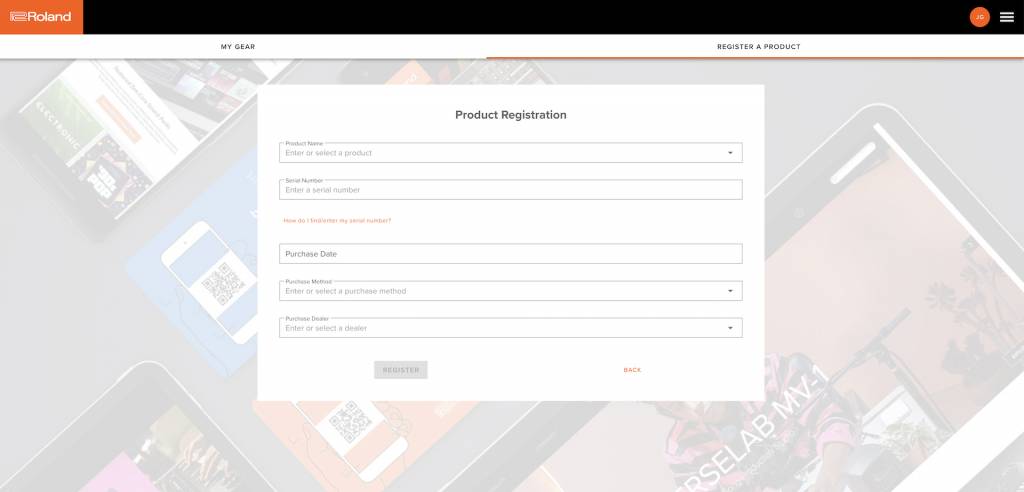
Click the image to log in and register your TD-27KV2.
Update the Firmware
Roland will periodically release firmware, often adding new features and addressing any bugs in the current version. Visit our guide below to learn how to update the Roland TD-27 module’s firmware.
C2A:
Roland TD-27 Firmware Update Guide
Setup and Connections
Setting up your TD-27 is simple. Follow the included assembly instructions and make the connections from the pads to the module. Here are a few tips when setting up your kit.
- Use hook-and-loop cable straps to secure the cables to the rack. Doing this makes your kit look clean, and you won’t have to worry about tripping over any cables!
- Make sure to leave a little slack in case you need to adjust anything.
- The USB-A (Digital Trigger In) ports on the back are for Roland PD-140DS, CY-18DR, and VH-14D digital pads.
Calibrate the Hi-hat
When you first set up your TD-27 kit, you must calibrate the hi-hat so that it functions properly. Check out our calibration guide to learn more!
Connecting to a Computer
IMPORTANT: You must change the driver mode before connecting the module to your computer. Updating the settings while the module is connected can result in the module not functioning correctly.
You can connect the TD-27 to your computer to record MIDI data and the sounds from your module. Depending on your application, you will need to change the Driver Mode.
- Go to the TD-27 support page and download the latest driver for your OS.
- Power on your module, press SYSTEM, and use the cursor buttons to navigate to USB AUDIO.
- Highlight Driver Mode to switch between Generic and Vendor.
- Generic is for recording MIDI only.
- Vendor allows you to record both MIDI and USB (module) audio.
- Turn the module off, turn it back on, and then connect the module to your computer.
How to Use the TD-27
Now that everything is set up and connected, it’s time to adjust the pad settings on your TD-27. While the factory settings are a great starting point, every drummer is different, so updating the settings will ensure you get the most out of the kit!
Optimize the Pad Settings
The factory-default pad settings on your TD-27 are great. However, not all drummers are the same, so you may need to optimize the sensitivity, threshold, gain, and crosstalk settings. Adjusting these settings will ensure you get the best performance possible.
- Press the SYSTEM button, use the cursor buttons to select TRIGGER, then press ENTER.
- Use the cursor buttons to select PARAM then press ENTER.
- Strike the pad you want to adjust, use the cursor buttons to highlight the parameter you wish to change, then use the main knob to adjust its value.
Change the Pad Sample
The TD-27 has over 700 factory sound samples, and you can assign any one of those samples to any kit and pad you want!
- Press the DRUM KIT button, use the main knob to select a kit, then strike the pad you wish to edit.
- Use the INSTRUMENT knob to change the sound sample.
- Use the LEVEL, TUNING,and MUFFLING knobs to adjust the sample parameters then press the DRUM KIT button to exit to the main screen.
Roland TD-27 Resources
Related Articles
When you need help, Sweetwater has the answers!
Our knowledge base contains over 28,000 expertly written tech articles that will give you answers and help you get the most out of your gear. Our pro musicians and gear experts update content daily to keep you informed and on your way. Best of all, it’s totally FREE, and it’s just another reason that you get more at Sweetwater.com.

