
ProjectSAM Software Activation Instructions
How to use this guide
In this guide, we will show you how to register, install, and activate your new ProjectSAM software. Follow the instructions below to get started.
Register the product
The first step in the activation process is to register and download the product with ProjectSAM. You’ll need to create an account with ProjectSAM and use the challenge code provided by your Sweetwater Sales Engineer. Follow these steps to complete the registration.
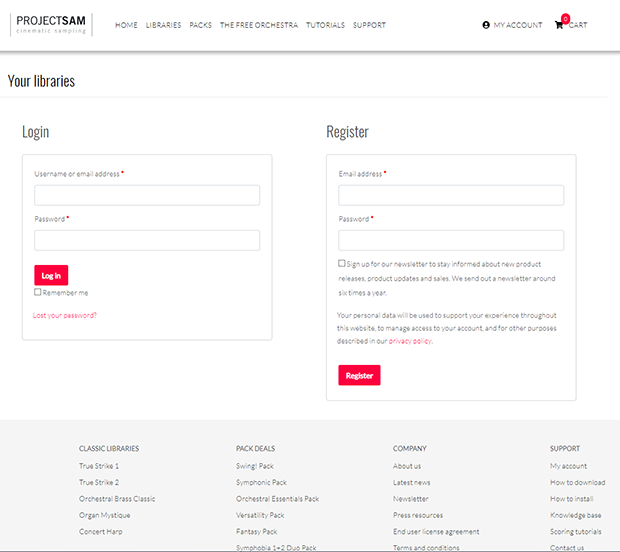
- Log in to your ProjectSAM account. If you’re creating an account for the first time, you must complete your account profile before registration.
- On the main page of your account, copy and paste the challenge code you received from your Sweetwater Sales engineer, then click Register library.
Download the libraries
The next step in the process is to download the sound libraries for your product. The library downloads are located in the Your libraries section of your account. Please note that the files are large, so download times may vary. We recommend installing them to a unique folder (e.g., ProjectSAM libraries) on a dedicated solid state or 7,200 RPM external hard drive, but your internal hard drive will work, too. Follow the steps below to download your libraries.
A note on .rar files
Some ProjectSAM libraries are split up into multiple RAR files. You will need a third-party extraction tool such as 7zip for PC and The Unarchiver for Mac. The library .rar files are numbered (part 1.rar, Part 2.rar, etc.) Only extract Part 1.rar; the rest will automatically extract.
- Click Your libraries on the left side of the account page, then download the .zip file(s).
- Open your Downloads folder, and extract the library files to a folder of your choice.
- PC: Right-click the library .zip file, select Extract all…, and then click Extract.
- Mac: Double-click the plug-in .zip file to extract.
Download & install Kontakt
Once you have successfully registered and downloaded your product, the next step is to create a Native Instruments account to download Kontakt Player and Native Access. ProjectSAM uses Native Instrument’s Kontakt player; a free host plug-in which you need to use some third-party libraries. Without Kontakt, you will not be able to trigger your sample libraries.
- Download & the latest version of Kontakt Player.
- Download & install the latest version of Native Access.
- Launch the Native Access app and log in using your Native Instruments account credentials. If you haven’t created one yet, you can do so through the Native Access app.
Activate & add your library
The final step in the authorization process is to activate and link your new library through Native Access. You will need to activate the serial number which can be found on your account page. This is not the challenge code you received from your Sweetwater Sales Engineer. Follow these steps to complete the authorization process.
- Launch the Native Access app, and click Add Serial located on the left side of the screen.
- Copy and paste the serial number from your ProjectSAM account page, then click Add Serial.
- Click Not Installed, choose Add New Library, and navigate to the location you extracted your sample library to. It will turn green and you’ll receive an Installed notification.
- Launch the Kontakt Player app or insert it as a virtual instrument in your DAW, and select your ProjectSAM instrument from the browser column on the left.
When you need help, Sweetwater has the answers!
Our knowledge base contains over 28,000 expertly written tech articles that will give you answers and help you get the most out of your gear. Our pro musicians and gear experts update content daily to keep you informed and on your way. Best of all, it’s totally FREE, and it’s just another reason that you get more at Sweetwater.com.

