
Pro Tools Workspace & Soundbase Reset
Overview
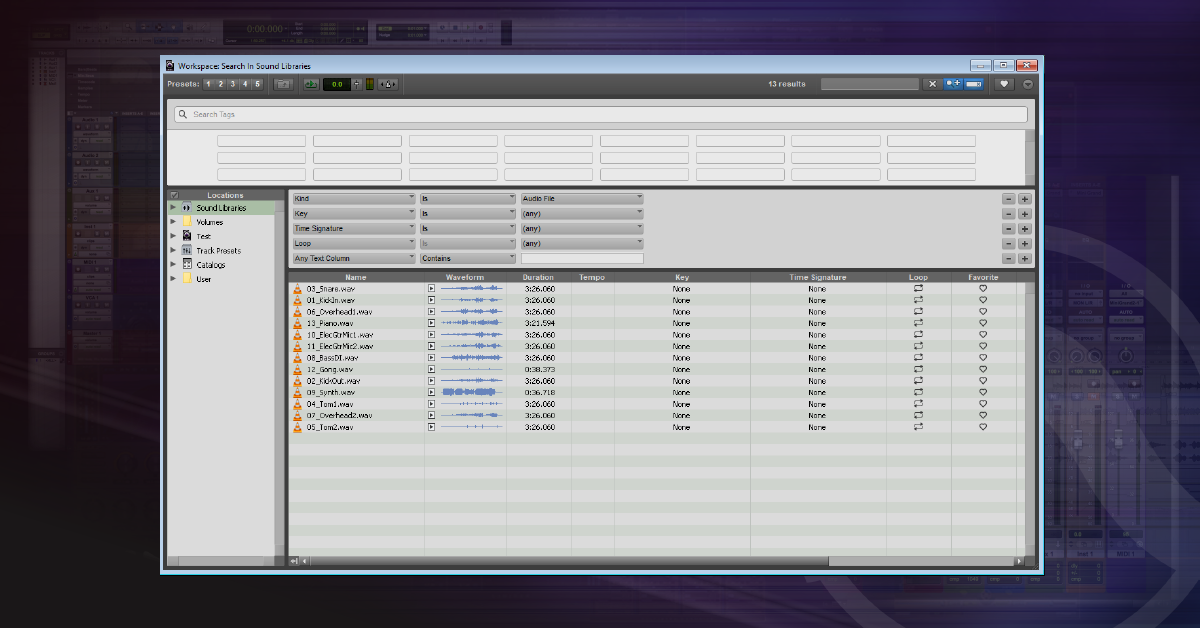
In this article we will show you how to you ‘reset’ a part of Pro Tools by deleting its Workspace & Soundbase preference files on Mac and PC. This helps Pro Tools get back to normal when the Workspace window does not appear to be functioning properly. Visit Avid’s Pro Tools’ Workspace and Soundbase blog post for more information about using the Workspace and Soundbase.
BACKUP YOUR WORKSPACE FILES BEFORE DELETING!
Trashing the Pro Tools Workspace preferences will reset all catalogs & library paths you may have created. Before deleting any of the folders as instructed below, copy the folder into a new folder on your Desktop called “Pro Tools Workspace Backup”. Returning these files back to where they were or replacing a newly created set of preferences will return Pro Tools to its past state.
Reset Pro Tools Workspace Preferences
Trash Workspace & Soundbase Preference Files for Mac
Pro Tools 11, 12, and 2018
1. Close Pro Tools and launch Finder.
2. Click Go and select Go to Folder…
3. Enter /Users/Shared/Pro Tools and click Go.
4. Delete the Pro Tools folder.
5. Restart your computer and launch Pro Tools.
Pro Tools 10
1. Close Pro Tools and launch Finder.
2. Click Go and select Go to Folder…
3. Enter /Library/Application Support/Avid/Pro Tools and click Go.
4. Delete the Databases folder.
5. Restart your computer and launch Pro Tools.
Deleting the Pro Tools 2018 Workspace preferences on Mac.
Trash Workspace & Soundbase Preference Files for Windows
Pro Tools 11, 12, and 2018
1. Close Pro Tools.
2. Hold the Windows ( ) key on your keyboard and press R.
3. When the Run window appears, type %public% and press OK.
4. Delete the Pro Tools folder.
5. Restart your computer and launch Pro Tools.
Pro Tools 10
1. Go to your Start menu and click on Computer.
2. Double-click the C:\ drive and open Program Files (x86)\Avid\ Pro Tools\Databases\Unicode.
3. Delete the Volumes folder.
4. Restart your computer and launch Pro Tools.
Deleting the Pro Tools 2018 Workspace preferences on PC.
Helpful Links
Pro Tools 12 System Requirements
How to Activate & Authorize Avid’s Pro Tools 12 & 2018
How to Download and Install Avid’s Pro Tools 12 & 2018
How to Configure Pro Tools 12 & 2018 Audio & MIDI Settings
How do I trash my Pro Tools preferences?
When you need help, Sweetwater has the answers!
Our knowledge base contains over 28,000 expertly written tech articles that will give you answers and help you get the most out of your gear. Our pro musicians and gear experts update content daily to keep you informed and on your way. Best of all, it’s totally FREE, and it’s just another reason that you get more at Sweetwater.com.

