

Pro Tools says “hardware is in use by another system” and won’t start!
- Article #1720720
- Published on Sep 30, 2013 at 3:42 PM
When you launch Pro Tools, hold the “N” key when you see the splash screen. This will force the Playback Engine settings to open before Pro Tools can open. Once the Playback Engine settings open, select your interface and click OK. Pro Tools should now open successfully.
If that doesn’t work, try uninstalling, then reinstalling the drivers for your interface.
If you’re running Windows, make sure your interface is NOT set as the default playback and recording device. You can change this setting from Sound settings.
You may also need to disable Sound Exclusive Mode. Sound Exclusive Mode allows a particular application to take exclusive control over your audio interface. This can cause issues with Pro Tools. To disable it, follow the steps below:
Disable Sound Exclusive Mode (Windows only)
1. Click on the Windows Start button and choose Control Panel.
2. Choose Sound.
3. Within the Sound settings, select your device and click Properties.
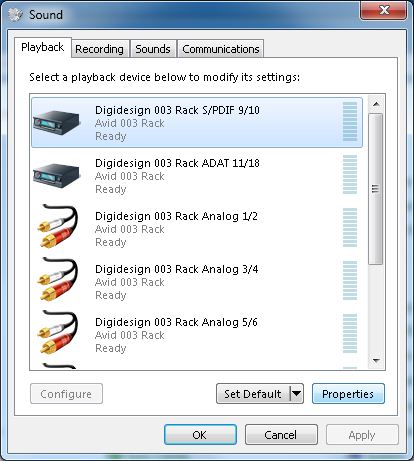
4. Within the Properties window, navigate to the Advanced tab. Then, make sure you uncheck the two boxes under Exclusive Mode.

5. Do this for all devices under the Playback and Recording tabs in Sound Settings.
When you need help, Sweetwater has the answers!
Our knowledge base contains over 28,000 expertly written tech articles that will give you answers and help you get the most out of your gear. Our pro musicians and gear experts update content daily to keep you informed and on your way. Best of all, it’s totally FREE, and it’s just another reason that you get more at Sweetwater.com.
 Knowledge Base
